
Checked November 8, 2026 · Label: Local
Short answer: yes, a Windows laptop with no graphics card can run a local LLM, and for drafting, summaries and questions about your own documents it is perfectly usable. The rules are different from a gaming PC, though. Your memory does the heavy lifting instead of a graphics card, so pick a model of about 2 to 4 billion parameters, keep the download under 5GB on a 16GB machine, expect somewhere between 5 and 20 words a second depending on how fast your memory is, and plug the laptop in. Everything below is about getting those numbers rather than the 1 or 2 words a second people hit when they download the biggest model that fits.
This guide follows one reader: someone with a two-year-old Windows 11 laptop, 16GB of RAM, an Intel or AMD processor with built-in graphics and no separate GPU. They want a private assistant for letters, summaries and the odd question about a PDF, and they are not buying a new computer for it. For the Mac version of this question see Windows, Mac or Linux for local AI; for a Windows PC that does have a graphics card, our Windows local LLM guide is the better start.
What "no GPU" means for a language model
Every laptop has graphics of some kind, so the phrase needs unpacking. A dedicated graphics card has its own fast memory, called VRAM, and a model that fits in it runs quickly. Your laptop instead has integrated graphics built into the processor, sharing ordinary system RAM. So whichever app you use, the model file is loaded into RAM and the processor reads through all of it for every word it writes.
That is why speed on a CPU is set by memory bandwidth, not by how many cores you have. A llama.cpp developer's performance notes put it directly: "For CPU inference especially the most important factor is memory bandwidth", and on dual-channel memory "just 5 threads are enough to fully utilize the memory bandwidth" (llama.cpp performance testing). The same reasoning appears in Ollama's own issue tracker: "text generation is limited by memory bandwidth, rather than compute, and so using the full # of cores usually isn't faster" (ollama/ollama issue 2929).
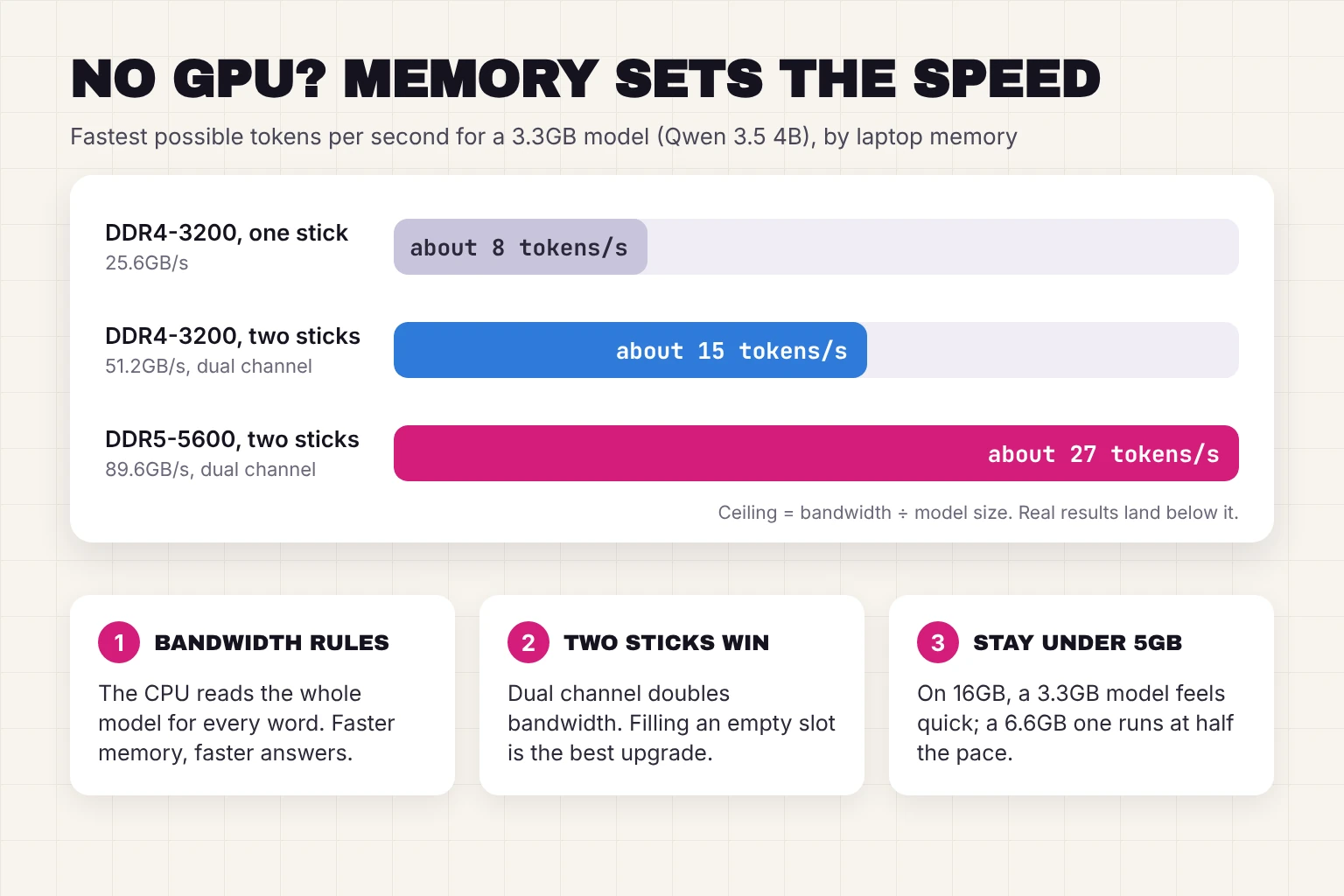
A rough ceiling follows from that. Divide your memory bandwidth by the size of the model file and you get the most tokens per second the laptop could ever produce; real results land below it. A token is about three-quarters of an English word (OpenAI help center).
| Laptop memory | Peak bandwidth, two channels | Ceiling for a 3.3GB model (Qwen 3.5 4B) | Ceiling for a 6.6GB model (Gemma 4 E4B) |
|---|---|---|---|
| DDR4-3200 | 51.2GB/s (25.6GB/s per module) | About 15 tokens/s | About 8 tokens/s |
| DDR5-5600 | 89.6GB/s (44.8GB/s per module) | About 27 tokens/s | About 14 tokens/s |
| One memory stick only | Half of the above | About 8 tokens/s on DDR4 | About 4 tokens/s on DDR4 |
Per-module figures from ADATA (DDR4-3200, 25.6GB/s) and Kingston (DDR5-5600, 44.8GB/s per module, two channels per processor). Ceilings are our arithmetic: bandwidth divided by file size. Thin laptops with soldered LPDDR5X memory sit anywhere in this range depending on the chip, so check your model's spec sheet.
Takeaway: a laptop with a single 16GB stick is twice as slow at this as the same laptop with two 8GB sticks. If your machine has a spare slot, that upgrade helps more than anything in software. Our memory formula guide explains the other half, which is how much RAM the model and its conversation need.
What speed to expect
Published numbers are scarce for exactly this kind of machine, so treat the table as a range, not a promise. The first group ran Ollama with Llama 3.2 3B, a 2.0GB download; the second ran llama.cpp with Llama 2 7B at Q4_0, a 3.8GB file, through the integrated graphics. For scale, 10 tokens a second is about 7 words a second, quicker than you could read the answer aloud.
| Machine | Ran on | Model | Tokens/s | Source |
|---|---|---|---|---|
| Mini PC, Intel N150, 16GB | CPU | Llama 3.2 3B | 9.1 | ai-benchmarks |
| Framework 13 laptop, Ryzen AI 5 340, 16GB | CPU | Llama 3.2 3B | 23.8 (51W peak) | ai-benchmarks |
| Dell XPS 13, Intel Core 5 3201 | Integrated graphics | Llama 3.2 3B | 23.9 (14W peak) | ai-benchmarks |
| Laptop, Intel Core Ultra 7 155U, 32GB DDR5 | CPU | Qwen 2.5 1.5B at Q4 | About 22 | User report, April 2026 |
| Same laptop | CPU | Qwen 2.5 7B at Q3 | About 3.6 | Same report |
| Intel Core Ultra 200-series laptop chip | Integrated graphics, Vulkan | Llama 2 7B at Q4_0 | 24.4 | llama.cpp Vulkan thread |
| AMD Ryzen AI 300-series laptop chip | Integrated graphics, Vulkan | Llama 2 7B at Q4_0 | 22.4 | Same thread |
| AMD Ryzen 7000-series chip | Integrated graphics, Vulkan | Llama 2 7B at Q4_0 | 19.9 | Same thread |
| Intel 10th-generation Core chip | Integrated graphics, Vulkan | Llama 2 7B at Q4_0 | 4.3 | Same thread |
Community measurements, not our tests. The Vulkan thread's author warns that "for integrated graphics note that the memory speed and number of channels will greatly affect your inference speed", which is the bandwidth rule again.
Two patterns matter for our reader. First, the jump from a 1.5B or 3B model to a 7B model costs most of your speed: 22 tokens a second became 3.6 on the same laptop. Second, chips from the last two or three years, with DDR5 or LPDDR5X memory, land near 20 tokens a second on small models, while older chips with DDR4 land nearer 5 to 10. Both are workable; only the second needs patience.
Which models fit, and which to try first
On a 16GB laptop, Windows, your browser and the app itself want a few gigabytes, and the conversation needs room too, so aim for a model file under about 5GB and treat 7GB as the ceiling. Download sizes below are from Ollama's library, and each tag runs in LM Studio and Jan as a GGUF file as well.
| Model | Download | Good for | Fits | Ollama command |
|---|---|---|---|---|
| LFM3 1.7B | 1.1GB | Fast notes and rewrites; "takes about 1 GB of memory, so it fits on any phone or laptop" | 8GB and up | ollama run lfm3 |
| Llama 3.2 3B | 2.0GB | The model in most of the speed tests above; plain chat | 8GB and up | ollama run llama3.2 |
| Qwen 3.5 2B | 2.7GB | Chat plus images, 256K context | 8GB and up | ollama run qwen3.5:2b |
| Qwen 3.5 4B | 3.3GB | Our pick for 16GB: the best writing quality that still feels quick on a CPU | 16GB | ollama run qwen3.5:4b |
| Gemma 4 E2B | 4.6GB | Google's small model, built "for edge device deployments" | 16GB | ollama run gemma4:e2b |
| Gemma 4 E4B | 6.6GB | Better answers, roughly half the speed of the 4B models | 16GB, slowly | ollama run gemma4:e4b |
| Qwen 3.5 9B | 6.6GB | Only if you will wait for answers | 16GB, slowly | ollama run qwen3.5:9b |
| gpt-oss 20B | 14GB | Skip on this laptop; see below | No | - |
Sizes from the Ollama library tag pages, November 2026. Ollama may fetch a different build on other hardware, so sizes can vary.
About gpt-oss 20B. OpenAI says it "can run on edge devices with just 16 GB of memory" (OpenAI), and because it is a mixture-of-experts model only a fraction of its weights work on each token, so one desktop-class CPU board produced 8.5 tokens a second with it (ai-benchmarks). On a 16GB laptop, though, the 14GB file leaves almost nothing for Windows and the conversation, and the whole file still has to sit in RAM. If it loads at all, it will swap to disk and crawl. The same goes for Gemma 4 26B A4B at 16GB and up. Both belong on a 32GB machine.
For picks across the whole range, see the best Ollama models by memory and task; for what the Q4_K_M in a file name means, see what is GGUF.
Which app to use without a GPU
| App | CPU requirement | Uses integrated graphics? | Thread control | Best for |
|---|---|---|---|---|
| LM Studio | "AVX2 instruction set support is required (for x64)"; 16GB RAM recommended | Can, via Vulkan, but "iGPUs while using Vulkan backend are now visible and disabled by default" since 0.4.17 | CPU Thread Pool Size, in Load Parameters > Advanced | Beginners who want one window and a model search |
| Ollama | Picks the fastest CPU library it can: cpu_avx2, then cpu_avx, then cpu | Not by default: it logs "dropping integrated GPU; to enable, set OLLAMA_IGPU_ENABLE=1" | num_thread parameter; the default follows "the number of performance physical cores" | Anyone who also wants Open WebUI or other apps to share the model |
| Jan | "x64 with AVX2 support - Intel Haswell (2013+), AMD Excavator (2015+)"; 8GB minimum, 16GB recommended | Vulkan for AMD and Intel, but Jan lists "6GB VRAM minimum" for GPU use; "turn off the GPU switches" to stay on CPU | Threads setting in the llama.cpp engine page | Open-source fans |
| GPT4All | "Your CPU needs to support AVX or AVX2 instructions" | Optional | In settings | Very old laptops without AVX2; note it has had no release since February 2025 |
Sources: LM Studio system requirements and LM Studio 0.4.17 changelog; Ollama troubleshooting docs, Ollama discover/runner.go and issue 2929; Jan Windows install and Jan llama.cpp engine pages; GPT4All FAQ.
AVX2 is a set of processor instructions that these apps lean on. Jan's requirements put the cut-off at Intel's Haswell generation from 2013 and AMD's Excavator from 2015, which covers our reader's laptop with years to spare; some older budget Celeron and Pentium chips are the exception. If an installer refuses to run on an older machine, GPT4All's AVX-only build is the fallback, and the chip is old enough that a 1B to 2B model is the realistic target.
Setting it up on the 16GB laptop, step by step
My pick for our reader is LM Studio with Qwen 3.5 4B, because every setting that matters on a CPU is a slider in the app rather than a command. Ollama is the alternative if you prefer typing; the same settings exist there as parameters.
- Plug the laptop in and set Windows to Best performance. Open Settings, go to System, then Power & battery, and set Power mode for Plugged in to Best performance, which "maximizes performance" (Microsoft Support). Microsoft's hardware notes add that background power throttling is switched off only in that mode (Microsoft Learn). On battery, expect slower answers and a hot keyboard.
- Install LM Studio from lmstudio.ai/download, choosing the plain LM Studio app rather than Bionic. Our LM Studio guide covers the first-run screens.
- Download Qwen 3.5 4B from the Discover tab and pick the Q4_K_M file. The app marks downloads that fit your memory.
- Before loading it, open Load Parameters > Advanced and set CPU Thread Pool Size to the number of performance cores your processor has, not the number of logical threads Task Manager shows. The llama.cpp performance notes report "a noticeable drop in performance when using more threads than there are physical cores" (llama.cpp performance testing). If you do not know the count, leave the default; it is a modest gain, not a rescue.
- Keep the context length modest. Context is how much of the conversation the model holds in view, and it costs memory on top of the model file. A 4,096-token window, which is also Ollama's default under 24GB of graphics memory (Ollama FAQ), suits letters and summaries. Raise it only for long documents, and watch Task Manager's memory graph when you do.
- Load the model and ask something you can check. LM Studio shows tokens per second under each reply. Note the figure, then try Gemma 4 E2B or LFM3 for comparison. The right model is the one whose answers you trust at a speed you will put up with.
- Close the browser tabs you are not using. On 16GB the model competes with everything else for RAM, and if Windows starts paging to disk the speed collapses far below the table above.
The same thing in Ollama: install it with our install guide, run ollama run qwen3.5:4b, and type /set parameter num_thread 6 inside the chat to pin the thread count, swapping 6 for your core count (ollama/ollama issue 2929). ollama ps should show 100% CPU, which Ollama's FAQ says "means the model was loaded entirely in system memory" (Ollama FAQ). On this laptop that is the correct, healthy reading, not a fault.
Should you switch on the integrated graphics?
Sometimes. The integrated GPU reads the same RAM as the processor, so it cannot beat the bandwidth ceiling, but on recent Intel and AMD chips it can get closer to it while using less power: the Dell XPS 13 in the table above hit 23.9 tokens a second at 14W on its integrated graphics, while the Framework laptop's CPU run drew 51W for the same speed. On older chips, the integrated graphics is slower than the CPU, as the 4.3 tokens a second from a 10th-generation Intel part shows.
- LM Studio: integrated GPUs are listed but off by default on the Vulkan runtime. Turn one on in the hardware settings, reload the model, compare the tokens per second, and turn it back off if it is slower or unstable.
- Ollama: Vulkan is on by default, but Ollama deliberately drops integrated GPUs unless you set the environment variable
OLLAMA_IGPU_ENABLE=1(discover/runner.go). Set it in the same Settings dialog you would use for OLLAMA_MODELS, then quit and reopen Ollama. - Expect rough edges. On November 6, 2026, a user reported Ollama 0.40.14 crashing at model load on an older AMD laptop chip with Vulkan active, while CPU-only worked (ollama/ollama issue 19558). If you see a crash, go back to CPU and nothing is lost.
Does the NPU on an "AI PC" help?
Not with these apps, as of November 2026. Intel's own OpenVINO team notes that llama.cpp, the engine inside Ollama, LM Studio and Jan, "is primarily optimized for CPUs and NVIDIA GPUs, and cannot fully leverage the acceleration capabilities of Intel GPUs or NPUs" (OpenVINO blog). Reaching the NPU means Intel's OpenVINO tooling or Qualcomm's own stack, not a setting in LM Studio. One user who tried OpenVINO on a Core Ultra 7 155U found the NPU "offers no speed advantage over CPU" for a small chat model, at about 9 tokens a second against 22 on the processor (user report, April 2026). Our AI PC explainer covers what the sticker does buy you.
When a CPU-only laptop is the wrong tool
Be honest with yourself about three jobs. Image generation wants a graphics card with 8GB of VRAM, and this laptop does not have one; see making AI images locally for what it takes. Long documents push the context, and therefore the memory, past what 16GB can hold alongside a model. And coding assistants that fire off many requests per minute will feel sluggish at 10 tokens a second. For those, a cloud tool, a home server with a used graphics card, or the hybrid approach in when not to run AI locally is the better answer. Private drafting and summaries, the jobs our reader actually has, are exactly what this laptop can do well.
Frequently asked questions
Can I run a local LLM on a laptop without a GPU?
Yes. LM Studio, Ollama, Jan and GPT4All all run models on the processor and system RAM. Pick a small model, roughly 2 to 4 billion parameters in a file under 5GB, and expect between 5 and 20 tokens a second depending on how fast your memory is.
What is the best local LLM for a laptop with 16GB RAM and no graphics card?
Qwen 3.5 4B at Q4_K_M, a 3.3GB download, is our pick: good writing quality at a speed that still feels quick on a CPU. LFM3 1.7B and Llama 3.2 3B are faster but simpler. Gemma 4 E4B and Qwen 3.5 9B fit but run at roughly half the speed.
How many tokens per second does a CPU-only laptop get?
Published tests range from about 9 tokens a second for a 3B model on a low-power Intel N150 to about 24 on a recent Ryzen AI laptop chip. A 7B model on the same hardware can drop to 3 or 4 tokens a second. Memory bandwidth, not core count, sets the limit.
Does Ollama use my integrated graphics?
Not by default. Ollama drops integrated GPUs and writes a log line telling you to set OLLAMA_IGPU_ENABLE=1 to allow them. With that set, it uses the Vulkan backend. Compare speeds with and without it, because older integrated graphics is slower than the CPU.
Does more RAM make a local LLM faster on a CPU?
More capacity lets you load bigger models, but speed comes from bandwidth. Two memory sticks in dual channel give about twice the bandwidth of one stick, so filling an empty slot can nearly double tokens per second. Faster DDR5 beats DDR4 for the same reason.
Will the NPU in my AI PC speed up Ollama or LM Studio?
No. As of November 2026, llama.cpp, the engine inside both apps, does not use Intel or Qualcomm NPUs. Reaching the NPU takes Intel OpenVINO or Qualcomm tooling, and independent tests found it no faster than the CPU for chat models.
My verdict for the 16GB laptop
For our reader: LM Studio, Qwen 3.5 4B at Q4_K_M, thread count set to the performance cores, a 4,096-token context, plugged in on Best performance. On a laptop with DDR5 that is a quick, private assistant; on an older DDR4 machine it is a slower but still useful one. The one hardware change worth making is a second memory stick if there is a slot for it. Leave the biggest models, the NPU and image generation to machines built for them.
Your next step: download Qwen 3.5 4B, ask it to summarize a document you already know well, and read the tokens-per-second figure under the reply. That one number tells you whether to stop there, try LFM3 for speed, or try Gemma 4 E4B for quality.
How we researched this: a documentation-based guide that leans on published community benchmarks rather than our own hands-on tests on this class of laptop. Sources checked November 8, 2026: llama.cpp performance testing · llama.cpp Vulkan performance thread · geerlingguy/ai-benchmarks · Core Ultra 7 155U user report · ADATA on DDR4 and DDR5 · Kingston memory population rules · OpenAI on tokens · Ollama library pages for Qwen 3.5, Gemma 4, Llama 3.2, LFM3 and gpt-oss · OpenAI, Introducing gpt-oss · LM Studio system requirements and 0.4.17 changelog · Ollama FAQ, troubleshooting, hardware support, discover/runner.go, api/types.go and issues 2929 and 19558 · Jan Windows requirements and llama.cpp engine · GPT4All FAQ · Microsoft Support, power mode and Microsoft Learn, power slider · OpenVINO blog. Illustrations are editorial artwork and do not depict a tested product.