Can you use Ollama on Android or iPhone?
Yes, as a remote control. Ollama itself runs on macOS, Linux and Windows, and it serves an API on port 11434. An Android or iPhone app, or Open WebUI in the phone's browser, sends your prompts to that PC over home Wi-Fi, or over Tailscale when you are away. Running Ollama on the phone itself is unofficial.
This guide follows one reader: someone with a Windows 11 desktop and a 16GB graphics card that already runs Ollama, with gemma4:12b, a 7.7 to 8.0GB download, as the everyday model. They carry an iPhone, share the house with an Android phone, and want those answers on the sofa and on the train without opening the PC to the internet. A Mac mini owner gets notes along the way. New to Ollama? Start with our Ollama install guide for Windows, Mac and Linux. If you would rather run a small model on the phone itself, with no PC, see our guide to running AI on your phone offline.
Choose a direct Ollama app if:
- You are the only user and want a native app with a model picker, such as Reins on iPhone or Maid on Android.
- You accept switching on Ollama's network setting, after which any device on your Wi-Fi can use an API that does not require authentication.
Choose Open WebUI in the phone's browser if:
- Several people will use it, each with a login, because new accounts wait for an admin's approval.
- You want Ollama to stay private on the PC and still reach your models from anywhere over HTTPS.
- You already use it; our Gemma 4 and Open WebUI guide covers the install.
How does using Ollama from your phone work?
Ollama is a server program that waits for requests through its API (application programming interface), the web addresses apps use to send a prompt and get a reply. By default it binds 127.0.0.1 port 11434, the loopback address, so only programs on the PC itself can connect.
A phone app is just another client of that API: it asks for the list of local models, sends your message and shows the reply, while the graphics card does the work. So either Ollama listens on the network, or Open WebUI relays for it from the same PC, talking to Ollama on 127.0.0.1.
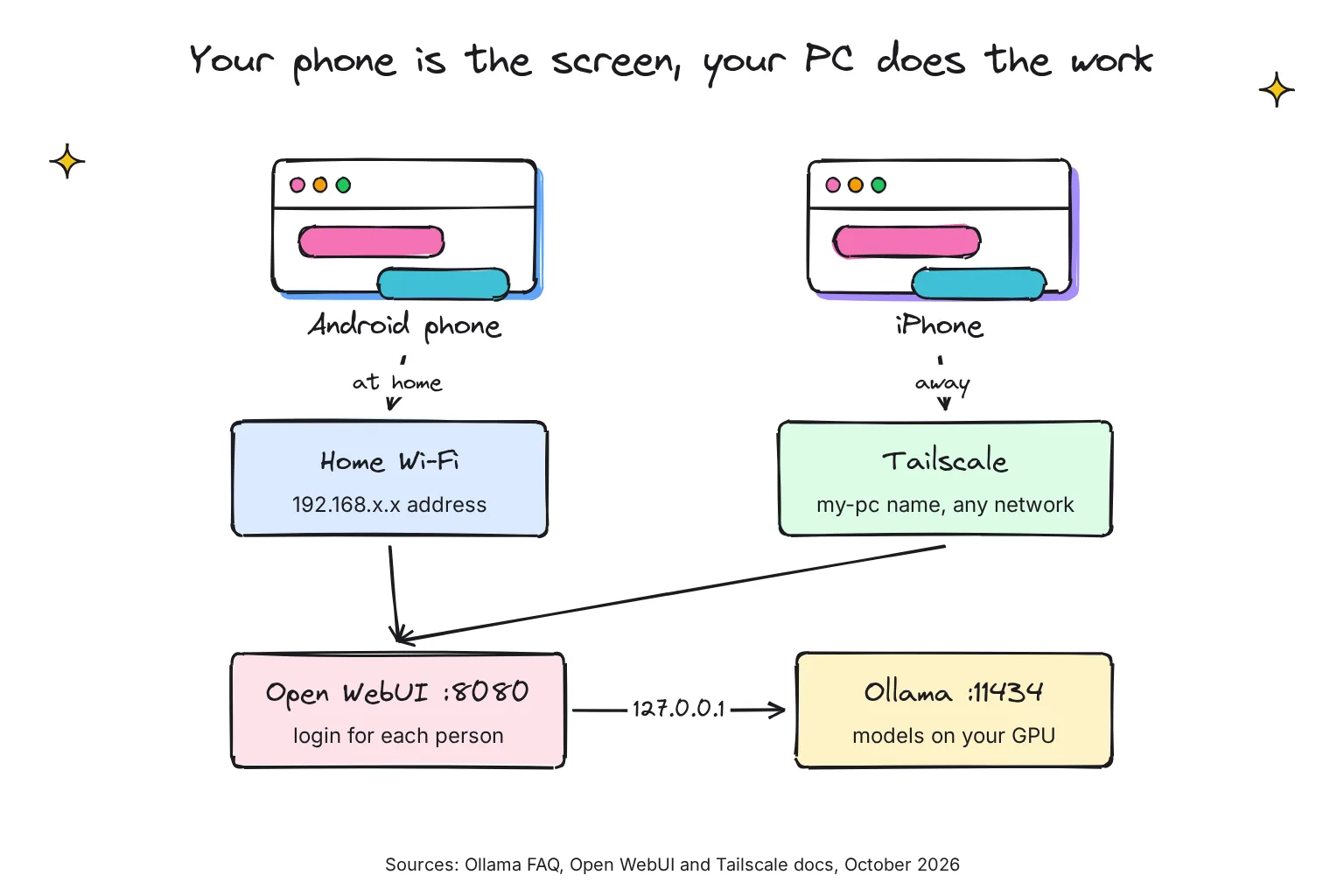
The route matters because local requests need no API key: anyone who can reach port 11434 can chat with your models, download new ones or delete them.
How do I connect my phone to Ollama on home Wi-Fi?
These steps set up the direct route for apps such as Reins or Maid, with the phone and PC on the same Wi-Fi. The PC's address here, 192.168.1.50, is an example.
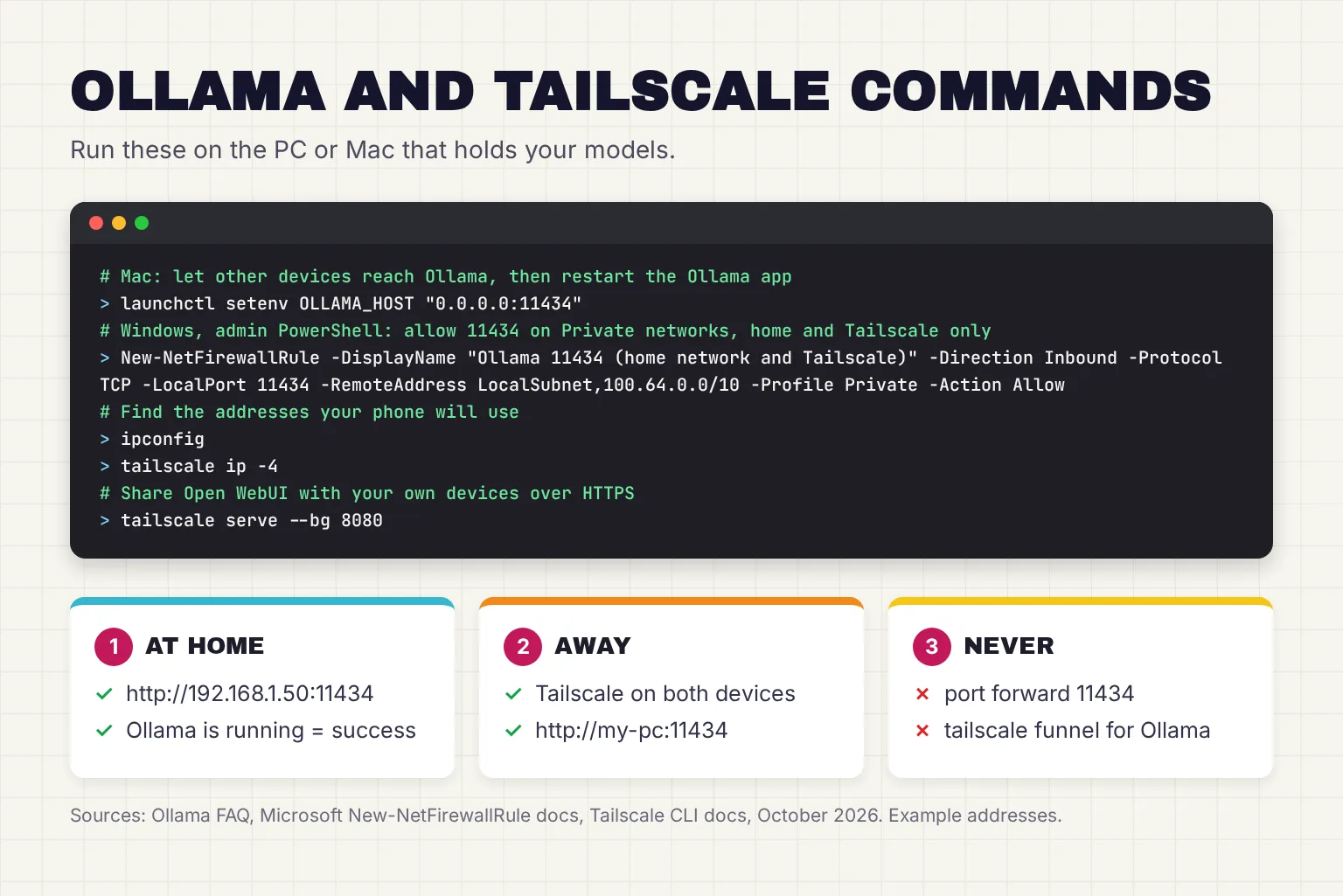
- Let Ollama listen on the network. In Ollama's Settings, switch on Expose Ollama to the network, described in version 0.40.13 as allow other devices or services to access Ollama. It sets OLLAMA_HOST to 0.0.0.0, meaning every network interface on the PC. The manual route: on Windows, quit Ollama, add OLLAMA_HOST under Edit environment variables for your account, and start Ollama from the Start menu, with the value 0.0.0.0:11434 from the FAQ's examples; on a Mac, use
launchctl setenvbelow. - Open the firewall for port 11434. On Windows, run the rule below in PowerShell as administrator. It uses New-NetFirewallRule to allow the port only on networks set to Private, and only from your local subnet and from 100.64.0.0/10, the range Tailscale assigns by default. Windows 11 sets new networks to Public, so in Settings, Network & internet, open your home Wi-Fi or Ethernet connection and under Network profile type, select Private network, which Microsoft says is for networks where you know and trust the people and devices. Tailscale's Windows app marks its own network adapter as private, so the rule covers it too. On a Mac with the firewall on, open System Settings, Network, Firewall, then Options, and add Ollama to the apps allowed incoming connections.
- Find the PC's address. On Windows, run
ipconfigin PowerShell, which displays the IPv4 address for each adapter, and use the Wi-Fi or Ethernet one; Settings, Network & internet, then your connection, also lists it next to IPv4 address. On a Mac on Wi-Fi, open System Settings, Wi-Fi, then Details next to your network, which shows the IP and router addresses; on Ethernet, look under System Settings, Network, your connection, Details, TCP/IP. - Test from the phone's browser. Open
http://192.168.1.50:11434. A reply reading Ollama is running proves the network path works before any app is involved. - Add the server in your app. Enter
http://192.168.1.50:11434as the Ollama server address, then pickgemma4:12bfrom the model list. On an iPhone, tap Allow when the app asks to find devices on your local network, which iOS requires of any app that wants to interact with devices on your network.
# Windows, PowerShell as administrator: port 11434 on Private networks, from home network and Tailscale only
New-NetFirewallRule -DisplayName "Ollama 11434 (home network and Tailscale)" -Direction Inbound -Protocol TCP -LocalPort 11434 -RemoteAddress LocalSubnet,100.64.0.0/10 -Profile Private -Action Allow

# Mac, Terminal: the FAQ's alternative to the Settings switch, then restart Ollama
launchctl setenv OLLAMA_HOST "0.0.0.0:11434"
Is it safe to set OLLAMA_HOST to 0.0.0.0?
On a home network you trust, it is a fair trade, but every device on the Wi-Fi, including a visitor's laptop or a poorly patched smart TV, can use the API. I would do it only on a desktop that never leaves the house. On a laptop, switch Expose off before it joins cafe Wi-Fi, where your local subnet means strangers; leaving that network set to Public also keeps the Windows rule above inactive there, because a rule is active only when the specified profile is currently active.
The safer setup: Open WebUI with accounts
Open WebUI is a free, self-hosted chat interface that automatically attempts to connect to your Ollama instance; our Open WebUI install and update guide covers it in full. Installed with pip or uv, as our Gemma 4 guide does, open-webui serve runs on the same PC, at http://localhost:8080, and reaches Ollama on 127.0.0.1. Ollama's Expose switch can stay off.
The serve command listens on host 0.0.0.0 and port 8080 by default, so the phone can open http://192.168.1.50:8080 once the firewall allows port 8080 (repeat the rule above with 8080 in place of 11434), the local IP address and port pattern its docs describe. If you run it in Docker instead, its docs say Ollama on the host has to listen on 0.0.0.0, which loses this advantage.
Accounts are the real gain. The first user to register becomes the Administrator, which switches off new sign-ups until an admin turns them back on, and even then new accounts wait in a Pending state until an admin approves them. A pending user must be promoted to user or admin before they can chat, so a guest on your Wi-Fi sees a login page, not your models.
Install Open WebUI as an app on your phone
Every Open WebUI instance is a Progressive Web App (PWA): a website you install with its own icon, which opens full screen.
- Android, Chrome: open your Open WebUI address, tap Menu, then Add to Home Screen or Install app, then Install.
- iPhone, Safari: tap Share, then Add to Home Screen, then Add. The docs note that Safari is the only browser that supports PWA installation on iOS.
How do I use Ollama away from home without port forwarding?
Why not forward port 11434 on your router?
Port forwarding is a router rule that sends internet traffic on one port to a computer at home. For Ollama, that hands a password-free API to the whole internet, and people scan for it. A joint study by SentinelLABS and Censys, published in January 2026, recorded 175,108 unique Ollama hosts across 130 countries over 293 days of scanning. Fixed-access telecom networks, which include consumer internet providers, made up 56% of those hosts.
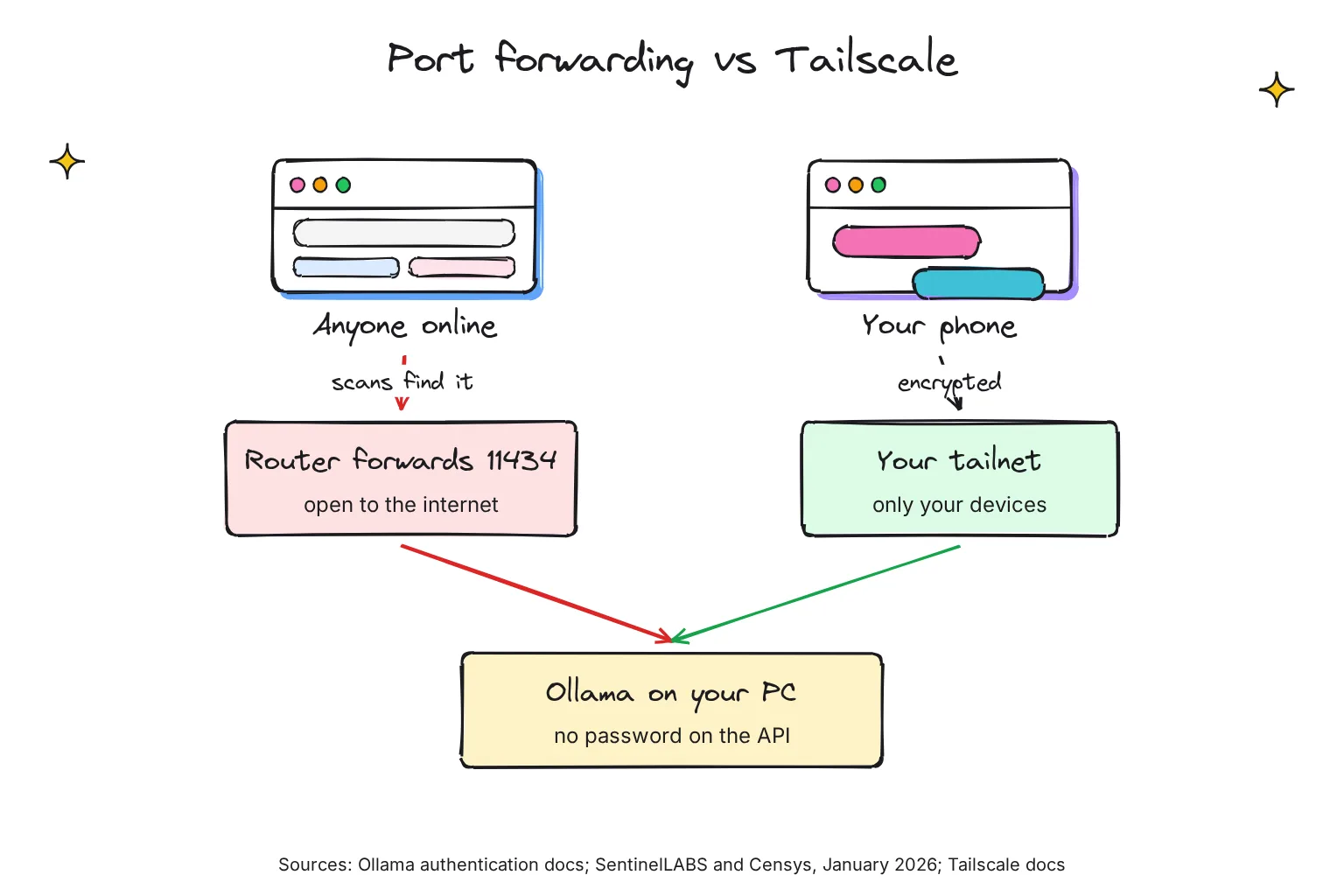
The same goes for tunnels. Ollama's FAQ shows how to reach it with ngrok or Cloudflare Tunnel, and Enchanted's README suggests ngrok to make your Ollama server publicly accessible. As written, both give Ollama a public address with no password in front of it.
Set up Tailscale on the PC and the phone
Tailscale is a mesh VPN: it builds a private, encrypted network, called a tailnet, between devices signed in to your account, and gives each one a 100.x.y.z address that works even behind a firewall, with no router changes. The Personal plan is free for up to 6 users with unlimited user devices, for non-commercial use.
- Install Tailscale on the PC. Windows needs Windows 10 or later; run the .exe installer and log in from the tray icon. A Mac needs macOS 12 or later, and Tailscale recommends its Standalone variant.
- Install it on the phone. It works with iOS 15 or later and Android 8.0 or later. Tap Get Started, accept the VPN configuration, and log in with the same account.
- Find the PC's tailnet name. MagicDNS, on by default in tailnets created since October 20, 2022, lets your devices use the machine name instead of an address.
tailscale statuslists your devices, andtailscale ip -4prints this device's 100.x.y.z address. - Point the app at that name. For a direct app with Expose on, use
http://my-pc:11434, replacing my-pc with your machine name. Leave Tailscale connected on the phone and it works on mobile data, and the address stays the same while the device remains registered.
Use Tailscale Serve for Open WebUI
Tailscale Serve routes traffic from other devices on your tailnet to a local service, over HTTPS with an automatic certificate. It needs HTTPS certificates enabled for your tailnet, and the command offers to turn them on. On the PC, run:
tailscale serve --bg 8080
tailscale serve status
The serve command accepts a plain port number, and with --bg it keeps running and resumes after a reboot. Your phone then opens an address like https://my-pc.tail1234.ts.net at home or away. Open WebUI's own Tailscale guide notes that browser features such as voice calls require HTTPS, and suggests setting WEBUI_URL and CORS_ALLOW_ORIGIN to that address.
Two cautions. Turning on HTTPS means machine names are published in the public Certificate Transparency ledger, so rename a PC called after a person first. And to keep Open WebUI off the home network entirely, start it with --host 127.0.0.1, an option the quick start describes for changing the bind address; Serve still reaches it, because it proxies to http://127.0.0.1.
Why not Tailscale Funnel?
Funnel is Serve's public sibling: it routes traffic from the broader internet to a local service, for anyone, even if they don't use Tailscale. Open WebUI's docs warn that Funnel makes your Open WebUI accessible to anyone on the internet. Pointed at Ollama, it recreates the port-forwarding problem.
Which Ollama app should you use on Android and iPhone?
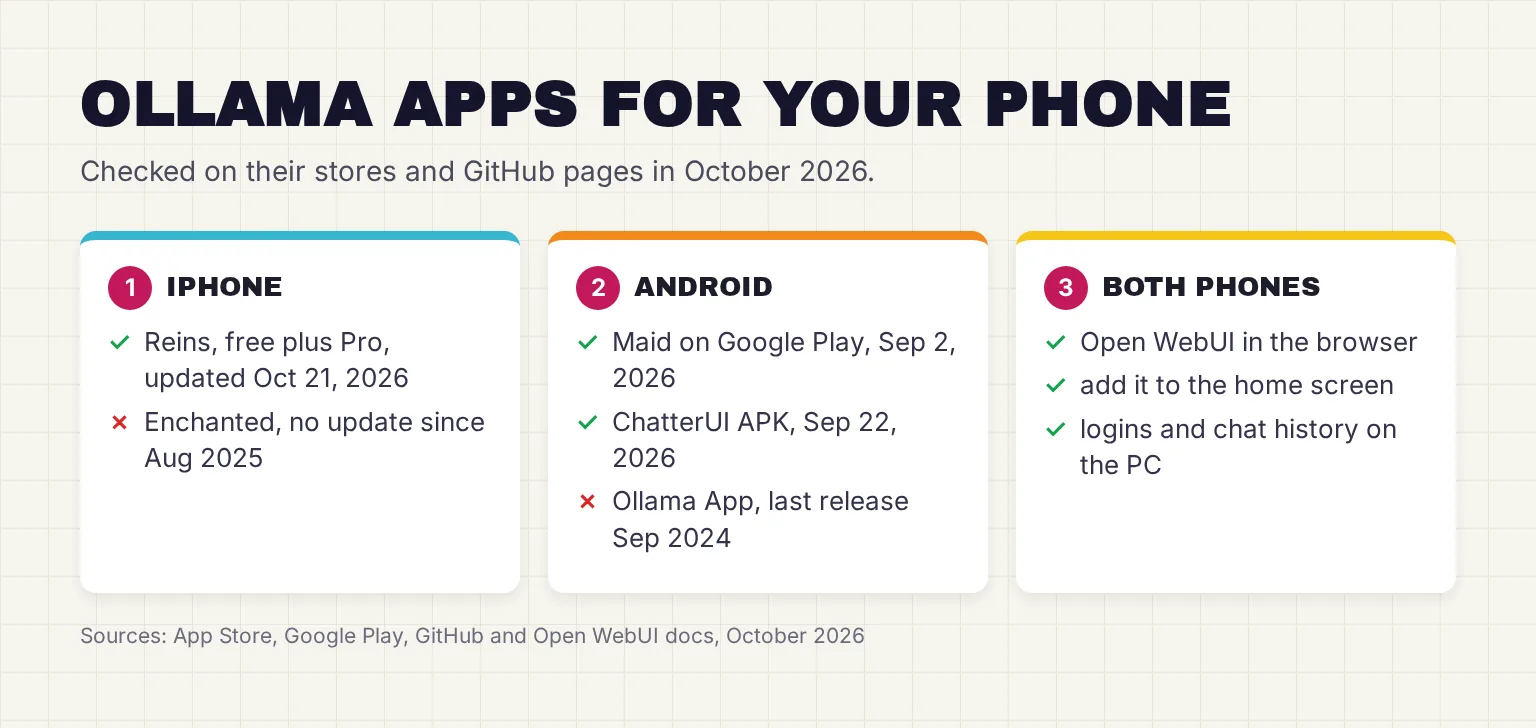
Ollama's README lists phone clients from other developers under Community Integrations. Here is where they stood in October 2026.
| App | Phones | Price | Open source | Notable features | Last update |
|---|---|---|---|---|---|
| Reins | iPhone and iPad (also Mac, Vision Pro) | Free; optional Pro at $6.99 a month, $39.99 a year or $99.99 once | Only up to version 1.3.4, under GPL-3.0 | Several servers with API keys, web search tool, file attachments, on-device MLX models | 2.3.3, October 21, 2026 |
| Enchanted Developers Only | iPhone, iPad, Mac, Vision Pro | Free | Yes, Apache 2.0 | Image attachments, voice prompts, read aloud | 1.9.0, August 19, 2025 |
| Maid | Android | Free | Yes, MIT | Ollama plus cloud APIs; also runs GGUF models on the phone | Google Play, September 2, 2026 |
| ChatterUI | Android (APK from GitHub) | Free | Yes, AGPL-3.0 | Remote mode with an Ollama template, character cards, on-device GGUF | v0.10.0, September 22, 2026 |
| Ollama App | Android (APK), plus Windows and Linux | Free | Yes, Apache 2.0 | Simple client for Ollama only | 1.2.0, September 14, 2024 |
| Open WebUI | Any phone browser, installable | Free | Source available under the Open WebUI License | Accounts, chat history on the PC, documents, voice | v0.12.4, October 25, 2026 |
Dates come from the store listings and the ChatterUI, Ollama App and Open WebUI release pages; Ollama App 1.2.0 is also the latest build on IzzyOnDroid.
Is there an official Ollama app for Android or iOS?
No. The download page offers macOS, Linux and Windows. Every phone app here comes from another developer, so check its privacy label and update date before you trust it with your chats.
The best Ollama client for iPhone
Reins is the one I would install. It is actively updated, its App Store label says the developer does not collect any data, and its privacy policy says prompts go directly to the server address you provide. Its terms describe optional Reins Pro purchases for extra features. Enchanted was renamed Enchanted Developers Only, has not changed since August 2025, and its README now names Jaz as the new iteration, which is an app for running coding agents, not an Ollama chat client.
The best Ollama app for Android
Maid is the easiest, because it comes from Google Play, where its data safety section says no data collected. ChatterUI is more configurable, but you install its APK by hand from GitHub, and its README says iOS is currently unavailable. Ollama App's README explains that it does not host an Ollama server on device, which is right for this job, but with no release since 2024 I would treat it as a fallback.
Can Ollama run on Android or iPhone itself?
Not officially. Ollama's docs cover Linux, macOS, Windows and Docker and nothing for phones. On Android, the unofficial route is Termux, a Linux terminal app: its package repository carries ollama 0.40.11, maintained by the Termux team, not by Ollama. Termux itself warns that it may be unstable on Android 12+, because Android kills extra background processes and any that use excessive CPU.
Ollama's README also lists Ollama Android Chat, which starts Ollama on Android without Termux; its last tagged version, v0.0.5, dates from May 2025. On iPhone there is no Ollama build. Reins can run MLX models on the iPhone and share them over an Ollama-compatible endpoint, but its policy warns that any device on your local network can connect without a password.
On-device models stay small, because a phone has far less memory than our reader's graphics card. For AI with no PC at all, start with our hub on running AI on your phone offline and the guides to local LLM apps on Android and local LLM apps on iPhone. For an always-on machine serving the whole house, see our home AI server guide.
Why can't my phone connect to Ollama?
Connection refused
Ollama is still on 127.0.0.1. Check that Expose is on, or OLLAMA_HOST is set, then quit and restart Ollama. First confirm that http://localhost:11434 shows Ollama is running in a browser on the PC itself.
It worked yesterday: wrong IP address
Windows recommends DHCP, which automatically assigns IP addresses to the devices on your network, so the PC's address can change over time. Run ipconfig again and update the app, or use the Tailscale name, which does not change.
The page times out: firewall
If localhost works on the PC but the phone waits and gives up, the firewall is dropping the request. Check that the rule for 11434, or 8080 for Open WebUI, exists, and that your home network is set to Private. Windows 11 sets new networks to Public by default, where your PC will be hidden from other devices on the network, and the rule above only applies to the Private profile.
Works on Wi-Fi, fails on mobile data
A home address such as 192.168.1.50 only works inside your home network. On mobile data, switch the app to the Tailscale name or the Open WebUI https address, and check that the Tailscale app on the phone shows it is connected.
The app cannot see the PC at all
On an iPhone, open Settings, Privacy & Security, Local Network and turn access on for the app. On Android 17, apps that target it need a local network permission in the Nearby devices group, so allow Nearby devices if the app asks.
403 Forbidden through Tailscale Serve or a proxy
While Ollama listens only on 127.0.0.1, its server code rejects requests whose host name is not a local one, and Serve's proxy code passes the original host name through, so pointing tailscale serve at port 11434 is likely to return 403. The FAQ's proxy examples, for the same situation, set the Host header to localhost:11434 when Ollama is not exposed on the network. Use Serve for Open WebUI, and http://my-pc:11434 with Expose on for direct apps.
Common questions about Ollama on Android and iPhone
Can Ollama run on Android?
Not officially. Ollama's docs cover Linux, macOS, Windows and Docker only. The Termux terminal app packages Ollama unofficially, and Termux warns it may be unstable on Android 12 and later. The practical approach is Ollama on a PC with an Android app such as Maid as the client.
Is there an official Ollama app for iPhone?
No. Ollama offers downloads for macOS, Linux and Windows only. iPhone apps such as Reins and Enchanted come from other developers and connect to an Ollama server you run on a computer. Reins is the actively updated one; Enchanted has not been updated since August 2025.
How do I connect my phone to Ollama on my PC?
Turn on Expose Ollama to the network in Ollama's settings, or set OLLAMA_HOST to 0.0.0.0, and restart Ollama. Allow port 11434 in the firewall for your Private home network, find the PC's IP address with ipconfig, then enter that address with port 11434 as the server in your phone app.
Is it safe to expose Ollama with OLLAMA_HOST set to 0.0.0.0?
Only on a home network you trust. Ollama's local API does not require authentication, so any device that can reach port 11434 can chat with, download or delete your models. Never forward that port on your router. Open WebUI with accounts is safer.
How do I use Ollama away from home?
Install Tailscale on the PC and the phone and sign in with the same account. The phone can then reach the PC by its Tailscale machine name over mobile data, with no router changes. For Open WebUI, tailscale serve adds an HTTPS address only your devices can open.
What is the best Ollama app for Android?
Maid is the simplest choice, because it is free and open source, installs from Google Play and connects to Ollama as a remote provider. ChatterUI offers more settings but installs as an APK from GitHub. Open WebUI in Chrome, installed to the home screen, also works well.
My verdict for the Windows desktop and its phones: Open WebUI over Tailscale
For our reader, the best setup keeps Ollama where it starts, on 127.0.0.1, with Open WebUI in front of it and an account for each person. Tailscale Serve then gives both phones one HTTPS address, installed to the home screen, that works on the sofa and on the train. Nothing is forwarded on the router, and a guest on the Wi-Fi meets a login page.
If the phone is only yours and you want a native app, switch on Expose, add the firewall rule, set your home network to Private, and use Reins on the iPhone or Maid on Android, with the Tailscale name for trips away. The Mac mini works the same way. Never forward port 11434 to the internet.
Your next step: install Tailscale on the desktop and your phone, sign in to both with the same account, run tailscale serve --bg 8080, then turn off Wi-Fi on the phone and open the https address it prints.
Sources
- Download Ollama - Ollama
- FAQ - Ollama docs
- Ollama documentation - Ollama docs
- Authentication - Ollama API reference
- API introduction - Ollama API reference
- List models - Ollama API reference
- Pull a model - Ollama API reference
- Delete a model - Ollama API reference
- gemma4 tags - Ollama library
- ollama/ollama README (Community Integrations) - GitHub
- Desktop app settings screen (Settings.tsx), v0.40.13 - ollama/ollama, GitHub
- Desktop app server launcher (server.go), v0.40.13 - ollama/ollama, GitHub
- server/routes.go (root response and allowed hosts), v0.40.13 - ollama/ollama, GitHub
- New-NetFirewallRule - Microsoft Learn
- ipconfig - Microsoft Learn
- Essential network settings and tasks in Windows - Microsoft Support
- Change Firewall settings on Mac - Apple Support
- Change TCP/IP settings on Mac - Apple Support
- Wi-Fi settings on Mac - Apple Support
- If an app would like to connect to devices on your local network - Apple Support
- Local network permission - Android Developers
- Starting with Ollama - Open WebUI docs
- Quick Start - Open WebUI docs
- backend/open_webui/__init__.py (serve defaults) - open-webui/open-webui, GitHub
- Share Open WebUI with Your Team - Open WebUI docs
- Roles - Open WebUI docs
- Open WebUI as an App - Open WebUI docs
- HTTPS using Tailscale - Open WebUI docs
- Open WebUI License - Open WebUI docs
- Releases - open-webui/open-webui, GitHub
- Silent Brothers: Ollama Hosts Form Anonymous AI Network Beyond Platform Guardrails - SentinelLABS
- Tailscale quickstart - Tailscale docs
- Pricing - Tailscale
- Install Tailscale on Windows - Tailscale docs
- Install Tailscale on macOS - Tailscale docs
- Install Tailscale on iOS - Tailscale docs
- Install Tailscale on Android - Tailscale docs
- MagicDNS - Tailscale docs
- Tailscale CLI - Tailscale docs
- How Tailscale assigns IP addresses - Tailscale docs
- IP pool - Tailscale docs
- Tailscale Serve - Tailscale docs
- tailscale serve command - Tailscale docs
- Enabling HTTPS - Tailscale docs
- Tailscale Funnel - Tailscale docs
- ipn/ipnlocal/serve.go (Serve reverse proxy) - tailscale/tailscale, GitHub
- wgengine/router/osrouter/ifconfig_windows.go (Windows adapter set to private) - tailscale/tailscale, GitHub
- Reins: for Ollama & LM Studio - App Store
- ibrahimcetin/reins - GitHub
- Privacy Policy - Reins
- Terms of Use - Reins
- Enchanted Developers Only - App Store
- AugustDev/enchanted - GitHub
- gluonfield/jaz - GitHub
- Maid - Google Play
- Mobile-Artificial-Intelligence/maid - GitHub
- Vali-98/ChatterUI - GitHub
- ChatterUI releases - GitHub
- JHubi1/ollama-app - GitHub
- Ollama App releases - GitHub
- Ollama App - IzzyOnDroid
- packages/ollama/build.sh - termux/termux-packages, GitHub
- Termux application README - termux/termux-app, GitHub
- OllamaServer (Ollama Android Chat) - GitHub