What is Open WebUI?
Open WebUI is a free, self-hosted chat interface that runs in your web browser and looks much like ChatGPT. It does not run models itself: it connects to Ollama or an OpenAI-compatible server such as LM Studio, then adds accounts, chat history, document chat and web search. The current release is v0.12.4, from October 25, 2026.
This guide follows one reader: someone who already runs Ollama on a Windows 11 desktop with a 12GB graphics card, or LM Studio on an Apple Silicon Mac, and wants one private ChatGPT-style page that the whole household can open from laptops and phones on the home Wi-Fi.
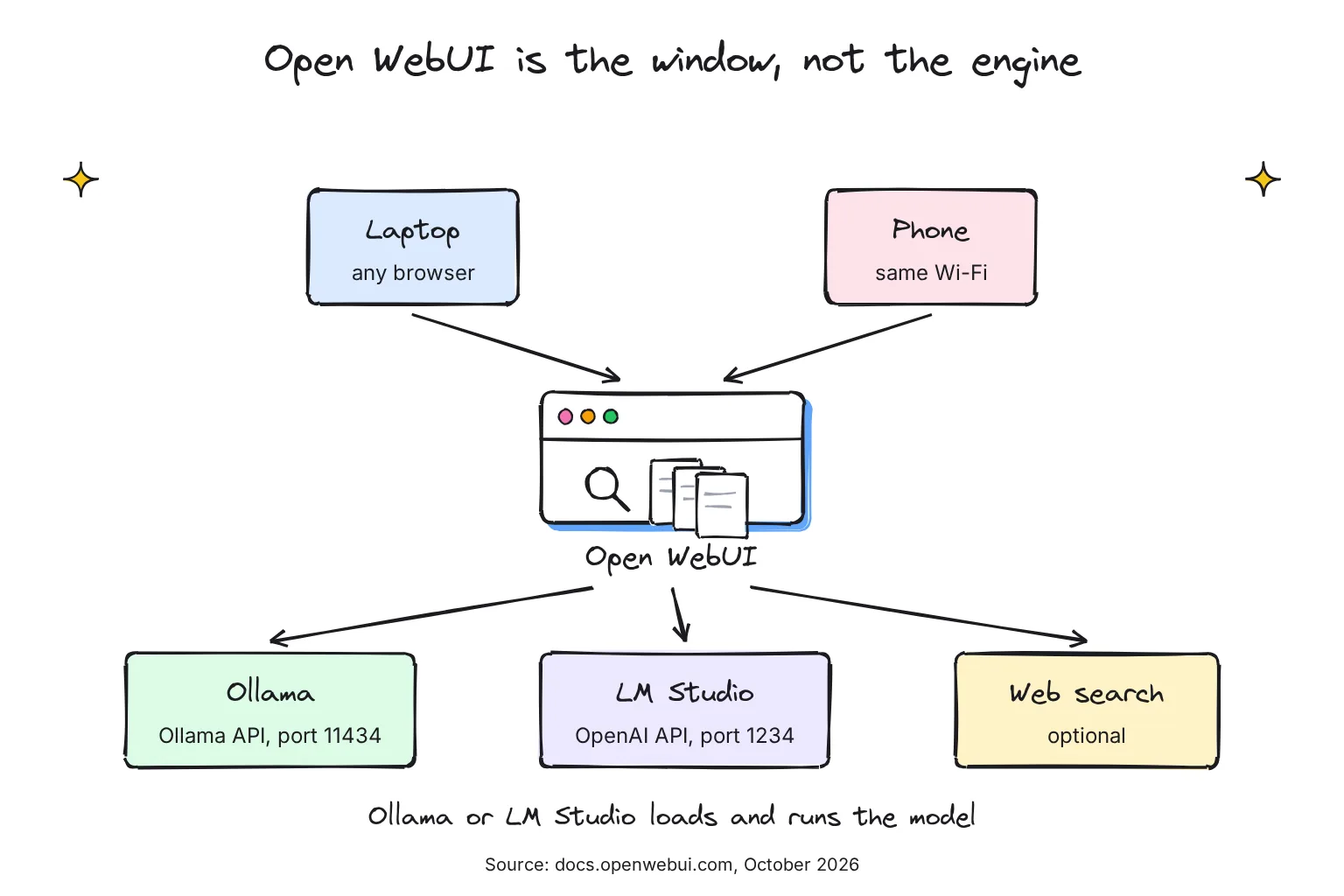
Think of Open WebUI as the window and Ollama or LM Studio as the engine, with two exceptions. The :ollama Docker image bundles Ollama inside the same container, and the separate desktop app can optionally run models through a built-in llama.cpp engine.
Is Open WebUI free and open source?
It is free, under its own Open WebUI License: BSD 3-Clause terms plus a clause that forbids removing the Open WebUI branding unless end users do not exceed fifty (50) within any rolling thirty (30) day period, or you have permission or an enterprise license. It arrived with v0.6.6 on April 19, 2025; a household is far below 50 users. The code is public, but the license page says it is not an OSI-approved open source license.
Where is Open WebUI on GitHub, and which version is current?
In the open-webui/open-webui repository. The newest release, v0.12.4, is also on PyPI, released October 25, 2026. The desktop app has its own repository and AGPL-3.0 license.
Docker, pip or desktop app: which Open WebUI install should you choose?
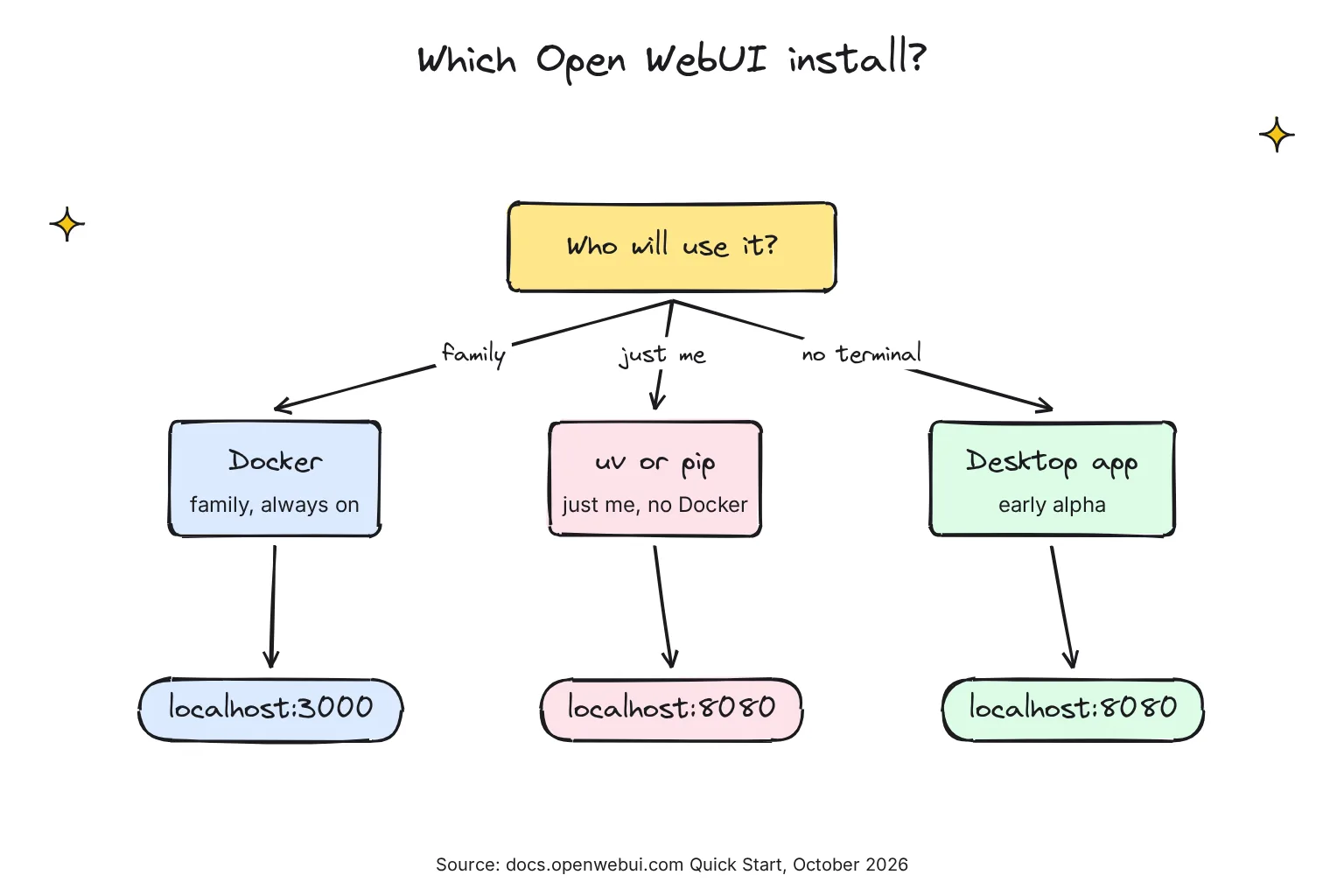
The Quick Start calls Docker officially supported and recommended for most users. Docker runs a program in a container, a sealed box holding everything it needs, and keeps your data in a volume, storage that survives when the container is replaced.
Choose Docker if:
- Several people will use it, and you want it to come back after a reboot with
--restart always, on an always-on PC like the builds in our home AI server guide. - You are happy to install Docker Desktop, which on Windows uses the WSL 2 backend, Microsoft's built-in Linux layer.
Choose uv or pip if:
- It is mainly for you, and you would rather not install Docker.
- You can use Python 3.11 or 3.12; Python 3.13 is not supported yet.
- You want Open WebUI to reach Ollama at plain
localhost, with no network changes.
Choose the desktop app if:
- You want no terminal at all and accept that its README calls it Early Alpha, at version 0.0.20 from May 2026.
- It is for one computer: the docs say for production deployments, install via Docker or Python.
How do you install Open WebUI with Docker?
These steps assume Ollama runs on the same computer; if not, start with our guide to installing Ollama.
- Install Docker Desktop. On Windows, pick the WSL 2 backend and always run docker commands from your WSL terminal, not from PowerShell or Command Prompt. On a Mac, use Terminal.
- Make a secret key. Run
openssl rand -hex 32and save the output. Without a fixed key, every recreated container logs everyone out. - Start Open WebUI. Paste the command below, with your key in place of
your-secret-key. - Wait for it. Run
docker logs -f open-webuiand wait for Application startup complete; the first start takes a minute. - Claim the admin account. Open
http://localhost:3000and click Create Admin Account. That first account is the administrator, so do this straight away.
docker run -d -p 3000:8080 --add-host=host.docker.internal:host-gateway -v open-webui:/app/backend/data -e WEBUI_SECRET_KEY=your-secret-key --name open-webui --restart always ghcr.io/open-webui/open-webui:main-p 3000:8080 puts the page on port 3000, --add-host lets the container reach Ollama on your machine, and the -v volume is where your chats, users and settings live; it survives updates, so never run without it.
Open WebUI with bundled Ollama
If you have no Ollama yet, the :ollama image runs both in one container. The docs give a GPU and a CPU-only command:
# With GPU:
docker run -d -p 3000:8080 --gpus=all -v ollama:/root/.ollama -v open-webui:/app/backend/data -e WEBUI_SECRET_KEY=your-secret-key --name open-webui --restart always ghcr.io/open-webui/open-webui:ollama

# CPU only:
docker run -d -p 3000:8080 -v ollama:/root/.ollama -v open-webui:/app/backend/data -e WEBUI_SECRET_KEY=your-secret-key --name open-webui --restart always ghcr.io/open-webui/open-webui:ollama
Our reader should skip it: it keeps models in its own ollama volume, which Docker creates and manages apart from the host's files, so models already in Ollama's models folder on the PC would not show up.
Does Open WebUI need the GPU flag?
Usually not. The :cuda image with --gpus all moves Open WebUI's own local models (embedding, reranking, and Whisper speech-to-text) to the GPU; Ollama's models use a GPU only if the Ollama container has one. With Ollama on the host, model work happens outside the container anyway, and Docker Desktop's --gpus passthrough is only available on Windows with the WSL 2 backend.
A :slim image is about 197 MB instead of 1.62 GB but drops local embedding, speech and document extraction, so keep :main for PDF chat.
Open WebUI with Docker Compose
Docker Compose keeps the same setup in a file. Save this as docker-compose.yml, add your key and run docker compose up -d, with Compose v2 syntax, a space and no hyphen:
services:
  open-webui:
    image: ghcr.io/open-webui/open-webui:main
    ports:
      - "3000:8080"
    volumes:
      - open-webui:/app/backend/data
    extra_hosts:
      - host.docker.internal:host-gateway
    environment:
      - WEBUI_SECRET_KEY=your-secret-key
    restart: unless-stopped

volumes:
  open-webui:
This file expects Ollama on the host. The repository's own docker-compose.yaml runs Ollama as a second service and points Open WebUI at it with OLLAMA_BASE_URL=http://ollama:11434. Our Ollama Docker guide has a Compose file that runs both, with GPU access for Ollama.
How do you install Open WebUI without Docker, on Windows or Mac?
I would use uv, a small tool that installs and runs Python programs, because it fetches Python 3.12 for you. These are the Quick Start's commands; our Gemma 4 and Open WebUI guide walks through the same route with a first model.
# Windows (PowerShell): install uv, then start Open WebUI
powershell -ExecutionPolicy ByPass -c "irm https://astral.sh/uv/install.ps1 | iex"
$env:DATA_DIR="C:\open-webui\data"; uvx --python 3.12 open-webui@latest serve

# Mac (Terminal)
curl -LsSf https://astral.sh/uv/install.sh | sh
DATA_DIR=~/.open-webui uvx --python 3.12 open-webui@latest serve

# Or with pip, in a Python 3.11 or 3.12 environment
pip install open-webui
open-webui serve
The page opens at http://localhost:8080. Keep DATA_DIR: without it, uvx might store your data in a temporary folder that gets deleted. With pip, the session key is saved in the directory you start it from, so always start from the same folder.
The serve command defaults to host 0.0.0.0, every network interface, so other devices on your Wi-Fi can reach port 8080 unless a firewall blocks it. For a private copy, add --host 127.0.0.1, the bind option the docs describe.
How do you connect Open WebUI to Ollama?
Usually you do nothing. Open WebUI will automatically attempt to connect to your Ollama instance through its API, the address other programs send requests to: http://host.docker.internal:11434 from Docker, or http://localhost:11434 from Python. It appears under your avatar, Settings, Admin, Connections, in Manage Ollama API Connections.
Inside a container, localhost is the container; Docker Desktop's host.docker.internal resolves to the internal IP address of your host.
If the model list stays empty with Docker, check Ollama's bind address. Ollama binds 127.0.0.1 port 11434 by default, and the Quick Start says Ollama on the host has to listen on 0.0.0.0 when Open WebUI runs in Docker. Set OLLAMA_HOST to 0.0.0.0 (on Windows, under Edit environment variables for your account; on a Mac, with launchctl setenv OLLAMA_HOST "0.0.0.0:11434"), then restart Ollama.
That opens Ollama to your network, and the local API does not require authentication, so keep your firewall blocking port 11434 from other devices. The uv route avoids this, because both then share localhost. The docs' other fix is the --network=host flag, which moves the page to port 8080; Docker Desktop supports it only from version 4.34, after you enable host networking in Settings.
To download a model, type its name into the model selector of a new chat, and Open WebUI will prompt you to download it from Ollama. The connection's Manage dialog also has an Update All Models button.
How do you connect Open WebUI to LM Studio?
LM Studio's server is OpenAI-compatible, so it goes under the OpenAI connections, per Open WebUI's LM Studio page and OpenAI-compatible guide:
- Start LM Studio's server. Toggle Start server in LM Studio's Developer tab, or run
lms server start. - Add a connection. In Open WebUI, go to Settings, Admin, Connections, and click + next to Manage OpenAI API Connections.
- Enter the address. Use
http://localhost:1234/v1for a pip install. From Docker, the guide says to replace localhost with host.docker.internal, givinghttp://host.docker.internal:1234/v1. Leave the API key blank. - Set the provider. Optionally choose LM Studio as Provider under Advanced, which lets admins download, load and unload models without leaving Open WebUI.
- Save. LM Studio's models now appear in the model selector.
LM Studio's Serve on Local Network option warns that any bind other than 127.0.0.1 exposes the server beyond localhost, so turn on its authentication if you use it. Still choosing a runner? See our LM Studio vs Ollama comparison.
How do you update Open WebUI safely?
Your chats, users and uploads live in a Docker volume or local database, not inside the container, so an update swaps the image and leaves the data alone. But database migrations are one-way, so rolling back needs a backup taken before the update.
- Back up the volume. Run the backup command below from the WSL terminal or Terminal; it writes a dated
.tar.gzfile to the current folder. - Read the release notes on the GitHub releases page for breaking changes.
- Remove, pull and recreate. Run the three update commands, with the same secret key and volume as before.
- Clear the browser cache with Ctrl+F5, or Cmd+Shift+R on a Mac, to avoid stale page files.
# 1. Back up
docker run --rm -v open-webui:/data -v $(pwd):/backup \
  alpine tar czf /backup/openwebui-$(date +%Y%m%d).tar.gz /data

# 2. Stop and remove the container (data in the volume is preserved)
docker rm -f open-webui

# 3. Pull the latest image
docker pull ghcr.io/open-webui/open-webui:main

# 4. Recreate the container
docker run -d -p 3000:8080 \
  --add-host=host.docker.internal:host-gateway \
  -v open-webui:/app/backend/data \
  -e WEBUI_SECRET_KEY="your-secret-key" \
  --name open-webui --restart always \
  ghcr.io/open-webui/open-webui:main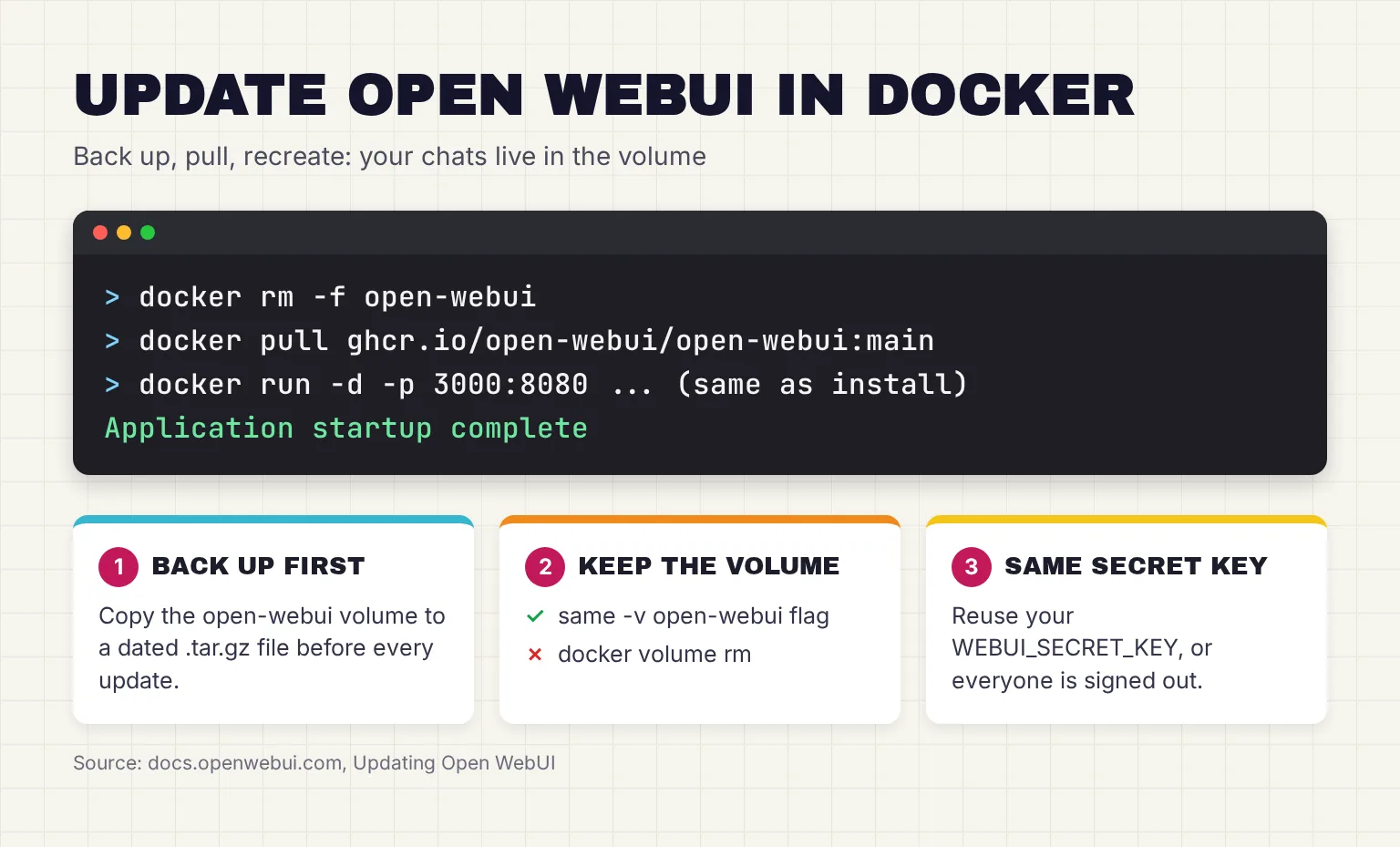
How do you update Open WebUI with Docker Compose, pip or uv?
With Compose, run docker compose pull and then docker compose up -d. With pip, run pip install -U open-webui and restart. The uv command asks for open-webui@latest, which runs a tool at its latest version, so a restart picks up a new release. Copy your DATA_DIR folder first.
Should you pin a version or use Watchtower?
The :main tag always points to the latest build and can include breaking changes without warning. The docs suggest :main, pulled manually, at home, and a pinned tag such as :v0.12.4 for team instances. The original Watchtower auto-updater is no longer maintained and fails with Docker 29+. For a family, I would update by hand after a backup.
What can Open WebUI do beyond chat?
Chat with your documents (RAG)
RAG, retrieval-augmented generation, finds the passages that match your question and adds them to the prompt. Upload a file to a chat, or type # and pick a document from your workspace. For hard PDFs and scans, Open WebUI can swap its default reader for Apache Tika, Docling, Document Intelligence, Mistral OCR, Datalab Marker, MinerU, PaddleOCR-vl or an external loader; OCR, optical character recognition, reads text inside images. Our guide shows how to make Docling the document reader in Open WebUI, step by step.
The docs warn that Ollama gives GPUs under 24 GiB a 4096-token context, so retrieved data may not be used at all; the Gemma 4 guide shows how to raise it.
Web search
Web search has two jobs: a search engine finds pages, and a web loader reads them. DDGS ships with Open WebUI and needs no account. Either way, your search terms leave the house.
Open WebUI tools and functions
Tools extend the abilities of LLMs, such as fetching live data; Functions extend Open WebUI itself and sit in the Admin Panel. Both import from a community site, and the docs warn that Tools, Functions, Pipes, Filters, and Pipelines execute arbitrary Python code on your server, and that featured does not mean vetted.
Does Open WebUI support MCP?
Yes. MCP, the Model Context Protocol, is a standard way to plug tools into an AI app, and Open WebUI natively supports MCP starting in v0.6.31, over Streamable HTTP only. Admins add servers under Settings, Admin, Integrations, External Tool Servers. Servers that use stdio or SSE need mcpo, an MCP-to-OpenAPI proxy, and v0.12.4 added the stateless 2026-07-28 protocol version.
MCP does not improve the model's ability to use tools, so small local models may ignore them.
Open WebUI image generation
Open WebUI can call an image engine from the chat: OpenAI's images API, ComfyUI, AUTOMATIC1111 or Gemini, set under Settings, Admin, Images. A local ComfyUI must be started with the --listen flag; our guide to generating AI images locally with ComfyUI covers that side. Open WebUI also needs the workflow exported from ComfyUI in API format, which our guide to saving and exporting ComfyUI workflows explains.
Is Open WebUI safe to share on a home network?
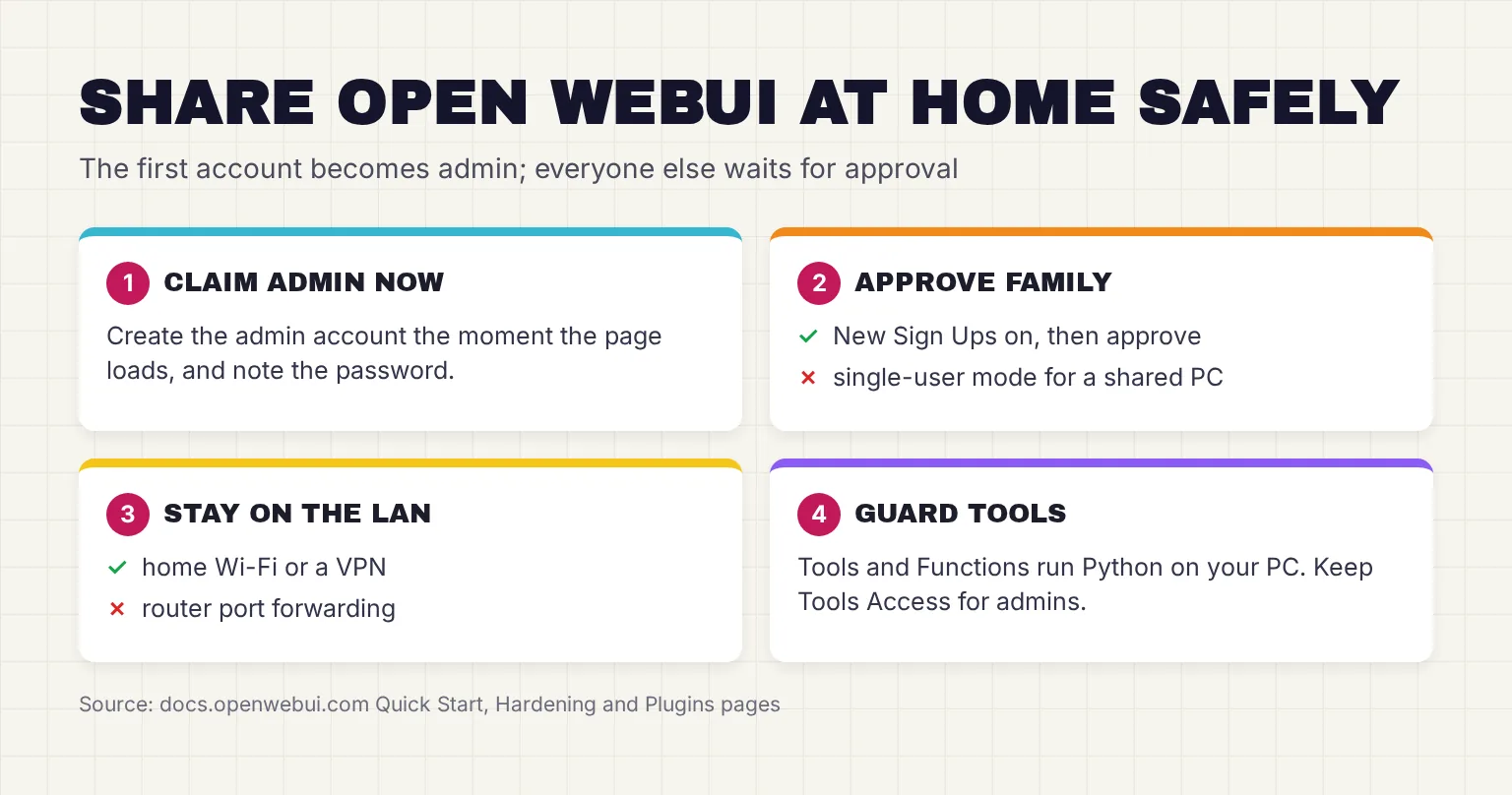
It can be, with a few settings checked. Open WebUI has three roles: admin, user and pending, and the first account on a fresh install becomes the admin. Sign-up switches itself off once the admin account exists. To let the family join, turn on New Sign Ups under Settings, Admin, Authentication; new accounts wait as Pending until you approve them. I would switch sign-ups off again afterwards.
Tell the family that by default an admin can read any user's chat (ENABLE_ADMIN_CHAT_ACCESS). Avoid single-user mode (WEBUI_AUTH=False) on a shared machine: it removes the login, and you cannot switch between single-user mode and multi-account mode afterwards.
Keep it on localhost or your home network
Docker publishes a port to all host addresses by default, so -p 3000:8080 lets anyone on your LAN, the local network behind your router, open an address like http://192.168.1.100:3000. That suits the family. For yourself only, use -p 127.0.0.1:3000:8080, so only the Docker host can access the published container port.
Do not forward the port on your router. The hardening guide says Open WebUI is built for private, trusted networks and recommends a VPN (WireGuard, Tailscale), a zero-trust access proxy or an authenticating reverse proxy in front. HTTPS matters for voice too: Voice Calls will not work over plain http:// unless you are on localhost, so expect them to fail on phones using the LAN address.
Who should be allowed to add tools?
Only you. Regular users have no Tools workspace access by default, the docs say to treat the Tools Access permission as root-equivalent access, and MCP servers are admin-only by design. A stock install also makes a version check to GitHub, a model-list request to the default OpenAI connection and an embedding-model update check on its own; all three can be switched off.
Open WebUI vs LibreChat vs AnythingLLM vs LM Studio
All four put a ChatGPT-style window over local models. How they compare in October 2026, from each project's own docs:
LibreChat vs Open WebUI
Both are self-hosted, multi-user web apps. LibreChat is MIT licensed, takes stdio MCP servers directly and, per its README, unifies all major AI providers in a single interface. But its default stack runs several services, including MongoDB and Meilisearch, and Ollama goes in a config file. Open WebUI is one container that finds Ollama itself, which suits our household better.
Open WebUI vs AnythingLLM
AnythingLLM organizes conversations and documents into workspaces and can run models itself, but its desktop app has no user accounts or authentication in front of it, so a family would need the Docker version. It also collects anonymous telemetry unless you set DISABLE_TELEMETRY. For one person on one computer, see our review of AnythingLLM, a desktop alternative to Open WebUI, with its Ollama settings.
LM Studio vs Open WebUI
They are not rivals. LM Studio is a runner with a chat window for one person; Open WebUI adds the shared, browser-based layer. Open WebUI's own docs note that a lot of people use LM Studio as the backend and Open WebUI as the frontend.
Common questions about Open WebUI
What is Open WebUI used for?
Open WebUI gives local models a ChatGPT-style page in your browser. It connects to Ollama, LM Studio or other OpenAI-compatible servers and adds user accounts, chat history, document chat, web search and tools. A household can share one instance from laptops and phones.
Is Open WebUI free?
Yes. It is free under the Open WebUI License, which keeps the BSD 3-Clause conditions and adds a branding clause. You may not remove the Open WebUI branding unless you have 50 or fewer users in a 30-day period, written permission or an enterprise license.
Does Open WebUI work without Ollama?
Yes. Open WebUI has no models of its own, and Ollama is only one option. It can connect to LM Studio on port 1234, to llama.cpp or vLLM, or to cloud APIs through an OpenAI-compatible connection under Settings, Admin, Connections.
How do I update Open WebUI in Docker without losing chats?
Back up the open-webui volume, remove the container, pull the new image, then run the same docker run command with the same volume and secret key. Your chats live in the volume, so they survive. Database migrations are one-way, which is why the backup matters.
Does Open WebUI support MCP?
Yes. Open WebUI has supported MCP natively since v0.6.31, over Streamable HTTP only, and only admins can add servers. Servers that use stdio or SSE need the mcpo proxy, which turns them into OpenAPI tool servers. Version 0.12.4 added the 2026-07-28 protocol.
Is there an Open WebUI desktop app?
Yes, for macOS, Windows and Linux, but its README calls it early alpha and the current version is 0.0.20. It can optionally run models with a built-in llama.cpp engine and is licensed AGPL-3.0. The docs recommend Docker or Python for production.
My verdict for a household that already runs Ollama: Docker, kept on the home network
For the reader in this guide, Open WebUI is the right shared front end, and Docker is the right way to run it: one command, a volume that survives updates, and a container that restarts with the PC. Set a fixed secret key, claim the admin account at once, open sign-ups only while the family registers, keep Tools Access to yourself, and never forward the port.
If it is only for you, uv is simpler. LM Studio users add it as an OpenAI connection. MCP, image generation and HTTPS for voice can wait.
Your next step: run the Docker command above with a fresh key, create the admin account, then open the page from a phone on your Wi-Fi to check the family can reach it.
Sources
- Quick Start - Open WebUI
- Release v0.12.4 - open-webui/open-webui, GitHub
- Releases - open-webui/open-webui, GitHub
- open-webui/open-webui README - GitHub
- Open WebUI Desktop README - GitHub
- Releases - open-webui/desktop, GitHub
- open-webui/LICENSE - GitHub
- Open WebUI License - Open WebUI
- open-webui - PyPI
- GPU support in Docker Desktop for Windows - Docker
- docker-compose.yaml - open-webui/open-webui, GitHub
- backend/open_webui/__init__.py - open-webui/open-webui, GitHub
- Volumes - Docker
- Ollama - Open WebUI
- Explore networking how-tos on Docker Desktop - Docker
- FAQ - Ollama
- Authentication - Ollama
- Connection Errors - Open WebUI
- Host network driver - Docker
- Open WebUI and LM Studio - Open WebUI
- OpenAI-Compatible Servers - Open WebUI
- LM Studio as a Local LLM API Server - LM Studio
- Serve on Local Network - LM Studio
- Updating Open WebUI - Open WebUI
- Installing and managing Python - uv, Astral
- Using tools - uv, Astral
- Retrieval Augmented Generation (RAG) - Open WebUI
- Environment Variable Configuration - Open WebUI
- Web Search - Open WebUI
- DDGS - Open WebUI
- Tools and Functions (Plugins) - Open WebUI
- Model Context Protocol (MCP) - Open WebUI
- mcpo README - open-webui, GitHub
- ComfyUI - Open WebUI
- Roles - Open WebUI
- Port publishing and mapping - Docker
- Share Open WebUI with Your Team - Open WebUI
- Hardening Open WebUI - Open WebUI
- HTTPS - Open WebUI
- Permissions - Open WebUI
- LibreChat README - danny-avila, GitHub
- Docker - LibreChat
- MCP Servers Object Structure - LibreChat
- Ollama - LibreChat
- AnythingLLM README - Mintplex Labs, GitHub
- AnythingLLM Desktop overview - AnythingLLM
- Open WebUI and AnythingLLM - Open WebUI
- MCP Compatibility - AnythingLLM
- LM Studio Desktop App Terms of Service - Element Labs
- Welcome to LM Studio Docs - LM Studio
- Chat with Documents - LM Studio
- Use MCP Servers - LM Studio