Ollama vs llama.cpp vs vLLM: which should you use?
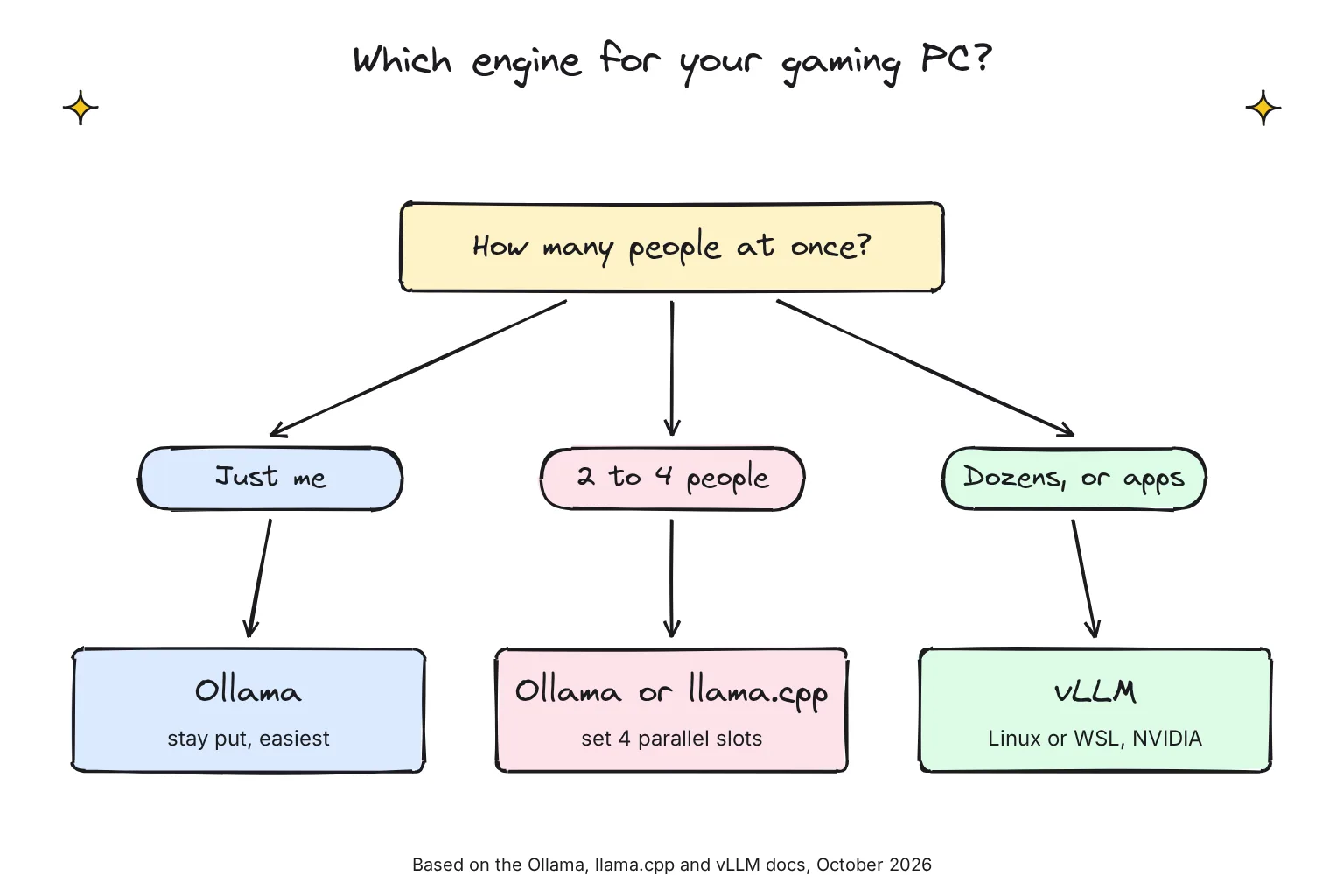
Use Ollama if you want the easiest way to run models for yourself; it now wraps llama.cpp's server program. Use llama.cpp directly for the newest features and full control of GGUF files. Use vLLM, a Linux serving engine, only when many people or apps send requests at once, because its throughput scales with concurrent users.
This guide follows one reader: a gamer with a Windows 11 PC and either an RTX 4070 with 12GB of VRAM (the fast memory on the graphics card) or a used RTX 3090 with 24GB. They run models in Ollama today and wonder whether to switch engines, and whether vLLM is worth it to serve the family or a small team from a home server.
Choose Ollama if:
- You want one installer, a chat app and a background server: Ollama runs as a native Windows application with NVIDIA and AMD Radeon support.
- You chat alone or with one other person; it handles one request per model at a time by default.
- You want ready-sized downloads from Ollama's model library rather than hunting for files.
Choose llama.cpp if:
- You want the newest engine: Ollama v0.40.13 pins llama.cpp build b11963, while llama.cpp had reached build b11983 by October 29, 2026.
- You want any GGUF file and every setting, through llama serve, which opens 4 parallel slots by default.
- You have an AMD, Intel or older card: it publishes Windows builds for CUDA, Vulkan, SYCL, OpenVINO and ROCm.
Choose vLLM if:
- Many people or apps will use one model at the same time; vLLM promises state-of-the-art serving throughput, in its own words.
- You can run Linux, or WSL on Windows, because vLLM does not support Windows natively.
- You have an NVIDIA card with compute capability 7.5 or higher, which covers both the RTX 4070 and RTX 3090, and room for a 4-bit or 8-bit model.
How Ollama, llama.cpp and vLLM compare in October 2026
All three are inference engines: programs that load a model's weights, generate text and offer it through an API, a web address other software can call. In October 2026 the current releases are Ollama v0.40.13, released October 28, llama.cpp v0.7.0, released October 15, with new numbered builds several times a day, and vLLM v0.32.0, released October 18.
| Feature | Ollama | llama.cpp | vLLM |
|---|---|---|---|
| License | MIT | MIT | Apache 2.0 |
| Install on Windows 11 | Easy: installer or one PowerShell line | Easy: install script, winget or the Llama app | Harder: WSL or Docker Desktop with WSL 2 |
| Interface | Mac and Windows app, plus command line | Built-in web UI, command line, Llama app | Command line and API; add Open WebUI for chat |
| Hardware | NVIDIA (compute 5.0+), AMD via ROCm or Vulkan, Apple Metal, CPU | CUDA, HIP for AMD, Vulkan, SYCL for Intel, Metal, CPU | NVIDIA (7.5+), AMD RX 7900 and RX 9000, Intel Arc, Apple via vLLM-Metal, CPU |
| Systems | Windows 10 22H2+, macOS 14+, Linux | Windows, macOS, Linux | Linux, Python 3.11-3.14 |
| Model formats | GGUF; MLX on Apple; Safetensors import | GGUF | Hugging Face checkpoints; AWQ, GPTQ, FP8; GGUF experimental |
| Default address | 127.0.0.1:11434 | 127.0.0.1:9931 | 0.0.0.0:8000 (all interfaces) |
| Parallel requests by default | 1 per model | 4 slots | Up to 256 sequences on cards under 70GB |
| Multi-user throughput | Lowest; extra requests queue | Close to vLLM at 16 requests in one test | Highest at dozens of users |
| Best for | Yourself, least setup | Tinkerers, any GPU or CPU | A shared server with many users |
What is llama.cpp?
llama.cpp is LLM inference in C/C++: an open-source engine for CPUs and NVIDIA, AMD, Intel and Apple graphics that can split a model between graphics card and system memory. It runs models in GGUF, a single file that packages model weights, tokenizer and metadata. Today one llama command covers both jobs: llama cli to chat in a terminal and llama serve for the server.
What is vLLM?
vLLM describes itself as a fast and easy-to-use library for LLM inference and serving, first developed in UC Berkeley's Sky Computing Lab. Its key idea, PagedAttention, comes from a 2023 paper whose authors reported 2-4 times the throughput of earlier serving systems at the same latency. Its server hosts one model at a time, which suits a dedicated server better than a desktop.
Is Ollama just llama.cpp with a wrapper?
For GGUF models, largely yes. Ollama 0.30, in June 2026, brought GGUF model compatibility through llama.cpp, and Ollama's v0.40.13 code wraps the llama-server binary as a subprocess, pinned to build b11963, up from b11901 in v0.40.12 and b11845 in v0.40.11. Ollama adds the model library, the app, memory sizing and its own API. vLLM is a separate project with its own engine.
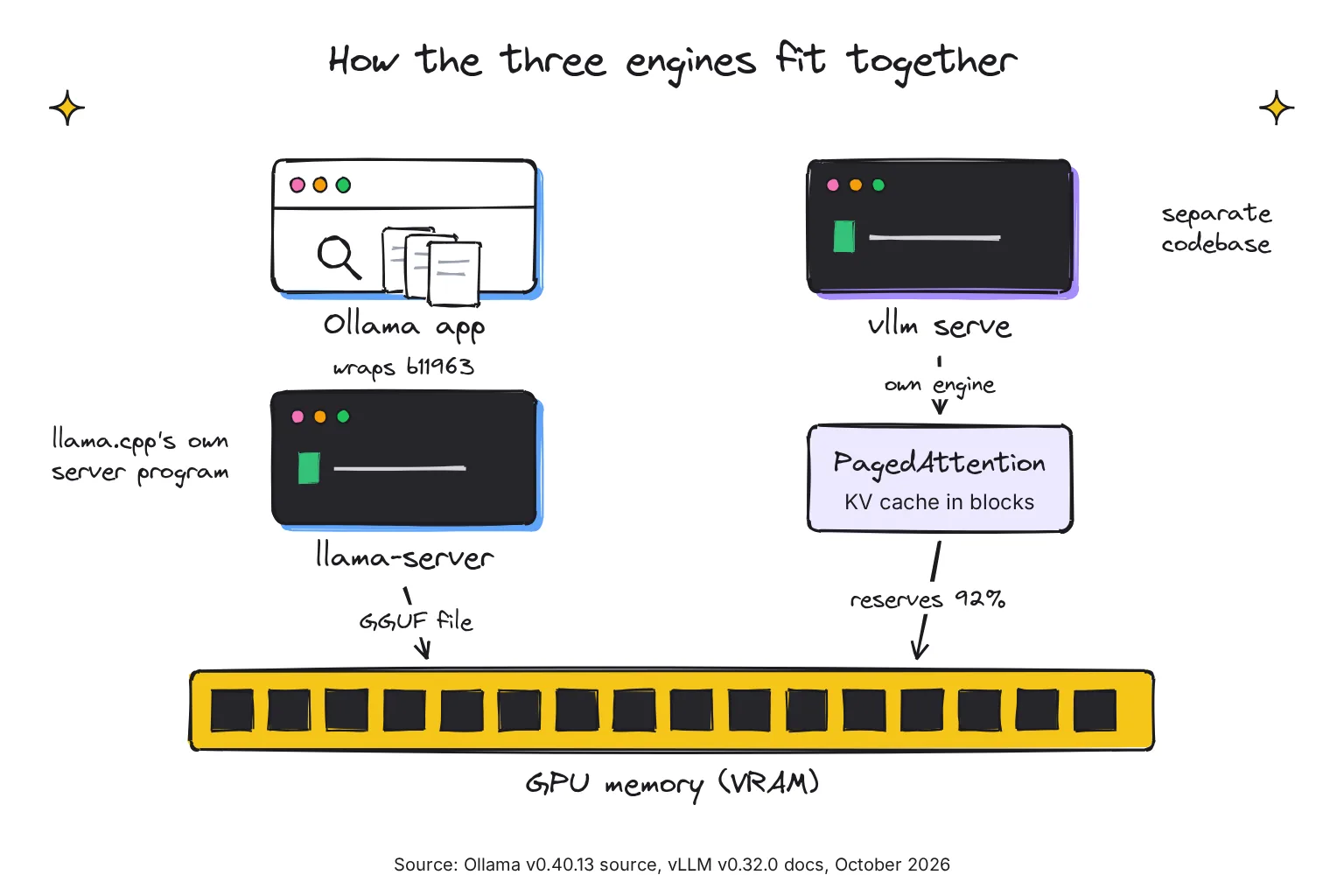
So one GGUF file at the same settings should behave much the same in both; the defaults differ. Our LM Studio vs Ollama comparison reaches the same conclusion for LM Studio, which also ships a llama.cpp runtime.
Which models can Ollama, llama.cpp and vLLM run?
The file format decides. GGUF is a binary format designed for fast loading and saving of models, usually already quantized, meaning the weights are stored in fewer bits, such as 4 instead of 16, to save memory. Ollama and llama.cpp run GGUF. vLLM runs Hugging Face checkpoints, the safetensors files listed on a model's page, plus quantized versions in formats such as AWQ, GPTQ and FP8.
AWQ and GPTQ are common 4-bit methods, and FP8 is an 8-bit format that vLLM runs fully on compute capability 8.9 and newer, and as weight-only FP8 on Turing and Ampere. RTX 40 cards are compute capability 8.9 and RTX 30 cards 8.6, so the 3090 gets the weight-only kind.
Can vLLM run GGUF models?
Only just. Its docs call GGUF support highly experimental and under-optimized, and it now needs the separate vllm-gguf-plugin. If your collection is GGUF, keep it in Ollama or llama.cpp and download an AWQ or FP8 build for vLLM.
What fits on a 12GB or 24GB graphics card?
File size is the first test; context is the second. Context length is how much text the model keeps in view; its working memory, the KV cache (key-value cache), grows with every token. Ollama sets context by VRAM: 4K below 24 GiB and 32K from 24 to 48 GiB, so the 4070 starts at 4K and the 3090 at 32K.
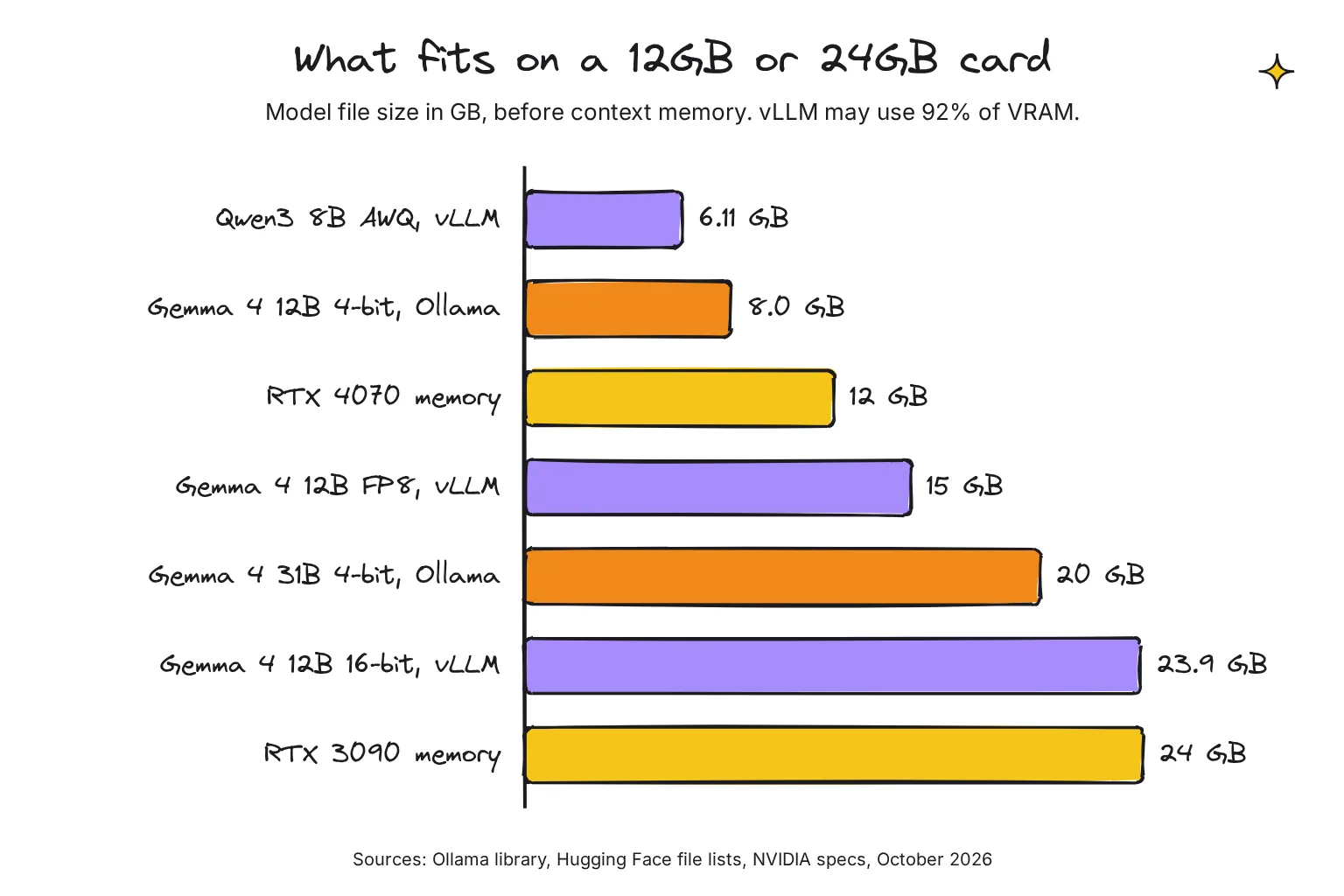
In Ollama's library, Gemma 4 12B at 4-bit is 8.0GB and Gemma 4 31B at 4-bit is 20GB. For vLLM, the official Qwen3 8B AWQ build is 6.11 GB, Red Hat's FP8 Gemma 4 12B is 15 GB, and Google's original 16-bit Gemma 4 12B is 23.9 GB. NVIDIA lists 12GB on the RTX 4070 and 24GB on the RTX 3090.
The upshot: the 4070 runs 12B models in Ollama, but under vLLM I would plan on about 8B at 4-bit, since vLLM budgets 92% of the card, about 11GB, and the KV cache needs part of that. The 3090 has room for FP8 12B-class models. If a model's full context will not fit, vLLM stops with an error that the KV cache needed is larger than the available KV cache memory; lower --max-model-len.
vLLM vs Ollama and llama.cpp: one user or many?
With one person typing, the engines are close. The gap opens when requests overlap. Continuous batching means the engine adds new requests to the batch it is already running, token by token: if 10 requests arrive at roughly the same time, vLLM interleaves their token generation rather than making nine wait. llama-server also has continuous batching enabled by default.
PagedAttention fixes memory. vLLM's launch post said existing systems waste 60% to 80% of memory due to fragmentation and over-reservation of the KV cache. PagedAttention stores each cache in small blocks, like an operating system's memory pages, cutting waste to under 4%, so more conversations fit at once.
Why does vLLM take 92% of my GPU memory?
It reserves its working space up front. The gpu_memory_utilization setting has a default value of 0.92, and vLLM pre-allocates GPU cache using this percentage of memory. On a gaming PC, Windows and open apps already hold some VRAM, and vLLM refuses to start when free memory is below its target. Close games first, or lower the share with --gpu-memory-utilization.
How do Ollama and llama.cpp handle several people?
Ollama's OLLAMA_NUM_PARALLEL sets how many requests each model handles at once, default 1. Raising it costs memory, because required RAM will scale by OLLAMA_NUM_PARALLEL * OLLAMA_CONTEXT_LENGTH: a 2K context with 4 parallel requests becomes an 8K context. Some families, including Qwen 3.5 and Qwen3-VL, are held to one request at a time regardless. Our home AI server guide covers the hardware and power side.
llama.cpp's server uses slots, one conversation each. Left on auto, it uses 4 slots with one shared KV cache, and its docs show llama serve -m model.gguf -c 16384 -np 4 for up to 4 concurrent requests, with the context shared across slots.
What do published benchmarks show?
I know of no published test of all three engines on a gaming card. These are the closest, with their dates and conditions:
- Red Hat, August 2025: one A100 40GB data center GPU, Llama 3.1 8B at 16-bit, vLLM 0.9.1 against Ollama 0.9.2 at 1-256 users. vLLM peaked at 793 tokens per second against Ollama's 41, and Ollama tuned to
OLLAMA_NUM_PARALLEL=32still plateaued. - Red Hat, September 2025: one H200 GPU, Llama 3.1 8B at 16-bit, vLLM v0.10.0 against llama.cpp b6100 at 1-64 users. Speeds were comparable for one user; at peak load vLLM gave more than 44 times the total output tokens per second. That llama.cpp build defaulted to one parallel sequence, and the article does not say the testers raised it.
- Johannes Gaessler, a llama.cpp collaborator, August 2025: one RTX 4090 limited to 1350 MHz, Qwen 2.5 3B. llama.cpp needed 93.6-100.2% of vLLM's time per request at one parallel request, and 99.2-125.6% at 16.
Red Hat sells Red Hat AI Inference Server, powered by vLLM, and Gaessler works on llama.cpp, so each is an interested party. Together they suggest a pattern: alone, the engines roughly tie; at a handful of users, llama.cpp with slots stays close; at dozens, vLLM pulls far ahead. For what tokens per second feel like, see our local vs cloud AI speed guide.
How to install and run each engine on Windows 11
Try one engine at a time and quit the others first, since each wants most of the graphics card.

Ollama
- Install it. Run the installer from ollama.com/download, or paste
irm https://ollama.com/install.ps1 | iexinto PowerShell. It runs in the background on localhost:11434; our Ollama install guide covers first errors. - Run a model. Type
ollama run gemma4:12b, the command on its library page; the download fits the 4070. - Check the GPU. Run
ollama ps: 100% GPU means the model was loaded entirely into the GPU. - Allow parallel requests. Quit Ollama from the taskbar, add
OLLAMA_NUM_PARALLELunder Edit environment variables for your account, then start Ollama again from the Start menu.
llama.cpp server
- Install it. In PowerShell, run the README's install line, or use winget. The script tries CUDA, then ROCm, Vulkan and CPU, and if it finds an NVIDIA card without the CUDA Toolkit, it suggests
winget install Nvidia.CUDA. - Serve a model.
llama serve -hfdownloads a GGUF file from Hugging Face and serves it at http://localhost:9931. - Open the web UI. Visit that address in your browser to chat, or point other apps at
http://localhost:9931/v1. - Size it for the family. Set context and slots, as in the last command below.
irm https://llama.app/install.ps1 | iex
winget install llama.cpp

llama serve -hf ggml-org/gemma-4-e4b-it-GGUF:Q4_0

# up to 4 concurrent requests
llama serve -m model.gguf -c 16384 -np 4
llama serve runs the same server as llama-server, the name in older guides. Those guides also say port 8080, but v0.7.0 made the server listen on port 9931 by default instead of 8080; Docker images keep 8080 inside the container.
How to install vLLM on Windows with Docker
vLLM's docs say it does not support Windows natively, and suggest the Windows Subsystem for Linux (WSL) with a compatible Linux distribution, or community-maintained forks. Docker uses WSL underneath: Docker Desktop passes an NVIDIA GPU to Linux containers only with the WSL 2 backend.
- Install WSL. In PowerShell run as administrator, type
wsl --install, which installs the Ubuntu distribution, then restart. - Keep your Windows NVIDIA driver. CUDA reaches WSL 2 through it, and NVIDIA warns that users must not install any NVIDIA GPU Linux driver within WSL 2.
- Install Docker Desktop. Select Use WSL 2 based engine and turn on WSL integration for Ubuntu.
- Test the GPU. Run Docker's n-body sample, the first command below.
- Start vLLM. From the Ubuntu terminal, run vLLM's official Docker command, the second command below; it serves on port 8000.
docker run --rm -it --gpus=all nvcr.io/nvidia/k8s/cuda-sample:nbody nbody -gpu -benchmark

docker run --runtime nvidia --gpus all \
    -v ~/.cache/huggingface:/root/.cache/huggingface \
    --env "HF_TOKEN=$HF_TOKEN" \
    -p 8000:8000 \
    --ipc=host \
    vllm/vllm-openai:latest \
    --model Qwen/Qwen3-0.6B
That tiny test model loads anywhere; for real use, swap in Qwen/Qwen3-8B-AWQ and add engine arguments after the image tag. If Docker replies unknown or invalid runtime name: nvidia, an error Docker Desktop users have reported, drop --runtime nvidia and keep --gpus all, which is how Docker's own GPU test passes the card.
vLLM on Linux or inside WSL
On a Linux home server, or in Ubuntu on WSL, the quickstart uses uv, a Python package manager you install with curl -LsSf https://astral.sh/uv/install.sh | sh. These commands come from vLLM's quickstart, and the server starts at http://localhost:8000:
uv venv --python 3.12 --seed
source .venv/bin/activate
uv pip install vllm --torch-backend=auto
vllm download-kernels

vllm serve Qwen/Qwen2.5-1.5B-Instruct
Want more detail on llama.cpp? See how to install llama.cpp, including the no-compile options.
Do Ollama, llama.cpp and vLLM all offer an OpenAI-compatible API?
Yes. An OpenAI-compatible API accepts the same requests as OpenAI's, so chat apps and coding tools connect by changing one address. Ollama serves OpenAI endpoints at http://localhost:11434/v1, llama-server offers OpenAI chat completions, responses and embeddings, plus Anthropic Messages, and vLLM implements the OpenAI API protocol.
So swapping engines behind a chat front end is simple. Open WebUI connects to vLLM at http://localhost:8000/v1, or http://host.docker.internal:8000/v1 when Open WebUI runs in Docker. Our Gemma 4 and Open WebUI guide walks through the Ollama side.
Which engine is safest to share on a home network?
Ollama binds 127.0.0.1 port 11434 by default, reachable only from your PC, and its local API does not require authentication. llama.cpp's server also binds 127.0.0.1 by default and accepts --api-key. vLLM differs: with no --host it listens on every network interface, and its --api-key protects only endpoints under /v1, /v2, /inference and /cohere.
vLLM also collects anonymous usage data by default, such as hardware and model type; set VLLM_NO_USAGE_STATS=1 to opt out. On a home server, keep it behind your router, and pass --host 127.0.0.1 if only that machine needs it.
SGLang vs vLLM: do you need SGLang?
SGLang is another open-source serving engine, licensed under Apache 2.0, at v0.5.22, released October 19. Its signature feature, RadixAttention, retains the KV cache for both prompts and generation results in a radix tree, so requests sharing a start, such as a long system prompt, skip that work. Its makers reported up to 5 times higher throughput than Guidance and vLLM in January 2024, but vLLM now lists prefix caching too.
SGLang's install docs target Linux with NVIDIA GPUs, its README lists RTX 30, 40 and 50 series, and its quickstart serves on port 30000. I know of no recent like-for-like test on a consumer card that I trust, so for this reader it can wait.
Common questions about Ollama, llama.cpp and vLLM
Is llama.cpp faster than Ollama?
Usually not by much. Ollama now runs GGUF models through llama.cpp's own server program, so the same file and settings should give similar speed. Differences come from defaults such as context length and parallel slots, and from Ollama pinning a specific llama.cpp build that can trail the newest one.
Is vLLM faster than Ollama?
For one person, not meaningfully. For many people at once, yes. In a 2025 Red Hat test on a data center A100 GPU, vLLM peaked at 793 output tokens per second against 41 for Ollama. Red Hat sells a vLLM-based product, and a gaming card will give different numbers.
Can vLLM run on Windows?
Not natively. The vLLM documentation says to use the Windows Subsystem for Linux with a compatible Linux distribution, or community-maintained forks. The official Docker image also works through Docker Desktop, but GPU passthrough there needs the WSL 2 backend and an NVIDIA graphics card, so it is WSL underneath.
What port does llama-server use?
Since llama.cpp v0.7.0, released in October 2026, the server listens on 127.0.0.1 port 9931 by default instead of 8080. Older guides and builds use 8080, and the official Docker images keep 8080 inside the container. For comparison, Ollama uses port 11434 and vLLM uses port 8000.
Can vLLM run GGUF models?
Only experimentally. The vLLM documentation calls its GGUF support highly experimental and under-optimized, and it now requires the separate vllm-gguf-plugin package. For vLLM, download a Hugging Face build in a supported format such as AWQ, GPTQ or FP8 instead, and keep GGUF files for Ollama or llama.cpp.
Should I use SGLang or vLLM?
For a home server either can work, and both are open source under Apache 2.0 with OpenAI-compatible APIs. SGLang's RadixAttention reuses shared prompt prefixes, which helps agents and long chats, and its docs target Linux with NVIDIA GPUs. Without a trustworthy like-for-like test, pick the one with a ready recipe for your model.
My verdict for a gaming PC: keep Ollama, add vLLM only for a crowd
For the reader with an RTX 4070 or RTX 3090, Ollama remains the right everyday engine: the same llama.cpp core, the least setup and a native Windows app. Move to llama.cpp itself for the newest builds and four slots out of the box. Choose vLLM only for a Linux or WSL home server facing many simultaneous users or apps, and then use the 3090, because 92% of a 12GB card leaves little room once Windows takes its share.
What can wait: SGLang, FP8 tuning and multi-GPU setups. None of them helps a household of four asking questions a few times an hour.
Your next step: set OLLAMA_NUM_PARALLEL to 4, restart Ollama, and have two people ask questions at the same moment while ollama ps still shows 100% GPU. If the wait still annoys them, try the vLLM Docker command above on the 3090 with Qwen/Qwen3-8B-AWQ.
Sources
- llm/llama_server.go at v0.40.13 - ollama/ollama, GitHub
- vllm-project/vllm README - GitHub
- Ollama vs. vLLM performance benchmarking - Red Hat Developer
- Windows - Ollama
- FAQ - Ollama
- gemma4 tags - Ollama
- LLAMA_CPP_VERSION at v0.40.13 - ollama/ollama, GitHub
- LLAMA_CPP_VERSION at v0.40.12 - ollama/ollama, GitHub
- Release b11938 - ggml-org/llama.cpp, GitHub
- Release b11983 - ggml-org/llama.cpp, GitHub
- Running a server - llama.cpp (llama.app)
- tools/server/server.cpp - ggml-org/llama.cpp, GitHub
- GPU installation - vLLM
- Release v0.40.13 - ollama/ollama, GitHub
- Release v0.7.0 - ggml-org/llama.cpp, GitHub
- Release v0.32.0 - vllm-project/vllm, GitHub
- ollama/LICENSE - GitHub
- llama.cpp/LICENSE - GitHub
- vllm/LICENSE - GitHub
- LLaMA.cpp HTTP Server - ggml-org/llama.cpp, GitHub
- Llama: Your AI, on your computer - llama.cpp team and Hugging Face
- Hardware support - Ollama
- ggml-org/llama.cpp README - GitHub
- macOS - Ollama
- Quickstart - vLLM
- Importing a Model - Ollama
- Quantization - vLLM
- GGUF - vLLM
- vllm/engine/arg_utils.py at v0.32.0 - vllm-project/vllm, GitHub
- Introduction - llama.cpp (llama.app)
- Efficient Memory Management for Large Language Model Serving with PagedAttention - arXiv
- Improved performance and model support with GGUF - Ollama
- LLAMA_CPP_VERSION at v0.40.11 - ollama/ollama, GitHub
- GGUF - ggml-org/ggml, GitHub
- FP8 W8A8 - vLLM
- Context length - Ollama
- Qwen/Qwen3-8B-AWQ files - Hugging Face
- RedHatAI/gemma-4-12B-it-FP8-Dynamic files - Hugging Face
- google/gemma-4-12B-it files - Hugging Face
- GeForce RTX 4070 Family - NVIDIA
- GeForce RTX 3090 Family - NVIDIA
- vllm/v1/core/kv_cache_utils.py at v0.32.0 - vllm-project/vllm, GitHub
- llama.cpp vs. vLLM: Choosing the right local LLM inference engine - Red Hat Developer
- vLLM: Easy, Fast, and Cheap LLM Serving with PagedAttention - vLLM Blog
- Engine Arguments - vLLM
- Optimization and Tuning - vLLM
- vllm/v1/worker/utils.py at v0.32.0 - vllm-project/vllm, GitHub
- server/sched.go at v0.40.13 - ollama/ollama, GitHub
- vLLM or llama.cpp: Choosing the right LLM inference engine for your use case - Red Hat Developer
- common/common.h at b6100 - ggml-org/llama.cpp, GitHub
- llama.cpp vs vllm performance comparison - ggml-org/llama.cpp, GitHub
- Download Ollama - Ollama
- gemma4:12b - Ollama
- Install pre-built version of llama.cpp - ggml-org/llama.cpp, GitHub
- install.ps1 - llama.cpp (llama.app)
- Quickstart - llama.cpp (llama.app)
- app/llama.cpp - ggml-org/llama.cpp, GitHub
- GPU support in Docker Desktop for Windows - Docker
- How to install Linux on Windows with WSL - Microsoft
- CUDA on WSL User Guide - NVIDIA
- Docker Desktop WSL 2 backend on Windows - Docker
- Using Docker - vLLM
- Documentation issues with Windows - WLS2 - Docker desktop - NVIDIA/nvidia-container-toolkit, GitHub
- Installing uv - Astral
- OpenAI compatibility - Ollama
- vLLM - Open WebUI
- Authentication - Ollama
- vllm/entrypoints/launchers/launcher.py at v0.32.0 - vllm-project/vllm, GitHub
- Security - vLLM
- Usage Stats Collection - vLLM
- sgl-project/sglang README - GitHub
- Release v0.5.22 - sgl-project/sglang, GitHub
- Fast and Expressive LLM Inference with RadixAttention and SGLang - LMSYS
- Installation - SGLang
- Quickstart - SGLang