
How do you build a DIY AI voice assistant with a Raspberry Pi?
Install Home Assistant on a Raspberry Pi 5 and add free local apps: Speech-to-Phrase to hear you and Piper to answer, plus a microphone and speaker such as the $69 Voice Preview Edition. Home Assistant says this way your spoken commands never leave your home. For open questions, add a local language model.
This guide follows one reader: a hobbyist with an 8GB Raspberry Pi 5 in a drawer, a few smart bulbs and a smart speaker they want to unplug. They want timers, lights by voice and quick answers, with nothing sent to Amazon or Google. It is part of our guide to AI on a Raspberry Pi.
What are the parts of a Raspberry Pi voice assistant?
A voice assistant is four programs in a row, fed by a microphone and ending at a speaker. Home Assistant calls the chain an Assist pipeline, and you can swap each piece.
- Wake word. A tiny model listens for one phrase, such as Hey Jarvis. The open options are openWakeWord and microWakeWord, which is light enough for ESP32 chips and Android phones.
- Speech to text (STT). Home Assistant lists two local options, Speech-to-Phrase and Whisper: the first only knows phrases built from your device and room names, while OpenAI's Whisper tries to transcribe anything.
- The brain. Home Assistant's built-in agent, Assist, matches sentences to intents, actions such as turning on a light. An LLM (large language model) answers open questions through the Ollama integration.
- Text to speech (TTS). Piper is a fast, local neural text-to-speech system optimized for the Raspberry Pi 4.
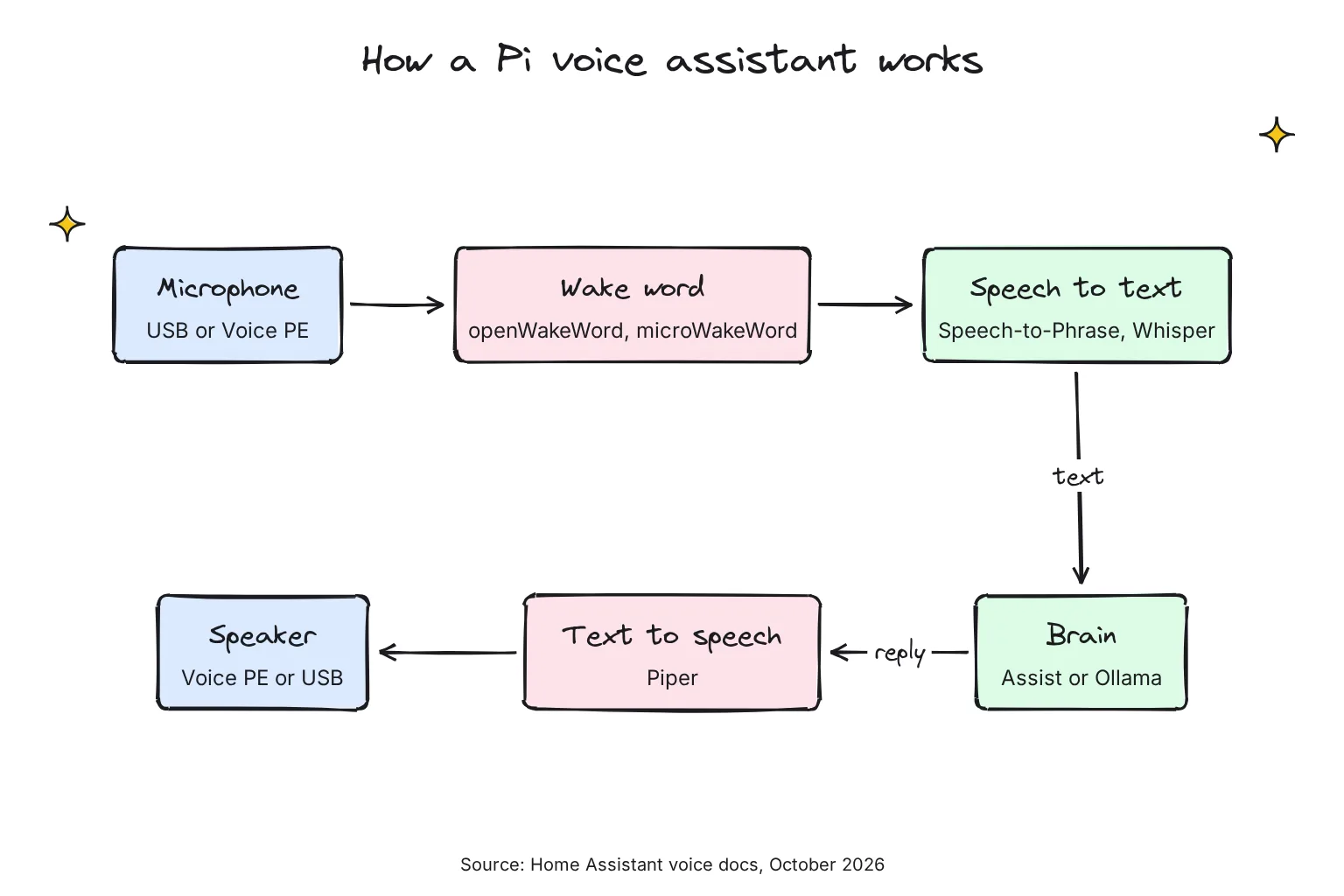
Every stage can run on the Pi, but open speech to text and LLMs are slow there, as the speed section shows. For more on each engine, see our guide to running Whisper locally and roundup of local TTS models.
What is the Wyoming protocol?
Wyoming is the plumbing between the pieces: a peer-to-peer TCP protocol for voice assistants that Home Assistant uses to connect external voice services. It runs over your network, so a heavy service such as Whisper can live on a faster computer.
Which build route should you choose?
Choose Route 1, Home Assistant, if:
- You mainly want lights, timers, the time and the weather, which Speech-to-Phrase recognizes out of the box.
- You would rather click through a web page than write code.
- You want a speaker-shaped device on the counter, not a bare circuit board.
Choose Route 2, a Python script, if:
- You want a chatty assistant powered by a local LLM, the closest thing to a Raspberry Pi 5 ChatGPT voice assistant that runs offline.
- You are happy in a terminal and want to tinker.
- You do not need smart home control yet.

What parts do you need, and what do they cost?
Memory costs pushed Raspberry Pi to raise prices more than once in 2026, with rises of $25 to $100 on April 1 and $12.50 more for the 2GB Pi 5 on October 1. Raspberry Pi sells through resellers rather than direct, so its parts below are priced at PiShop.us, one of its official Approved Resellers, checked on October 27 and 28, 2026, before tax and shipping.
| Part | Pick | US price, PiShop.us unless noted, October 27 and 28, 2026 | Why |
|---|---|---|---|
| Computer | Raspberry Pi 5, 4GB (Route 1) or 8GB (Route 2) | $110 or $175, the same as Raspberry Pi's October 2026 list prices | Home Assistant needs at least 2GB; a local LLM needs room |
| Power | Raspberry Pi 27W USB-C Power Supply | $12.95 | Raspberry Pi recommends a 5V 5A supply for the Pi 5 |
| Cooling | Raspberry Pi Active Cooler, or the Case for Raspberry Pi 5 with its fan | $10.95 either way | Keeps the Pi from slowing down under long loads |
| Storage | Official Raspberry Pi microSD card, 64GB, A2 (flashing replaces its preloaded OS) | $20.95 (the blank 32GB card, $19.95, was out of stock) | Home Assistant asks for 32GB or more, ideally A2 |
| Mic and speaker, Route 1 | Home Assistant Voice Preview Edition | $69, recommended price before tax; in stock for $58.95 at two US sellers Home Assistant lists | Two mics, echo cancellation, a mute switch, on-device wake word |
| Mic and speaker, Route 2 | Seeed ReSpeaker Lite USB 2-mic array, plus a powered speaker | $24.90 at Seeed, plus the speaker | USB audio with no driver, and a 3.5mm output |
| Optional | Raspberry Pi AI HAT+ 2 | $200.00, and $200 on its product page | Hailo says it speeds up the slow first step of LLMs; it also runs Whisper |
Sources: PiShop.us (linked in the table), the Raspberry Pi 5 product brief, published October 2026, the Voice Preview Edition page and two of its listed US sellers, Ameridroid and CloudFree, Seeed Studio and the AI HAT+ 2 page. At these prices, with the Voice Preview Edition at $69, Route 1 costs about $224 built new and Route 2 about $245 plus a speaker; our reader, who owns the Pi, pays about $114 for Route 1.
Note that the Pi 5 has no analog audio jack, so the speaker must be USB, HDMI or plugged into the microphone board. And Home Assistant warns that mobile chargers may not be suitable as a power supply.
Route 1: How do you set up Home Assistant voice on a Raspberry Pi 5?
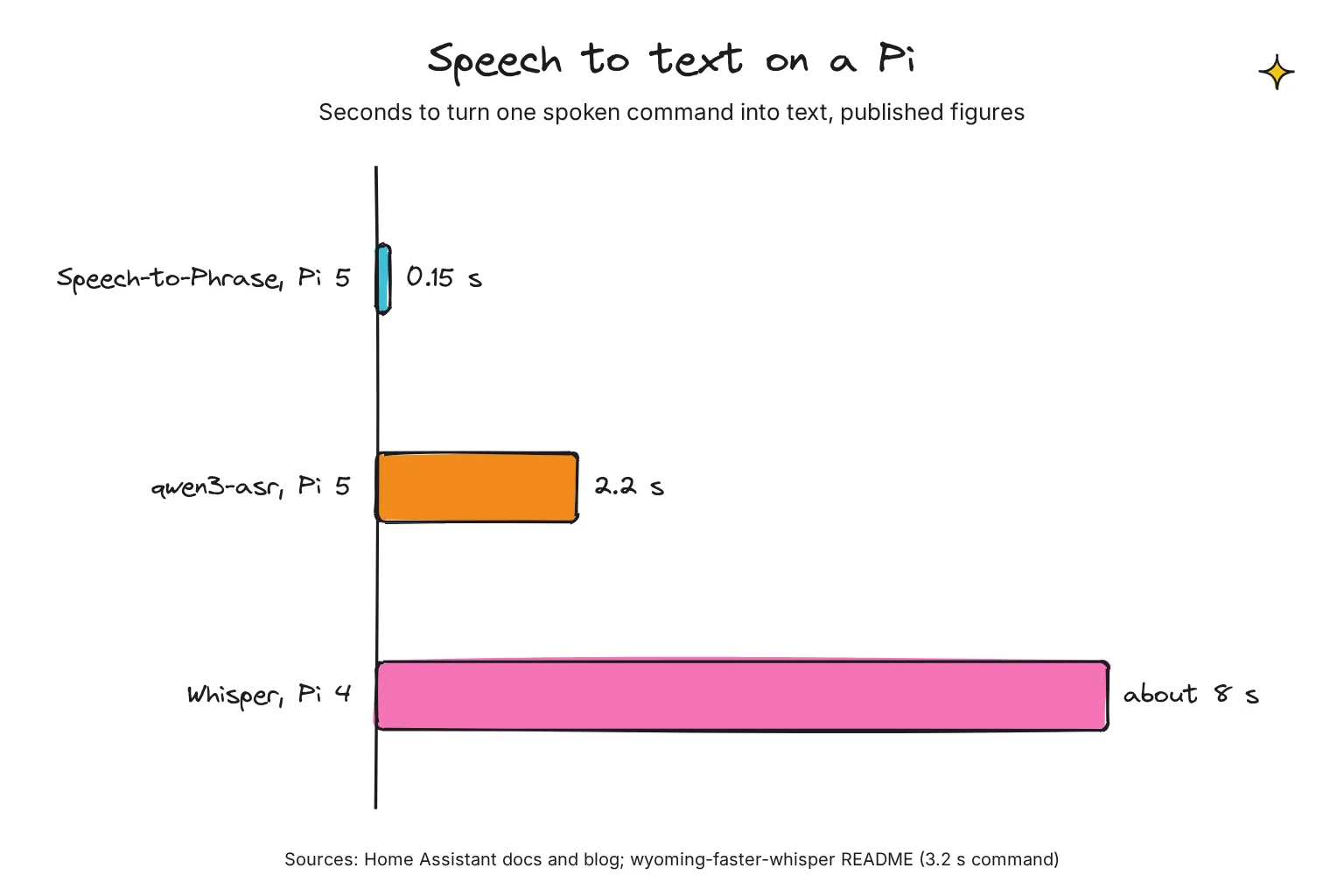
Home Assistant is clear about which speech-to-text engine suits a Pi. Speech-to-Phrase gives extremely fast transcription even on a Home Assistant Green or Raspberry Pi 4 (under one second), and the Pi 5 processes commands seven times faster, clocking in at 150 milliseconds per command. Whisper is another story: on a Raspberry Pi 4, it takes around 8 seconds to process incoming voice commands, and it is only a great option if you have powerful hardware at home; for Whisper, Home Assistant recommends at least an Intel N100 or equivalent processor.
- Flash Home Assistant OS. In Raspberry Pi Imager, choose Other specific-purpose OS > Home automation > Home Assistant, pick the Raspberry Pi 5 version, and write it to a microSD card of at least 32GB.
- Start the Pi on Ethernet. A cable is required for installation. Within a minute or two, open homeassistant.local (or homeassistant.local:8123) in a browser and create your account.
- Install the voice apps. Go to Settings > Apps > Install app, install Speech-to-Phrase and Piper, and start both. Speech-to-Phrase trains itself on the devices, areas and floors you expose.
- Add them through Wyoming. Under Settings > Devices & services, both appear as discovered by the Wyoming integration. Select Add on each.
- Create the assistant. Go to Settings > Voice assistants > Add assistant, then choose Home Assistant as the conversation agent, Speech-to-Phrase for speech to text and Piper for text to speech.
- Expose your devices. In the Expose tab, tick the lights and switches voice may control; this step keeps sensitive devices, such as locks and garage doors, safe from stray commands.
- Connect the speaker. Power the Voice Preview Edition from a USB-C charger that gives 5V at 2A, since none comes in the box, follow the setup wizard, and point it at your new assistant. Then say: Okay Nabu, set a timer for 5 minutes.
The Voice Preview Edition spots its wake words, Okay Nabu, Hey Jarvis or Hey Mycroft, on the device with microWakeWord, so it needs no openWakeWord app. Speech-to-Phrase does not handle shopping lists, naming a timer, and broadcasts out of the box, so say "set a timer for 20 minutes", not "set a pizza timer".
Can you use a USB microphone on the Pi instead?
Yes, with an experimental app. Assist Satellite uses the Linux Voice Assistant runtime to turn your HA host into a voice satellite with a USB microphone and speaker, though for now you add its repository by hand. The Home Assistant phone app also works as a microphone.
How do you add a local LLM to Home Assistant voice?
The Ollama integration requires an external Ollama server, so run Ollama on a faster computer. Only models that support Tools may control Home Assistant, the docs suggest exposing fewer than 25 entities, and smaller models make more mistakes. Turn on the setting to prefer handling commands locally, so Assist still takes "lights off" and only hard questions reach the LLM.
Speech-to-Phrase is intended for home control only and not LLMs, so an LLM assistant needs Whisper too, run on the same computer as a Wyoming service. On a Linux PC, both take a few commands from the Ollama FAQ and the Wyoming Faster Whisper README:
# 1. Let other machines on your network reach Ollama
systemctl edit ollama.service
# In the editor that opens, add these two lines and save:
[Service]
Environment="OLLAMA_HOST=0.0.0.0:11434"
# 2. Apply the change
systemctl daemon-reload
systemctl restart ollama

# Whisper speech to text on port 10300
docker run -it -p 10300:10300 -v /path/to/local/data:/data rhasspy/wyoming-whisper \
    --model tiny-int8 --language en
Our guide to building a home AI server covers the computer side, including power costs.
Route 2: How do you build your own voice assistant on a Raspberry Pi in Python?
This route chains four libraries: openWakeWord models through pyopen-wakeword, faster-whisper for speech to text, Ollama for the LLM, and Piper for the voice. Our guide to running an LLM on a Raspberry Pi covers model choice and speeds in depth.
Why not the original openwakeword package? Its last release, 0.6.0 from February 2024, needs tflite-runtime on Linux, which has no builds for Python 3.12 or newer, while Raspberry Pi OS is now based on Debian Trixie with Python 3.13. pyopen-wakeword runs the same models with a pre-compiled TensorFlow Lite library.
- Install Raspberry Pi OS Lite (64-bit). Lite is the command-line-only version without a graphical desktop, leaving more memory for models.
- Plug in the microphone and speaker. The ReSpeaker Lite is plug-and-play, no driver required; plug a powered speaker into its 3.5mm jack. Run
arecord -landaplay -l, which list all soundcards, to check the Pi sees it. - Install Ollama and a small model. Run Ollama's Linux install script, then pull llama3.2:1b, a 1.3GB download. Our Ollama install guide fixes the common first errors.
- Create a Python virtual environment. Raspberry Pi OS only lets pip install into a virtual environment, a private folder of Python packages.
- Download a voice and test both directions. Fetch Piper's en_US-lessac-medium voice and play a test sentence, then say Hey Jarvis to the live wake word test; it prints the model name when it hears you.
curl -fsSL https://ollama.com/install.sh | sh
ollama pull llama3.2:1b
python3 -m venv ~/voice
source ~/voice/bin/activate
export ORT_DISABLE_TELEMETRY=1
pip install pyopen-wakeword faster-whisper piper-tts ollama
mkdir ~/assistant && cd ~/assistant
python3 -m piper.download_voices en_US-lessac-medium
python3 -m piper -m en_US-lessac-medium -f test.wav -- 'This is a test.'
aplay test.wav
arecord -r 16000 -c 1 -f S16_LE -t raw | python3 -m pyopen_wakeword --model 'hey_jarvis'
Save this as assistant.py in the same folder as the voice files. It follows each library's documented calls: pyopen-wakeword's streaming loop, faster-whisper's int8 CPU mode and vad_filter, Ollama's chat call and Piper's synthesize_wav.
import subprocess, wave
import numpy as np
import ollama
from faster_whisper import WhisperModel
from piper import PiperVoice
from pyopen_wakeword import OpenWakeWord, OpenWakeWordFeatures, Model

MIC = ["arecord", "-q", "-r", "16000", "-c", "1", "-f", "S16_LE", "-t", "raw"]
wake = OpenWakeWord.from_builtin(Model.HEY_JARVIS)
features = OpenWakeWordFeatures.from_builtin()
stt = WhisperModel("tiny.en", device="cpu", compute_type="int8")
voice = PiperVoice.load("en_US-lessac-medium.onnx")
RULES = "You are a kitchen voice assistant. Answer in one short sentence."

def wait_for_wake_word():
    mic = subprocess.Popen(MIC, stdout=subprocess.PIPE)
    try:
        while chunk := mic.stdout.read(2048):
            for f in features.process_streaming(chunk):
                if any(p > 0.5 for p in wake.process_streaming(f)):
                    return True
    finally:
        mic.kill()
        wake.reset()
        features.reset()

while wait_for_wake_word():
    raw = subprocess.run(MIC + ["-d", "5"], capture_output=True).stdout
    audio = np.frombuffer(raw, dtype=np.int16).astype(np.float32) / 32768
    segments, _ = stt.transcribe(audio, language="en", vad_filter=True)
    question = " ".join(s.text for s in segments).strip()
    if not question:
        continue
    reply = ollama.chat(model="llama3.2:1b", keep_alive=-1, messages=[
        {"role": "system", "content": RULES},
        {"role": "user", "content": question}])
    answer = reply.message.content
    print("You:", question, "| Assistant:", answer)
    with wave.open("answer.wav", "wb") as wav_file:
        voice.synthesize_wav(answer, wav_file)
    subprocess.run(["aplay", "-q", "answer.wav"])
Run it once online so faster-whisper can fetch tiny.en from Hugging Face, then start it with HF_HUB_OFFLINE=1 ORT_DISABLE_TELEMETRY=1 python3 assistant.py. Say Hey Jarvis, then ask within five seconds.
The script is simple: it always records five seconds, waits for the whole answer before speaking, and keeps the model loaded with keep_alive=-1, because Ollama otherwise unloads models after 5 minutes.
How fast does a Raspberry Pi voice assistant respond?
Response time is the sum of five waits: wake word, end of speech, transcribing, thinking and speaking. I know of no published end-to-end timing for a Pi 5 voice assistant that I trust, so this is a budget built from makers' figures, not a promise.
| Stage | Published figure | What slows it | How to speed it up |
|---|---|---|---|
| Wake word | openWakeWord scores audio in 80 ms frames | A busy processor | Detect on the satellite, as the Voice Preview Edition does |
| End of speech | Example setting: end after 0.7 seconds of silence | Fixed recording windows | Voice activity detection |
| Speech to text | 0.15 s (Speech-to-Phrase, Pi 5); 2.2 s (qwen3-asr, Pi 5); about 8 s (Whisper, Pi 4) | Open vocabulary, bigger models | Speech-to-Phrase, tiny models, a PC on the network |
| Brain | Gemma 4 E2B with LiteRT-LM on a Pi 5 CPU: reads 99 tokens per second, writes 9 | Long prompts, model reloads | Assist first, short answers, keep the model loaded |
| Text to speech | Piper: 1.6 s of speech per second, medium voice, Pi | Long answers, higher-quality voices | Low or x_low voices, streaming |
Sources: openWakeWord, the Wyoming Faster Whisper README (its qwen3-asr figure is for a 3.2-second command with a 50-name prompt), Home Assistant, and Raspberry Pi and Google's LiteRT benchmark on an 8GB Pi 5, where llama.cpp was slower. A token is a word or part of a word. I found no Whisper figure for a Pi 5; the same post lists Moonshine-tiny, another open speech model, at about 149 ms for 5 seconds of audio, but it is not a Home Assistant app.
The brain is where a Pi struggles most. An LLM reads the whole prompt before writing, and Home Assistant sends a lot: the Ollama context window defaults to 8k tokens, and the docs say a larger value better supports larger homes with more entities. At 99 tokens per second, a 1,000-token prompt alone takes about 10 seconds by my arithmetic.
Speaking can overlap with thinking. Home Assistant made Piper start once the LLM produces its first few words, which cut the time to start speaking from 5.31 to 0.56 seconds in its own test, with the LLM on an RTX 3090 and Piper on an Intel i5. Route 2's simple script does not stream.
How do you make it respond faster?
- Let Assist answer first. Home Assistant says sending only the commands it cannot understand to the AI speeds up response times for simple commands.
- Pick lighter voices and models. Piper's low or x_low voices are noticeably faster than medium, and compressed int8 Whisper models are smaller and faster, though slightly less accurate.
- Offload to a PC on your network. Wyoming lets speech-to-text processing run on a more powerful computer, and Ollama can serve the LLM from the same machine.
When does an AI HAT+ 2 help?
The $200 AI HAT+ 2 adds a Hailo-10H accelerator with 8GB of its own memory. Hailo says it is strongest on large prefill and short time to first token: reading a 96-token prompt with Qwen2.5-1.5B took 2,039 ms on the Pi 5 CPU and 320 ms on the Hailo-10H. Writing the answer is another matter: Jeff Geerling found the Pi 5 CPU faster on every model he tested. Hailo also lists Whisper-Base at 25.32 tokens per second and Qwen3-1.7B at 4.78, maker's figures; Qwen3-1.7B needs a newer Hailo runtime than Raspberry Pi ships. Its voice assistant example is a Python app on Hailo's own runtime, so it suits Route 2; our AI HAT+ 2 deep dive covers setup and limits.
What stays private, and what still goes online?
With the local apps, Home Assistant says no data is sent to external servers for processing. Ollama says it does not see your prompts or data when you run locally. The Voice Preview Edition's mute switch physically cuts power to the microphones.
The network still carries downloads and a few background calls. Set these once everything works:
- Whisper app: turn on local_files_only after the first model download, so it never checks online.
- Piper app: turn off update_voices, which downloads the list of new voices every time the app starts.
- Ollama: set
OLLAMA_NO_CLOUD=1to disable its cloud models and web search. - Route 2: set
ORT_DISABLE_TELEMETRY=1, because ONNX Runtime, which Piper and faster-whisper install, has telemetry turned ON by default in the official builds; Home Assistant's own apps switch it off. AddHF_HUB_OFFLINE=1so no HTTP calls will be made to the Hugging Face Hub. - Home Assistant analytics: completely optional and off unless you opt in.
Keep the voice services inside your home network. Wyoming has no authentication or encryption, by design, and Ollama's local API does not require authentication, so never forward their ports to the internet. The optional paid Home Assistant Cloud, to be renamed Home Assistant Link in December, processes voice with Microsoft Azure, which it says does not retain or store your data.
Can it replace Alexa or Google Assistant?
Partly. Home Assistant admits its speaker can not yet do everything those devices can, though it may be enough for those who just want to set timers, manage their shopping list, and control their most used devices. Trivia needs an LLM, which Home Assistant calls experimental in the smart home. And openWakeWord currently only works for English wake words, the Voice Preview Edition does not currently support custom wake words, and local language support is uneven. You trade polish for privacy and control.
Common questions about Raspberry Pi voice assistants
Can a Raspberry Pi 5 run a voice assistant offline?
Yes. Once the apps are installed, Home Assistant on a Pi 5 runs speech to text with Speech-to-Phrase and text to speech with Piper with no internet, while the Voice Preview Edition spots the wake word itself. Speech-to-Phrase only knows home control phrases, so open questions need Whisper and a local language model, ideally on a faster computer.
Is Whisper fast enough on a Raspberry Pi?
Not for snappy commands. Home Assistant says Whisper takes around 8 seconds per command on a Raspberry Pi 4 and suggests at least an Intel N100 class processor. On a Pi, use Speech-to-Phrase, clocked at 150 milliseconds on a Pi 5, or run Whisper on another computer.
How much does a Raspberry Pi voice assistant cost?
In October 2026, a 4GB Raspberry Pi 5 costs $110 at PiShop.us, an official Raspberry Pi reseller, and Home Assistant lists the Voice Preview Edition at $69. A 27W power supply, an Active Cooler and a 64GB card add about $45, so the build comes to about $224, or about $114 if you already own a Pi.
Can I use a local LLM like ChatGPT with Home Assistant voice?
Yes. The Ollama integration makes a local language model the conversation agent, but it needs an Ollama server, ideally on a faster computer than the Pi. Only models that support tools can control devices, so let Assist handle simple commands first.
Which wake words can I use?
The Voice Preview Edition listens for Okay Nabu, Hey Jarvis or Hey Mycroft using microWakeWord on the device, and does not yet support custom wake words. openWakeWord ships models such as Hey Jarvis, Alexa and Hey Mycroft, and for now it only works with English wake words.
Is a DIY voice assistant more private than Alexa?
It can be. With the local apps, Home Assistant says no data is sent to external servers for processing, and the Voice Preview Edition has a switch that cuts power to its microphones. Turn off update checks and telemetry, and keep voice services off the internet.
My verdict for the Pi 5 owner: start with Home Assistant and Speech-to-Phrase
For the reader with a spare Pi 5, Route 1 is the one to build first. Speech-to-Phrase transcribes a command in 150 milliseconds on a Pi 5 by Home Assistant's figure, the Voice Preview Edition handles the wake word and a noisy kitchen, and setup happens in a web page. Add Ollama and Whisper on a PC later for open questions, and keep Route 2 as a weekend project.
Your next step: flash Home Assistant OS to a card of 32GB or more, install Speech-to-Phrase and Piper, and type "what time is it?" into the Assist icon at the top right of your dashboard while your speaker is on its way. For more projects on the same board, go back to our Raspberry Pi AI hub.
Sources
- Set up a fully local voice assistant - Home Assistant
- Home Assistant Voice Preview Edition - Home Assistant
- Ollama integration - Home Assistant
- openWakeWord README - dscripka on GitHub
- The Home Assistant approach to wake words - Home Assistant
- Wyoming Protocol - Open Home Foundation on GitHub
- Wyoming Protocol integration - Home Assistant
- Speech-to-Phrase supported sentences - Open Home Foundation on GitHub
- A new 3GB Raspberry Pi 4 for $83.75, and more memory-driven price increases - Raspberry Pi
- Price increases for 2GB Raspberry Pi 4 and Raspberry Pi 5 - Raspberry Pi
- Raspberry Pi 5 product brief (October 2026) - Raspberry Pi
- Introducing: Raspberry Pi 5! - Raspberry Pi
- Approved Resellers - Raspberry Pi
- Raspberry Pi 5 boards - PiShop.us
- Raspberry Pi 27W USB-C Power Supply White US - PiShop.us
- Raspberry Pi Active Cooler - PiShop.us
- Raspberry Pi Case for Raspberry Pi 5, Red/White - PiShop.us
- Official Raspberry Pi microSD Card with Raspberry Pi OS 64-bit - 64GB - PiShop.us
- Official Raspberry Pi microSD Card, A2, V30, 32GB - BLANK - PiShop.us
- Raspberry Pi AI HAT+ 2 - PiShop.us
- Home Assistant Voice Preview Edition - Ameridroid
- Home Assistant Voice - Preview Edition - CloudFree
- reSpeaker Lite USB 2-Mic Array - Seeed Studio
- Raspberry Pi AI HAT+ 2 - Raspberry Pi
- Raspberry Pi installation - Home Assistant
- Speech-to-Phrase brings voice home: Voice chapter 9 - Home Assistant blog
- Speech-to-Phrase app documentation - Home Assistant on GitHub
- Piper app documentation - Home Assistant on GitHub
- Exposing entities to Assist - Home Assistant
- Linux-Voice-Assistant - Open Home Foundation on GitHub
- Assist Satellite app - Open Home Foundation on GitHub
- Assist: talk to your smart home - Home Assistant
- Create a personality with AI - Home Assistant
- FAQ - Ollama
- Wyoming Faster Whisper README - Open Home Foundation on GitHub
- pyopen-wakeword - PyPI
- faster-whisper README - SYSTRAN on GitHub
- Piper Python API - Open Home Foundation on GitHub
- openwakeword release history - PyPI
- tflite-runtime files - PyPI
- Raspberry Pi OS documentation - Raspberry Pi
- What's new in Debian 13 - Debian
- Getting Started with reSpeaker Lite - Seeed Studio Wiki
- arecord, aplay manual page - Debian
- Linux - Ollama
- llama3.2 tags - Ollama
- Piper command-line interface - Open Home Foundation on GitHub
- pyopen-wakeword README - Rhasspy on GitHub
- ollama Python library - PyPI
- Mastering edge AI on Raspberry Pi with LiteRT and Gemma - Raspberry Pi
- Building the AI-powered local smart home - Home Assistant blog
- Whisper app documentation - Home Assistant on GitHub
- When and why you might need the Raspberry Pi AI HAT+ 2 - Raspberry Pi
- Raspberry Pi's new AI HAT adds 8GB of RAM for local LLMs - Jeff Geerling
- Whisper-Base on Hailo-10H - Hailo
- Qwen3-1.7B-Instruct on Hailo-10H - Hailo
- Hailo Voice Assistant example - Hailo on GitHub
- ONNX Runtime privacy and telemetry - Microsoft on GitHub
- Piper app changelog - Home Assistant on GitHub
- Environment variables - Hugging Face
- Analytics integration - Home Assistant
- Authentication - Ollama
- Big Tech ruined the cloud, so we're renaming ours - Home Assistant blog
- Enabling a wake word - Home Assistant