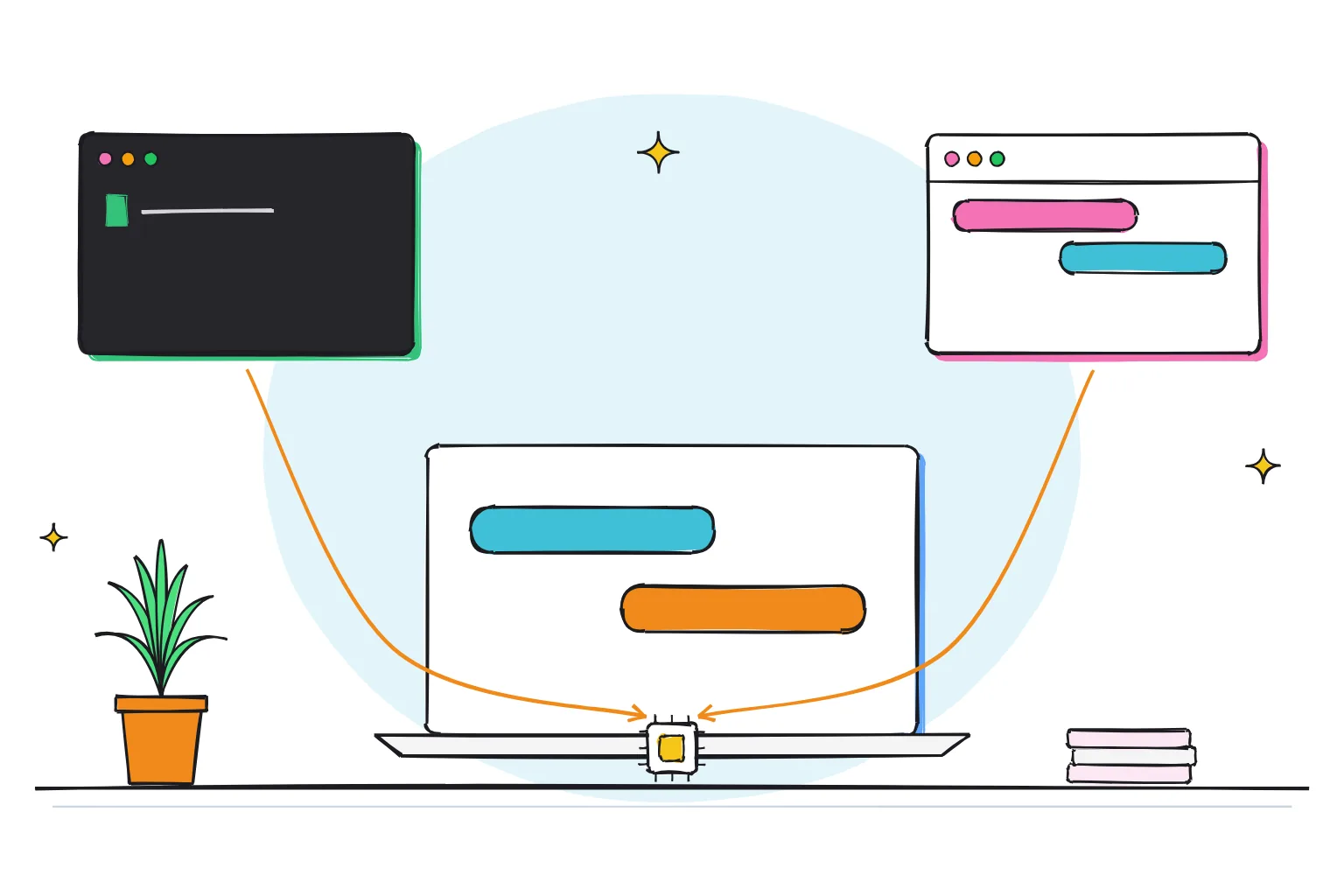
Can a Raspberry Pi run an LLM?
Yes. A Raspberry Pi 5 runs small language models of about 1B to 4B parameters on its quad-core Arm Cortex-A76 CPU, with no add-on board. Published tests on an 8GB Pi 5 show 4.6 tokens per second for Llama 3.2 3B and up to 12.5 for 1.5B Qwen models. That is fine for short answers, slow for long ones.
This guide follows one reader: a hobbyist with a Raspberry Pi 5 8GB running Raspberry Pi OS 64-bit, who wants a small private chatbot at home that a laptop or phone can reach over Wi-Fi. 4GB and 16GB owners get their own notes. For cameras and accelerator boards, see our Raspberry Pi AI guide.
An LLM, or large language model, writes text one token (a word or part of one) at a time; our explainer on how LLMs work covers the basics. You need a runner that loads the model file, and optionally a web chat page on top.
Choose Ollama if:
- You want one install command that sets Ollama up as a background service.
- You want short model names, such as
llama3.2:3b, from Ollama's library. - You plan to add Open WebUI, which speaks the Ollama API on port 11434.
Choose llama.cpp if:
- You want to set thread count, context size and the exact model file yourself.
- You want a browser chat without Docker: llama-server has a built-in web UI.
- You like to squeeze out speed: one research lab measured llama.cpp at roughly 10% to 20% faster than Ollama on a Pi 5.
Which LLMs fit a Raspberry Pi 5 with 4GB, 8GB or 16GB?
Memory decides. On a Pi, Ollama and llama.cpp run on the CPU, so the whole model sits in its LPDDR4X RAM, sold in 1GB, 2GB, 4GB, 8GB and 16GB versions. A chat also needs memory for its context, the text it keeps in view; NVIDIA names model weights and this KV cache as the two main memory users.
In Raspberry Pi and Google's August 2026 test, llama.cpp used 4,406MB at peak for a 2,709MB Gemma 4 E2B file, so I size models at about half the Pi's RAM or less.
The table lists small models in Ollama's library in October 2026. Quantization stores each weight in fewer bits (Q4_K_M is about 4, Q8_0 is 8), giving a smaller, faster file with some quality loss. Sizes are the Linux downloads, because Ollama on Linux prefers its llama.cpp builds; only Apple Silicon Macs pick the MLX builds first. The RAM tiers are my judgment, not the makers'.
| Model (Ollama tag) | Size and quantization | Download | Pi 5 it suits |
|---|---|---|---|
gemma3:270m | 268M parameters, Q8_0 | 292MB | Any; a toy for tests |
gemma3:1b | 1B, Q4_K_M | 806MB | 4GB and up |
qwen3.5:0.8b | 0.8B, Q8_0, reads images | 1.3GB | 4GB and up |
llama3.2:1b | 1.24B, Q8_0 | 1.3GB | 4GB and up |
smollm2:1.7b | 1.71B, Q8_0 | 1.8GB | 4GB and up |
llama3.2:3b | 3.21B, Q4_K_M | 2.0GB | 8GB; 4GB at a squeeze |
phi4-mini | 3.84B, Q4_K_M | 2.5GB | 8GB |
qwen3.5:2b | 1.88B, Q8_0, reads images | 2.7GB | 8GB |
qwen3.5:4b | 4.21B, Q4_K_M, reads images | 3.3GB | 8GB |
gemma4:e2b | Q4_K_M, reads images | 4.6GB | 8GB |
gemma4:e4b | Q4_K_M, reads images | 6.6GB | 16GB |
qwen3.5:9b | Q4_K_M, reads images | 6.6GB | 16GB |
gemma4:12b | Q4_K_M, reads images | 8.0GB | 16GB |
Models that read images include a vision part: gemma4:e2b is a 3.5GB language model plus a 987MB image projector and a small draft model. On Hugging Face, llama.cpp users can grab it as a 2.84GB text-only Q4_0 GGUF file (GGUF is llama.cpp's model format), or SmolLM3 3B at 1.9GB in Q4_K_M.

What is the best LLM for a Raspberry Pi 5?
For the 8GB reader, I would start with llama3.2:3b: a 2.0GB download, and the only model in the table with Pi 5 speed tests in both Ollama and llama.cpp. It uses Meta's Llama 3.2 Community License. If you prefer Apache 2.0, the license on Gemma 4 and Qwen3.5, then gemma4:e2b is the newer second choice.
Can a 4GB or 16GB Raspberry Pi 5 run an LLM?
A 4GB board handles the 1B class: gemma3:1b, qwen3.5:0.8b or llama3.2:1b. A 16GB board opens up 8B to 13B models. Jeff Geerling's 8GB Pi 5 did not finish a 13B test, while his 16GB board ran it at 1.36 tokens per second. Bigger fits, but it does not get faster.
How fast is an LLM on a Raspberry Pi 5?
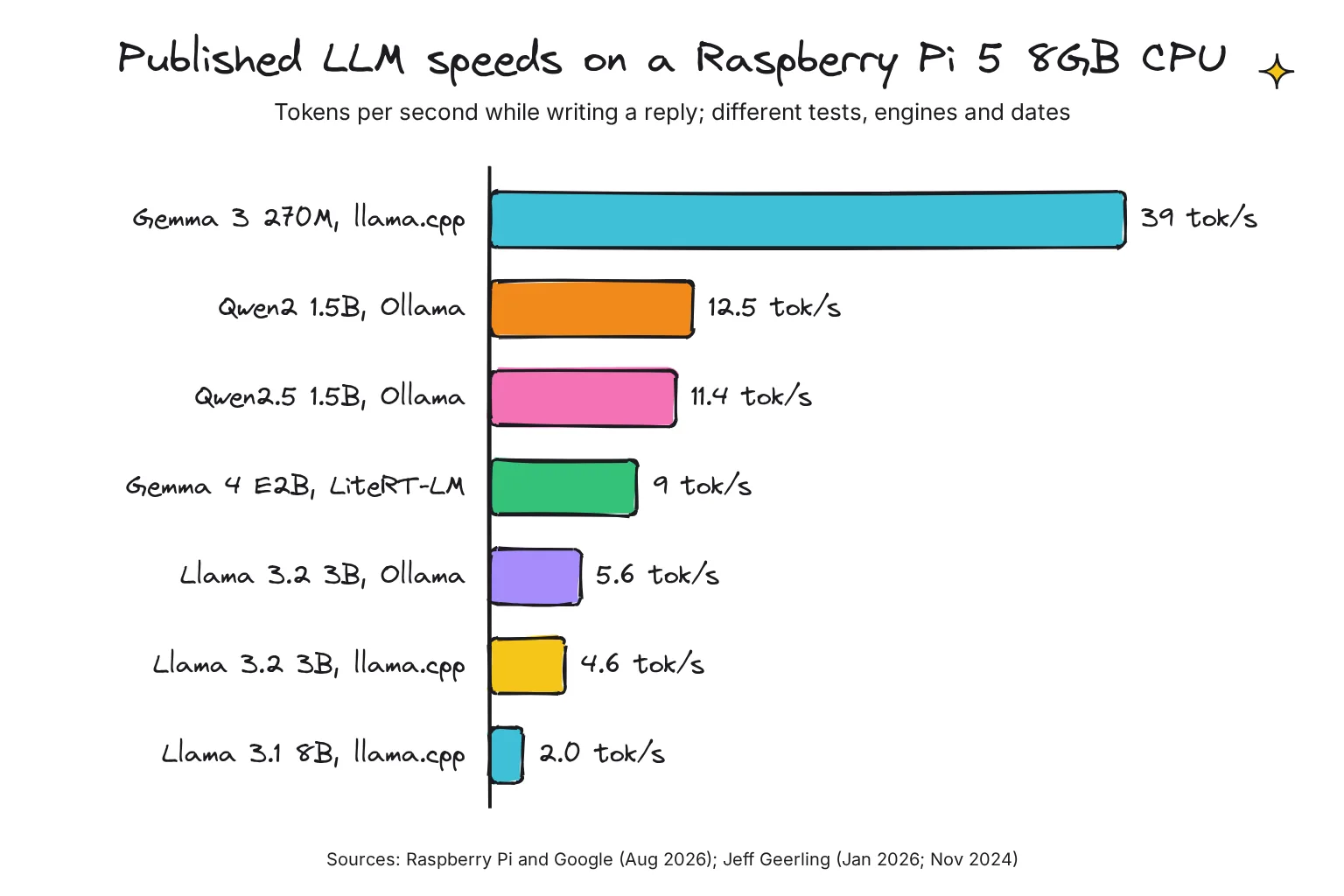
Expect a few words a second from a 3B model and roughly double from 1.5B models. These are the published Pi 5 figures I trust; tokens per second here means writing speed, called decode or eval rate. Our local vs cloud speed guide explains what feels usable.
| Test and date | Pi 5 | Engine | Model and quantization | Writing speed |
|---|---|---|---|---|
| Raspberry Pi and Google, Aug 2026 | 8GB, 4 threads | LiteRT-LM | Gemma 4 E2B, QAT | 9 tok/s |
| Same test | 8GB | llama.cpp | Gemma 4 E2B, Q4_0 | 4 tok/s (7 in its appendix) |
| Same test | 8GB | llama.cpp | Gemma 3 270M, Q8_0 | 39 tok/s |
| Jeff Geerling, Jan 2026 | 8GB | Ollama | Qwen2 1.5B, Ollama default | 12.47 tok/s |
| Same test | 8GB | Ollama | Qwen2.5 Instruct 1.5B, default | 11.41 tok/s |
| Same test | 8GB | Ollama | Llama 3.2 3B, default | 5.55 tok/s |
| Jeff Geerling, Nov 2024 | 8GB | llama.cpp | Llama 3.2 3B, Q4_K_M | 4.61 tok/s |
| Same test | 8GB | llama.cpp | Llama 3.1 8B, Q4_K_S | 1.99 tok/s |
| Jeff Geerling, Jan 2025 | 16GB | Not stated | Llama 3.2 3B; Llama 2 13B | 4.88; 1.36 tok/s |
Treat the rows as ballparks: engines and settings differ, and Raspberry Pi's post gives two llama.cpp figures for Gemma 4 E2B. Figures are missing for most models in the size table: I found no published Pi 5 speeds from Raspberry Pi, model makers or reputable testers for Qwen3.5, Gemma 4 E4B, Phi-4-mini or SmolLM3, and none for the 4GB board.
Why memory bandwidth sets the speed limit
Writing each new token is, in NVIDIA's words, a memory-bound operation: the chip must stream most of the model's weights from RAM for every token, so data transfer, not arithmetic, dominates. The Pi 5 has a 32-bit LPDDR4X memory system running at 4267MT/s.
By my arithmetic that is about 17GB/s at best (4 bytes times 4,267 million transfers a second). Divide by a 2GB model and the ceiling is roughly 8 tokens per second; real tests reach 4.6 to 5.6. That is why a smaller file is the biggest speed lever you have.
Reading your prompt, called prefill, is a separate, compute-heavy step, measured at 24 tokens per second for Gemma 4 E2B in llama.cpp (58 in the post's appendix) and 99 in LiteRT-LM, so a 1,000-token pasted document can take roughly 10 to 40 seconds before the first word appears.
What you need: OS, cooling, power and storage
- Raspberry Pi OS 64-bit. The current release, Trixie, and the legacy Bookworm both support the Pi 5. It must be 64-bit: Ollama's install script accepts only aarch64 or x86_64 machines.
- Active cooling. The Pi 5 will perform best with active cooling, says Raspberry Pi. The Active Cooler clips on with a heatsink and temperature-controlled fan; Raspberry Pi advises leaving it on once fitted.
- The 27W power supply. Raspberry Pi recommends the 27W USB-C Power Supply for the Pi 5, which delivers 5.1V at 5A. On a 3A supply, the Pi limits USB devices such as an SSD to 600mA instead of 1.6A.
- Fast storage for models. An NVMe SSD on the M.2 HAT+, from $12, reaches up to 500MB/s, and the standard version fits over the Active Cooler. A microSD card in the Pi 5's SDR104 mode tops out at 104MB/s.
Storage changes load time, not writing speed, because the model runs from RAM once loaded. By my arithmetic, a 2GB file needs roughly 20 seconds at best from an SD card and about 4 from NVMe. Power stays modest: Geerling measured a 13.9W peak for the 8GB Pi 5 running Llama 3.2 3B, measured at the wall.
How to run an LLM on a Raspberry Pi 5 with Ollama
These steps take the 8GB Pi from a fresh card to a working chat; our Ollama install guide covers the script and the usual first errors in depth.
- Flash Raspberry Pi OS Lite (64-bit). Raspberry Pi recommends Lite for headless setups, which saves RAM. In Imager, set a hostname and turn on Enable SSH to log in as
hostname.local. - Update the system. Run
sudo apt updateand thensudo apt full-upgrade, which Raspberry Pi recommends over the standard upgrade. - Install zstd, then Ollama. The script stops if zstd is missing, creates an
ollamauser and systemd service, and reports the API at 127.0.0.1:11434. A no-GPU warning is normal on a Pi. - Run a model with timings.
ollama run llama3.2:3b --verbosedownloads the model and starts a chat; the verbose flag shows timings, including an eval rate in tokens per second. Type/byeto leave. - Check where it runs.
ollama psshould show 100% CPU, meaning the model sits entirely in system memory, which is correct on a Pi.
sudo apt update
sudo apt full-upgrade
sudo apt install zstd
curl -fsSL https://ollama.com/install.sh | sh
ollama run llama3.2:3b --verbose
ollama ps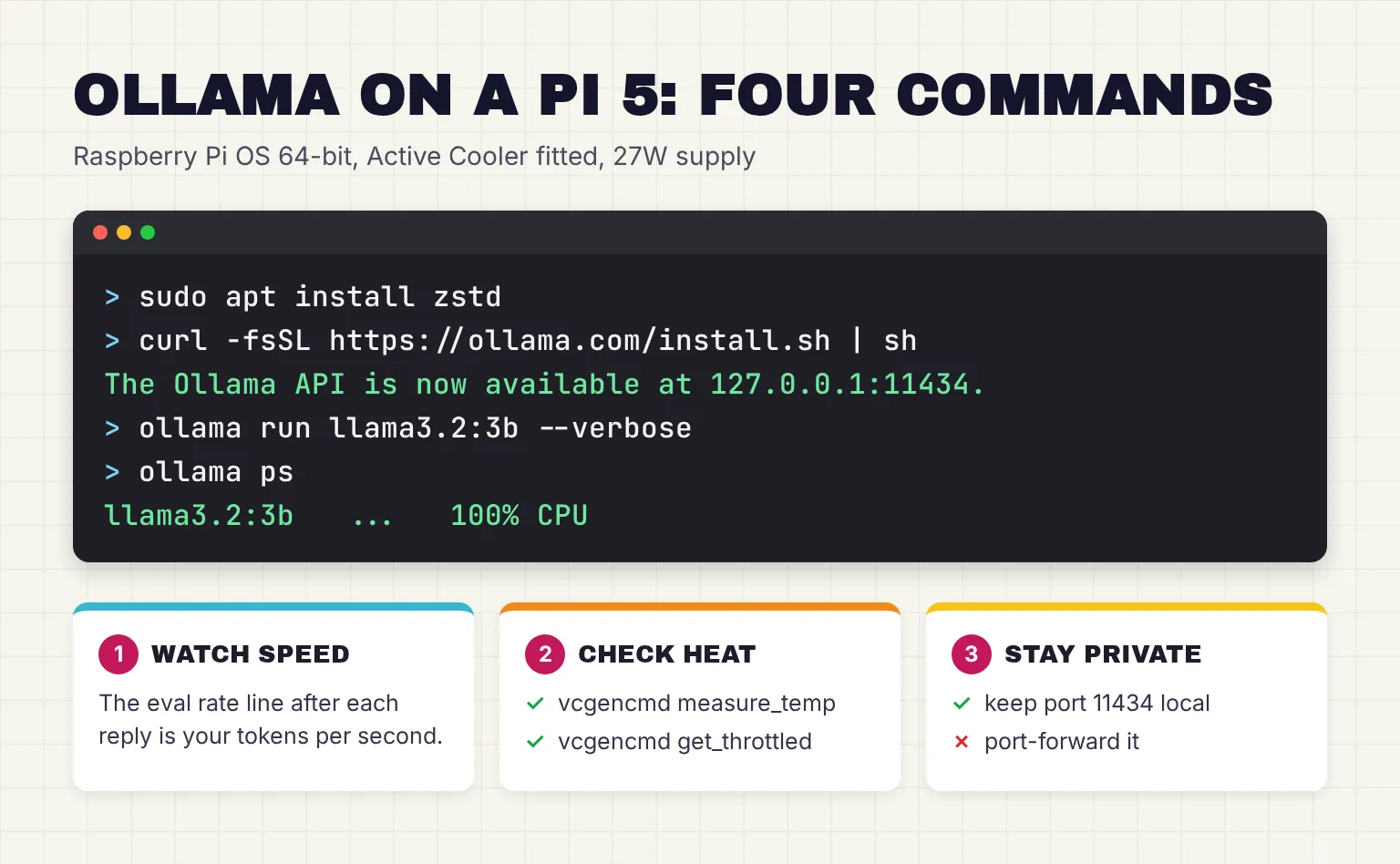
The package is large: Raspberry Pi's August 2026 post on Google's LiteRT runtime, which promotes that lighter runtime, put Ollama's download for Arm64 Linux at about 1.44GB, saying it bundles heavy server-class acceleration drivers. Models land in /usr/share/ollama/.ollama/models; to keep them on an SSD, set OLLAMA_MODELS and give the ollama user ownership of the folder.
Turn off thinking for quicker answers
Gemma 4 and Qwen3.5 are thinking models in Ollama's library: they can write a reasoning trace before the answer, and every extra token costs time. Ollama's --think flag accepts true or false, or a level for supported models, so try ollama run gemma4:e2b --think=false for short replies.
How to chat with the Pi from your phone or laptop, safely
Ollama binds 127.0.0.1 port 11434 by default, so only the Pi can use it. Its local API does not require authentication, so OLLAMA_HOST=0.0.0.0:11434 would let anyone on your network use it. I would keep Ollama local and put a chat page with logins in front.
Open WebUI is that page. It works on Linux ARM64, including Raspberry Pi, and Raspberry Pi's AI guide runs it in Docker because Open WebUI is incompatible with Python 3.13 as used on Trixie. Install Docker Engine with Docker's Debian instructions, which cover arm64 and Trixie; note that the docker group grants root-level privileges.
Start it on the host network so it reaches Ollama at 127.0.0.1. This is Open WebUI's documented command, with the :slim image and secret key from its quick start:
openssl rand -hex 32

docker run -d --network=host -v open-webui:/app/backend/data -e OLLAMA_BASE_URL=http://127.0.0.1:11434 -e WEBUI_SECRET_KEY=your-secret-key --name open-webui --restart always ghcr.io/open-webui/open-webui:slim
Paste the first command's output in place of your-secret-key. The slim image is about 197MB instead of 1.62GB on amd64, and used about 300MiB of RAM at idle on arm64 in Open WebUI's test. It leaves out local document and speech tools.
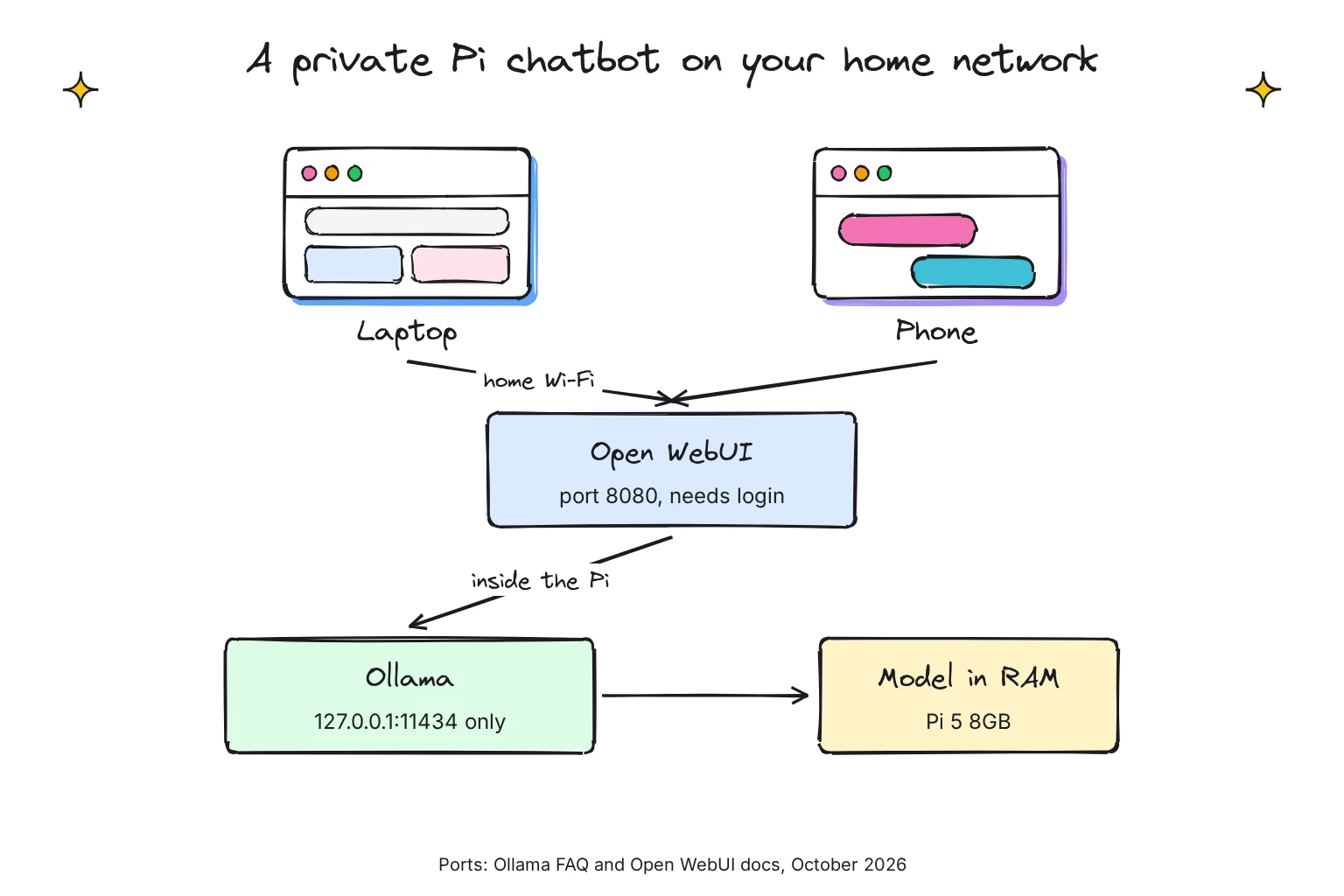
Open http://hostname.local:8080 on your laptop or phone; with host networking, the container's port is available on the Pi's own address. The first account you create becomes the administrator, and sign-up then switches itself off. Never forward these ports on your router.
How to run llama.cpp on a Raspberry Pi 5 for more control
The Stratosphere lab chose the open-source llama.cpp engine for Pi deployment for its full control over context length, thread count and memory allocation. Its README offers an install script and pre-built binaries; I prefer building from the explicit build docs.
- Install the build tools: git, CMake, a compiler, and the libssl-dev package for HTTPS, which model downloads need.
- Clone and build. The CPU build is two CMake commands, and
-j 4uses all four cores. An optional-DGGML_CPU_KLEIDIAI=ONflag adds Arm's KleidiAI kernels on Linux arm64. - Start llama-server. The
-hfoption downloads a model from Hugging Face, image projector included;--no-mmprojskips that to save RAM. - Open the chat page. The server listens on 127.0.0.1:9931 by default, and its web front end is at the same address.
sudo apt install git cmake build-essential libssl-dev
git clone https://github.com/ggml-org/llama.cpp
cd llama.cpp
cmake -B build
cmake --build build --config Release -j 4
./build/bin/llama-server -hf ggml-org/gemma-4-E2B-it-GGUF:Q4_0 --no-mmproj -t 4 -c 4096
The -t flag sets the number of CPU threads used during generation, and -c the context size. Raspberry Pi's benchmark ran with four threads, and llama-bench can compare several thread counts in one run, for example -t 2,3,4. To reach it from other devices, add --host 0.0.0.0 and an --api-key, which it supports for authentication.
How to make an LLM on a Raspberry Pi faster
Use a smaller model or quantization
Speed tracks file size, so a smaller quantization helps directly. Llama 3.2 3B is 2.0GB in Q4_K_M but 3.4GB in Q8_0, so keep the default 4-bit tag and avoid 16-bit FP16 tags.
Keep the context short and one model loaded
Ollama uses a 4,096-token context by default, and memory grows with context length times parallel requests. Its K/V cache can be quantized to q8_0, about half the memory of f16, while Flash Attention is on, which Ollama does automatically where supported. Models stay loaded 5 minutes by default, up to 3 at once on a CPU.
A longer keep-alive avoids reloads, and a limit of one model protects RAM. On Linux, set these with systemctl edit:
sudo systemctl edit ollama.service

[Service]
Environment="OLLAMA_CONTEXT_LENGTH=4096"
Environment="OLLAMA_KV_CACHE_TYPE=q8_0"
Environment="OLLAMA_MAX_LOADED_MODELS=1"
Environment="OLLAMA_KEEP_ALIVE=30m"

sudo systemctl daemon-reload
sudo systemctl restart ollama
Treat swap and zram as a safety net
Current Raspberry Pi OS manages swap with Raspberry Pi's rpi-swap package, which replaces dphys-swapfile and offers zram (compressed swap held in RAM), a swap file, or both; it is in the package list of the October 6, 2026 Lite image. Changes go in /etc/rpi/swap.conf.d/ and need a reboot. Swap can prevent a crash, but I would never pick a model that only fits by leaning on it.
Keep it cool
The Pi slows its cores progressively between 80°C and 85°C, and the Active Cooler's fan reaches full speed at 75°C. While a long answer is written, run vcgencmd measure_temp for the chip's temperature and vcgencmd get_throttled, whose bits flag undervoltage, frequency capping or throttling.
Is a Raspberry Pi LLM worth it, and when to use something else
A Pi LLM is good at short, contained jobs: brief answers, turning a sensor alert into a sentence, sorting messages, or offline tinkering. Hailo's article on Raspberry Pi's site puts it bluntly: "Don't ask your toaster for history lessons". It is weak at long documents and general knowledge; Stratosphere put a 5,000-token prompt at roughly 15 minutes with 3B models, so long that its test tool timed out first.
Choose a mini PC if:
- You want roughly double the speed: an Intel N150 mini PC ran Llama 3.2 3B at 9.06 tokens per second against 4.61 for the 8GB Pi 5, at a 26.4W peak.
- You want 8B models at a usable pace; our home AI server guide compares builds and running costs.
Choose the AI HAT+ 2 if:
- You need the CPU free for other work. The $200 board has its own 8GB of RAM and a Hailo-10H chip.
- Fast prompt reading matters more than writing speed: Hailo's 96-token test took 320ms on the HAT against 2,039ms on the CPU. In Geerling's test, though, the CPU wrote Llama 3.2 3B at 5.55 tokens per second to the HAT's 2.658. See our AI HAT+ 2 guide.
Common questions about running an LLM on a Raspberry Pi
Can a Raspberry Pi run an LLM?
Yes. A Raspberry Pi 5 runs small language models of about 1B to 4B parameters on its CPU, with no add-on board. Published tests on an 8GB Pi 5 show 4 to 12.5 tokens per second at these sizes, enough for short answers. An 8B model drops to about 2 tokens per second, and 13B models need the 16GB board.
What is the best LLM for a Raspberry Pi 5?
For an 8GB Pi 5, start with Llama 3.2 3B in Ollama, a 2.0GB download with published speeds of 4.6 to 5.6 tokens per second. For quicker replies, try Gemma 3 1B or Qwen3.5 0.8B. On a 16GB board, Gemma 4 E4B fits, though I found no published Pi speed for it.
How fast is an LLM on a Raspberry Pi 5?
Published figures for an 8GB Pi 5 run from 39 tokens per second for the tiny Gemma 3 270M, through 11.4 to 12.5 for 1.5B Qwen models and 9 for Gemma 4 E2B in LiteRT-LM (4 to 7 in llama.cpp), to 4.6 to 5.6 for Llama 3.2 3B and about 2 for an 8B model. Memory bandwidth sets the limit.
Can a 4GB Raspberry Pi 5 run an LLM?
Yes, if you keep to small models. Gemma 3 1B at 806MB, Qwen3.5 0.8B at 1.3GB and Llama 3.2 1B at 1.3GB leave room for the system. Llama 3.2 3B, a 2.0GB download, may fit with a short context and no desktop. I found no published speed tests for the 4GB board.
Should I use Ollama or llama.cpp on a Raspberry Pi?
Start with Ollama: one install command, a model library and a background service on port 11434. Move to llama.cpp when you want to choose threads, context size and exact GGUF files, or want its built-in web chat without Docker. One research lab measured llama.cpp at roughly 10 to 20 percent faster than Ollama on a Pi 5.
Do I need the AI HAT+ 2 to run an LLM on a Raspberry Pi 5?
No. The Pi 5 CPU runs small models on its own, and in Jeff Geerling's January 2026 test it wrote text faster than the AI HAT+ 2 on every model he tried. The HAT uses less power, keeps the CPU free and, by Hailo's figures, reads prompts faster, which suits voice and vision projects more than plain chat.
My verdict for an 8GB Pi 5: Ollama, Llama 3.2 3B and Open WebUI
For the hobbyist in this guide, the right build is Ollama on Raspberry Pi OS Lite, llama3.2:3b as the first model, and Open WebUI's slim image as the chat page, with Ollama left on 127.0.0.1. Fit the Active Cooler and 27W supply, expect about five tokens per second, and keep questions short.
Switch to llama.cpp to tune threads, or to a mini PC if that pace feels slow. A 16GB board buys bigger models, not faster ones.
Your next step: run ollama run llama3.2:3b --verbose, ask it to turn one of your home sensor readings into a sentence, and note the eval rate. Then give the Pi a voice with our offline Raspberry Pi voice assistant project, or go back to the Raspberry Pi AI hub for cameras and accelerators.
Sources
- Buy a Raspberry Pi 5 - Raspberry Pi
- AI/LLM Benchmarks (llama.cpp and Ollama) - Jeff Geerling, GitHub
- Raspberry Pi's new AI HAT adds 8GB of RAM for local LLMs - Jeff Geerling
- Linux - Ollama docs
- llama3.2 tags - Ollama library
- Starting with Ollama - Open WebUI docs
- LLaMA.cpp HTTP Server README - ggml-org, GitHub
- How Well Do LLMs Perform on a Raspberry Pi 5? - Stratosphere Laboratory
- Mastering LLM Techniques: Inference Optimization - NVIDIA Technical Blog
- Mastering edge AI on Raspberry Pi with LiteRT and Gemma - Raspberry Pi
- manifest/manifest.go (runner preference) - Ollama, GitHub
- gemma3 tags - Ollama library
- qwen3.5 tags - Ollama library
- smollm2 tags - Ollama library
- phi4-mini tags - Ollama library
- gemma4:e2b - Ollama library
- gemma4 tags - Ollama library
- gemma-4-E2B-it-GGUF - ggml-org, Hugging Face
- SmolLM3-3B-GGUF - ggml-org, Hugging Face
- Getting started - Raspberry Pi Documentation
- Benchmark AMD GPUs on Raspberry Pi 5 (issue 1) - Jeff Geerling, GitHub
- Benchmark Raspberry Pi 5 16 GB model (issue 7) - Jeff Geerling, GitHub
- Introducing: Raspberry Pi 5! - Raspberry Pi
- When and why you might need the Raspberry Pi AI HAT+ 2 - Raspberry Pi and Hailo
- Linux install script (install.sh) - Ollama
- Raspberry Pi Active Cooler - Raspberry Pi
- Raspberry Pi computer hardware - Raspberry Pi Documentation
- Raspberry Pi 27W USB-C Power Supply - Raspberry Pi
- Raspberry Pi M.2 HAT+ - Raspberry Pi
- Bus Speed (Default Speed/High Speed/UHS/SD Express) - SD Association
- Raspberry Pi OS - Raspberry Pi Documentation
- cmd/cmd.go (CLI flags) - Ollama, GitHub
- FAQ - Ollama docs
- Thinking - Ollama docs
- Authentication - Ollama docs
- Quick Start - Open WebUI docs
- AI software - Raspberry Pi Documentation
- Install Docker Engine on Debian - Docker Docs
- Linux post-installation steps for Docker Engine - Docker Docs
- Connection errors - Open WebUI docs
- Host network driver - Docker Docs
- llama.cpp README - ggml-org, GitHub
- Build llama.cpp locally - ggml-org, GitHub
- llama-bench README - ggml-org, GitHub
- rpi-swap - Raspberry Pi, GitHub
- Raspberry Pi OS Lite (64-bit) 2026-10-06 package list - Raspberry Pi
- Raspberry Pi AI HAT+ 2 - Raspberry Pi