How do you run Ollama in Docker?
Start the official ollama/ollama image with one docker run command that keeps models in a volume at /root/.ollama and publishes port 11434. Add --gpus=all for an NVIDIA card, or use the rocm tag for AMD, then run models with docker exec. On a Mac, Docker gets no GPU at all.
This guide follows one reader: someone with a Windows 11 desktop, 32GB of RAM and a GeForce RTX card with 12GB of VRAM (the graphics card's own memory), running Docker Desktop on WSL 2, the Linux layer built into Windows. They want Ollama in its own container, reachable by Open WebUI and their scripts, and may move it to a Linux home server later.
Two terms first. A container is a sealed box built from an image, a read-only template downloaded from a registry such as Docker Hub. A volume is storage Docker keeps outside the container, and it survives when the container is removed. New to Ollama itself? Our Ollama install guide covers the native app.
Choose Docker if:
- You already run a home server where every service lives in a container.
- You want Ollama and Open WebUI managed together from one Compose file.
- Your GPU is NVIDIA on Windows or Linux, or AMD on Linux, where the container can use it.
Choose the native install if:
- You use a Mac, where Docker Desktop has no GPU passthrough.
- You want one app with a chat window that downloads its own updates.
- You have an AMD card on Windows: Docker Desktop's GPU passthrough is for NVIDIA GPUs.
Which Ollama Docker image and tag should you use?
Ollama publishes one official image, ollama/ollama on Docker Hub. The latest tag is the CPU and NVIDIA build, in amd64 and arm64 versions, while rocm is the AMD build, amd64 only. Each release also gets numbered tags such as 0.40.13 and 0.40.13-rocm, and on October 29, 2026, latest pointed to the same image as 0.40.13.
Docker Hub lists the latest image at about 3.2GB compressed for a PC (amd64) and rocm at about 1.4GB. The Dockerfile explains why: the PC image bundles engine builds for CPU, CUDA 12, CUDA 13 and Vulkan, on Ubuntu 24.04. CUDA is NVIDIA's GPU computing platform, ROCm is AMD's, and Vulkan is a cross-vendor graphics standard.
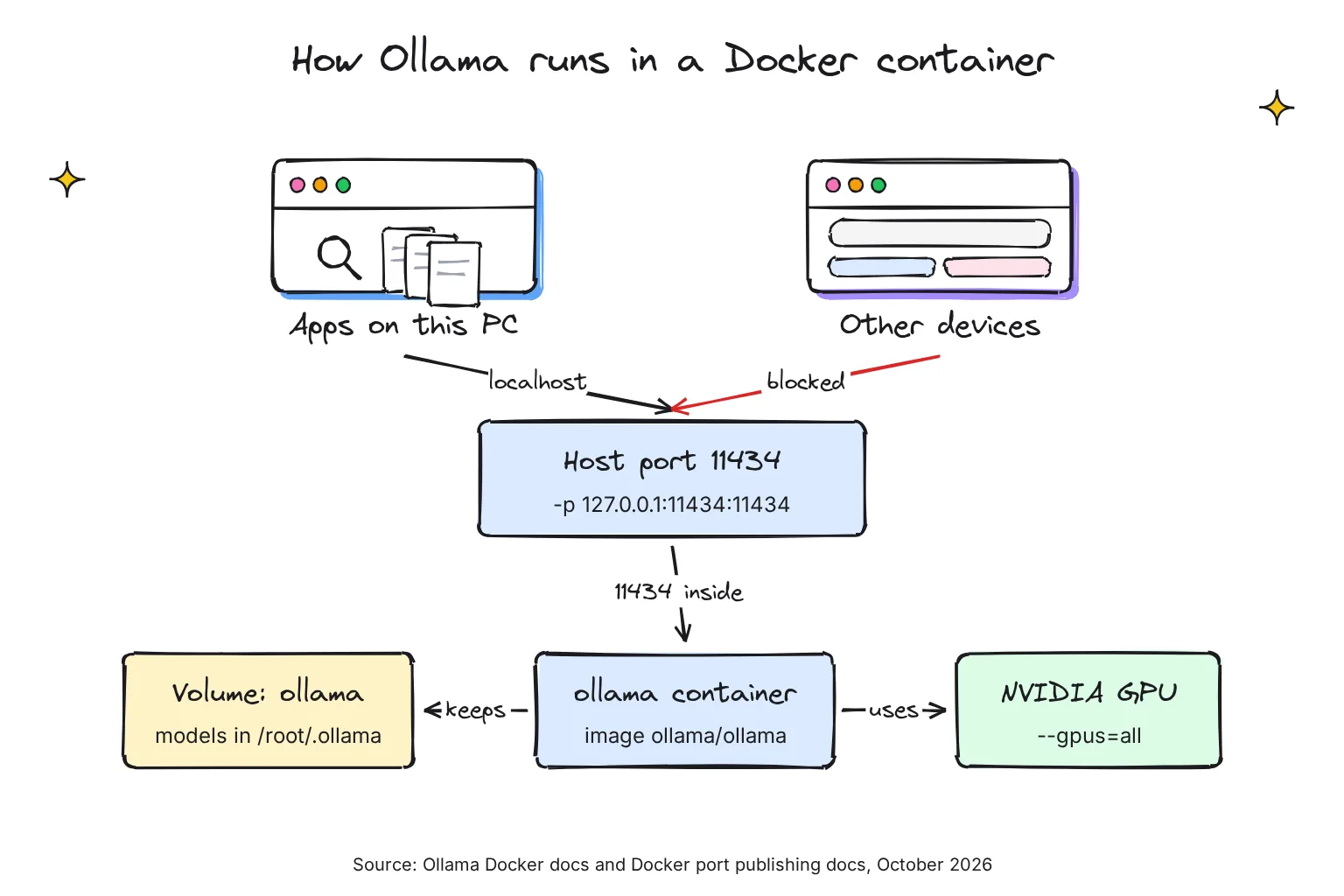
The same Dockerfile sets OLLAMA_HOST=0.0.0.0:11434, so inside the container Ollama listens on every network interface, not just localhost. That is why the security section below matters.
Should you pin a version tag?
On a home server, I would. Docker Hub received eight release tags, from 0.40.6 to 0.40.13, between October 17 and October 29, 2026, by its UTC timestamps, so latest moves often. With ollama/ollama:0.40.13, nothing changes until you edit the tag.
Ollama docker run commands for CPU, NVIDIA and AMD
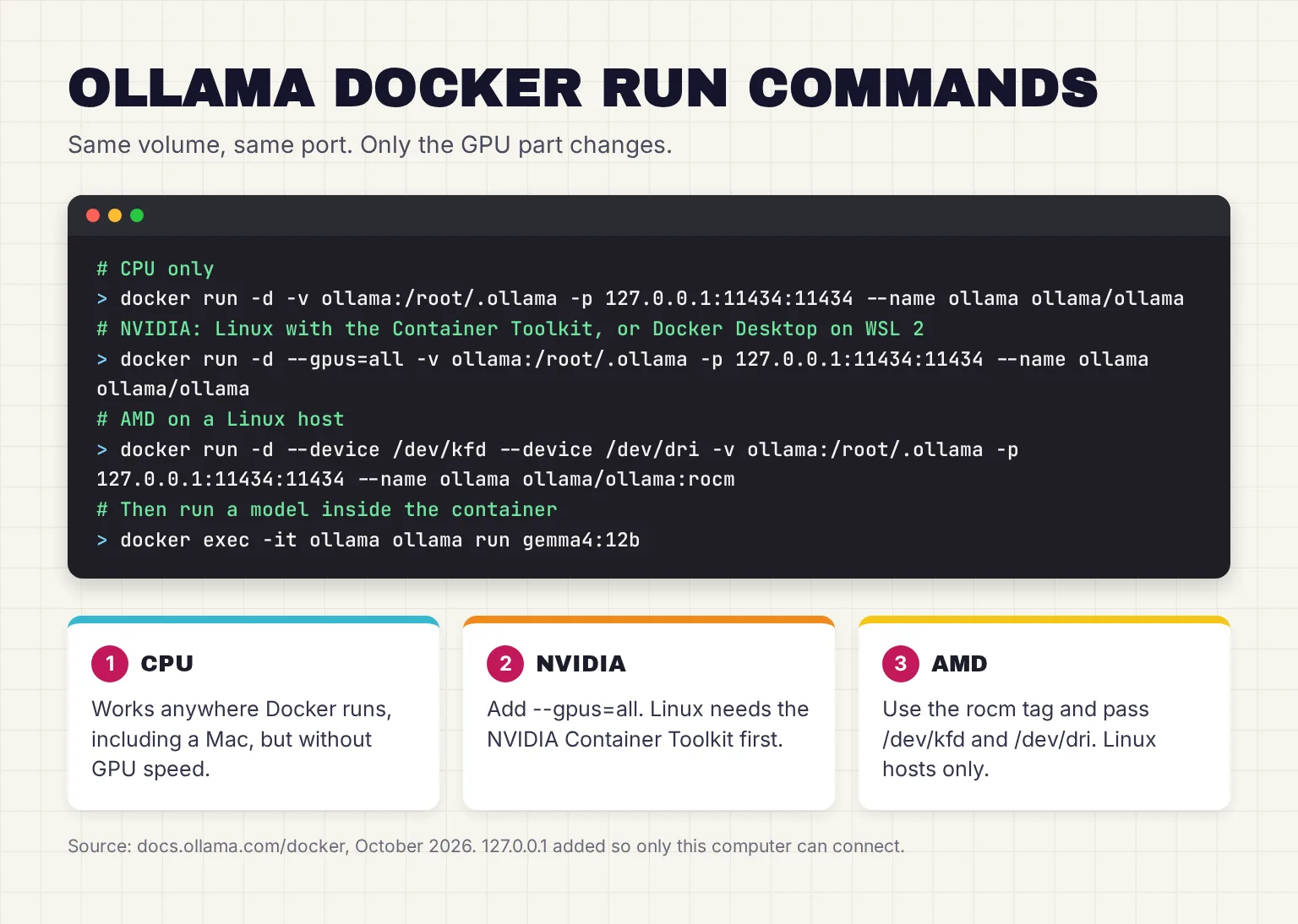
These commands come from Ollama's Docker page. Per Docker's run reference, -d runs the container in the background, -v mounts the ollama volume where models are saved, -p publishes the API port, and --name names the container.
I change one thing: writing the port as 127.0.0.1:11434:11434 publishes it to your own computer only.
CPU only
docker run -d -v ollama:/root/.ollama -p 11434:11434 --name ollama ollama/ollamaThis runs wherever Docker does, including a Mac, on the processor alone. It is slow, but a quick test that the volume and port work.
NVIDIA GPU on Linux: install the NVIDIA Container Toolkit
The NVIDIA Container Toolkit lets containers use the host's NVIDIA driver. Install the driver first, as NVIDIA's install guide says, then follow Ollama's steps for Ubuntu or Debian:
- Add NVIDIA's package repository with the first three commands below.
- Install the toolkit with
sudo apt-get install -y nvidia-container-toolkit. - Point Docker at the NVIDIA runtime.
sudo nvidia-ctk runtime configure --runtime=dockerupdates /etc/docker/daemon.json, andsudo systemctl restart dockerapplies it. - Start Ollama with the GPU using the last command, which adds
--gpus=all.
curl -fsSL https://nvidia.github.io/libnvidia-container/gpgkey \
    | sudo gpg --dearmor -o /usr/share/keyrings/nvidia-container-toolkit-keyring.gpg
curl -fsSL https://nvidia.github.io/libnvidia-container/stable/deb/nvidia-container-toolkit.list \
    | sed 's#deb https://#deb [signed-by=/usr/share/keyrings/nvidia-container-toolkit-keyring.gpg] https://#g' \
    | sudo tee /etc/apt/sources.list.d/nvidia-container-toolkit.list
sudo apt-get update
sudo apt-get install -y nvidia-container-toolkit
sudo nvidia-ctk runtime configure --runtime=docker
sudo systemctl restart docker

docker run -d --gpus=all -v ollama:/root/.ollama -p 11434:11434 --name ollama ollama/ollama
NVIDIA's guide also covers Fedora, RHEL and openSUSE. Ollama needs compute capability 5.0 or newer and driver 550 or newer. Every GeForce RTX card on its list meets the first; the second depends on the driver you install.
NVIDIA GPU on Windows with Docker Desktop
Ollama's FAQ says GPU acceleration in Docker works on Windows with WSL2. Docker Desktop's GPU page lists these prerequisites, and installing the toolkit is not among them:
- An NVIDIA GPU on an up-to-date Windows 10 or 11.
- A current NVIDIA driver with WSL 2 support, which NVIDIA calls the only driver you need; do not install a Linux driver inside WSL.
- The latest WSL kernel, installed with
wsl --update. - The WSL 2 backend switched on, under Settings, General, Use WSL 2 based engine.
Docker's page offers a test: if this prints a benchmark naming your card, containers can see the GPU, and the same --gpus=all command starts Ollama.
docker run --rm -it --gpus=all nvcr.io/nvidia/k8s/cuda-sample:nbody nbody -gpu -benchmarkNVIDIA's WSL notes add one limit: only --gpus all works, so you cannot pick one card by number.
AMD GPU with the rocm tag (Linux)
docker run -d --device /dev/kfd --device /dev/dri -v ollama:/root/.ollama -p 11434:11434 --name ollama ollama/ollama:rocmHere --device passes the host's GPU device files into the container. The host needs AMD's ROCm v7 driver, and supported cards include Radeon RX models from the 6800 to the 9070 XT. If the card stays invisible, pass the numeric group IDs of /dev/kfd and /dev/dri with --group-add.
Other cards may work through Vulkan, bundled into the standard image and on by default: use the same --device flags with plain ollama/ollama.
Run a model inside the container with docker exec
docker exec runs a command in a running container. Ollama's page uses this example:
docker exec -it ollama ollama run llama3.2For the 12GB card, I would start with gemma4:12b, which our Gemma 4 and Open WebUI guide recommends for 12GB of VRAM. The library lists an 8.0GB llama.cpp build and a 7.7GB MLX build; only Apple Silicon Macs prefer MLX, so the container downloads 8.0GB.
Other Ollama commands take the same prefix: ollama pull downloads, ollama ls lists, and ollama rm deletes, as our guide to deleting Ollama models explains. Apps on the PC reach the server at http://localhost:11434, as with a native install.
Docker Compose example: Ollama with Open WebUI and a GPU
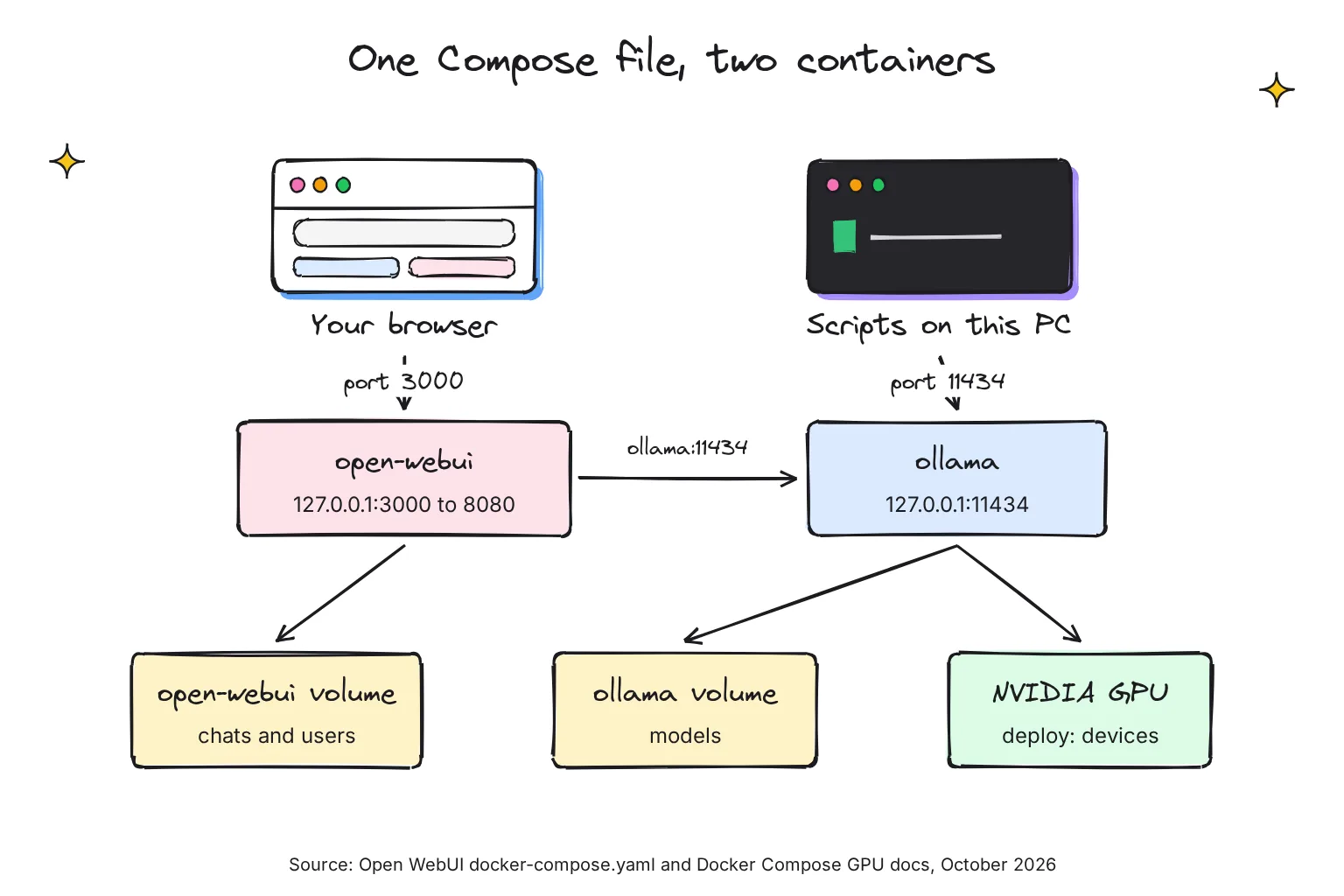
Docker Compose starts several containers from one YAML file. Open WebUI, a chat interface in your browser, ships a docker-compose.yaml for exactly this pair, plus a GPU overlay.
The file below combines them, with Ollama's port published as in the repository's API overlay, both ports bound to 127.0.0.1, and a fixed secret key, as Open WebUI's docs ask. I dropped the build, tty and extra_hosts lines, which this setup does not need.
services:
  ollama:
    image: ollama/ollama:latest
    container_name: ollama
    volumes:
      - ollama:/root/.ollama
    ports:
      - "127.0.0.1:11434:11434"
    pull_policy: always
    restart: unless-stopped
    deploy:
      resources:
        reservations:
          devices:
            - driver: nvidia
              count: all
              capabilities: [gpu]

  open-webui:
    image: ghcr.io/open-webui/open-webui:main
    container_name: open-webui
    volumes:
      - open-webui:/app/backend/data
    depends_on:
      - ollama
    ports:
      - "127.0.0.1:3000:8080"
    environment:
      - OLLAMA_BASE_URL=http://ollama:11434
      - WEBUI_SECRET_KEY=your-secret-key
    restart: unless-stopped

volumes:
  ollama: {}
  open-webui: {}
What each line of the Compose file does
| Line | What it does |
|---|---|
image: ollama/ollama:latest | The official image; write 0.40.13 to pin a version. |
container_name: ollama | Keeps docker exec -it ollama working; otherwise Compose names it after the project. |
ollama:/root/.ollama | Keeps models in a named volume. |
"127.0.0.1:11434:11434" | Lets apps on this PC call the API. Without the IP, Compose binds to all network interfaces (0.0.0.0). |
pull_policy: always | Compose always pulls the image from the registry. Remove it if you pin a tag. |
restart: unless-stopped | Restarts after a crash or reboot, unless you stopped it yourself. |
deploy: block | Reserves the GPU. capabilities must be set, and count: all hands over every GPU. |
ghcr.io/open-webui/open-webui:main | Open WebUI's standard image. |
open-webui:/app/backend/data | Where chats, users and settings live. |
depends_on: ollama | Controls startup order, so Ollama starts first. |
"127.0.0.1:3000:8080" | Serves Open WebUI at http://localhost:3000 on this PC only. |
OLLAMA_BASE_URL=http://ollama:11434 | On Compose's network, each container is reachable by its service name. |
WEBUI_SECRET_KEY | Without a fixed key, every recreated container logs everyone out. |
Top-level volumes: | Declares the two named volumes. |
Start the stack
- Save the file as docker-compose.yml in a new folder, whose name becomes the project name.
- Replace the secret key with the output of
openssl rand -hex 32, and keep it. - Start both containers from that folder with
docker compose up -d. - Download a model with
docker exec -it ollama ollama pull gemma4:12b, or type its name in Open WebUI's model selector, which offers to download it. - Open http://localhost:3000 and create the first account, which becomes the administrator; sign-up then switches itself off.
On a CPU-only machine, delete the whole deploy block. For AMD on Linux, replace it with the device lines from Open WebUI's AMD overlay and switch to the rocm tag:
  ollama:
    image: ollama/ollama:rocm
    devices:
      - /dev/kfd:/dev/kfd
      - /dev/dri:/dev/dri
Open WebUI also offers an :ollama image that bundles both in one container. I prefer two, so each updates separately and other apps reach Ollama directly.
Where Ollama keeps models in Docker, and how much disk they need
Where are the models stored?
Inside the container, models sit in /root/.ollama/models, since Ollama defaults to .ollama/models in the home folder. On the host they live in the volume: ollama with docker run, while Compose adds the project name, so a folder called ai gives ai_ollama.
On Linux, docker volume inspect ollama shows the Mountpoint, under /var/lib/docker/volumes. Docker Desktop keeps its WSL 2 data in C:\Users\[USERNAME]\AppData\Local\Docker\wsl by default; Settings, Resources, Advanced moves it if drive C: is small.
I would not mount a Windows folder such as D:\models instead: Docker says performance is much higher when files are bind-mounted from the Linux filesystem.
Reuse your models when moving from docker run to Compose
Otherwise Compose creates a fresh, empty volume and you download every model again. Mark the old volume as external:
volumes:
  ollama:
    external: true
  open-webui: {}
With external: true, Compose looks for an existing volume called ollama instead of creating one, and stops with an error if it does not exist.
How much disk space does Ollama in Docker use?
Plan for the image, about 3.2GB to download and more unpacked, plus every model: gemma4:12b adds 8.0GB, and models can be tens to hundreds of GB. docker system df -v shows Docker's disk use in detail.
How to update the Ollama Docker image without losing models
A container is disposable: when it is destroyed, its writable layer goes with it, but the volume stays. Updating means pulling the new image and creating a new container on the same volume; nothing updates itself.
With docker run, follow the three steps Open WebUI gives for its own container: remove, pull, and start again with your original command.
docker rm -f ollama
docker pull ollama/ollama
docker run -d --gpus=all -v ollama:/root/.ollama -p 127.0.0.1:11434:11434 --name ollama ollama/ollama
With Compose, it is two commands; docker compose up recreates changed containers, preserving mounted volumes.
docker compose pull
docker compose up -d
Old versions linger as dangling images until docker image prune removes them. The command that does lose models is docker compose down -v, which deletes the volumes.
Keep the Ollama API private: 127.0.0.1 or your network?
Ollama's local API does not require authentication. Anyone who can reach port 11434 can use your models, and the same API can download and delete them. A native install binds 127.0.0.1 by default, but the container listens on 0.0.0.0, and -p 11434:11434 publishes the port on every interface of the host.
Docker's own docs say publishing container ports is insecure by default, and that adding 127.0.0.1 limits a port to the host. On Linux, published ports bypass ufw and firewalld rules.
In a 2025 internet scan, Cisco researchers found 1,139 exposed Ollama servers, 214 of them answering with live models.
What if other devices need Ollama?
For a family home server, open up Open WebUI, not Ollama: change its port line to "3000:8080". Open WebUI has accounts, and new sign-ups wait as Pending until you approve them. Keep Ollama on 127.0.0.1, or drop its ports lines, since Open WebUI reaches it internally.
If a device needs the raw API, put a reverse proxy such as Nginx in front, as Ollama's FAQ shows, and add a login there. For phones away from home, our home AI server guide uses Tailscale instead of open ports.
How to check that Ollama in Docker is using the GPU
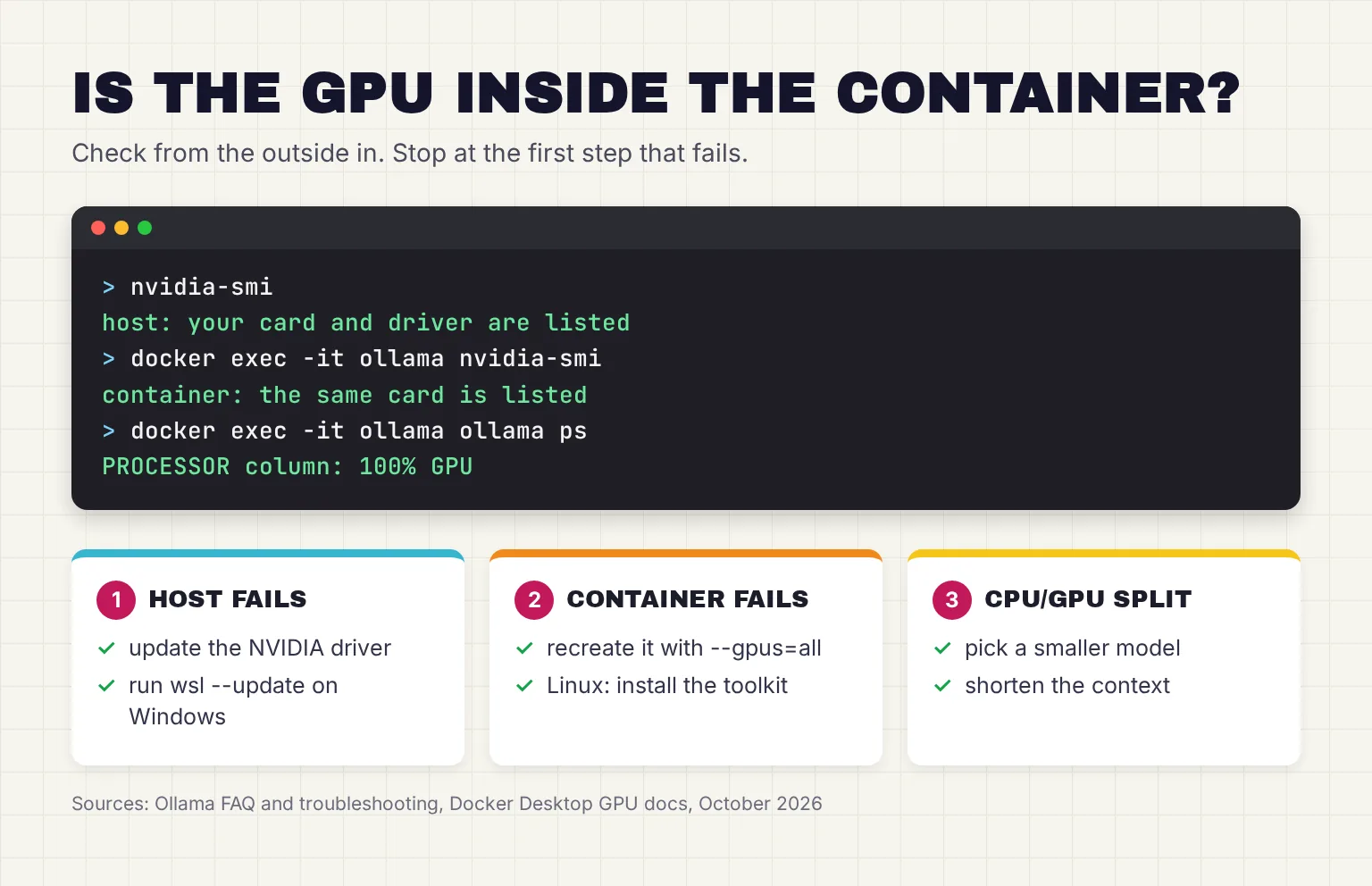
- Check the host. On Linux,
nvidia-smishould print details about your GPU; on Windows, use Docker's nbody test above. If it fails, fix the driver first. - Check that containers see the GPU. Ollama's troubleshooting page suggests
docker run --gpus all ubuntu nvidia-smi; if this doesn't work, Ollama won't be able to see your NVIDIA GPU. - Check the Ollama container.
docker exec -it ollama nvidia-smishould list the same card; the image requests the utility capability NVIDIA says is required for nvidia-smi. - Load a model and read ollama ps. Send a prompt, then run
docker exec -it ollama ollama ps. In the PROCESSOR column, 100% GPU means the model is entirely on the GPU, and a split such as 48%/52% CPU/GPU means part sits in system memory. - Read the log with
docker logs ollama. The inference compute line names each GPU found, with its library and memory, or says cpu.
On Linux, if Ollama starts on the GPU and later drops to the CPU, Ollama points to Docker's systemd cgroup management: add "exec-opts": ["native.cgroupdriver=cgroupfs"] to /etc/docker/daemon.json. If the card still sits idle, our troubleshooting guide shows how to fix Ollama not using the GPU in Docker or on the host, from drivers to VRAM splits.
On the Windows PC, a split also eats WSL 2 memory, which defaults to 50% of total memory on Windows, so 16GB of our reader's 32GB; Docker Desktop says to set limits on the WSL 2 VM. Ollama defaults to a 4k context below 24GiB of VRAM, and raising it with -e OLLAMA_CONTEXT_LENGTH=8192 costs memory.
When is Docker the wrong choice for Ollama?
Can Ollama in Docker use the GPU on a Mac?
No. Ollama's FAQ says GPU acceleration is not available for Docker Desktop in macOS due to the lack of GPU passthrough and emulation, and Docker Desktop's docs say --gpus passthrough is only available on Windows with the WSL 2 backend. A Mac container runs on the processor alone.
The native Mac app uses the CPU and GPU of an Apple M-series chip through Metal, Apple's graphics interface, so on a Mac follow our install guide instead.
If you only want one chat app
Docker adds images, volumes and ports. The native installer gives Windows and Mac users an app to download and chat with models that updates itself. If that is all you need, start there, or compare it in our LM Studio vs Ollama guide.
Docker Model Runner vs Ollama
Docker Model Runner is Docker's own runner: it pulls models from Docker Hub or Hugging Face and serves OpenAI and Ollama-compatible APIs on port 12434, and on a Mac it uses the Apple GPU through Metal. Ollama in Docker is the full Ollama server, and Open WebUI optimizes its native connection for Ollama but suggests an OpenAI-compatible one for Model Runner.
Ollama in Docker vs a native install in October 2026
This table reflects the ollama/ollama 0.40.13 image and Docker Desktop 4.97.0, released October 26, 2026.
| Question | Ollama in Docker | Native install |
|---|---|---|
| GPU on a Mac | None; CPU only | Apple M-series GPU |
| NVIDIA on Windows | Yes, through Docker Desktop's WSL 2 backend | Yes, driver 551.61 or newer |
| AMD GPUs | Linux hosts, with the rocm tag or Vulkan | Linux, plus Windows via ROCm v7 or Vulkan |
| Updates | You pull a new image and recreate the container | Automatic downloads on Windows and Mac; re-run the script on Linux |
| Isolation | Own filesystem; models in a volume you can back up or delete | Installs in your home folder on Windows; a service user on Linux |
| Network default | Open on all interfaces unless you add 127.0.0.1 | 127.0.0.1:11434 |
| Chat window | None; add Open WebUI | Built-in app on Windows and Mac |
| Ease | Docker plus a few flags or a Compose file | One installer |
Common questions about running Ollama in Docker
How do I run Ollama in Docker?
Run docker run -d -v ollama:/root/.ollama -p 11434:11434 --name ollama ollama/ollama to start the official image on the CPU. Add --gpus=all for an NVIDIA card, or use the ollama/ollama:rocm tag with the /dev/kfd and /dev/dri devices for AMD. Then run a model with docker exec -it ollama ollama run and a model name.
Can Ollama in Docker use the GPU on a Mac?
No. Ollama's FAQ says GPU acceleration is not available for Docker Desktop on macOS, because there is no GPU passthrough. A container on a Mac runs models on the processor only. The native Ollama app uses the Apple M-series GPU, so Mac users should install Ollama directly rather than in Docker.
Where does Ollama store models in Docker?
Inside the container, models live in /root/.ollama/models. The standard docker run command mounts a Docker volume named ollama at /root/.ollama, so the models sit outside the container and survive when it is removed or updated. Docker Compose adds the project name to the volume name unless you mark the volume as external.
How do I update Ollama in Docker without losing models?
Remove the container, pull the new image and start it again on the same volume. With docker run, that is docker rm -f ollama, docker pull ollama/ollama, then your original command. With Compose, run docker compose pull and then docker compose up -d. Avoid docker compose down -v, which deletes the volumes.
Is the Ollama API in Docker safe on my network?
Not by default. Ollama's local API needs no authentication, and the container listens on all interfaces, so publishing port 11434 without an IP address exposes it to your network. Publish it as 127.0.0.1:11434:11434 instead, and let other devices use Open WebUI, which has user accounts, rather than the raw API.
Does Docker Desktop on Windows need the NVIDIA Container Toolkit?
Docker Desktop's GPU guide for Windows does not ask you to install it. You need an NVIDIA GPU, a current NVIDIA driver with WSL 2 support, the latest WSL kernel from wsl --update and the WSL 2 backend turned on. On Linux, you install the NVIDIA Container Toolkit yourself before using --gpus=all.
My verdict for the RTX PC: Compose, with every port on 127.0.0.1
For the Windows desktop with a 12GB NVIDIA card, Docker is a good home for Ollama. Use the Compose file above, pin ollama/ollama to a version tag, keep both ports on 127.0.0.1, and start with gemma4:12b. You get a GPU-backed API for scripts, Open WebUI in the browser, and models that survive every update.
The same file moves to a Linux server once the NVIDIA Container Toolkit is installed. What can wait: opening anything to your network, until someone needs it. On a Mac, or for a single chat app, install Ollama natively.
Your next step: save the Compose file, run docker compose up -d, send one prompt in Open WebUI, then run docker exec -it ollama ollama ps and check that it says 100% GPU.
Sources
- ollama/ollama - Docker Hub
- Docker - Ollama docs
- FAQ - Ollama docs
- Volumes - Docker Docs
- GPU support in Docker Desktop for Windows - Docker Docs
- Ollama README - Ollama on GitHub
- ollama/ollama tags - Docker Hub
- Dockerfile - Ollama on GitHub
- docker container run - Docker Docs
- Port publishing and mapping - Docker Docs
- Installing the NVIDIA Container Toolkit - NVIDIA
- Hardware support - Ollama docs
- CUDA on WSL User Guide - NVIDIA
- Docker Desktop WSL 2 backend on Windows - Docker Docs
- Troubleshooting - Ollama docs
- docker container exec - Docker Docs
- gemma4:12b - Ollama library
- manifest/manifest.go (build selection) - Ollama on GitHub
- CLI Reference - Ollama docs
- docker-compose.yaml - Open WebUI on GitHub
- docker-compose.gpu.yaml - Open WebUI on GitHub
- docker-compose.api.yaml - Open WebUI on GitHub
- Quick Start - Open WebUI docs
- Define services in Docker Compose - Docker Docs
- Start containers automatically - Docker Docs
- Run Docker Compose services with GPU access - Docker Docs
- Networking in Compose - Docker Docs
- Starting with Ollama - Open WebUI docs
- docker-compose.amdgpu.yaml - Open WebUI on GitHub
- envconfig/config.go (environment variables) - Ollama on GitHub
- Define and manage volumes in Docker Compose - Docker Docs
- WSL 2 best practices for Docker Desktop on Windows - Docker Docs
- Windows - Ollama docs
- docker system df - Docker Docs
- docker compose up - Docker Docs
- docker image prune - Docker Docs
- Authentication - Ollama docs
- Pull a model - Ollama API reference
- Delete a model - Ollama API reference
- Install Docker Engine on Ubuntu - Docker Docs
- Detecting Exposed LLM Servers: A Shodan Case Study on Ollama - Cisco Blogs
- Linux - Ollama docs
- Specialized Configurations with Docker - NVIDIA
- discover/types.go (inference compute log line) - Ollama on GitHub
- Advanced settings configuration in WSL - Microsoft Learn
- Change your Docker Desktop settings - Docker Docs
- Context length - Ollama docs
- macOS - Ollama docs
- Ollama's new app - Ollama Blog
- Docker Model Runner - Docker Docs
- DMR REST API - Docker Docs
- Inference engines - Docker Docs
- Docker Desktop release notes - Docker Docs