Why is Ollama not using my GPU?
Usually because the model plus its context is bigger than your graphics memory, so Ollama splits it between CPU and GPU. Run ollama ps to check. If it says 100% CPU, the cause is detection: an unsupported card or old driver, a container without GPU access, or a setting that hides the GPU.
This guide follows one reader: someone with a Windows 11 gaming laptop that has Intel integrated graphics plus an NVIDIA GeForce RTX 4060 Laptop GPU, which has 8 GB of VRAM, and 16GB of system memory. VRAM is the graphics card's own fast memory. Mac and Linux steps sit alongside where they differ.
Choose the memory fixes if:
ollama psshows a split such as 48%/52% CPU/GPU.- Small models are fast but big ones crawl.
- Things slowed down after you raised the context length.
Choose the detection fixes if:
ollama psshows 100% CPU even for a small model.- The server log reports GPU discovery errors.
- You run Ollama in Docker, on an AMD or Intel GPU, or after a driver update or a sleep and wake on Linux.
How to check if Ollama is using the GPU
Three checks answer the question in a minute, in this order. Everything here applies to the current release, Ollama v0.40.13, which pins llama.cpp build b11963, the open-source engine that does much of the work.
1. Read the PROCESSOR column in ollama ps
Start a chat with any model, then open a second terminal and run:
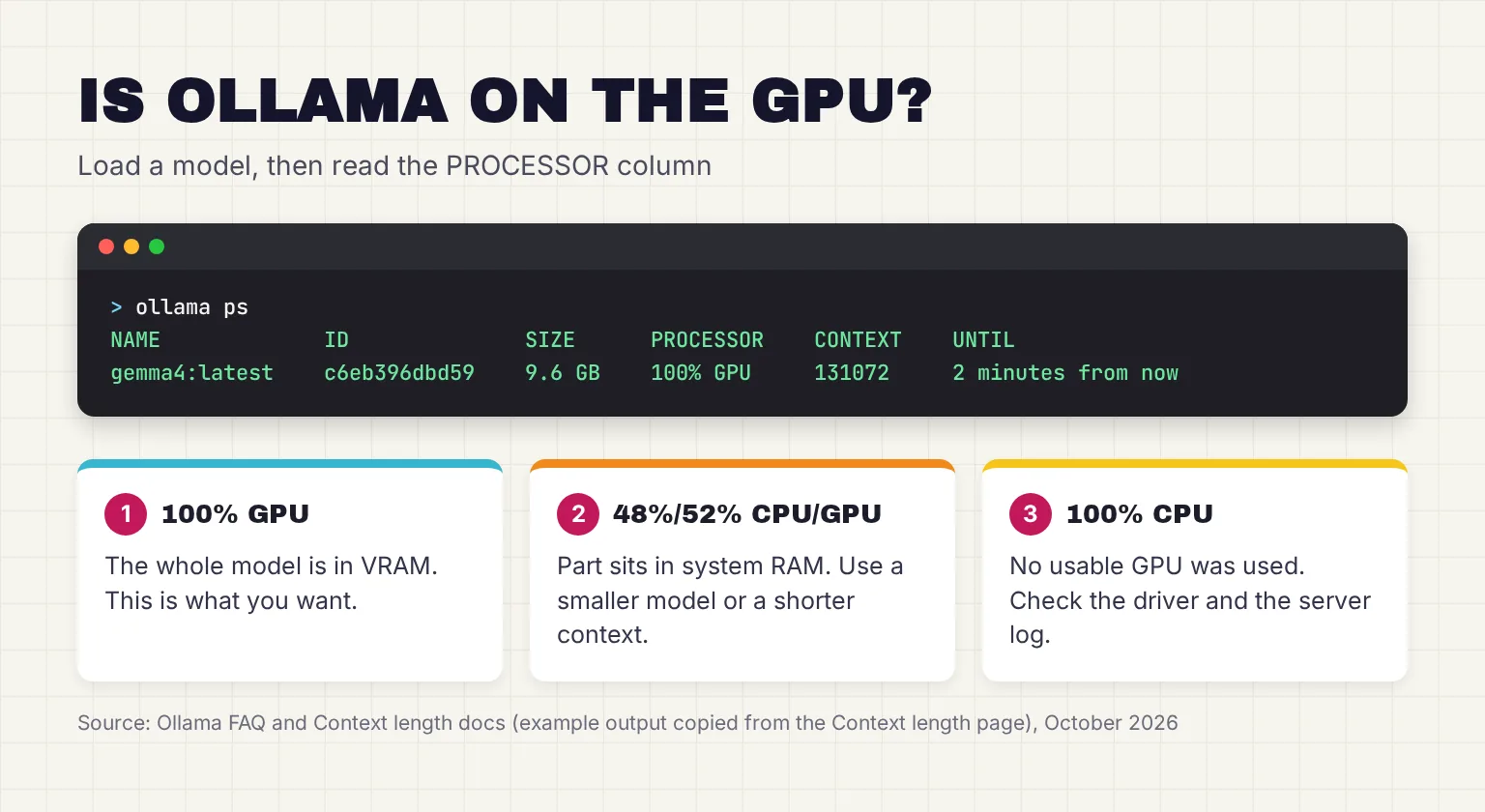
ollama psOllama's FAQ explains the result: 100% GPU means the model was loaded entirely into the GPU, 100% CPU means entirely in system memory, and 48%/52% CPU/GPU means partially onto both. Newer versions also show a CONTEXT column, so you can verify the split and the context length together.
2. Confirm the driver sees the card with nvidia-smi
On NVIDIA hardware, nvidia-smi is NVIDIA's own tool and works on Linux and 64-bit Windows. Ollama's Linux guide uses it to verify the driver: it should print details about your GPU. If it errors, fix the driver before touching Ollama. To list each card with its UUID, a unique ID you will need for multi-GPU settings, run:
nvidia-smi
nvidia-smi -L
3. Read the Ollama server log
When Ollama starts, it takes inventory of the GPUs present and how much VRAM is available, and failures land in the server log. The troubleshooting page gives the locations:
- Windows: open the Run dialog and enter
explorer %LOCALAPPDATA%\Ollama; the newest log isserver.log, and older ones areserver-#.log. - Mac:
cat ~/.ollama/logs/server.log - Linux with systemd:
journalctl -u ollama --no-pager --follow --pager-end - Docker:
docker logs <container-name>, afterdocker psto find the name.
For more detail on Windows, quit Ollama from the tray, then start it with debug logging in PowerShell, exactly as the docs show:
$env:OLLAMA_DEBUG="1"
& "ollama app.exe"
If Ollama will not start at all, that is an install problem rather than a GPU one; our Ollama install guide covers first-run errors on each system.
Ollama GPU support: which cards work in October 2026
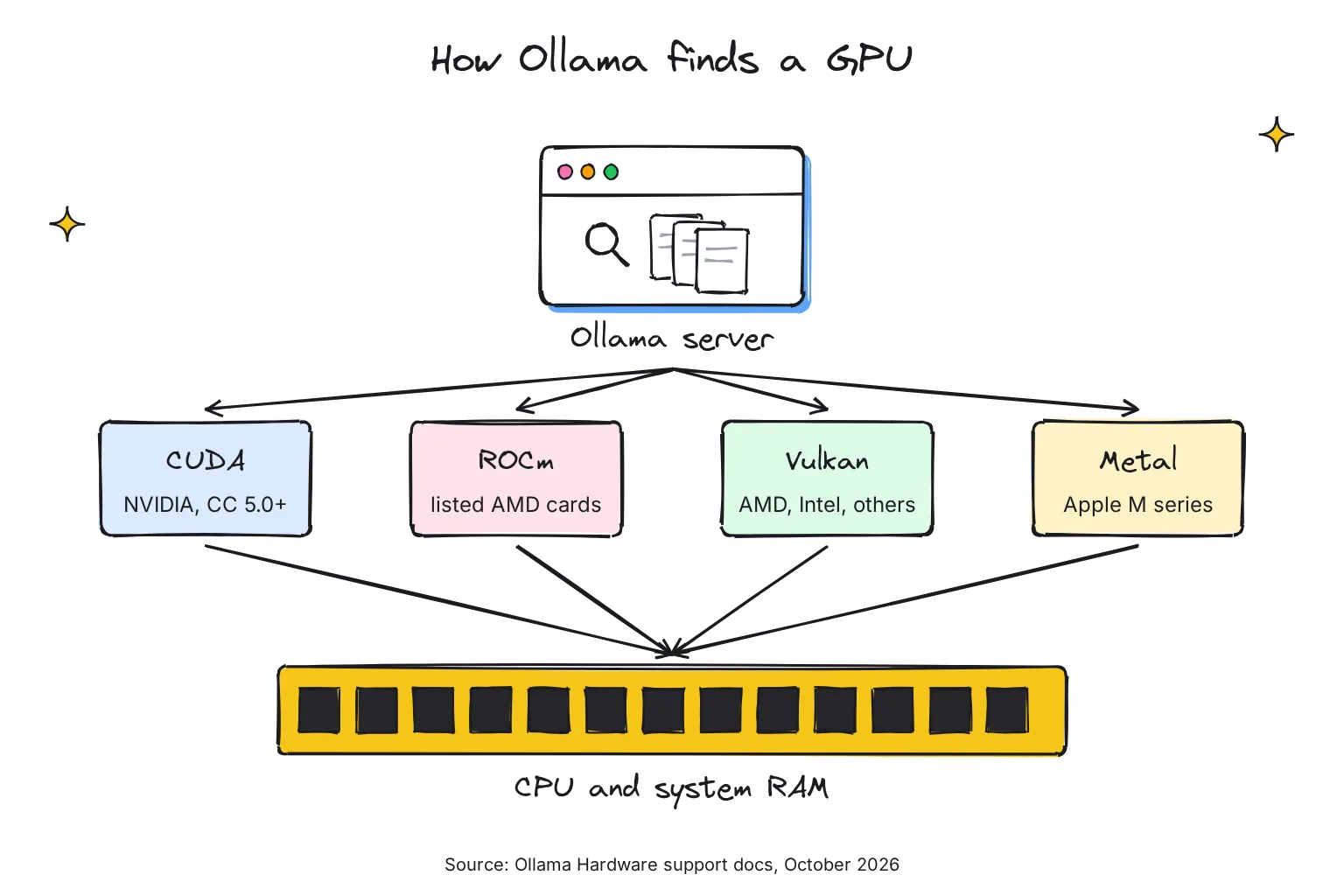
Ollama talks to graphics cards through several backends, the vendor libraries that do GPU maths. CUDA is NVIDIA's, ROCm is AMD's, Metal is Apple's, and Vulkan is a cross-vendor graphics and compute standard. If none of them can use your card, Ollama runs on the CPU.
| GPU | Backend | What Ollama needs |
|---|---|---|
| NVIDIA | CUDA | Compute capability 5.0+ and driver 550 or newer; 570+ for compute capability 5.0-6.2. Windows lists driver 551.61 or newer. |
| AMD on Linux | ROCm, or Vulkan | The ROCm v7 driver and a listed card, from the RX 6800 up to the RX 9070 XT, plus listed Radeon PRO, Radeon AI PRO, Ryzen AI and Instinct chips |
| AMD on Windows | ROCm, or Vulkan | A ROCm v7 / HIP7-capable driver for listed RX 7000 and PRO W7000 cards; others use Vulkan |
| Intel | Vulkan | A Vulkan driver; most Windows drivers bundle it, Linux needs extra packages |
| Apple Silicon Mac | Metal | macOS 14 or newer; M series gets CPU and GPU support |
| Intel Mac | None | x86 Macs run on the CPU only |
Does Ollama support my NVIDIA GPU?
Compute capability is NVIDIA's version number for a chip's features, and you can look yours up on NVIDIA's CUDA GPU compute capability page. Ollama's own table runs from 5.0 (GTX 750 Ti) to 12.0 (RTX 50 series) and 12.1 (DGX Spark), and puts the RTX 40 series at 8.9, so our reader's RTX 4060 qualifies. For older GPUs, Ollama's docs point to building Ollama locally from source.
Ollama AMD GPU support and HSA_OVERRIDE_GFX_VERSION
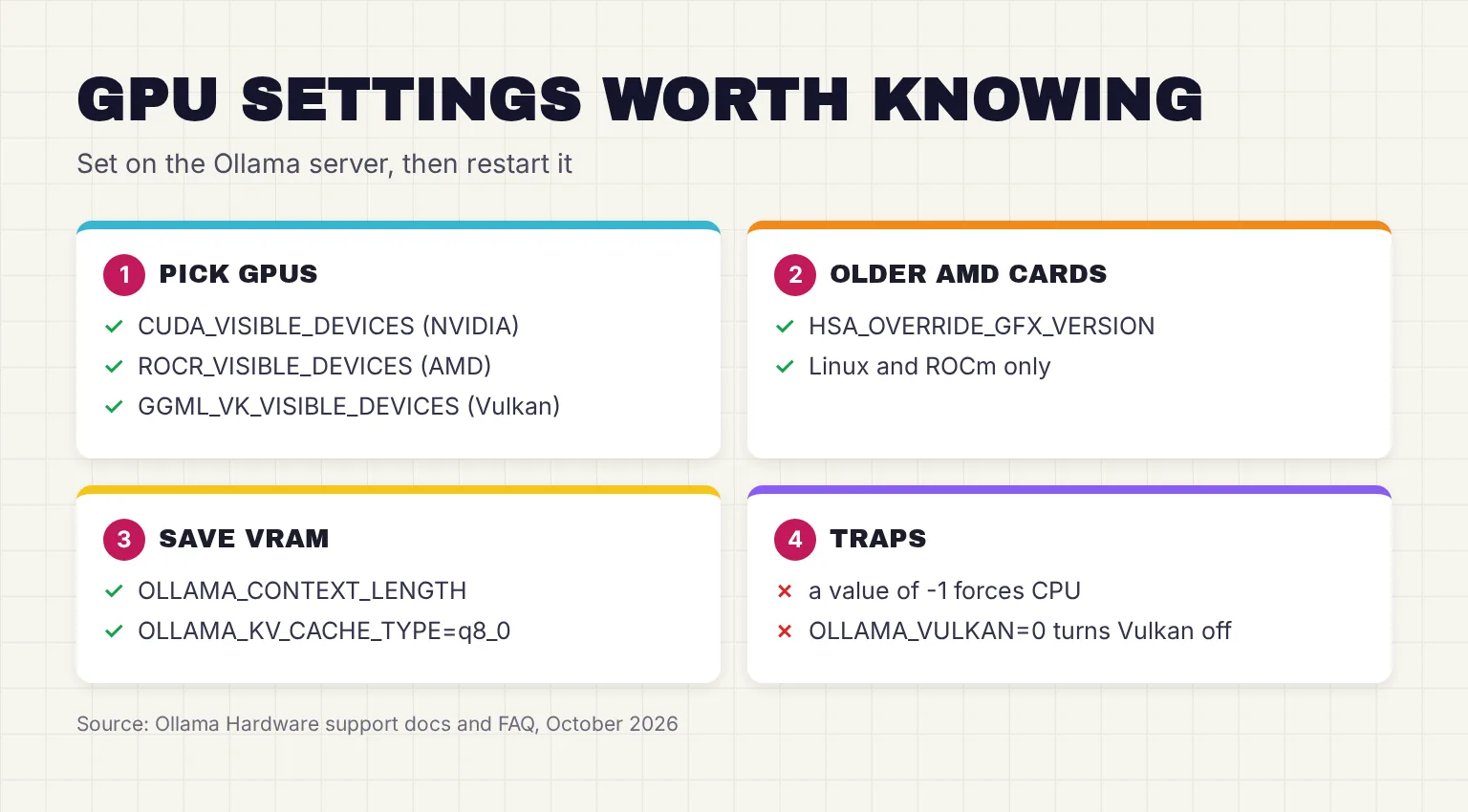
ROCm does not cover every Radeon. On Linux, Ollama's docs say you can sometimes force a close match: the RX 5400 is gfx1034, which ROCm does not support, so you would set HSA_OVERRIDE_GFX_VERSION="10.3.0" to use the nearby gfx1030 target. It is an experiment, not a guarantee. With mixed cards, add the device number, as in HSA_OVERRIDE_GFX_VERSION_0=10.3.0.
On Windows, the docs note that some RDNA2 / Radeon RX 6000 systems may not expose ROCm v7, and Vulkan is the recommended fallback.
Does Ollama use Intel GPUs and Vulkan?
Yes, through Vulkan. Ollama 0.30, in June 2026, enabled Vulkan by default, extending GPU acceleration to AMD and Intel devices without vendor-specific libraries. On Linux, follow Intel's GPU installation guides, which recommend the kernel and drivers from your Linux distribution. Ollama also needs extra capabilities or root to read Vulkan's free VRAM, or it guesses from model sizes:
sudo setcap cap_perfmon+ep /usr/local/bin/ollamaOllama using CPU instead of GPU: the causes, most likely first
1. The model is bigger than your VRAM
This is the common one, and it is not a fault. When a model does not fit, Ollama puts what it can on the GPU and the rest in system RAM, which is much slower. Our reader has 8 GB of VRAM. On Ollama's Gemma 4 tags page, gemma4:e2b-it-q4_K_M is 4.6GB, gemma4:e4b-it-q4_K_M is 6.6GB, gemma4:12b is 7.7GB to 8.0GB, gemma4:26b is 16GB to 19GB and gemma4:31b is 19GB to 20GB.
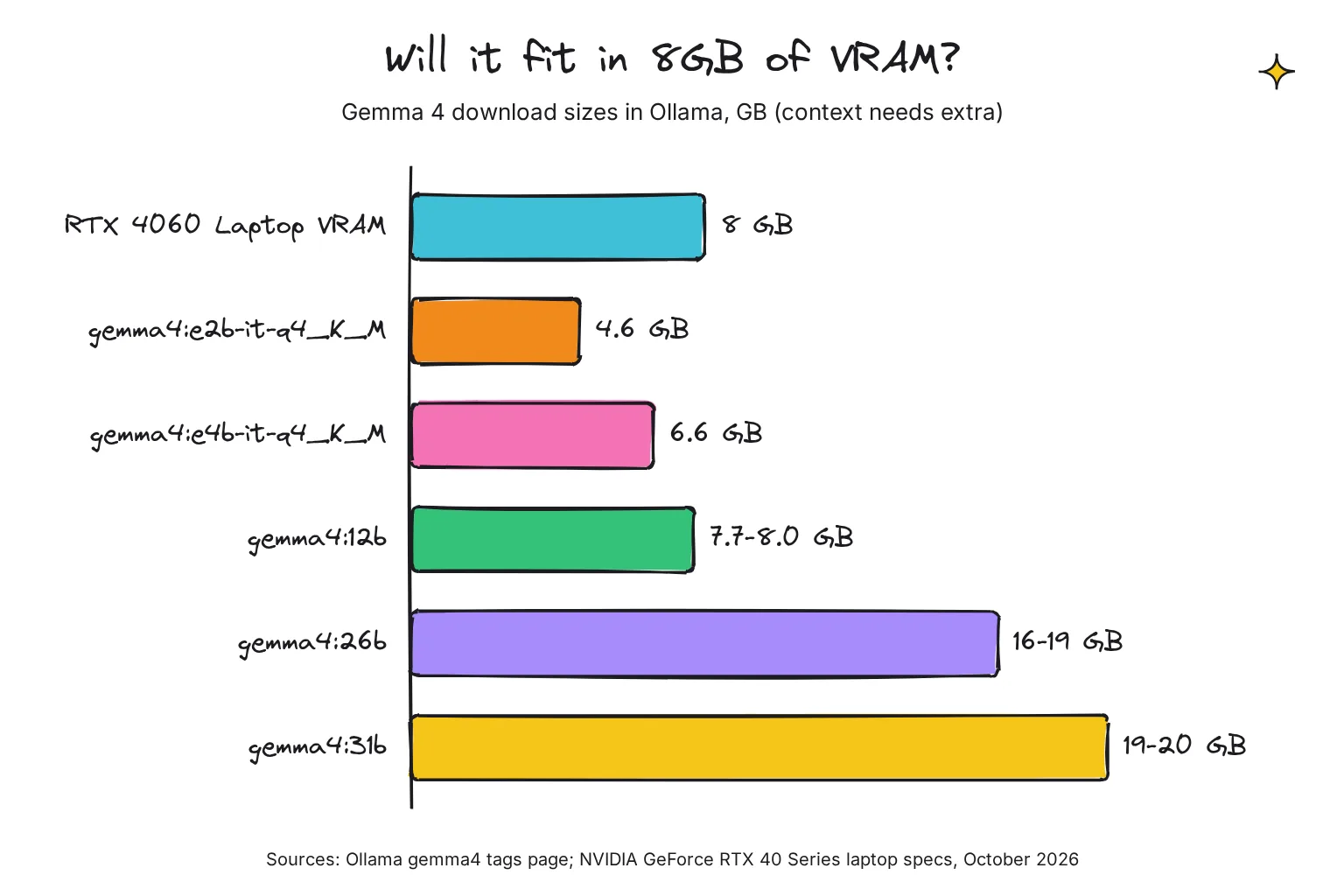
The 12B build looks as if it fits, but it leaves no room for context, so expect a split. Quantization, storing each weight in fewer bits (the q4 in a tag name), is what makes the small build small. Our best Ollama models by memory guide lists picks per VRAM size. If you run Qwen, our guide shows which Qwen size fits your VRAM.
2. The context length is eating your VRAM
Context length is how many tokens, word pieces, the model holds in memory at once. Ollama picks a default from your VRAM: 4k below 24 GiB, 32k from 24-48 GiB and 256k at 48 GiB or more, and warns that a larger context length will increase the memory required. The two doc pages disagree here: the FAQ still says Ollama uses a context window size of 4096 tokens by default, while the context length page and the v0.40.13 source describe the VRAM-based default (4k/32k/256k). For our 8 GB reader both mean about 4k. Running requests in parallel multiplies it too: the FAQ says required RAM scales by OLLAMA_NUM_PARALLEL times OLLAMA_CONTEXT_LENGTH.
3. The driver is missing, old or confused
Ollama's advice is blunt: in general, running the latest driver will yield the best results. On Linux, NVIDIA failures show up as error codes such as 3 (not initialized), 46 (device unavailable), 100 (no device) or 999 (unknown). After a suspend and resume, Linux can also fail to discover the NVIDIA GPU and fall back to the CPU. On AMD, a pre-ROCm 7 driver makes discovery hang, time out after about 30 seconds and fall back to CPU.
4. The card is not supported
An NVIDIA card below compute capability 5.0, or an AMD card missing from the ROCm lists with Vulkan unavailable, leaves Ollama with nothing to use. Intel Macs land here too, since Ollama runs them on the CPU only.
5. A laptop with integrated and discrete graphics
Our reader's laptop has two GPUs. Ollama's docs flag one known trap: on mixed iGPU/dGPU systems, Vulkan can select an unstable integrated GPU. If your laptop has only integrated graphics, 100% CPU is the expected reading, and our guide to running a local LLM on a Windows laptop with no GPU covers what to expect and which settings help. For the two-GPU case, the fix is to keep Vulkan on and point GGML_VK_VISIBLE_DEVICES at the discrete card, for example GGML_VK_VISIBLE_DEVICES=1 when Vulkan1 is the discrete GPU.
6. Docker without GPU passthrough
A container only sees a GPU you hand to it. The plain CPU-only command passes none. On a Mac there is no fix: GPU acceleration is not available for Docker Desktop in macOS, so run the Mac app instead.
7. An environment variable hides the GPU
Settings left over from an old tutorial can force the CPU. Setting CUDA_VISIBLE_DEVICES or ROCR_VISIBLE_DEVICES to an invalid ID such as "-1" ignores the GPUs and forces CPU usage, and OLLAMA_VULKAN=0 or GGML_VK_VISIBLE_DEVICES=-1 disables all Vulkan GPUs. OLLAMA_LLM_LIBRARY can also force a CPU library and bypass autodetection. Check your user and system variables on Windows and the service file on Linux.
How to make Ollama use the GPU: fixes for each cause
Fix a CPU/GPU split
- Unload what you are not using. Models stay loaded for 5 minutes by default; free the memory now with
ollama stop llama3.2, using your model's name. Close games and other GPU-heavy apps too. - Pick a smaller model or quantization. On 8 GB, a build around 6.6GB such as
gemma4:e4b-it-q4_K_Mleaves headroom. - Lower the context length. Use the slider in the Ollama app's settings, or
/set parameter num_ctx 4096insideollama run. For the server, the FAQ's example isOLLAMA_CONTEXT_LENGTH=8192 ollama serve. - Shrink the cache. Set
OLLAMA_KV_CACHE_TYPEtoq8_0, which uses approximately 1/2 the memory of f16 with a very small loss in precision. It needs Flash Attention, which Ollama uses automatically when the backend supports it. - Check again. Reload the model and run
ollama psuntil it reads 100% GPU.
Fix Ollama not using an NVIDIA GPU
- Update the driver from NVIDIA's driver download page; Windows needs 551.61 or newer.
- Update Ollama. On Windows and macOS, click the tray or menu bar icon and choose Restart to update; on Linux, re-run
curl -fsSL https://ollama.com/install.sh | sh. - Restart the server fully. Quit Ollama from the tray, then start it from the Start menu, so it repeats GPU discovery.
- On Linux after sleep, reload the UVM driver with the command below, or reboot.
- Still stuck on Linux? Set
CUDA_ERROR_LEVEL=50for more diagnostics and checksudo dmesg | grep -i nvrm, as the troubleshooting page suggests.
sudo rmmod nvidia_uvm && sudo modprobe nvidia_uvmFix an AMD GPU that Ollama ignores
- Check the lists. Compare your card with the Linux and Windows ROCm tables on Ollama's hardware support page. If it is missing, Vulkan is your route.
- Upgrade the driver on Linux. Ollama's docs ask for the ROCm v7 driver, installed with AMD's
amdgpu-installutility. Their link to AMD now redirects to the Install AMD ROCm page, which covers ROCm 10.1.0 and lists amdgpu-install as the Radeon and Ryzen option that bundles the amdgpu driver. Ollama's Linux guide also points to AMD's Linux drivers for Radeon. Reboot, then restart Ollama. - Fix permissions. AMD access on Linux typically requires video and/or render group membership, and for Vulkan you may need to add the ollama user to the render group.
- Try the override for a near-miss card by adding
HSA_OVERRIDE_GFX_VERSIONto the service, using the systemd steps below. - Turn on detailed logs with
AMD_LOG_LEVEL=3andOLLAMA_DEBUG=1, and checksudo dmesg | grep -i amdgpu.
How to set Ollama environment variables on each system
Every GPU setting here is an environment variable read by the Ollama server, so set it where the server runs, then restart it. On Windows, quit Ollama from the taskbar, search Settings for environment variables, choose Edit environment variables for your account, add the variable, then start Ollama from the Start menu. On a Mac, use launchctl setenv and restart the app. On Linux, edit the service, add an Environment line under [Service], then reload:
systemctl edit ollama.service

[Service]
Environment="OLLAMA_HOST=0.0.0.0:11434"

systemctl daemon-reload
systemctl restart ollama
That block is the FAQ's own example; swap the OLLAMA_HOST line for the GPU variable you need. Leave OLLAMA_HOST alone unless you mean to expose Ollama on your network.
Fix Ollama in Docker not using the GPU
For NVIDIA on Linux, or Windows with WSL2, install the NVIDIA Container Toolkit, point Docker at it and start the container with --gpus=all, as Ollama's Docker page shows. Test the runtime first: if docker run --gpus all ubuntu nvidia-smi fails, Ollama won't be able to see your NVIDIA GPU. Under WSL2, NVIDIA says the Windows driver is the only driver you need; do not install any Linux display driver in WSL.
sudo nvidia-ctk runtime configure --runtime=docker
sudo systemctl restart docker

docker run -d --gpus=all -v ollama:/root/.ollama -p 11434:11434 --name ollama ollama/ollama
For AMD, use the rocm image tag and pass the devices:
docker run -d --device /dev/kfd --device /dev/dri -v ollama:/root/.ollama -p 11434:11434 --name ollama ollama/ollama:rocmVulkan is bundled into the ollama/ollama image and enabled by default when the container can access the GPU devices; the docs pass them with the same two --device flags. If the GPU works at first and then drops to CPU with discovery errors, the fix is to add "exec-opts": ["native.cgroupdriver=cgroupfs"] to /etc/docker/daemon.json. Our Ollama in Docker guide covers Compose files and Open WebUI.
Ollama multi-GPU: how it splits models across cards
Ollama checks free VRAM before each load. If a model will entirely fit on any single GPU, Ollama loads it on that GPU, which reduces data crossing the PCI bus; only if it fits on none is it spread across all of them. The server setting OLLAMA_SCHED_SPREAD is described in Ollama's source as Always schedule model across all GPUs.
To limit Ollama to some cards, set CUDA_VISIBLE_DEVICES for NVIDIA, preferably with UUIDs from nvidia-smi -L because numeric ordering may vary. AMD uses ROCR_VISIBLE_DEVICES, with IDs from rocminfo, and Vulkan uses GGML_VK_VISIBLE_DEVICES. By default Ollama can keep 3 times the number of GPUs in models loaded at once, but on GPUs new models must completely fit in VRAM to load concurrently. If you get gibberish replies when a model loads across several AMD cards on Linux, Ollama's troubleshooting page sends you to AMD's multi-GPU known issues and limitations. For buying advice, see our best GPU for local AI guide.
Symptom to fix: quick reference
| What you see | Likely cause | Fix |
|---|---|---|
ollama ps shows a CPU/GPU split | Model plus context exceeds VRAM | Smaller model, shorter context, OLLAMA_KV_CACHE_TYPE=q8_0, unload other models |
| 100% CPU, even for small models | Driver missing or old, or GPU unsupported | Update the driver and Ollama; check the GPU tables |
| Slower after raising context length | Bigger context pushed layers to RAM | Lower the context, recheck ollama ps |
| Linux GPU gone after sleep | NVIDIA UVM driver bug | Reload nvidia_uvm or reboot |
| AMD discovery times out after 30s | Driver older than ROCm 7 | Upgrade to the ROCm v7 driver, reboot |
| Older Radeon ignored on Linux | GPU target not in ROCm | Try HSA_OVERRIDE_GFX_VERSION, or Vulkan |
| Laptop unstable, or running on the iGPU | Vulkan picked the integrated GPU | Set GGML_VK_VISIBLE_DEVICES to the discrete GPU |
| CPU only in Docker | No GPU passthrough | Container Toolkit plus --gpus=all, or --device flags for AMD |
| Docker GPU works, then drops to CPU | systemd cgroup management | Set the cgroupfs driver in daemon.json |
| CPU only on an Intel Mac | No GPU support on x86 Macs | None; use an Apple Silicon Mac |
| Ignores the GPU after a tutorial | A -1 device ID or OLLAMA_VULKAN=0 | Remove the variable, restart Ollama |
Common questions about Ollama not using the GPU
How do I know if Ollama is using my GPU?
Load a model and run ollama ps in a second terminal. The PROCESSOR column reads 100% GPU when the whole model sits in graphics memory, 100% CPU when it runs entirely in system memory, and a split such as 48%/52% CPU/GPU when it is shared between the two.
Why does Ollama use the CPU and GPU at the same time?
The model and its context do not fit in your graphics memory, so Ollama keeps the overflow in system RAM. That part runs much more slowly. Pick a smaller model or quantization, lower the context length, unload other models, or use a graphics card with more VRAM.
Does Ollama support AMD GPUs?
Yes. Ollama uses AMD's ROCm library for listed Radeon, Radeon PRO, Ryzen AI and Instinct chips, which needs the ROCm v7 driver. Cards outside those lists can often run through Vulkan, which Ollama enables by default on Windows and Linux.
Can Ollama use an Intel GPU?
Yes, through Vulkan, which Ollama has enabled by default since version 0.30 in June 2026. Most Windows graphics drivers already include Vulkan support. On Linux you need to install Vulkan driver packages, and Ollama needs extra permissions to read free graphics memory accurately.
Does Ollama use multiple GPUs?
Yes. If a model fits on one card, Ollama loads it there because that is usually fastest. If it fits on none, Ollama spreads it across all available GPUs. You can limit which cards it sees with CUDA_VISIBLE_DEVICES for NVIDIA or ROCR_VISIBLE_DEVICES for AMD.
Why is Ollama not using the GPU in Docker?
A container cannot see a GPU unless you pass it in. For NVIDIA, install the NVIDIA Container Toolkit and start the container with the gpus all flag. For AMD, use the rocm image and pass the kfd and dri devices. Docker Desktop on a Mac has no GPU support.
My verdict for an 8 GB gaming laptop: fix the fit before the driver
For the reader with an RTX 4060 laptop, the GPU is almost certainly supported, so a split in ollama ps is a memory problem, not a broken install. I would pick a model of about 6-7GB, keep the context modest and treat 100% GPU as the target. Only if a small model shows 100% CPU would I update the NVIDIA driver and read server.log. If you later want finer control over GPU offload than Ollama gives, our Ollama vs llama.cpp vs vLLM comparison explains the other engines. Our guide to running a local LLM on Windows covers first models per hardware tier.
Your next step: run ollama pull gemma4:e4b-it-q4_K_M, chat with it, then run ollama ps and confirm it reads 100% GPU before you try anything larger.
Sources
- Hardware support - Ollama
- FAQ - Ollama
- Troubleshooting - Ollama
- Context length - Ollama
- Docker - Ollama
- Windows - Ollama
- Linux - Ollama
- macOS - Ollama
- Development - Ollama
- Improved performance and model support with GGUF - Ollama
- gemma4 tags - Ollama
- Release v0.40.13 - ollama/ollama, GitHub
- LLAMA_CPP_VERSION at v0.40.13 - ollama/ollama, GitHub
- envconfig/config.go at v0.40.13 - ollama/ollama, GitHub
- GeForce RTX 40 Series Laptops - NVIDIA
- CUDA GPU Compute Capability - NVIDIA
- nvidia-smi documentation - NVIDIA
- Download The Official NVIDIA Drivers - NVIDIA
- Installing the NVIDIA Container Toolkit - NVIDIA
- CUDA on WSL User Guide - NVIDIA
- Install AMD ROCm 10.1.0 - AMD
- Linux Drivers for AMD Radeon and Radeon PRO Graphics - AMD
- mGPU setup and configuration - AMD
- Installation Guides - Intel