
What is Jan AI?
Jan is a free, open-source (Apache 2.0) desktop app from Menlo Research that downloads AI models and runs them offline on Windows, macOS and Linux, much like a private ChatGPT. It uses the llama.cpp engine, can also use cloud models with your own API keys, and the current version is v0.8.7, released October 20, 2026.
This guide follows one reader: someone with a 16GB laptop, either a Windows machine with no graphics card or an M-series MacBook Air, who wants a free, open-source ChatGPT-style app that works with the Wi-Fi off, and is choosing between Jan, LM Studio, Ollama and GPT4All.
A model is a large file of trained weights that writes the answers; the app loads it and gives you a chat window. GGUF is the file format of llama.cpp, an open-source engine that runs models on ordinary processors and graphics chips.
Choose Jan if:
- You want an open-source chat app you can use in minutes with no account.
- You want local models and your own OpenAI, Anthropic or Google keys in one window.
- You may later want MCP tools or a local API server for other apps.
Choose another app if:
- Polish or Mac MLX models matter more than open source: LM Studio, whose app is closed source.
- You want an engine for Open WebUI or coding agents: Ollama, which sets up Claude Code with one command.
- Your processor has AVX but not AVX2: GPT4All, which accepts either, though it last shipped in February 2025.
Who makes Jan, and is it really free and open source?
Jan is made by Menlo Research Pte Ltd, named in its privacy policy and build settings; the handbook describes a small team mostly based in Ho Chi Minh City, Vietnam. The code lives at github.com/janhq/jan, which "jan ai github" searches are after, under Apache 2.0, copyright Menlo Research.
Open source means anyone may read, change and share the code under the license. The app costs nothing; only cloud providers you connect bill you. Download it from jan.ai or GitHub releases, not a mirror.
What are Jan's own models?
Menlo Research also trains small models, which is what "jan ai llm" searches usually mean. Its docs list Jan-v3-4B, a 4-billion-parameter model built on Qwen3-4B-Instruct-2507, plus Jan-Code-4B for coding and Jan-v2-VL for images. The docs claim Jan-v3-4B leads its size class on the Aider polyglot coding test, 18 against 12.1 for Qwen3-4B-Thinking; that is the maker's own claim.
The setup wizard offers whatever Jan lists as its latest model. In October 2026 that is Jan-v3.5-4B, tuned for math reasoning, with a casual, lowercase-by-default personality. For a neutral assistant, add a second model.
What can Jan AI do in October 2026?
Jan is a chat window on a local engine, with optional doors to the cloud and to other apps. This is what the current docs and changelog describe, with test features flagged.

Local models: llama.cpp, plus MLX on Macs
Since v0.8.5, the llama.cpp engine ships inside the installer and updates with the app; it bundled llama.cpp build b11146, which v0.8.7 still pins. Windows and Linux use CUDA 13 for NVIDIA cards and Vulkan, a cross-vendor graphics interface, for AMD and Intel; Macs use Metal, Apple's graphics interface (engine docs).
On Apple Silicon, Jan can also run MLX models, built for Apple's own machine learning framework. Jan calls this experimental: it needs macOS 14, lacks the embeddings that document search relies on, and some newer models fail to load, so the docs say start with llama.cpp if you are unsure.
The Hub and Hugging Face downloads
The Hub tab is connected to Hugging Face, a public site for sharing model files. Each model gets a Fits, May be slow or Won't fit label for your hardware. You can also paste a Hugging Face model ID into the Hub search.
Sizes depend on quantization, which stores each weight in fewer bits to shrink the file at a small cost in accuracy. Jan-v3-4B's largest file is 8.83 GB, and its 4-bit Q4_K_M file 2.72 GB.
Cloud models with your own API keys
An API key is a password that lets an app use a provider's service on your account. Under Settings, Model Providers, Jan connects to OpenAI, Anthropic, Google, Groq, Mistral and OpenRouter, and any OpenAI- or Anthropic-compatible server works as a custom endpoint, including Ollama. Settings splits providers into Local and Remote, so you can see which send data out.
Assistants and Projects
An Assistant is a saved set of instructions, such as "answer in plain English", that you can reuse across chats. A Project groups chats around one assistant and shared files: PDFs, Office files and Markdown are chunked and available as context across all project conversations, so Jan can pull relevant passages into answers, like GPT4All's LocalDocs. For a side-by-side test with AnythingLLM and LM Studio, see how Jan compares for chatting with PDFs offline.
MCP tools and built-in web search
MCP, the Model Context Protocol, is a standard way to plug tools such as a file reader or a browser into an AI app. Jan is an MCP host: you add servers under Settings, MCP Servers, and approve each tool call unless you switch on Allow All. Many servers need Node.js or Python, and not all models are good at tool calling.
Separately, v0.8.4 added built-in web_search and web_fetch tools for tool-capable models, and Web Search is on by default through Exa's free keyless service. Useful for news, but your queries go online.
The local API server
An API (application programming interface) lets one program send requests to another. Jan's local API server is OpenAI-compatible, so tools built for OpenAI can use your local model at http://127.0.0.1:1337/v1. Since v0.7.6 it also accepts the Anthropic Messages API format, and a Claude Code integration maps Jan models to Claude Code's tiers.
Pick a default model under Settings, Local API Server, click Start Server, and send the docs' test request, swapping in your model ID. Drop the Authorization line if you set no API key.
curl http://127.0.0.1:1337/v1/chat/completions \
  -H "Content-Type: application/json" \
  -H "Authorization: Bearer YOUR_API_KEY" \
  -d '{
    "model": "YOUR_MODEL_ID",
    "messages": [{"role": "user", "content": "Tell me a joke."}]
  }'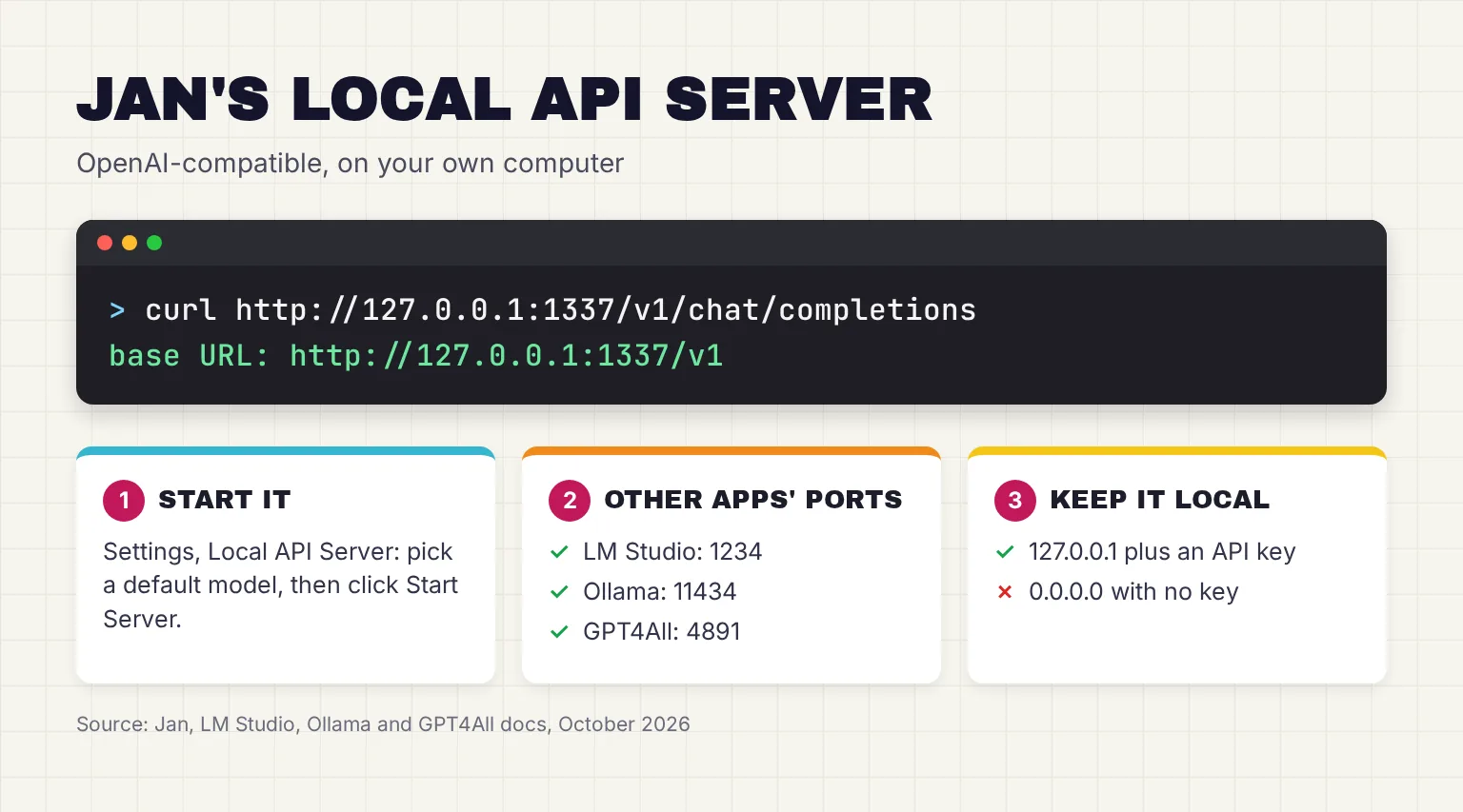
The server is reachable only from your own computer unless you set the host to 0.0.0.0, which the docs advise against without an API key. Since v0.8.5, a server on 0.0.0.0 also rejects requests to any host that is not local, a private network address or on a Trusted Hosts list.
Extensions, Cowork and the Jan agent
The engines, downloads and document search are built-in extensions; the docs do not cover third-party ones, so MCP is how you add tools. Agent features are early: Cowork, for multi-step tasks, is nightly-only, and Jan Agent is a separate terminal preview. Stable chats can use a sandboxed shell tool, which v0.8.7 lets you turn off with a Shell switch. If you want a local agent for files now, read our Hob AI review, a newer open-source app built around that job.
Is Jan AI private? What stays on your laptop and what goes online
With a local model, chats and files stay on the computer. Jan stores chats, models, settings and logs locally, and since v0.8.4 API keys go to your operating system's keyring. With a local model, your files never leave your device; a cloud provider receives them with your request.
Analytics are opt-in. The privacy policy, updated January 16, 2025, says the Company does not collect any data until you explicitly allow tracking, and setup ends on a consent page. If you agree, Jan counts daily users and retention against a random ID via PostHog's EU service, kept up to 12 months. Chats, chat settings and model choices are never collected, the policy says.
Some traffic still happens:
- Model downloads from Hugging Face, and the Hub's model list, which comes from a catalog file on GitHub.
- Update checks to apps.jan.ai and GitHub.
- Search queries sent to Exa when a model uses the built-in web search.
- Everything you send to a cloud model, which needs to see your messages to work.
For the strictest setup, answer no on the consent page, switch off Settings, Web Search, use only local models and keep the server on 127.0.0.1, then download your models and turn the Wi-Fi off. Our guide to private AI options explains when local is worth it, and our checklist before you upload a document still applies.
How to install Jan AI on a 16GB laptop
Setup is one installer and one model download of 3-7 GB, shown here for the Windows laptop and the MacBook Air.
- Check your machine. Windows needs version 10 or newer, an x64 processor with AVX2 (Intel Haswell from 2013, AMD Excavator from 2015) or ARM64, 8GB of RAM (16GB recommended) and 10GB free. AVX2 is a set of math instructions in the processor. Macs need Apple Silicon and macOS 13.6 or newer; Intel Macs are not supported.
- Download from the official page. Use jan.ai/download for Windows x64 or ARM64, Mac, or Linux, where Flatpak is the recommended route.
- Install and open it. On Windows, run the .exe; on a Mac, drag Jan to Applications. The first run is a wizard: welcome, engine setup, a first model and consent.
- Read the hardware check. On the Windows laptop it may list your built-in graphics or say "no GPU detected" and "running on CPU"; on the MacBook Air, Metal is used automatically.
- Get your first model. The wizard offers Jan-v3.5-4B, about 3 GB, and waits for you to click Download. Take it, then add a pick from the table below.
- Switch off what you do not need. Answer the analytics question, and click the globe icon in the chat box to turn Web Search off for a fully offline chat.
On Linux, the docs' Flatpak commands are:
flatpak install flathub ai.jan.Jan
flatpak run ai.jan.Jan
Which model should you download first on 16GB or 8GB?
Trust the Hub labels first. Jan's Mac guide says 16GB typically runs models up to 7B comfortably, some 13B models at lower quantizations, and 8GB up to 3B, where "7B" means 7 billion parameters. All three picks are in Jan's Hub catalog.
| Your laptop | First model | File size on Hugging Face | Why |
|---|---|---|---|
| 8GB, any system | Jan-v3-4B, Q4_K_M | 2.72 GB | Jan lists 8GB of RAM with Q4 as the minimum |
| 16GB Windows, no graphics card | Gemma 4 E4B, Unsloth Q4_K_XL | 4.22 GB | Leaves memory free for Windows and long chats |
| 16GB MacBook Air | Gemma 4 12B, Google's 4-bit GGUF | 6.98 GB | Google says it runs with just 16GB of VRAM or unified memory |
These Gemma 4 models from Google match the picks in our LM Studio vs Ollama comparison. Take the GGUF build on the Mac too, since the docs send document search to llama.cpp.
How do you know whether Jan is using your GPU?
Settings, Hardware shows CPU, RAM and GPU usage, and each graphics chip under GPUs has an on/off switch (llama.cpp docs). Jan's Windows guide lists a 6GB VRAM minimum for NVIDIA, AMD or Intel Arc GPUs; VRAM is a graphics card's own memory, so expect our Windows laptop to lean on its processor. If a model crashes, switching the GPU off is a quick test.
On the MacBook Air, Metal needs no setup. A ggml_metal error in the log usually means the model is too large for the available unified memory, so step down a size.
Where does Jan keep your chats and models?
Everything sits in one data folder, movable under Settings, General. These commands from the docs open it:
# Windows
cd %APPDATA%/Jan/data
# Mac
cd ~/Library/Application\ Support/Jan/data
# Linux (default, resolves via XDG_DATA_HOME)
cd ~/.local/share/Jan/data
Chats are messages.jsonl files under threads, GGUF models sit under llamacpp/models, and logs/app.log is where to look when a model will not load. Linux Flatpak installs use ~/.var/app/ai.jan.Jan instead.
How do you import a GGUF file you already have?
Open Settings, Model Providers, Llama.cpp and click Import. Jan links to the file in place without copying it, and deleting it in Jan leaves the original. LM Studio's lms import moves the file by default unless you add --symbolic-link, so use that flag and one file serves both apps. For a split model, point Jan at the first shard.
What are Jan's weak spots?
Jan changes fast, and its release notes are candid about the rough edges.
- Updates can break things. After v0.8.0, some models would not load until you reset a cache setting by hand, and v0.8.5 stopped bundling the jan command. Skim the changelog before updating mid-project.
- Older hardware is out. Without AVX2 there is no fallback engine, and Intel Macs cannot run local models since v0.8.5.
- The engine lags. v0.8.7 pins llama.cpp b11146, older than LM Studio 0.4.26's b11337 or Ollama v0.40.13's b11963, so brand-new model families may arrive later.
- Mac and agent features are unfinished. MLX is experimental, and Cowork is nightly-only.
How active is Jan's development?
Very. Jan's changelog lists 24 stable releases from July 2025 to October 2026: six in each of the last two quarters of 2025 and four in each of the first two of 2026. July to September 2026 brought just one, v0.8.4 on July 21, then three came in October, starting with v0.8.5 on October 8.

For comparison, LM Studio and Ollama also shipped updates in October 2026, while GPT4All last shipped in February 2025.
How does Jan compare with LM Studio, Ollama and GPT4All?
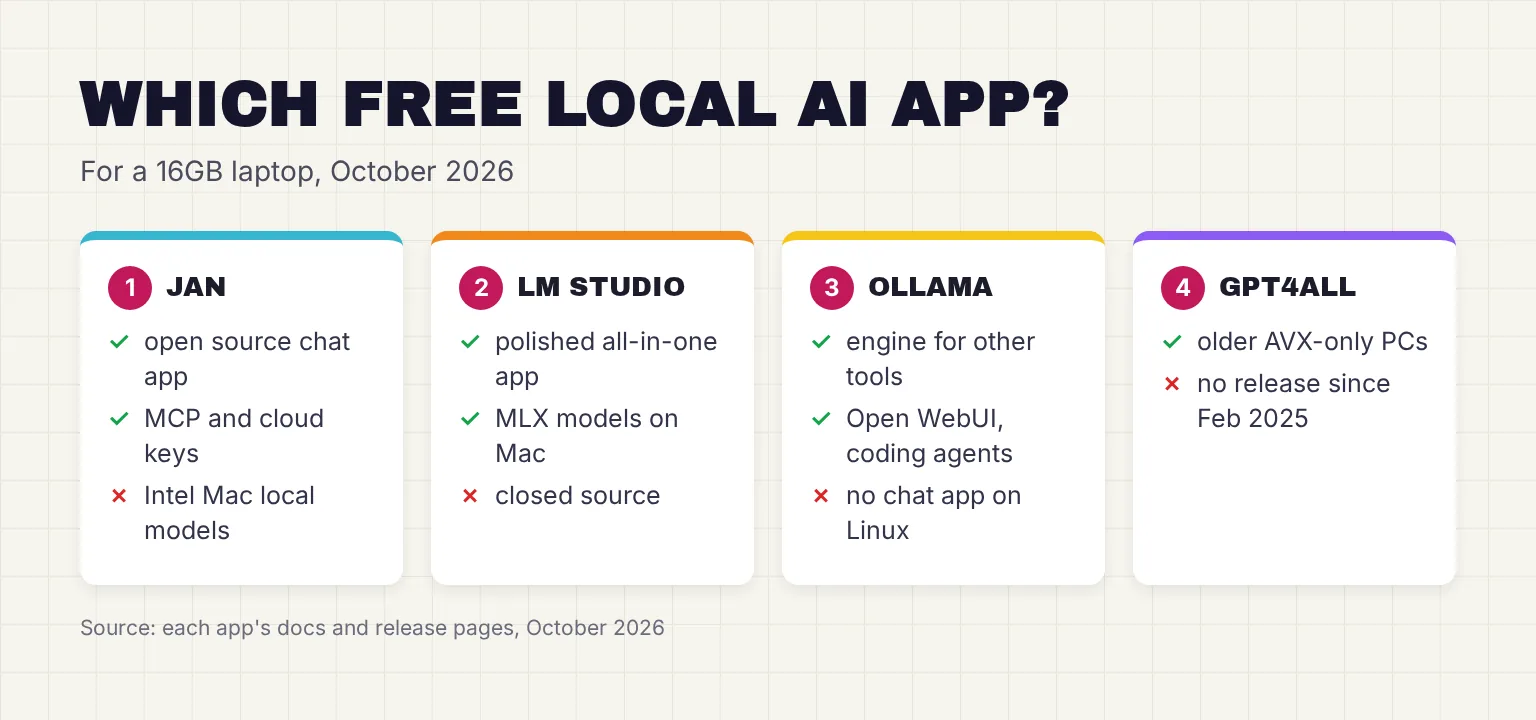
All four are free for local use and run GGUF models through llama.cpp. Here is how they compare in October 2026, from each project's own pages.
Is Jan a good LM Studio alternative?
Yes, if open source is the reason you are looking. Both are point-and-click apps with a model browser, document chat, MCP and a local server. Our beginner's guide to LM Studio walks through each of those features. LM Studio is closed source but runs MLX models without an experimental label, which matters on a MacBook Air, and needs macOS 14. Our LM Studio vs Ollama guide names LM Studio the better first app for the same 16GB reader, so pick it if open source is not a must.
Jan vs Ollama
Ollama is an engine first that serves other tools, and its chat app is for macOS and Windows. Jan is a chat app first. They combine: add Ollama to Jan as a custom endpoint at http://localhost:11434/v1. Our guide to installing Ollama covers that side.
Jan AI vs GPT4All
GPT4All, from Nomic, offers LocalDocs folder search and runs on AVX or AVX2 processors, but has not shipped since February 2025. Jan's Projects do the same job with a current engine. As our GPT4All guide concludes, GPT4All now suits AVX-only PCs and existing LocalDocs setups.
Common questions about Jan AI
Is Jan AI free?
Yes. Jan is free and open source under the Apache 2.0 license, and the desktop app needs no account. Local models cost nothing beyond disk space and power. You pay only if you connect a cloud provider such as OpenAI with your own API key.
Is Jan AI safe to use?
The official app from jan.ai or the janhq GitHub page is open source, keeps local chats on your computer and asks before collecting analytics. Keep its API server on 127.0.0.1, approve MCP tool calls one at a time, and turn off tools you do not need.
Does Jan AI work offline?
Yes, once a model is downloaded. Local models run on your own processor or graphics chip, so you can chat with the Wi-Fi off. Jan goes online to download models, check for updates, run web searches, which are on by default, or reach a cloud provider.
Is Jan better than LM Studio?
It depends on what you value. Jan is open source under Apache 2.0 and connects cloud providers with your own keys. LM Studio is closed source but more mature on Macs, where its MLX support is not experimental. Both are free, with a local API server and MCP.
Jan AI vs GPT4All: which should I use?
Jan, for most people starting in late 2026. Both are free, open-source chat apps with document search, but GPT4All has had no release since February 2025. GPT4All still suits an older PC whose processor has AVX but not AVX2.
Does Jan AI need a graphics card?
No. Jan runs models on the processor when there is no suitable graphics card, just more slowly. It uses NVIDIA cards through CUDA, AMD and Intel cards through Vulkan, and Apple Silicon through Metal, and lists 6GB of graphics memory as its minimum for acceleration.
My verdict for a 16GB laptop: Jan is the open-source pick
For our reader, who wants a free, open-source app, Jan is the one to install. It gives you a ChatGPT-style window, a Hub that says which models fit, document search in Projects and clear privacy switches, with releases most months. On the MacBook Air, stick to GGUF models for now. If open source is not a must, LM Studio is more polished, and Ollama is the better engine for other tools.
Your next step: install Jan, download Gemma 4 E4B on Windows or Gemma 4 12B on the Mac, turn Web Search off, then create one Project with three PDFs and ask a question whose answer you already know. If it gets that right, move the rest of your files in.
Sources
- Overview - Jan
- Jan v0.8.7 changelog - Jan
- Release v0.8.7 - janhq/jan, GitHub
- jan/LICENSE - GitHub
- janhq/jan README - GitHub
- Privacy Policy - Jan
- Jan's Privacy Approach - Jan
- Who We Are - Jan
- tauri.conf.json at v0.8.7 - janhq/jan, GitHub
- vite.config.ts at v0.8.7 - janhq/jan, GitHub
- tauri-plugin-llamacpp build.rs at v0.8.7 - janhq/jan, GitHub
- setup.json at v0.8.7 - janhq/jan, GitHub
- Jan-v3-4B - Jan
- Jan-v3.5-4B - Jan
- latest_jan_model.json - janhq/model-catalog, GitHub
- model_catalog_v2.json - janhq/model-catalog, GitHub
- Local AI Engine (llama.cpp) - Jan
- MLX - Jan
- Model Management - Jan
- Custom Endpoints - Jan
- Jan v0.8.0 changelog - Jan
- Assistants - Jan
- Jan v0.8.3 changelog - Jan
- Projects - Jan
- Using the Model Context Protocol (MCP) in Jan - Jan
- MCP Servers - Jan
- Jan v0.8.4 changelog - Jan
- Web Search - Jan
- Local API Server - Jan
- Jan v0.7.6 changelog - Jan
- Claude Code - Jan
- Jan v0.8.5 changelog - Jan
- Jan Data Folder - Jan
- Cowork (Preview) - Jan
- Jan Agent overview - Jan
- File Upload - Jan
- Windows Installation - Jan
- Mac Installation - Jan
- Linux Installation - Jan
- Download Jan - Jan
- Settings - Jan
- Troubleshooting - Jan
- Changelog - Jan
- Jan-v3-4B-base-instruct-gguf - Hugging Face
- gemma-4-E4B-it-qat-GGUF - Unsloth, Hugging Face
- gemma-4-12B-it-qat-q4_0-gguf - Google, Hugging Face
- Introducing Gemma 4 12B - Google
- LM Studio Desktop App Terms of Service - Element Labs
- System Requirements - LM Studio
- Welcome to LM Studio Docs - LM Studio
- MCP in LM Studio - LM Studio
- OpenAI Compatibility Endpoints - LM Studio
- Use your LM Studio Models in Claude Code - LM Studio
- Bionic Pricing - LM Studio
- LM Studio 0.4.26 release notes - LM Studio
- lms import - LM Studio
- ollama/LICENSE - GitHub
- Release v0.40.13 - ollama/ollama, GitHub
- LLAMA_CPP_VERSION at v0.40.13 - ollama/ollama, GitHub
- Ollama's new app - Ollama
- Improved performance and model support with GGUF - Ollama
- Quickstart - Ollama
- API Introduction - Ollama
- Tool calling - Ollama
- Pricing - Ollama
- macOS - Ollama
- Windows - Ollama
- Linux - Ollama
- nomic-ai/gpt4all README - GitHub
- Release v3.10.0 - nomic-ai/gpt4all, GitHub
- FAQ - GPT4All Docs
- Models - GPT4All Docs
- LocalDocs - GPT4All Docs
- GPT4All API Server - GPT4All Docs
- AddRemoteModelView.qml - nomic-ai/gpt4all, GitHub