What is AnythingLLM?
AnythingLLM is a free, MIT-licensed app from Mintplex Labs that lets you chat with documents, run RAG and use AI agents with local or cloud models. It comes as a desktop app for Mac, Windows and Linux or a self-hosted Docker server, plus paid hosted plans from $50 a month. It can use your own Ollama as its engine.
This guide follows one reader: someone with a 16GB laptop, either a Windows machine with no separate graphics card or an M-series MacBook Air, who already has Ollama installed and wants to ask questions of work PDFs without uploading them anywhere. If you have not installed Ollama yet, start with our Ollama install guide for Windows, Mac and Linux.
Choose AnythingLLM Desktop if:
- You work alone and want a one-click installable app where your documents and chats stay on your device.
- You want document chat, agents and MCP tools without running a server.
- You are the reader of this guide: one person, one laptop, private files.
Choose AnythingLLM Docker if:
- Several people need logins on your own server, because Desktop lacks the multi-user support, password protection and user management that Docker has.
- You want to reach it from a browser or publish embeddable chat widgets on a website.
Choose AnythingLLM Cloud if:
- Your team wants a hosted, private instance and is happy to bring a cloud LLM API key, since the hosted version has no built-in LLM and no MCP support.
AnythingLLM desktop vs Docker vs cloud in October 2026
All three run the same open-source core, and the docs say both Desktop and Docker are open source. The differences are who can log in, where it runs, and which features are switched on. Here is how they compare on October 29, 2026.
| Desktop | Docker (self-hosted) | Cloud (hosted) | |
|---|---|---|---|
| Price | Free | Free | $50 or $99 a month, Enterprise on quote |
| Systems | macOS Apple Silicon or Intel; Windows 10+ x64 or ARM64; Linux AppImage x64 or arm64 | amd64 and arm64 images | Runs on Mintplex Labs servers |
| Recommended hardware | 16GB RAM, 8-core CPU | 2GB RAM, 2-core CPU with AVX2, 5GB storage | None on your side |
| Users | One, no login | Many, with roles | Many, with roles |
| Built-in local LLM | Yes, the default | Opt-in since v1.19.0 | No |
| Connect your Ollama | Yes | Yes, via host.docker.internal | Not recommended |
| MCP and custom skills | Yes | Yes | No |
| Browser access and chat widgets | No | Yes | Browser access |
What are the AnythingLLM system requirements?
For the desktop app, the maker recommends 16GB of RAM and an 8-core CPU for a basic local experience, with storage depending on model size. On Windows a GPU with 8-12GB+ VRAM is great; on a Mac any M-series chip will do, and Intel Macs are slower. VRAM is the memory on a graphics card. The app itself is light; the model is the bottleneck.
On Windows, the installer targets Windows 11 on a Home user account and warns that Enterprise or Server editions may not work. Install for the current user only, not all users. Docker needs far less, but on Intel and AMD machines its one hard requirement is a CPU with AVX2, the instruction set the default LanceDB database is built against. ARM machines such as Apple Silicon Macs use a separate build and are not affected.
How much does AnythingLLM cost?
The desktop app and the Docker image are free. The hosted cloud plans, as published on the AnythingLLM Cloud page in October 2026, are Basic at $50 a month (private instance, custom subdomain, bring your own LLM API key), Pro at $99 a month (priority resources and a 72-hour support SLA) and Enterprise on request, with on-premise deployment, SSO and RBAC (role-based access control).
There is also a separate AnythingLLM Pro license for the desktop app. It removes the daily limits on the Magic features (dictation, highlight-to-ask and autocomplete across your computer) and is not needed for anything in this guide; the docs say Desktop will and forever will be free to use for 99% of our features. The Pro docs page does not state a price.
What is the latest AnythingLLM version?
AnythingLLM v1.19.0 is the release marked Latest on GitHub, published October 26, 2026, and the docs carry a matching v1.19.0 changelog. It adds an opt-in built-in LLM for Docker, Meeting Assistant tasks with reminders, color palettes, and lets agents save the Word, PDF, Excel, PowerPoint and text files they create to a folder you approve. The repo had 67.7k stars on GitHub on October 29, 2026; stars are bookmarks, not a count of users.
How to install AnythingLLM desktop
Download from the official AnythingLLM download page, which offers native builds for macOS (Apple Silicon and Intel), Windows (x64 and ARM) and Linux. No account is needed.
- Pick the right file. On a Mac, choose AnythingLLMDesktop-AppleSilicon.dmg for M-series chips or AnythingLLMDesktop.dmg for Intel. On Windows, pick the x64 or ARM64 installer; most laptops are x64.
- Install it. On a Mac, open the .dmg and drag AnythingLLM into Applications, or use Homebrew. On Windows, run the .exe and choose Current User; the docs say installing for all users will cause issues with the app and is not supported. The installer also fetches GPU support files, so stay online.
- Start it and wait. The first boot may take a minute or two. Since v1.11.0 the Windows app minimizes to the system tray when closed, so quit it from the tray before reinstalling.
- Choose a model in onboarding. New installs default to the built-in engine, now Lemonade, an open-source local AI server maintained by AMD, running llama.cpp. To use Ollama instead, pick Ollama here or follow the next section.
Homebrew on a Mac and the official Linux installer script are one-liners:
brew install --cask anythingllm

curl -fsSL https://cdn.anythingllm.com/latest/installer.sh -o installer.sh
chmod +x installer.sh
./installer.sh
The Linux script downloads the AppImage to your home folder, offers to create the Ubuntu AppArmor rule it needs, and adds a launcher entry. Re-run it to update. Your data lives in ~/Library/Application Support/anythingllm-desktop/storage on a Mac, ~/.config/anythingllm-desktop/storage on Linux and AppData\Roaming\anythingllm-desktop\storage on Windows.
How to run AnythingLLM in Docker
The official Docker instructions pull the image and mount a storage folder so your data survives updates. On Linux or macOS:
docker pull mintplexlabs/anythingllm

export STORAGE_LOCATION=$HOME/anythingllm && \
mkdir -p $STORAGE_LOCATION && \
touch "$STORAGE_LOCATION/.env" && \
docker run -d --rm -p 3001:3001 \
--cap-add SYS_ADMIN \
-v ${STORAGE_LOCATION}:/app/server/storage \
-v ${STORAGE_LOCATION}/.env:/app/server/.env \
-e STORAGE_DIR="/app/server/storage" \
mintplexlabs/anythingllm
Then open http://localhost:3001 in a browser. To run models inside the container rather than in Ollama, add -e ENABLE_BUILT_IN_LLM=true, plus --gpus all for NVIDIA. The 16GB reader does not need Docker at all.
How to connect AnythingLLM to Ollama, step by step
The official Ollama page in the AnythingLLM docs is short: Ollama is a separate application, and with default settings you connect at http://127.0.0.1:11434. The field names below come from the AnythingLLM settings screen source code, so they match what you will see.
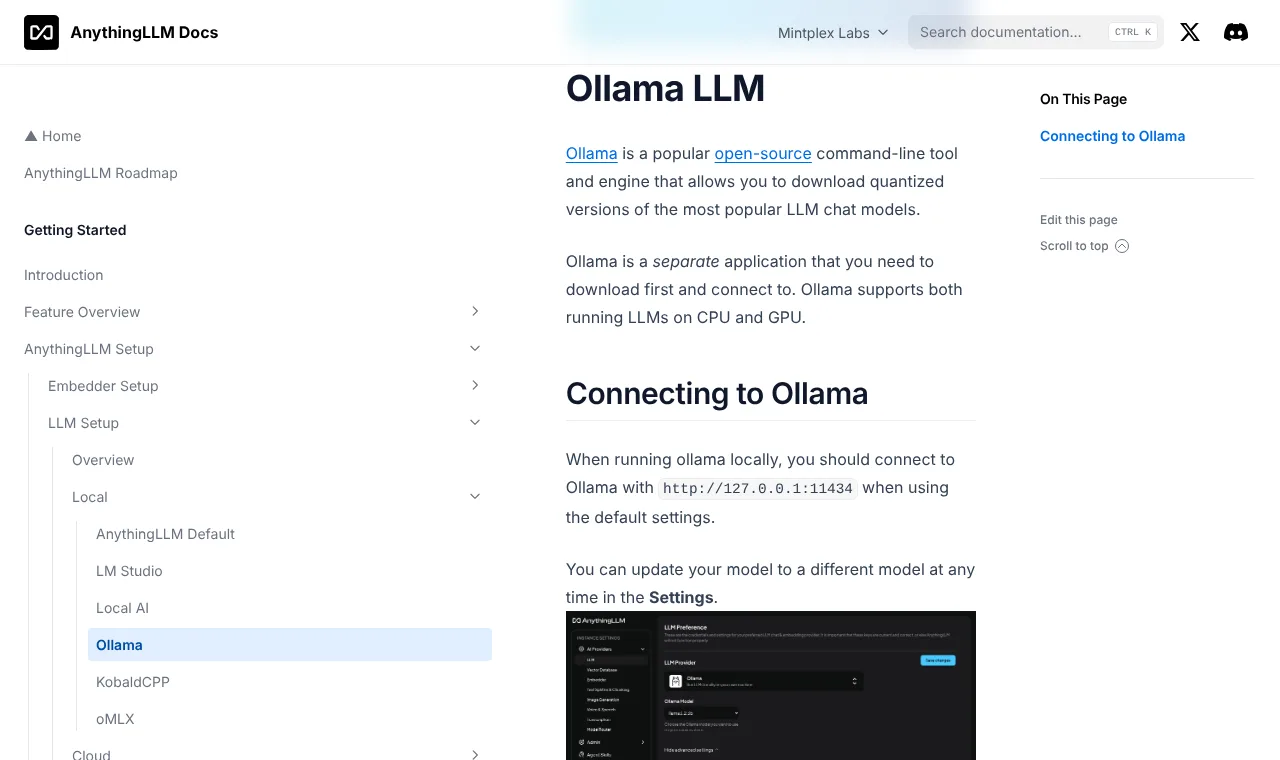
- Check that Ollama is serving. Open http://127.0.0.1:11434 in a browser. If nothing loads, start the server with ollama serve; the docs say running ollama run model-name will not start the server. Ollama binds 127.0.0.1 port 11434 by default.
- Pull a chat model, and an embedding model if you need one. On the Windows laptop, use gemma4:e4b; on the MacBook Air, the gemma4:12b-mlx build, listed at 7.7GB. Add nomic-embed-text, an embedding model, which turns text into number lists (vectors) for searching. Our best Ollama models by memory guide lists alternatives.
- Open the LLM settings. In AnythingLLM go to Settings, AI Providers, LLM, and set LLM Provider to Ollama.
- Pick the Ollama Model. AnythingLLM tries http://127.0.0.1:11434, http://host.docker.internal:11434 and http://172.17.0.1:11434 automatically. When it finds Ollama, the Ollama Model dropdown lists Your loaded models. Choose the chat model, not the embedder.
- Check the Ollama Base URL if no models appear. The Ollama Base URL field sits under Show advanced settings. If it is empty, click Auto-Detect or type http://127.0.0.1:11434, then pick the model.
- Review the other advanced settings. Ollama Keep Alive defaults to 5 minutes, with No cache, 1 hour and Forever as options. Model context window, if left blank, is auto-detected and capped at 16,384 tokens, with 4096 as the fallback. Authentication Token is only for an Ollama behind a login. Click Save changes.
- Decide the embedder before adding files. The built-in one is fine for English; for other languages, open the Embedder settings and choose Ollama, the same URL, and nomic-embed-text. The docs warn that changing embedders later means you will have to delete your uploaded documents and re-embed them.
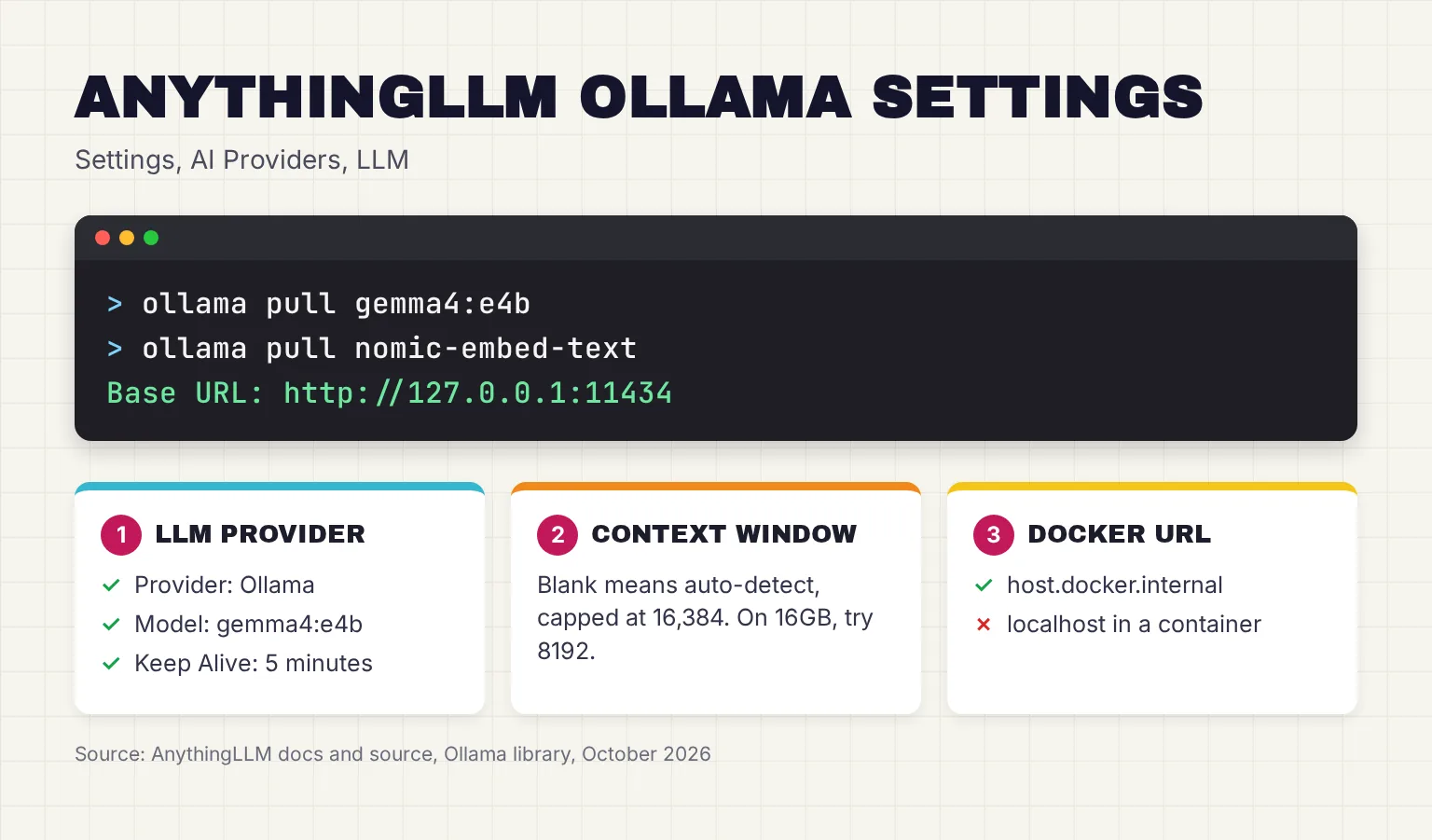
One setting surprises people. Ollama on its own uses a context window of 4096 tokens by default, but AnythingLLM sends its own num_ctx value with every request, so a model can use far more memory than it did in Ollama's app. On 16GB, I would type 8192 into Model context window rather than leave the 16,384 cap; that is my suggestion, not the maker's.
Why does AnythingLLM not see my Ollama models?
On the desktop app, the usual cause is that the Ollama server is not running. In Docker, the docs say it is 100% of the time the wrong URL: localhost inside a container means the container. Use http://host.docker.internal:11434 on Windows or macOS, or http://172.17.0.1:11434 on Linux. AnythingLLM Cloud cannot connect to Ollama on your local machine without exposing it to the internet, which the maker advises against.
Should you use the built-in engine instead of Ollama?
Older desktop versions shipped a bundled copy of Ollama. In v1.18.0 the built-in engine moved to Lemonade, and the maker's blog says this was because Ollama updates kept breaking things and llama.cpp gets speed-ups first. Its claim is that the new engine is about 137 MB on a typical Windows PC without an NVIDIA graphics card, against about 1.8 GB before. Switching engines deletes the old engine and the models that were downloaded with it.
Connecting your own Ollama keeps working exactly as before. If Ollama already holds your models, or you use them in Open WebUI too, connect it and skip a second copy of every model.
Workspaces and chatting with your documents
A workspace is a separate chat space with its own documents, settings and threads. You can drop a file into the chat, which inserts the full text of your documents into the conversation and is scoped to that thread. If a file is too long for the model's context window, AnythingLLM asks whether to cancel, continue anyway, or embed it.
Embedding is RAG, retrieval-augmented generation: the file is cut into chunks, turned into vectors, and stored in the local LanceDB vector database. When you ask a question, AnythingLLM finds the closest chunks, about 4-6 text chunks by default, and sends only those to Ollama. An embedded file is available to every thread in the workspace.
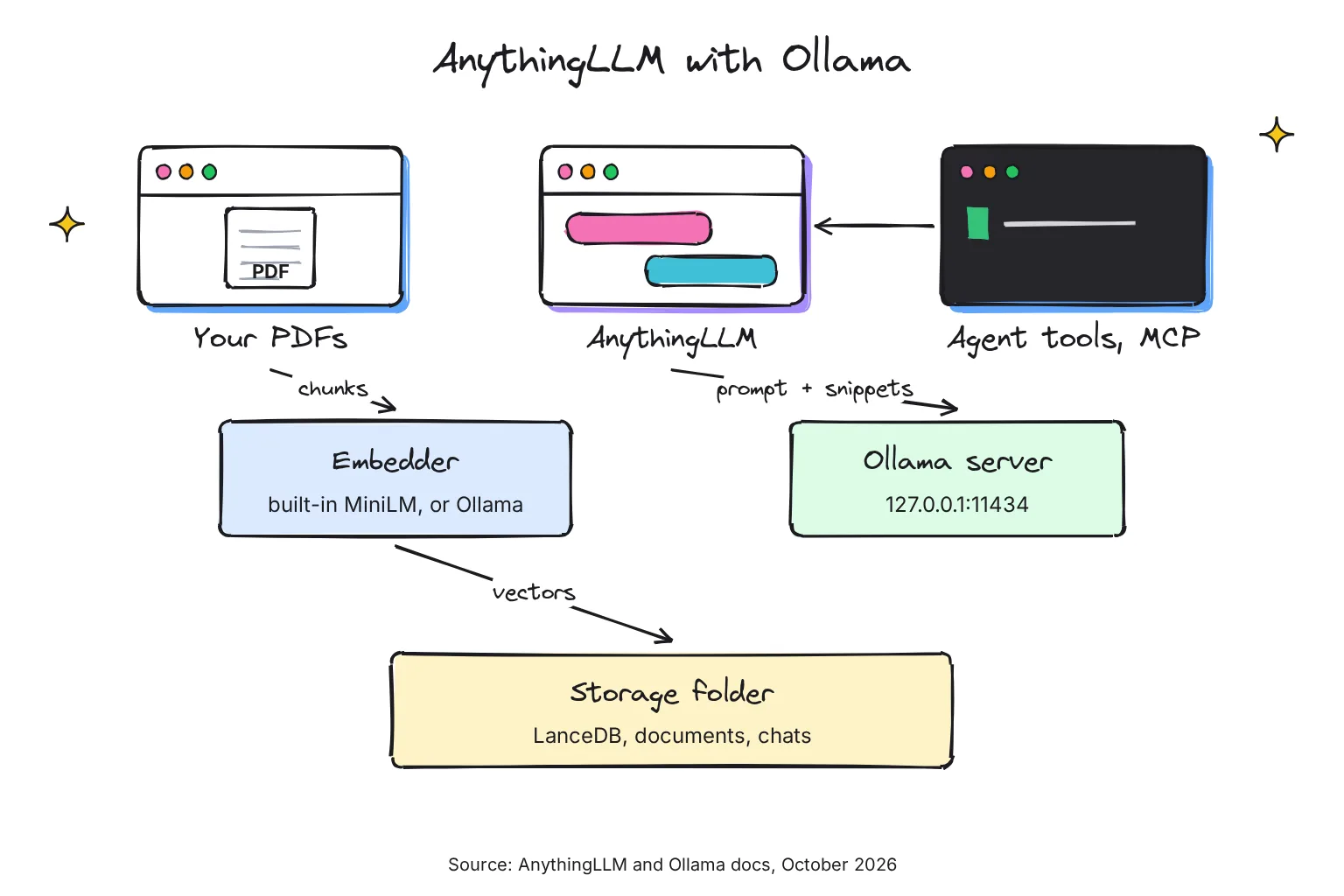
This explains the most common complaint. RAG cannot reliably answer a question about every file at once, such as picking the three highest-calorie meals from hundreds of recipes, because the model only sees a few snippets; the docs use that recipe example. For a short, important file, pin it: pinning puts the full text in every prompt. If answers miss obvious passages, the docs suggest setting the document similarity threshold, 20% by default, to No Restriction.
Which embedder should you choose?
The default is all-MiniLM-L6-v2, a 25MB model that runs on the CPU and is mainly trained on English. It is fine for English PDFs on the 16GB laptop. If your documents are in other languages, or you want one engine for everything, use Ollama with nomic-embed-text. Embedders are set system-wide, not per workspace, so decide before your first upload.
Can AnythingLLM read scanned PDFs?
Yes. Version 1.7.4 added built-in native OCR for scanned PDFs and images, and 1.7.5 multi-lingual support for OCR. OCR, optical character recognition, reads text from a picture of a page. When a PDF has no text layer, AnythingLLM will attempt OCR with the Tesseract engine, defaulting to English. For complex tables or multi-column reports, converting with Docling, our PDF-to-Markdown guide first usually gives cleaner input.
Does AnythingLLM show citations?
Yes. The README lists drag-and-drop uploads and source citations, agents have reported document and web-search citations since v1.11.2, and v1.19.0 shortens long citation URLs. Use citations to check each answer against the page. For answers only from your files, switch the workspace to Query mode, which only uses information from your uploaded documents; Chat mode mixes in the model's general knowledge.
Agents, skills and MCP in AnythingLLM
An agent is a model that can call tools. Agent mode is enabled by default for new workspaces in versions after v1.11.1, and works only if the model supports tool calling. If you see an @ symbol in the prompt box, start with @agent instead. Built-in skills include RAG search, web browsing and scraping, saving files, summarizing documents, charts, a SQL agent, a file system agent and scheduled jobs, switched on under Settings, Agent Skills.
You can add your own skills in two ways. Agent Flows are built visually with no code. Custom agent skills are JavaScript and require NodeJS programming experience, and the docs warn to only run custom agent skills you trust. Small local models are weak at tool calling, so on 16GB expect agents to be hit and miss.
Does AnythingLLM support MCP?
Yes. MCP, the Model Context Protocol, is a standard way to plug tools into an AI app. AnythingLLM reads servers from anythingllm_mcp_servers.json in the storage plugins folder, supports stdio, SSE and streamable HTTP servers, and lets you start, stop and delete them from the Agent Skills page. Desktop support arrived in v1.8.0.
A few details matter. Desktop loads Tools only, not Resources, Prompts, or Sampling. You must install commands such as npx or uvx yourself. Servers do not start when the app launches; they start when you open the Agent Skills page or use @agent. Set anythingllm.autoStart to false to keep a heavy server from starting with the others. MCP is not available on the hosted cloud.
{
  "mcpServers": {
    "mcp-youtube": {
      "command": "uvx",
      "args": ["mcp-youtube"]
    }
  }
}
Is AnythingLLM private? Telemetry and what goes online
Your chats, documents and vectors stay in the local storage folder, and the desktop API listens on 127.0.0.1 unless you turn on network discovery. The docs warn: Do not expose the desktop app to the public internet, because it has no user accounts. Telemetry is a different matter, and it is on unless you opt out.
The README says AnythingLLM contains a telemetry feature that collects anonymous usage information, sent to PostHog. It lists what is tracked: install type, the fact that a document was added or removed, the vector database type, the LLM provider and model tag, and the fact that a chat was sent, without its content. It says no IP or identifying information is collected. To switch it off:
- In the app: go to the sidebar, Privacy, and disable telemetry, as the README describes; the docs point to the same menu on their Privacy and Data Handling page.
- In Docker: set DISABLE_TELEMETRY to "true" in the server or Docker .env file, then restart the container.
Even with telemetry off, you will still see connections to cdn.anythingllm.com for model downloads and to GitHub for context-window files, plus any cloud provider you choose. The download page says your models, documents and chat history stay on your machine and that Nothing phones home. That holds for your content, but anonymous usage events are sent by default until you switch telemetry off, so the slogan promises more than the README describes. Before you embed anything sensitive, read our checklist on what is safe to upload.
AnythingLLM review: strengths, weaknesses and who it suits
Best for: one person who wants a desktop app that chats with folders of documents, runs agents and connects to an existing Ollama, without setting up a server. Docker suits a small team that needs logins.
Good at:
- Document chat with workspaces, attach or embed, pinning, Query mode and citations.
- Choice: dozens of local and cloud model providers, several vector databases, and either its own engine or your Ollama.
- Built-in OCR for scanned PDFs and images.
- Agents with MCP, no-code Agent Flows and scheduled jobs in the free app.
- Frequent releases, with a dated changelog for each version.
Not so good at:
- Whole-library questions, a limit of the RAG design, which sees a few snippets at a time.
- Changing your mind on embedders: switching means re-embedding every document.
- Sharing the desktop app, which has no login; use Docker for that.
- Small local models as agents: tool calls need a capable model.
- Telemetry is opt-out, not opt-in.
My take: AnythingLLM has one of the fullest document workspaces among free local apps, and the Ollama connection is usually a two-field job. It also asks you to make decisions, embedder, context window, chat mode, that simpler apps hide. I would choose it over Open WebUI for a single laptop because it installs like any desktop app, while Open WebUI runs as a web server you start with Docker or Python; for a shared home server I would pick Open WebUI. Our guide to the best local AI apps compares the rest.
Common questions about AnythingLLM
Is AnythingLLM free?
Yes. The desktop app and the self-hosted Docker version are free and MIT licensed. The hosted cloud costs $50 or $99 a month, with Enterprise on quote, and an optional Pro license removes daily limits on the desktop Magic features. Nothing in the document chat or Ollama setup needs a paid plan.
Does AnythingLLM work with Ollama?
Yes. Choose Ollama as the LLM provider, keep the base URL http://127.0.0.1:11434 and pick a model from the list. In Docker, use host.docker.internal on Windows or Mac and 172.17.0.1 on Linux. You can also use Ollama for embeddings with a model such as nomic-embed-text.
Is AnythingLLM safe and private?
With local models, your documents, vectors and chats stay in a storage folder on your computer, and the desktop API listens only on your own machine by default. Anonymous telemetry is on until you disable it under Privacy in the app, or set DISABLE_TELEMETRY in the Docker env file.
What are the AnythingLLM desktop system requirements?
The maker recommends 16GB of RAM and an 8-core CPU for a basic local setup, with storage depending on the models you download. A Windows GPU with 8 to 12GB of video memory helps, and any Apple M-series Mac works. Docker needs only 2GB of RAM, but Intel and AMD CPUs must support AVX2.
Can AnythingLLM read scanned PDFs?
Yes. Since version 1.7.4 it has built-in OCR for scanned PDFs and images, and 1.7.5 added more languages. If a PDF has no text layer, AnythingLLM tries OCR with the Tesseract engine, set to English by default. Very complex layouts may convert better with a dedicated tool such as Docling first.
Does AnythingLLM support MCP servers?
Yes, on the desktop app since version 1.8.0 and in Docker. You list servers in the anythingllm_mcp_servers.json file and manage them on the Agent Skills page. Only MCP tools are supported, not resources or prompts, commands like npx must already be installed, and the hosted cloud does not allow MCP.
My verdict for a 16GB laptop: AnythingLLM Desktop with your Ollama
For the reader in this guide, install AnythingLLM Desktop, connect it to the Ollama you already have, and keep the built-in MiniLM embedder unless your files are not in English. Set the context window to 8192, turn telemetry off, and use Query mode with citations when the answer must come from the document. Leave Docker and the cloud plans until someone else needs access.
Your next step: create a workspace, embed one PDF you know well, and ask it three questions you can check against the page. If the answers miss, our guide to chatting with PDFs locally covers chunking, OCR and model choice in more depth.
Sources
- AnythingLLM: On-device AI for productivity - Mintplex Labs
- Download AnythingLLM - Mintplex Labs
- AnythingLLM Cloud - Mintplex Labs
- Why AnythingLLM is moving from Ollama to Lemonade and llama.cpp - Mintplex Labs
- What is AnythingLLM? - AnythingLLM Docs
- AnythingLLM Desktop Installation Overview - AnythingLLM Docs
- Desktop System Requirements - AnythingLLM Docs
- Install for MacOS - AnythingLLM Docs
- Install for Windows - AnythingLLM Docs
- Install for Linux - AnythingLLM Docs
- Where is my data stored? - AnythingLLM Docs
- Self-hosted System Requirements - AnythingLLM Docs
- Docker Quickstart - AnythingLLM Docs
- Ollama LLM - AnythingLLM Docs
- AnythingLLM Default LLM - AnythingLLM Docs
- Ollama Connection Debugging - AnythingLLM Docs
- Embedder Configuration - AnythingLLM Docs
- AnythingLLM Default Embedder - AnythingLLM Docs
- Attaching vs RAG - AnythingLLM Docs
- RAG in AnythingLLM - AnythingLLM Docs
- Chat Modes - AnythingLLM Docs
- Privacy and Data Handling - AnythingLLM Docs
- Setting up AI Agents - AnythingLLM Docs
- How to use AI Agents - AnythingLLM Docs
- Custom Agent Skills Introduction - AnythingLLM Docs
- What is an Agent Flow? - AnythingLLM Docs
- Model Context Protocol (MCP) in AnythingLLM - AnythingLLM Docs
- MCP on Desktop - AnythingLLM Docs
- AnythingLLM Cloud Limitations - AnythingLLM Docs
- Why AnythingLLM Pro? - AnythingLLM Docs
- Desktop Changelog v1.19.0 - AnythingLLM Docs
- Desktop Changelog v1.18.0 - AnythingLLM Docs
- Desktop Changelog v1.11.2 - AnythingLLM Docs
- Desktop Changelog v1.7.5 - AnythingLLM Docs
- Desktop Changelog v1.7.4 - AnythingLLM Docs
- Mintplex-Labs/anything-llm - GitHub
- anything-llm README - Mintplex-Labs, GitHub
- AnythingLLM v1.19.0 release - Mintplex-Labs, GitHub
- How to use Dockerized AnythingLLM - Mintplex-Labs, GitHub
- OllamaLLMOptions settings component - Mintplex-Labs, GitHub
- Ollama provider source - Mintplex-Labs, GitHub
- PDF converter source - Mintplex-Labs, GitHub
- OCRLoader source - Mintplex-Labs, GitHub
- FAQ - Ollama
- gemma4 tags - Ollama
- nomic-embed-text - Ollama
- Quick Start - Open WebUI Docs