
How do I fix the ComfyUI Reconnecting error?
ComfyUI shows Reconnecting when the browser page loses its websocket link to the ComfyUI server, the Python program doing the work. That program has usually crashed, most often because Windows ran out of system memory. Read the console first: a silent stop means a bigger page file or smaller model files; errors after an update mean custom nodes.
This guide follows one reader: a Windows 11 PC with an NVIDIA RTX 3060 12GB graphics card and 16GB of system RAM, running ComfyUI through the Comfy Desktop app or the Windows portable build. Reconnecting appears when a Flux or SDXL workflow starts, or right after installing custom nodes or updating. Still choosing an image app? Our guide to making AI images on your own computer compares ComfyUI with simpler tools.
Everything here is checked against ComfyUI v0.43.0, published October 27, 2026, and Comfy Desktop 1.1.8 from October 22. VRAM is the memory on the graphics card, RAM is the computer's main memory, and the page file is disk space Windows uses as overflow RAM.
What does Reconnecting mean in ComfyUI?
ComfyUI is two programs. The server is a Python process that loads models and runs your workflow; the interface is a web page in your browser or the Desktop window. They talk over a websocket, a connection that stays open, which the server offers at the /ws address.
When that connection closes, the page retries after 300 milliseconds. If the link is still down two seconds later, it shows an error notice reading Reconnecting, replaced by Reconnected when the server answers. The browser only reports the problem; the cause is on the server side.
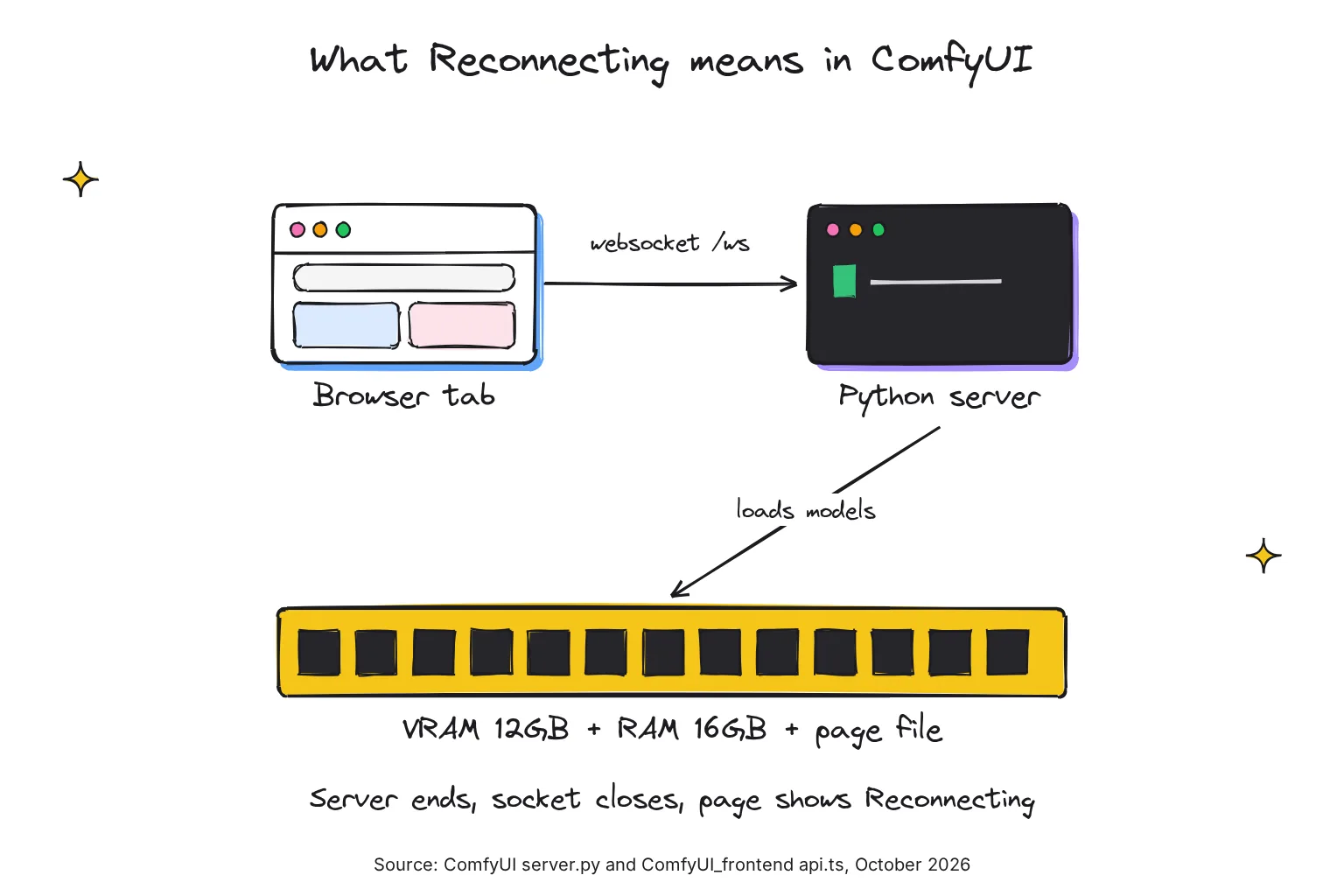
Why does the server vanish? ComfyUI project member ltdrdata answered on GitHub: "Reconnecting" means that your ComfyUI was forcibly terminated. This usually happens when your operating system force-closes ComfyUI due to insufficient system memory. In a thread about an RTX 3090 that kept crashing, project member comfyanonymous advised setting the page file to system managed size with free disk space, and the user confirmed it worked.
Is a short Reconnecting after a restart normal?
Yes. When ComfyUI-Manager installs nodes and restarts the server, the page hides the notice and waits up to two minutes for it to return. The message matters when it stays, or appears mid-run.
Step one: where is the ComfyUI console and log file?
Every fix depends on the last lines the server printed before it stopped.
Windows portable build
The black window that run_nvidia_gpu.bat opens is the console, and the portable docs warn not to close it. When Python exits for any reason, the launcher prints a hint about updating NVIDIA drivers, then runs pause, which shows Press any key to continue . . . That hint appears after every exit, so scroll up to the real last lines.
For a log file, enable ComfyUI-Manager. It prints a ** Log path: line and writes comfyui.log to the ComfyUI\user folder, keeping two earlier runs as comfyui.prev.log and comfyui.prev2.log. The core --verbose flag can also write a log level to a file.
Comfy Desktop
Open the instance's Manage panel and choose the Terminal tab for startup logs, errors and Python output. A crash leaves a ComfyUI exited unexpectedly card, with the exit code when Desktop can read it.
On disk, Desktop writes comfyui.log into a logs folder inside the instance's install folder; new installs live under %LOCALAPPDATA%\Comfy-Desktop\ComfyUI-Installs. The app's own log is app.log in %APPDATA%\Comfy Desktop\logs. On the older Legacy Desktop app, now archived, look in C:\Users\<username>\AppData\Roaming\ComfyUI\logs.
What to look for in the log
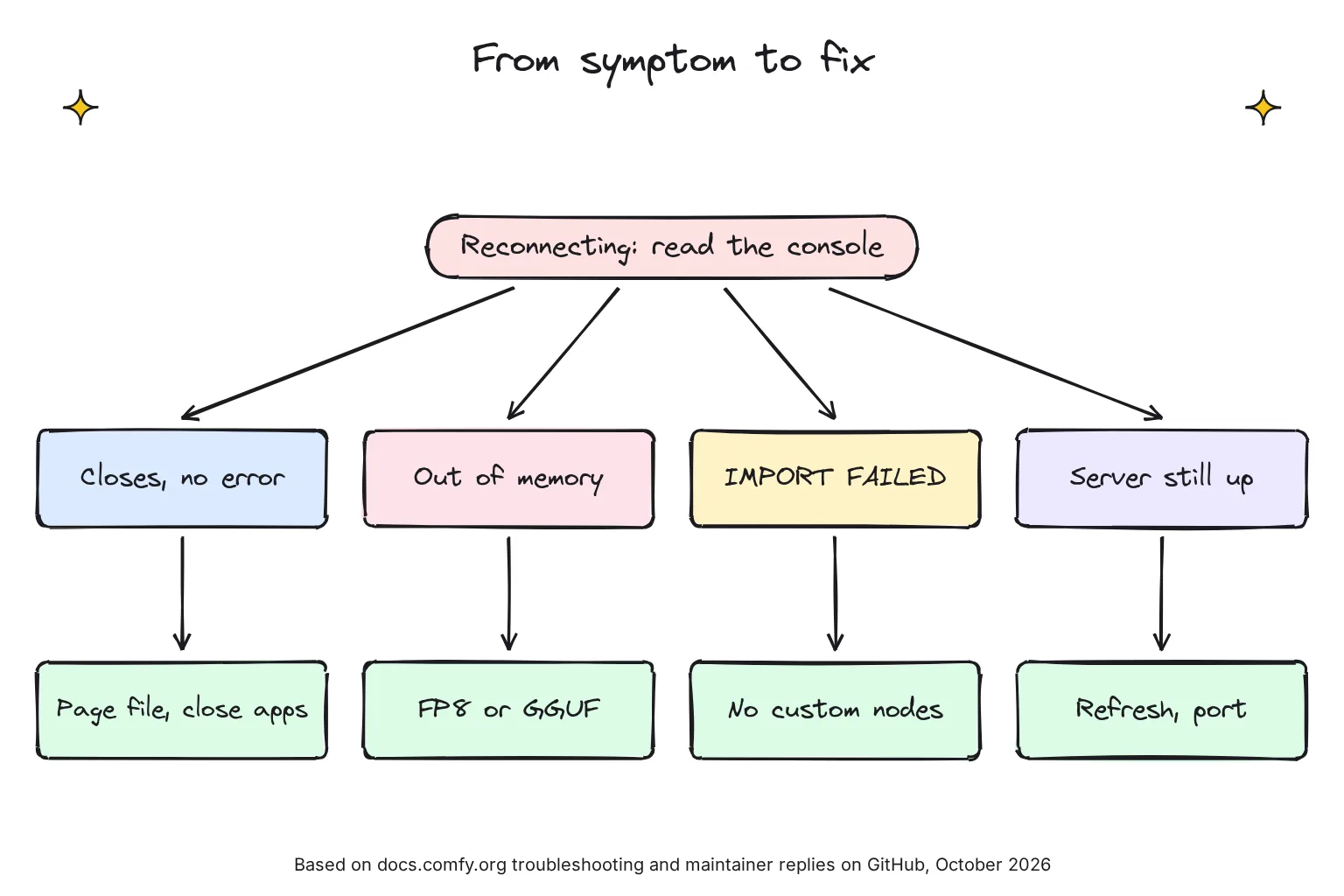
- got prompt, then the window ends with no error: the process was killed, which points to system memory.
- CUDA out of memory: the graphics card is full. ComfyUI catches this, logs Got an OOM, unloading all loaded models and adds the tip This error means you ran out of memory on your GPU, so you normally get a Prompt execution failed dialog, not Reconnecting.
- (IMPORT FAILED) beside a folder in the Import times for custom nodes list: a custom node broke at startup.
- Total VRAM and total RAM: this startup line shows what ComfyUI sees, and DynamicVRAM support detected and enabled confirms the memory mode described below.
ComfyUI keeps reconnecting: symptom, cause and fix
Match the last thing you saw to a row (ComfyUI v0.43.0, October 2026).
| What you see | Likely cause | Fix |
|---|---|---|
| Console stops after got prompt; Press any key to continue, or ComfyUI exited unexpectedly | Windows ran out of RAM plus page file | System-managed page file, free disk space, smaller model files |
| CUDA out of memory | Graphics card full | Lower resolution or batch size, fp8 or GGUF files, --reserve-vram 2 |
| Reconnecting after installing nodes or updating; (IMPORT FAILED) | A custom node crashed the server | Start with --disable-all-custom-nodes, then test nodes in halves |
| Window closes at startup, or a c10.dll error | Old NVIDIA driver or missing Visual C++ runtime | Update the driver; install the redistributable |
| Server still running, no error | Browser, port, VPN or reverse proxy | Refresh, check the port, raise proxy timeouts |
| Files vanish, or App is blocked notices | Antivirus or Controlled folder access | Check quarantined threats; move ComfyUI out of protected folders |
Is it a memory problem? Check Task Manager and nvidia-smi
Run the workflow with Task Manager open on the Performance tab. On the GPU page, Dedicated GPU memory is the card's 12GB. Shared GPU memory is system RAM lent to the card: Windows lets the GPU use up to half of physical memory, so 8GB on a 16GB PC.
On the Memory page, watch Committed. Microsoft defines the commit limit as physical memory plus all page files, and warns that reaching it can cause freezing and crashing. If Committed hits the limit just before Reconnecting, you have found the cause.
Since driver 536.40, NVIDIA's driver lets an application spill into system memory instead of crashing when the card is nearly full, at a cost in speed; a Sysmem Fallback Policy setting in NVIDIA Control Panel controls it. On a 3060, that moves pressure from VRAM onto your 16GB of RAM.
For live card numbers, run nvidia-smi, which the ComfyUI docs use to check the GPU is visible. Its -l option repeats the report every given number of seconds until Ctrl+C. Per-program memory is not available on Windows in WDDM mode, the manual says, so read the card's overall memory figure.
nvidia-smi
nvidia-smi -l 1
Why does a 12GB card run out of system RAM with Flux?
ComfyUI parks idle models in system RAM: the --highvram help text says models will be unloaded to CPU memory after being used by default. The docs describe Flux as having 12B parameters and an original file size of approximately 23GB, plus a separate T5-XXL text encoder.
Sizes listed on Hugging Face in October 2026: flux1-dev 23.8 GB and the single-file flux1-dev-fp8 17.2 GB; t5xxl_fp16 9.8 GB and t5xxl_fp8_e4m3fn 4.9 GB; Flux dev GGUF from 12.7 GB at Q8_0 to 6.8 GB at Q4_K_S; and SDXL base 1.0 at 6.9 GB. The fp8 checkpoint is about the size of all this PC's RAM, so Windows leans on the page file; SDXL is far easier.
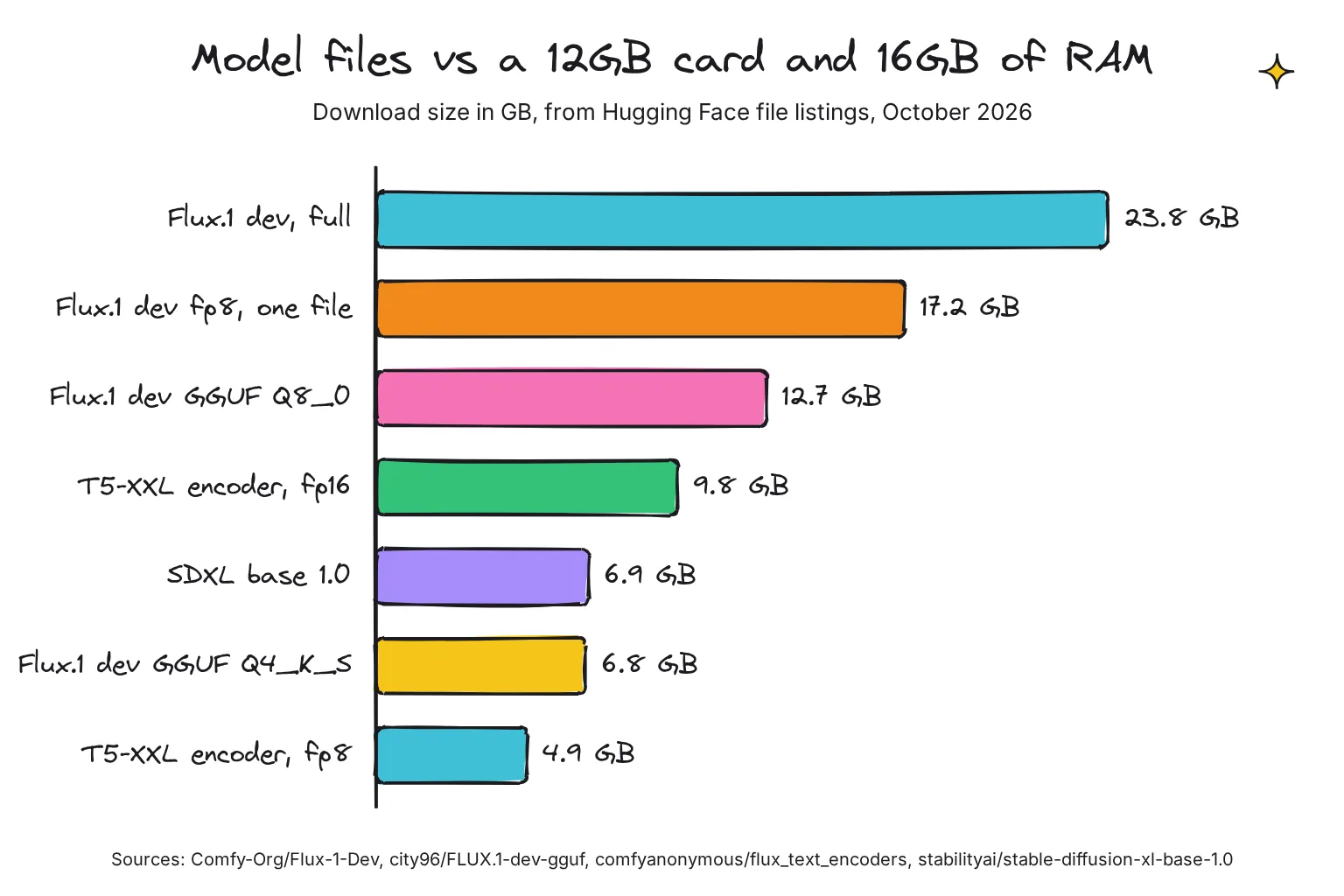
FP8 and GGUF are quantized formats: fewer bits per weight, so smaller files and memory use, with some quality loss. Our local vs cloud AI guide explains quantization. ComfyUI loads fp8 files directly but does not natively support GGUF, which needs the ComfyUI-GGUF custom node. ComfyUI's code recommends native formats like fp8 over GGUF for speed, which is the maker's claim.
One catch: the RTX 3060 has compute capability 8.6, below the 8.9 ComfyUI checks for fp8 math. Fp8 files save memory on this card, but ComfyUI converts weights to a 16-bit type to compute.
How to stop ComfyUI crashing on 16GB of RAM
Work through these in order, retesting after each.
- Close what you do not need. Browsers, games and other AI apps hold RAM and VRAM; the ComfyUI docs list closing applications as a first fix.
- Set the page file to system managed. Following Microsoft's steps, open Settings, select System, and under Related links select Advanced system settings. On the Advanced tab select Settings under Performance, then Advanced, then Change under Virtual memory. Tick Automatically manage paging file size for all drives, select OK and restart.
- Free space on drive C. A system-managed page file grows up to three times physical memory or 4 GB, whichever is larger, but no more than one-eighth of the volume, if the disk has room. On 16GB that is 48GB, which a 512GB drive allows; a 256GB drive caps it at 32GB.
- Try a fixed size if crashes continue. Microsoft documents random out-of-memory errors from slow page file growth and recommends an initial size of 1.5 times RAM: choose Custom size, set Initial size to 24576 MB and Maximum size at least as large, then restart.
- Use smaller model files. Switch to flux1-dev-fp8, or swap t5xxl_fp16 for t5xxl_fp8_e4m3fn as the Flux tutorial suggests for low VRAM; it recommends the fp16 encoder only above 32GB of VRAM. Try GGUF if memory is still tight.
Choose a bigger page file if:
- The console stops with no Python error and Committed hits its limit.
- You want full-quality Flux files and can accept slower runs.
Choose smaller model files if:
- Your system drive is small or nearly full.
- Generation crawls once Windows starts paging, or you also see CUDA out of memory.
Upscaling in the same workflow loads another model; for one-off photos, our free local AI upscaler guide covers Upscayl instead.
Which ComfyUI launch flags help a 12GB card?
Launch flags are options added to the command that starts ComfyUI. On NVIDIA cards, current ComfyUI turns on dynamic VRAM automatically, and the same page says --lowvram then has no effect, so the old --lowvram advice for a 3060 no longer applies.
| Flag (ComfyUI v0.43.0) | What the docs say | When to try it on the 3060 |
|---|---|---|
--reserve-vram 2 | VRAM in GB to reserve for the OS and other software | A browser or second monitor shares the card; the default amount depends on the OS |
--novram | Minimal VRAM usage when --lowvram is not enough | Last resort for out-of-memory errors; it also turns dynamic VRAM off |
--lowvram | No effect when dynamic VRAM is enabled | Skip it on current NVIDIA setups |
--cache-none | Reduced RAM/VRAM usage; re-executes every node on each run | RAM is tight and you accept slower runs |
--disable-all-custom-nodes | Disable loading all custom nodes | Crashes after installing nodes or updating |
--port 8189 | Port to listen on; default 8188 | Another program holds 8188 |
--listen | IP address to listen on; alone it means all interfaces | Only for other devices on a trusted network |
Descriptions come from the startup flags reference and cli_args.py, which also shows --novram switching dynamic VRAM off. In the portable build, edit run_nvidia_gpu.bat in Notepad and put flags before --windows-standalone-build, as the portable docs show:
.\python_embeded\python.exe -s ComfyUI\main.py --reserve-vram 2 --windows-standalone-build
pause
In Comfy Desktop, type flags into Startup Arguments on the Startup Args tab of Manage. Add one flag at a time.

ComfyUI broken after installing custom nodes or updating?
Custom nodes are third-party add-ons. The ComfyUI team says most of the issues submitted are related to custom nodes, and lists ComfyUI crashes or fails to start among their symptoms. The test is to start with every custom node switched off.
- Make a no-custom-nodes launcher. In the portable folder, copy run_nvidia_gpu.bat, name it run_nvidia_gpu_disable_custom_nodes.bat and change its first line as below, per the custom node troubleshooting guide.
- Or add the flag in Comfy Desktop. Type
--disable-all-custom-nodesinto Startup Args and relaunch. - Run a built-in workflow. If it works, a custom node is the cause. If Reconnecting persists, look at memory.
- Find the node by halves. Move half the folders out of ComfyUI\custom_nodes, restart and test; repeat. comfy-cli automates this with
comfy-cli node bisect start. - Update, replace or remove that node. The docs note problems often follow updating ComfyUI without updating custom nodes, so check ComfyUI-Manager for an update first.
.\python_embeded\python.exe -s ComfyUI\main.py --disable-all-custom-nodes --windows-standalone-build
pause
Looking for a ComfyUI-Manager safe mode? The documented route is this core flag; I found no separate safe mode in the current Manager code or docs. To keep one pack while testing, --whitelist-custom-nodes loads named folders even with all others off.
How do I update ComfyUI safely, roll back or start clean?
The ComfyUI README warns that commits outside the stable release tags may be very unstable and break many custom nodes, so stay on the stable channel.
ComfyUI portable
Per the update guide, update_comfyui_stable.bat moves to the latest stable version, update_comfyui.bat to the latest development version, and update_comfyui_and_python_dependencies.bat reinstalls all Python dependencies, which the guide flags as dangerous. The updater stashes local changes and creates a dated backup branch first.
- Copy the folder first. Back up ComfyUI_windows_portable, leaving out ComfyUI\models if space is short.
- Run the stable updater below and let it finish.
- Update your custom nodes in ComfyUI-Manager to match.
- Start once with the no-custom-nodes launcher, then normally.
ComfyUI_windows_portable\update\update_comfyui_stable.batTo roll back, restore your copy. To start clean, extract a fresh download from the portable page, then reuse your models by renaming extra_model_paths.yaml.example to extra_model_paths.yaml and editing its paths, as the README explains.
Comfy Desktop
Open Manage, then the Update tab. Stable is the default channel. Update Now saves a snapshot before updating, and Copy & Update updates a copy while leaving the original untouched, the safer choice for a big jump.
A snapshot records the ComfyUI version, every custom node and all pip packages, and Desktop takes one on every boot, restart and update. To roll back, select Restore on a snapshot from before the problem in the Snapshots tab. To start clean, create a New Instance; models are shared across instances by default.
Choose Comfy Desktop if:
- You want automatic snapshots and a restore button for bad updates.
- You are new: the README calls the desktop app the easiest and best way for new users.
Choose the portable build if:
- You want one self-contained folder you can copy as a backup.
- You run ComfyUI headless, which Comfy Desktop does not support.
Browser, network, driver and antivirus causes
If the console shows the server still running with no error, look between page and server.
- Address and port. ComfyUI uses port 8188 by default, and Desktop moves to the next free port if it is busy. The docs suggest trying 8189 or 8190, checking the firewall and pausing a VPN or proxy.
- The browser. The docs recommend Google Chrome 143 or later. A fresh profile without extensions rules out add-ons.
- Remote access.
--listenopens ComfyUI to other devices, and the server has no authentication by default. Our home AI server guide covers a separate box for that job. - Reverse proxies. ComfyUI's websocket uses aiohttp defaults, which send no heartbeat pings, and nginx closes a proxied websocket after 60 seconds without data unless you raise proxy_read_timeout and pass the Upgrade and Connection headers.
- Driver and runtime. The portable build ships Python 3.13 and PyTorch CUDA 13.0, which corresponds to NVIDIA's R580 driver branch; Desktop warns on drivers older than 580. Update from NVIDIA's driver page. A c10.dll error means the Visual C++ redistributable is missing.
- Antivirus. Windows Security's Virus & threat protection page lists quarantined threats. Controlled folder access, when on, blocks untrusted apps from changing Documents, Pictures and Desktop, so keep ComfyUI elsewhere. Desktop refuses OneDrive folders because sync can corrupt files; I would keep portable out too.
Common questions about the ComfyUI Reconnecting error
What does Reconnecting mean in ComfyUI?
It means the ComfyUI web page lost its websocket connection to the ComfyUI server, the Python program that runs your workflow. The page keeps retrying. The usual cause is that the server crashed or was closed, often because Windows ran out of system memory, so the real error is in the console window.
Why does ComfyUI keep reconnecting with Flux?
Flux files are large. The full Flux.1 dev file is 23.8 GB and the single-file fp8 checkpoint is 17.2 GB, about all the RAM a 16GB PC has. Windows then relies on the page file, and if RAM plus page file runs out it ends the Python process. Use smaller files and a system-managed page file.
Does the --lowvram flag fix ComfyUI reconnecting?
Usually not any more. Current ComfyUI turns on dynamic VRAM automatically on NVIDIA cards, and its documentation says --lowvram has no effect when dynamic VRAM is enabled. Reconnecting is also more often a system RAM problem than a graphics memory problem, so check the page file and model file sizes first.
How big should the Windows page file be for ComfyUI?
Start with the system-managed setting and keep plenty of free space on drive C, which a ComfyUI project member recommended for this crash. If errors continue, Microsoft suggests a custom initial size of 1.5 times your RAM, which is 24,576 MB on a 16GB PC, followed by a restart.
How do I start ComfyUI without custom nodes?
Add --disable-all-custom-nodes to the launch command. In the portable build, copy run_nvidia_gpu.bat and add the flag before --windows-standalone-build in the copy. In Comfy Desktop, type the flag into the Startup Args tab of the instance's Manage panel. If the crash stops, a custom node caused it.
Where is the ComfyUI log file on Windows?
In the portable build, read the console window; with ComfyUI-Manager enabled, comfyui.log is written to the ComfyUI user folder. In Comfy Desktop, use the Terminal tab in the instance's Manage panel, or open comfyui.log in the logs folder inside that instance's install folder.
My verdict for the RTX 3060 and 16GB reader: fix memory first
On this PC, treat Reconnecting as a system memory crash until the console says otherwise. Use a system-managed page file with 48GB free on drive C, run Flux from fp8 files with the fp8 text encoder, and leave out --lowvram. If the crash began after installing nodes or updating, start with --disable-all-custom-nodes first.
I would run Comfy Desktop rather than portable here, because snapshots turn a bad update into a restore, not a reinstall. SDXL fits this machine comfortably; full-size Flux is where 16GB gets tight. If you are shopping, our AI PC explainer covers why memory comes first.
Your next step: set the page file to system managed, restart, then rerun the same Flux fp8 or SDXL workflow with Task Manager open on Memory and note whether Committed reaches its limit.
Sources
- src/scripts/api.ts - Comfy-Org/ComfyUI_frontend, GitHub
- The ComfyUI flux worked and now it does not anymore, issue 7657 - Comfy-Org/ComfyUI, GitHub
- Release v0.43.0 - Comfy-Org/ComfyUI, GitHub
- Release v1.1.8 - Comfy-Org/Comfy-Desktop, GitHub
- server.py - Comfy-Org/ComfyUI, GitHub
- src/composables/useReconnectingNotification.ts - Comfy-Org/ComfyUI_frontend, GitHub
- src/locales/en/main.json - Comfy-Org/ComfyUI_frontend, GitHub
- Hunyuan on 3090 keeps crashing (Reconnecting), issue 6188 - Comfy-Org/ComfyUI, GitHub
- useApplyChanges.ts - Comfy-Org/ComfyUI_frontend, GitHub
- ComfyUI Portable for Windows - Comfy Org
- .ci/windows_nvidia_base_files/run_nvidia_gpu.bat - Comfy-Org/ComfyUI, GitHub
- pause - Microsoft Learn
- ComfyUI-Manager Installation - Comfy Org
- comfyui_manager/prestartup_script.py, manager-v4 branch - Comfy-Org/ComfyUI-Manager, GitHub
- Startup Flags - Comfy Org
- Managing Installations - Comfy Org
- Instance Management - Comfy Org
- src/main/lib/ipc/sessionActions/launch.ts - Comfy-Org/Comfy-Desktop, GitHub
- src/main/lib/logRotation.ts - Comfy-Org/Comfy-Desktop, GitHub
- Comfy Desktop for Windows - Comfy Org
- Comfy Desktop FAQ - Comfy Org
- ComfyUI Desktop (Legacy Desktop, archived) README - Comfy-Org, GitHub
- How to Troubleshoot and Solve ComfyUI Issues - Comfy Org
- execution.py - Comfy-Org/ComfyUI, GitHub
- nodes.py - Comfy-Org/ComfyUI, GitHub
- comfy/model_management.py - Comfy-Org/ComfyUI, GitHub
- main.py - Comfy-Org/ComfyUI, GitHub
- GPUs in the Task Manager - Microsoft DirectX Developer Blog
- Introduction to page files - Microsoft Learn
- System Memory Fallback for Stable Diffusion - NVIDIA Support
- nvidia-smi Manual - NVIDIA
- comfy/cli_args.py - Comfy-Org/ComfyUI, GitHub
- ComfyUI Flux.1 Text-to-Image Workflow Example - Comfy Org
- Comfy-Org/Flux-1-Dev files - Hugging Face
- comfyanonymous/flux_text_encoders files - Hugging Face
- city96/FLUX.1-dev-gguf files - Hugging Face
- stabilityai/stable-diffusion-xl-base-1.0 files - Hugging Face
- ComfyUI Models: Files, Folders, and Loader Nodes - Comfy Org
- ComfyUI-GGUF - city96, GitHub
- CUDA GPU Compute Capability - NVIDIA Developer
- Troubleshoot Windows Update error 0x80070008 - Microsoft Learn
- Memory allocation errors can be caused by slow page file growth - Microsoft Learn
- Troubleshooting Custom Node Issues - Comfy Org
- ComfyUI README - Comfy-Org/ComfyUI, GitHub
- How to Update ComfyUI - Comfy Org
- .ci/update_windows/update.py - Comfy-Org/ComfyUI, GitHub
- Comfy Desktop Snapshots - Comfy Org
- System Requirements - Comfy Org
- Self-Hosting Options - Comfy Org
- Server Reference - aiohttp
- WebSocket proxying - nginx
- CUDA Toolkit Release Notes - NVIDIA
- Download The Latest Official NVIDIA Drivers - NVIDIA
- Virus and Threat Protection in the Windows Security App - Microsoft Support