What is ComfyUI Manager, and do you need to install it?
ComfyUI Manager is the official extension that installs, updates, disables and removes custom nodes, the community add-ons that shared workflows depend on. Comfy Desktop installs and starts it for you. In the Windows portable build it is built into ComfyUI but needs enabling with one pip command and the --enable-manager flag.
This guide follows one reader: someone on a Windows PC with an RTX 3060 12GB graphics card who installed ComfyUI, either the Comfy Desktop app or the portable folder, then opened a shared workflow and saw nodes outlined in red. New to ComfyUI? Our guide to making AI images on your own computer compares it with simpler apps.
A node is one box in a workflow. A custom node is one written outside the ComfyUI team, and a node pack is the folder of Python code that provides a set of them. Red nodes mean ComfyUI cannot find the pack that defines them; the Manager finds and installs it.
Choose the new Manager UI (the default) if:
- You want a red workflow fixed in a few clicks: it prompts you when a workflow has missing nodes and offers Install All.
- You are happy to install only from the Comfy Registry, the public collection of custom nodes that powers ComfyUI-Manager.
Switch to the legacy Manager UI if:
- You need a pack that is not in the registry: the new UI does not support installing nodes via git.
- You want the older menu's Install Models and Snapshot Manager tools, and can add
--enable-manager-legacy-uito your launch line.
ComfyUI Manager in October 2026: who makes it and which version
The Manager began as a community project by a developer known as Dr.Lt.Data. It moved to the Comfy-Org GitHub organization on March 28, 2025, with Dr.Lt.Data still maintaining it, and its package file lists him and three other maintainers, under the GPL-3.0 license.
Version 4 is a pip package, a Python library installed with the pip tool, rather than a folder cloned into custom_nodes, and when installing the latest ComfyUI, it will be automatically installed as a dependency. The newest release is 4.3, from September 2026, but ComfyUI pins 4.2.2 in the file the official commands install, as of ComfyUI v0.43.0, released October 27.
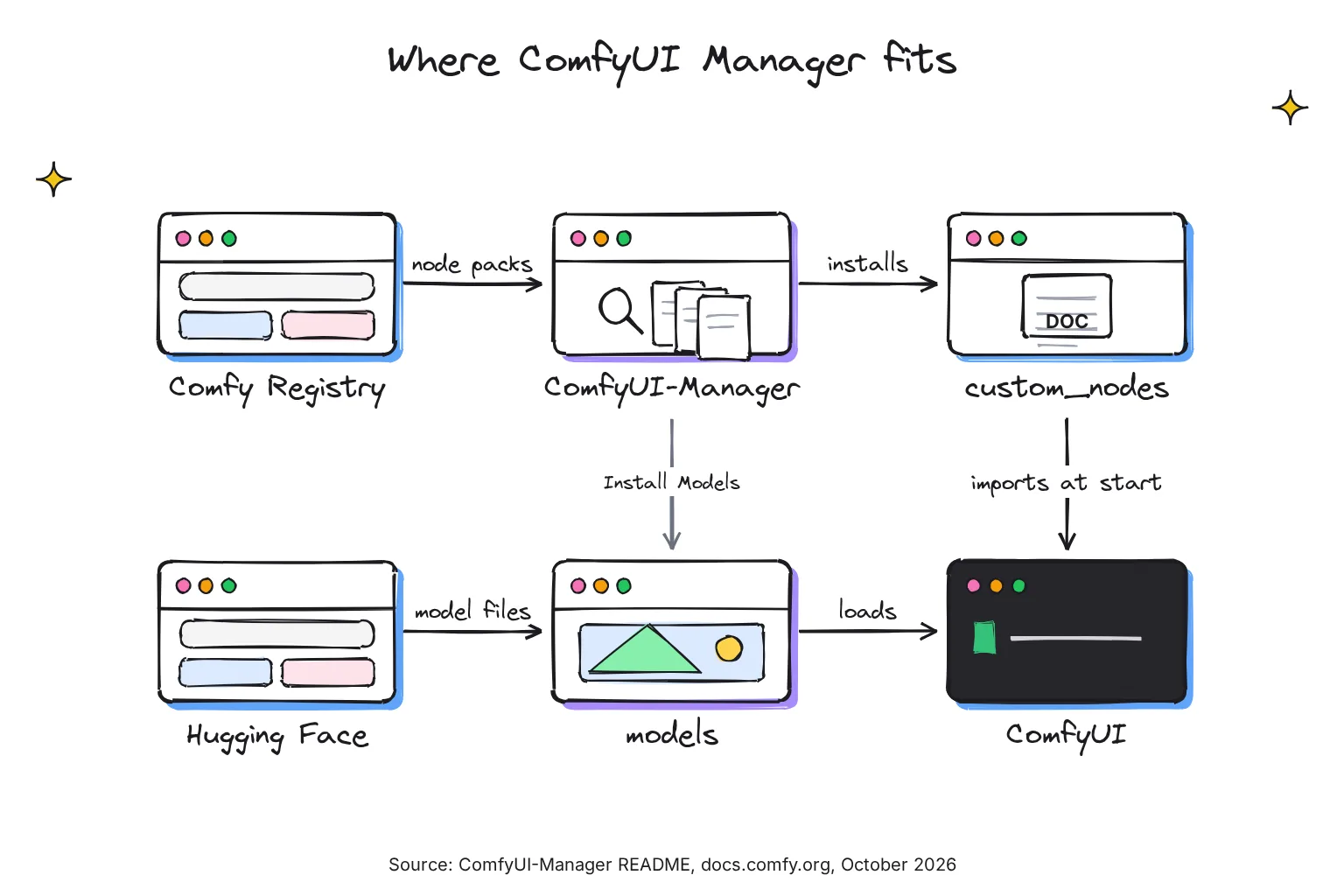
How you get it depends on your install type, per the Manager install guide, the Desktop for Windows page and the comfy-cli README in October 2026.
| Install type | Manager included? | How to turn it on | Where custom nodes go |
|---|---|---|---|
| Comfy Desktop | Yes, with every installation | On by default (--enable-manager) | ComfyUI\custom_nodes in each install, under %LOCALAPPDATA%\Comfy-Desktop\ComfyUI-Installs by default |
| Windows portable | Built in, switched off | Install manager_requirements.txt, add --enable-manager | ComfyUI_windows_portable\ComfyUI\custom_nodes |
| Manual git install | Built in, switched off | Same two steps, inside your virtual environment | ComfyUI\custom_nodes |
| comfy-cli | Yes, comfy install sets up both | comfy manager enable-gui | ComfyUI\custom_nodes in your workspace |
Is ComfyUI Manager part of ComfyUI core now?
Halfway. ComfyUI's main.py loads the comfyui_manager package only when you pass --enable-manager, and warns that the `comfyui-manager` package must be installed first if it is missing. The hook lives in core; the Manager itself is a separate package.
Where are ComfyUI and ComfyUI Manager on GitHub?
At github.com/Comfy-Org/ComfyUI and github.com/Comfy-Org/ComfyUI-Manager; old ltdrdata links should redirect automatically. The Manager's default main branch holds the legacy 3.x version; read the manager-v4 branch README instead.
How to install or enable ComfyUI Manager on each install type
Comfy Desktop: already installed, so check two settings
Desktop starts the Manager with --enable-manager and keeps it current with Comfy Desktop updates. The current app is version 1.1.8, released October 22.
- Open the Manage panel. On the home screen that lists your installations, click the three-dot icon on the card and select Manage, as Managing Installations describes.
- Check the Startup Args tab. Startup Arguments should contain
--enable-manager, Manager Security Level should read Standard (recommended), and Manager Network Mode Public. - Launch and find the Extensions button. In ComfyUI's top bar, the button with the Extensions tooltip opens the custom node manager, titled Nodes Manager. The Help Center's Manager Extension entry also opens it.
Windows portable: install the requirements and add one flag
The portable launcher, run_nvidia_gpu.bat, passes only --windows-standalone-build, so the Manager stays off. The Comfy docs give two commands:
- Open a terminal in the portable folder. Close ComfyUI, open
ComfyUI_windows_portablein File Explorer, right-click an empty area and open a terminal. - Install the requirements into the embedded Python, the private copy of Python inside the portable folder, with the first command below.
- Make a Manager launcher. Copy
run_nvidia_gpu.bat, rename the copyrun_nvidia_gpu_manager.bat, and replace its contents with the two launch lines below. - Start ComfyUI with the new file. If the console says the comfyui-manager package must be installed first, step 2 ran in the wrong Python.
.\python_embeded\python.exe -m pip install -r ComfyUI\manager_requirements.txt

# run_nvidia_gpu_manager.bat
.\python_embeded\python.exe -s ComfyUI\main.py --windows-standalone-build --enable-manager
pause
Repeat the pip command after each ComfyUI update, because updating ComfyUI may leave the installed Manager package unchanged.
Manual git install and comfy-cli
A git install runs the same two steps inside its virtual environment (venv, a private Python folder for one project):
venv\Scripts\activate
pip install -r manager_requirements.txt
python main.py --enable-manager
comfy-cli is Comfy Org's command-line installer, version 1.23.0 since October 20. Its comfy install sets up the latest version of ComfyUI and ComfyUI-Manager, after the documented Windows steps:
python -m venv venv
venv\Scripts\activate
pip install comfy-cli
comfy install
Then comfy manager enable-gui turns on the new UI and comfy manager migrate-legacy converts a git-cloned Manager to the pip package. Node commands take the lowercase registry ID, as in comfy node install comfyui-impact-pack.
Older tutorials say to git clone the Manager into custom_nodes; the docs now list that under legacy installation methods. With --enable-manager, the pip Manager skips any custom_nodes folder whose name contains comfyui-manager, a check its code says disables the legacy ComfyUI-Manager.
How to install missing custom nodes for a shared workflow
ComfyUI warns as soon as the workflow loads: This workflow has missing nodes, and missing nodes are highlighted in red on the canvas.
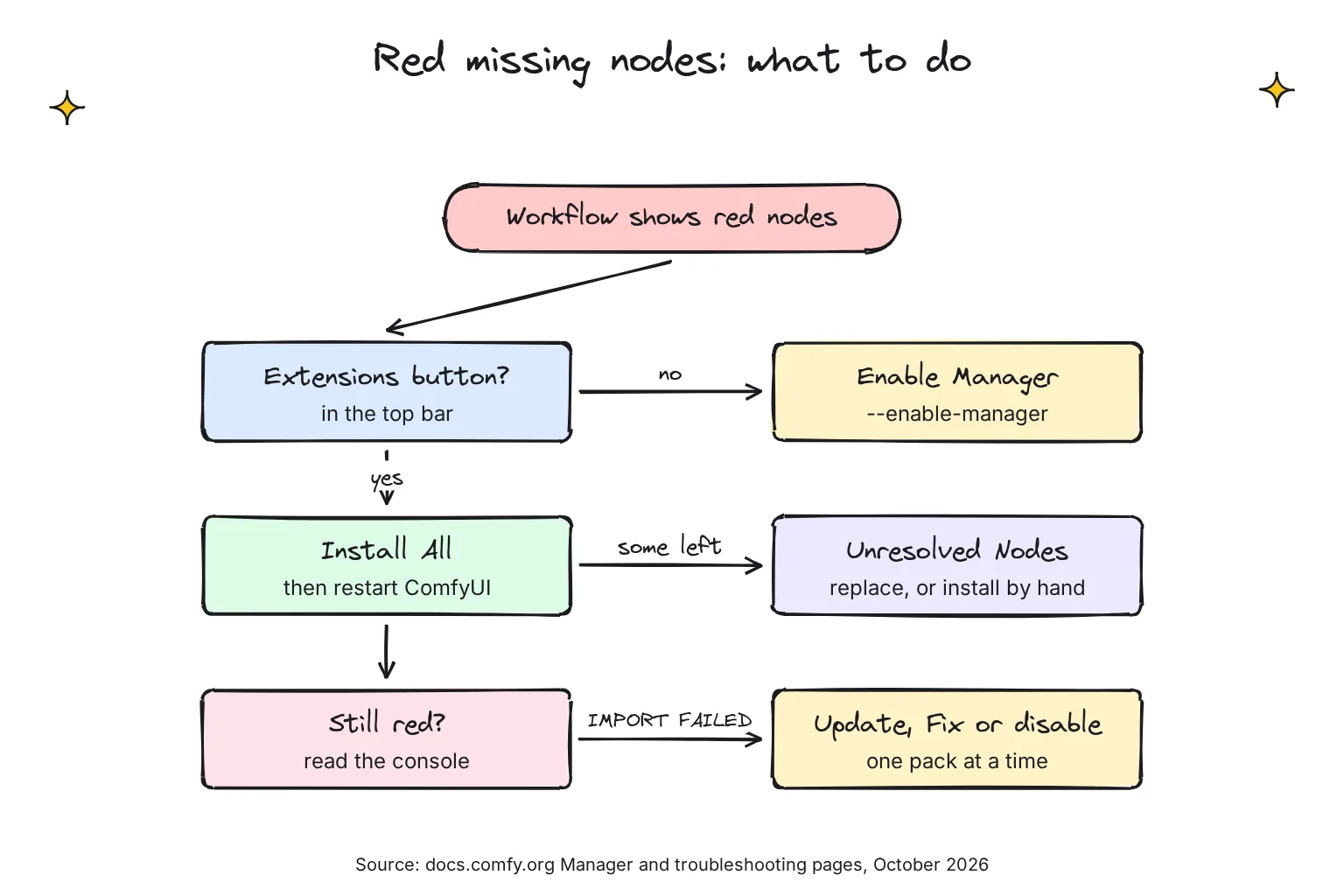
- Open the Errors tab. Click the panel icon at the top right. The right side panel's Errors tab lists Missing node packs, with Install All, Apply Changes and View in Manager when ComfyUI Manager is available.
- Check each pack. View in Manager shows the author, downloads and repository. Active is the normal release status; others include Pending, Flagged and Banned.
- Click Install All. The Manager installs each pack and handles its dependencies.
- Restart ComfyUI. Nothing loads until you do: To apply changes, please restart ComfyUI. Click Apply Changes, then reopen the workflow and check the console for IMPORT FAILED.
Why are some nodes still missing after Install All?
Leftovers appear under Unresolved Nodes: The following nodes are not installed and could not be found in the registry. Usually the author never registered the pack, it is not open source, or the author removed the node. ComfyUI may offer to swap in an installed node, but that will permanently modify the workflow. Save a copy first if unsure.
Otherwise, ask the sharer which pack it needs, read its code on GitHub, and install it by hand with Git, following the manual method in the docs, with dependencies going into the embedded Python:
cd D:\ComfyUI_windows_portable\ComfyUI\custom_nodes
git clone [repository URL]

cd D:\ComfyUI_windows_portable
python_embeded\python.exe -m pip install -r ComfyUI\custom_nodes\[node directory]\requirements.txt
How do I install missing models?
Models are separate files. The Errors tab's Missing models group offers Download for a single file or Download all, but only for Hugging Face or Civitai links to .safetensors, .sft, .ckpt, .pth or .pt files. Desktop saves the file to the right models folder; on portable your browser downloads it and you move it into ComfyUI\models\checkpoints or the matching subfolder, such as vae or loras. Upscalers go in upscale_models, as our local AI upscaler guide explains.
Where are custom nodes stored on Windows?
- Portable:
ComfyUI_windows_portable\ComfyUI\custom_nodes. - Desktop:
ComfyUI\custom_nodesin each installation, since custom nodes and the Python environment are per-install; the Manage panel's About tab shows the path. - Disabled packs: a
.disabledsubfolder, where the Manager moves a pack you disable. Manager settings:ComfyUI\user\__manager\config.ini.
ComfyUI Manager actions and what they do
Sources: the new UI guide, the legacy UI guide and the cm-cli reference.
| Action | Where to find it | What it does |
|---|---|---|
| Install All | Errors tab, or Missing Nodes in the Manager | Installs every registry pack the open workflow needs |
| Install, Select Version | Pack details | Installs a pack, or a specific release of it |
| Update, Update All | Updates Available filter | Moves packs to newer releases; disabled packs are skipped |
| Enable or disable pack | Toggle in pack details | Moves the pack to custom_nodes\.disabled, which ComfyUI skips |
| Uninstall | Pack details | Removes the pack; its pip packages stay |
| Try fix | Legacy UI; comfy node fix | Attempts to fix the pack's dependencies |
| Reinstall | Legacy UI; comfy node reinstall | Removes and then reinstalls the pack |
| Save or restore snapshot | Legacy Snapshot Manager; comfy node save-snapshot | Records pack versions; a restore applies at the next startup |
| Apply Changes | Manager dialog | Restarts ComfyUI so changes load |
How do I update custom nodes without breaking things?
- Take a snapshot. Desktop also snapshots automatically on every boot, restart, and before and after an update. On portable, use the legacy Save snapshot or
comfy node save-snapshot. - Update ComfyUI first. Desktop's Copy & Update updates a copy and leaves the original untouched. On portable, run
update\update_comfyui_stable.bat, notupdate_comfyui_and_python_dependencies.bat, which can break custom nodes that rely on specific package versions. - Update packs a few at a time, so you know which one to blame. If ComfyUI shows Node Pack Issues Detected, the conflicting extensions will be disabled automatically.
How do I roll back or disable a node pack?
Disable first: nothing is deleted, and ComfyUI's loader skips folders ending in .disabled. To roll back one pack, pick an earlier release under Select Version. For a bad evening, restore a snapshot: Desktop restores the ComfyUI version, custom nodes and pip packages, and rolls back if a package install fails, while a Manager restore takes effect on the next ComfyUI startup.
ComfyUI Manager security levels: what Strict, Standard, Relaxed and Permissive block
Custom nodes are not sandboxed. ComfyUI's policy says Custom nodes are arbitrary Python code and are trusted as much as any other software the user chooses to install. The docs say to only install custom nodes from trusted authors and those commonly used by the community, and the Manager does not guarantee their proper functioning.
The security level decides what the Manager will do. Desktop's names map, in its source code, to the config values strong, normal, normal- and weak, with normal as the default.
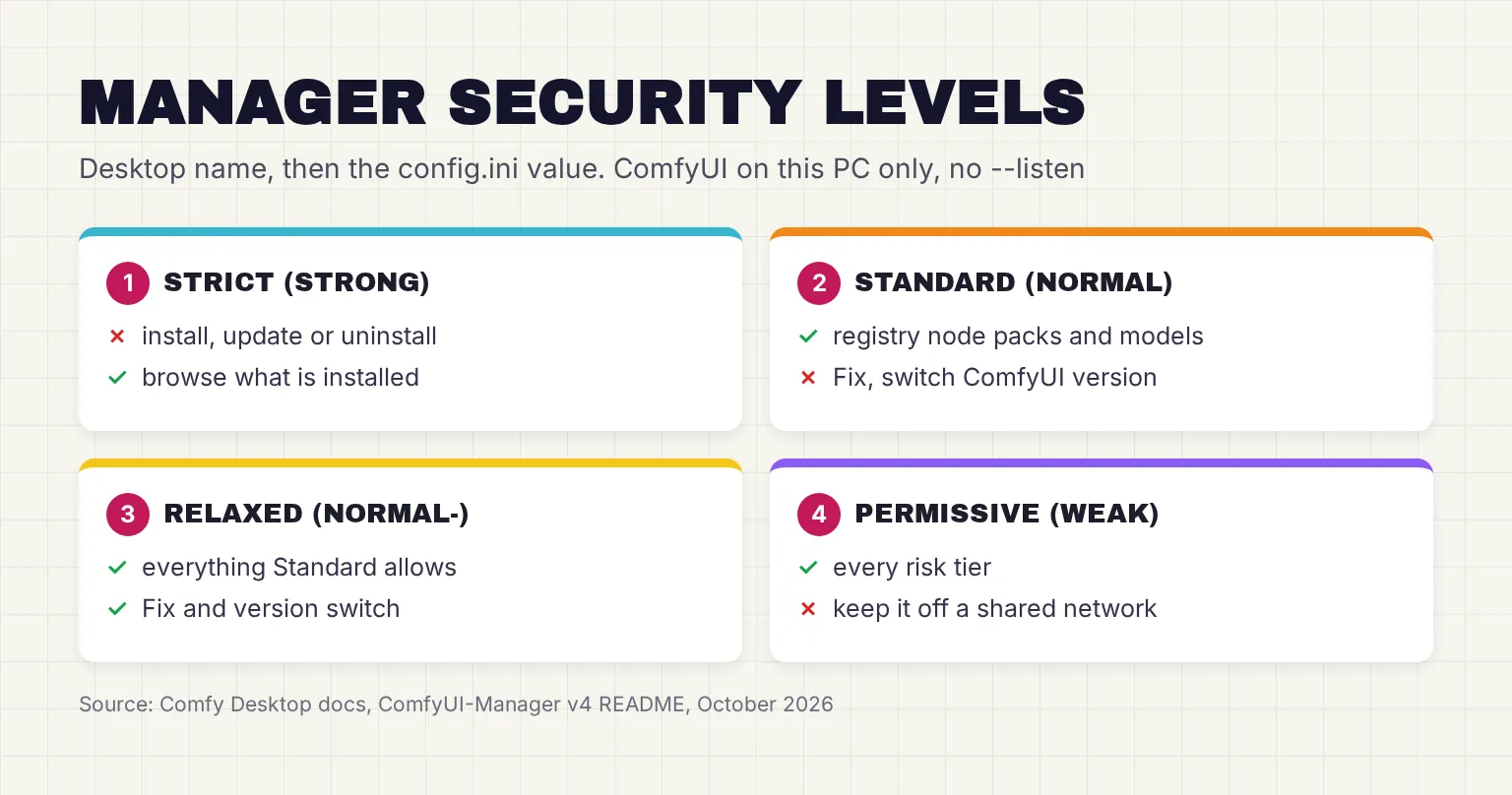
Actions sit in risk tiers. This table applies when ComfyUI is reachable only from your PC, per the README of Manager 4.2.2, the version ComfyUI pins in October 2026.
| Risk tier | Manager actions | Allowed at |
|---|---|---|
| high+ | Switch ComfyUI version, fix a node pack | Relaxed, Permissive |
| middle+ | Update or uninstall packs, install packs registered in the default channel, restore or remove snapshots, install models | Standard, Relaxed, Permissive |
| middle | Restart | Standard, Relaxed, Permissive |
Strict blocks all node pack installs, updates, and uninstalls. Standard is the level I would keep; its main cost is that Fix is refused with security_level must be 'normal-' or lower.
Two switches sit outside the levels. Since 4.2.2, Install via Git URL and pip install are gated by allow_git_url_install and allow_pip_install, which default to false, so Relaxed on its own does not allow git URL installs; that also needs allow_git_url_install = true in config.ini. And 4.3 requires a loopback-only listener to install Flagged registry versions; loopback is the 127.0.0.1 address only your own PC can reach.
On Desktop, change the level in the app, which writes it to config.ini at launch. On portable, edit ComfyUI\user\__manager\config.ini in the documented format and restart:
[default]
security_level = normal
Why does the Manager block installs when I use --listen?
The --listen flag opens ComfyUI to other devices on your network, and in the default Public network mode --listen blocks node pack installs at every security level. Personal cloud mode lifts the block and is meant only for a machine you control; our home AI server guide covers safer remote access.
Is it safe to install custom nodes through the Manager?
Safer than random downloads, not risk-free. Comfy says registry nodes will be scanned for malicious behaviour such as custom pip wheels, arbitrary system calls, and its standards ban eval and exec calls, runtime pip installs and obfuscated code; those are Comfy's own claims. Nightly versions are usually not security scanned.
My rules for the 3060 owner: install registry releases, not nightly; prefer known authors with plenty of downloads; read the GitHub page of anything obscure; and never switch to Permissive to get one workflow running. A pack can read anything your Windows account can, which matters if you chose local AI for privacy.
How to fix broken custom nodes in ComfyUI
When ComfyUI breaks after an install or update, the cause is usually a pack that failed to import, two packs wanting different versions of one Python library, or a pack that no longer matches your ComfyUI version.

Read the console for IMPORT FAILED
On portable, the console is the black window that opens with ComfyUI; on Desktop, use the Manage panel's Terminal tab to inspect startup logs, errors, and Python output. At startup ComfyUI lists Import times for custom nodes, marking each broken pack (IMPORT FAILED); scroll up to the line starting Cannot import for the real error.
The Manager marks the same pack Install Error: Package failed to import. Check the console for more details. A ModuleNotFoundError means a Python package the pack needs is missing.
Start ComfyUI with all custom nodes disabled (safe mode)
ComfyUI has no setting called safe mode; the equivalent is the --disable-all-custom-nodes flag. On portable, put this in another launcher copy, as the troubleshooting guide shows; on Desktop, add the flag to Startup Arguments.
.\python_embeded\python.exe -s ComfyUI\main.py --disable-all-custom-nodes --windows-standalone-build
pause
If the problem disappears, a custom node is the cause. With --enable-manager in the same command, as on Desktop, the pip Manager keeps running, because main.py starts it separately from the custom_nodes scan.
Find the bad pack by halving
Disable half your packs, restart and test, then keep halving whichever half holds the fault. comfy-cli automates this with a bisect tool. For a blank screen or broken widgets, first disable all third-party extensions in Settings, Extensions, and restart ComfyUI.
comfy-cli node bisect start
comfy-cli node bisect good
comfy-cli node bisect bad
comfy-cli node bisect reset
Fix conflicting dependencies, or reinstall the pack
All packs share one Python environment, so a pack pinning torch==2.4.1 can clash with one wanting torch>=2.4.2, the docs' own example. Torch, or PyTorch, is what runs models on your RTX 3060, so protect it.
- Update the pack first; authors often ship fixes for new ComfyUI releases.
- Use Try fix in the legacy menu, which attempts to fix dependencies; it needs Relaxed, so switch back afterwards.
- Install requirements with the embedded Python command shown earlier, never a bare
pip, which may install into the system-level Python environment instead. - To reinstall, Uninstall, restart and Install again. Uninstalling will not remove the corresponding dependency installation; the legacy Reinstall, or comfy-cli's node commands, do both halves.
Common questions about ComfyUI Manager
Is ComfyUI Manager built into ComfyUI now?
Partly. Since version 4, the Manager is a pip package that ComfyUI pins in its manager_requirements.txt file and loads only when you start it with the enable-manager flag. Comfy Desktop installs it and turns it on for you. The Windows portable build includes the hook but needs those requirements installed and the flag added.
How do I enable ComfyUI Manager in the Windows portable version?
Open a terminal in the ComfyUI_windows_portable folder and use the embedded Python to pip install the manager_requirements.txt file from the ComfyUI folder. Then start ComfyUI with the enable-manager flag added after windows-standalone-build, ideally in a copy of run_nvidia_gpu.bat. The Extensions button then appears in the top bar.
Why can't ComfyUI Manager find some missing nodes?
The new Manager installs only from the Comfy Registry. If a pack was never registered, is not open source, or its author removed the node, it appears under Unresolved Nodes. Ask whoever shared the workflow which pack it uses, check the code, then install it manually with git and its requirements.
What security level should I use in ComfyUI Manager?
Keep the default, Standard, which is normal in config.ini. It lets you install, update and remove registered node packs and models but blocks risky actions such as Fix and switching ComfyUI versions. Switch to Relaxed only for a one-off repair on a PC that is not exposed with listen, then switch back.
How do I start ComfyUI with all custom nodes disabled?
Add the disable-all-custom-nodes flag to the launch command. On the portable build, copy run_nvidia_gpu.bat and add the flag to the python line. On Comfy Desktop, add it to Startup Arguments in the Manage panel. If the problem goes away, one of your custom node packs is the cause.
Where does ComfyUI Manager install custom nodes?
Into the custom_nodes folder inside the ComfyUI folder of your install; on the portable build that sits under ComfyUI_windows_portable. Each Comfy Desktop installation has its own custom_nodes folder. Disabled packs move into a .disabled subfolder, and Manager settings live in the user folder under __manager.
My verdict for a Windows RTX 3060 owner: use the built-in Manager, on Standard
Do not install a separate copy. On Desktop the Manager is already there; on portable it takes one pip command and a second launcher. For a red workflow, use Install All, restart, and read the console before you press Run. Keep Standard, switching to Relaxed only for a one-off Fix, and take a snapshot before every update round.
Your next step: confirm --enable-manager on Desktop's Startup Args tab, or make run_nvidia_gpu_manager.bat on portable, then reopen the shared workflow and click Install All in the Errors tab.
Sources
- ComfyUI-Manager - Comfy-Org, GitHub
- ComfyUI-Manager Installation - Comfy Org
- Custom nodes (new UI) - Comfy Org
- Comfy Registry: publish and version custom nodes - Comfy Org
- Startup Flags - Comfy Org
- ComfyUI-Manager joins Comfy-Org - Comfy Org blog
- pyproject.toml, manager-v4 branch - Comfy-Org/ComfyUI-Manager, GitHub
- ComfyUI-Manager README, manager-v4 branch - Comfy-Org, GitHub
- comfyui-manager - PyPI
- manager_requirements.txt - Comfy-Org/ComfyUI, GitHub
- Release v0.43.0 - Comfy-Org/ComfyUI, GitHub
- Comfy Desktop for Windows - Comfy Org
- comfy-cli README - Comfy-Org, GitHub
- main.py - Comfy-Org/ComfyUI, GitHub
- ComfyUI - Comfy-Org, GitHub
- Release v1.1.8 - Comfy-Org/Comfy-Desktop, GitHub
- Managing Installations - Comfy Org
- TopMenuSection.vue - Comfy-Org/ComfyUI_frontend, GitHub
- ComfyUI Help Center: Release Notes, Support, and Feedback - Comfy Org
- run_nvidia_gpu.bat - Comfy-Org/ComfyUI, GitHub
- comfy-cli - PyPI
- comfyui_manager/__init__.py, manager-v4 branch - Comfy-Org/ComfyUI-Manager, GitHub
- English interface strings, main.json - Comfy-Org/ComfyUI_frontend, GitHub
- Right Side Panel: Node Properties and Errors - Comfy Org
- How to Install Custom Nodes in ComfyUI - Comfy Org
- Managing custom nodes with ComfyUI-Manager (legacy UI) - Comfy Org
- Git - git-scm.com
- missingModelDownload.ts - Comfy-Org/ComfyUI_frontend, GitHub
- Getting Started with AI Image Generation - Comfy Org
- How to Troubleshoot and Solve ComfyUI Model Issues - Comfy Org
- Custom Nodes - Comfy Org
- Comfy Desktop FAQ - Comfy Org
- comfyui_manager/glob/manager_core.py, manager-v4 branch - Comfy-Org/ComfyUI-Manager, GitHub
- ComfyUI-Manager Configuration - Comfy Org
- cm-cli: ComfyUI-Manager CLI - Comfy-Org/ComfyUI-Manager, GitHub
- Comfy Desktop Snapshots - Comfy Org
- How to Update ComfyUI - Comfy Org
- nodes.py - Comfy-Org/ComfyUI, GitHub
- Security Policy - Comfy-Org/ComfyUI, GitHub
- managerConfig.ts - Comfy-Org/Comfy-Desktop, GitHub
- ComfyUI-Manager README at tag 4.2.2 - Comfy-Org, GitHub
- security_messages.py, manager-v4 branch - Comfy-Org/ComfyUI-Manager, GitHub
- ComfyUI-Manager CHANGELOG, manager-v4 branch - Comfy-Org, GitHub
- ComfyUI Manager Troubleshooting - Comfy Org
- Comfy Registry Node Quality and Security Standards - Comfy Org
- Troubleshooting Custom Node Issues - Comfy Org
- Get Started with Comfy CLI - Comfy Org