
What is a ComfyUI workflow, and how do you save and load one?
A ComfyUI workflow is the whole graph on your canvas: boxes called nodes, joined by links, saved as one JSON file. Press Ctrl+S to save it and Ctrl+O to open one, or drag in a PNG made by ComfyUI, because the image stores the workflow that made it. New ones come from the built-in template browser.
This guide follows one reader: someone on a Windows PC with an Nvidia RTX 3060 12GB who has ComfyUI running and has made a first picture. Now they want to open other people's workflows, keep their own, and change settings without breaking a setup that works. If ComfyUI is new to you, start with our guide to making AI images on your own computer.
Menus, shortcuts and templates here were checked against ComfyUI v0.43.0, released October 27, 2026 and still the latest release on October 28, which ships frontend 1.57.4 and workflow templates 0.11.97. Labels change often, so look for the nearest match if yours differ.
What is a workflow in ComfyUI, in plain English?
ComfyUI's docs compare a workflow to a recipe: each instruction in the recipe is a node, the ingredients are prompts, images and models, and the result is your picture or video. A node does one job, such as loading a model. A link carries data from one node to the next, and only compatible data types can be connected. Together they form a graph.
The simplest image workflow has seven nodes, as the official text to image tutorial shows. Load Checkpoint opens a checkpoint, one model file that holds three parts: MODEL, CLIP and VAE. Two CLIP Text Encode nodes turn your positive and negative prompts into instructions. Empty Latent Image sets the size and batch. KSampler generates, VAE Decode turns the result into pixels, and Save Image writes a PNG.
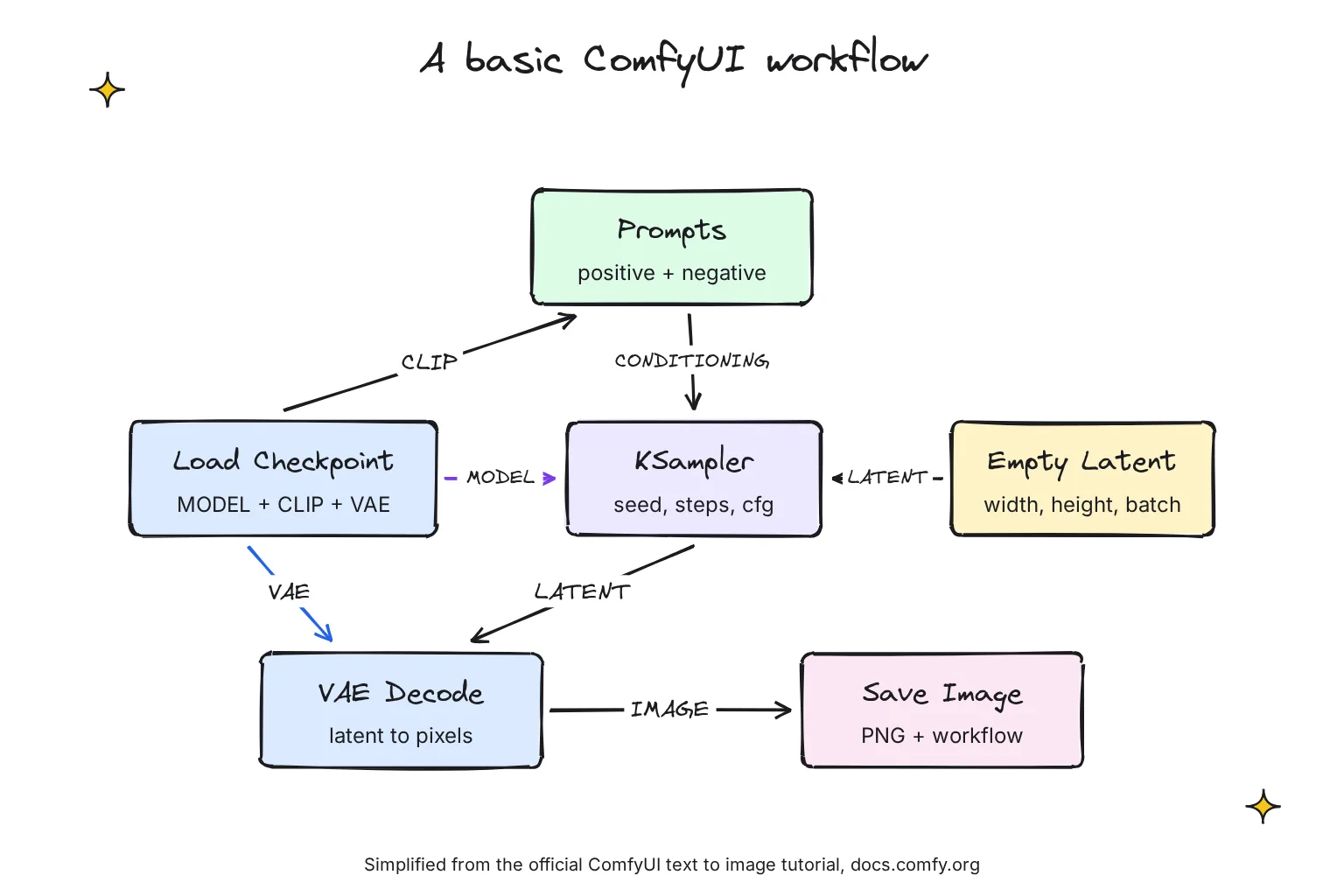
A latent is the compressed form of an image that the model works on. VRAM is your graphics card's memory; the 3060 has 12GB. Newer models often use separate Load Diffusion Model, Load CLIP and Load VAE nodes instead of one checkpoint, as ComfyUI's current default workflow does with the Z-Image Turbo model, but the chain is the same.
How do I save a workflow in ComfyUI?
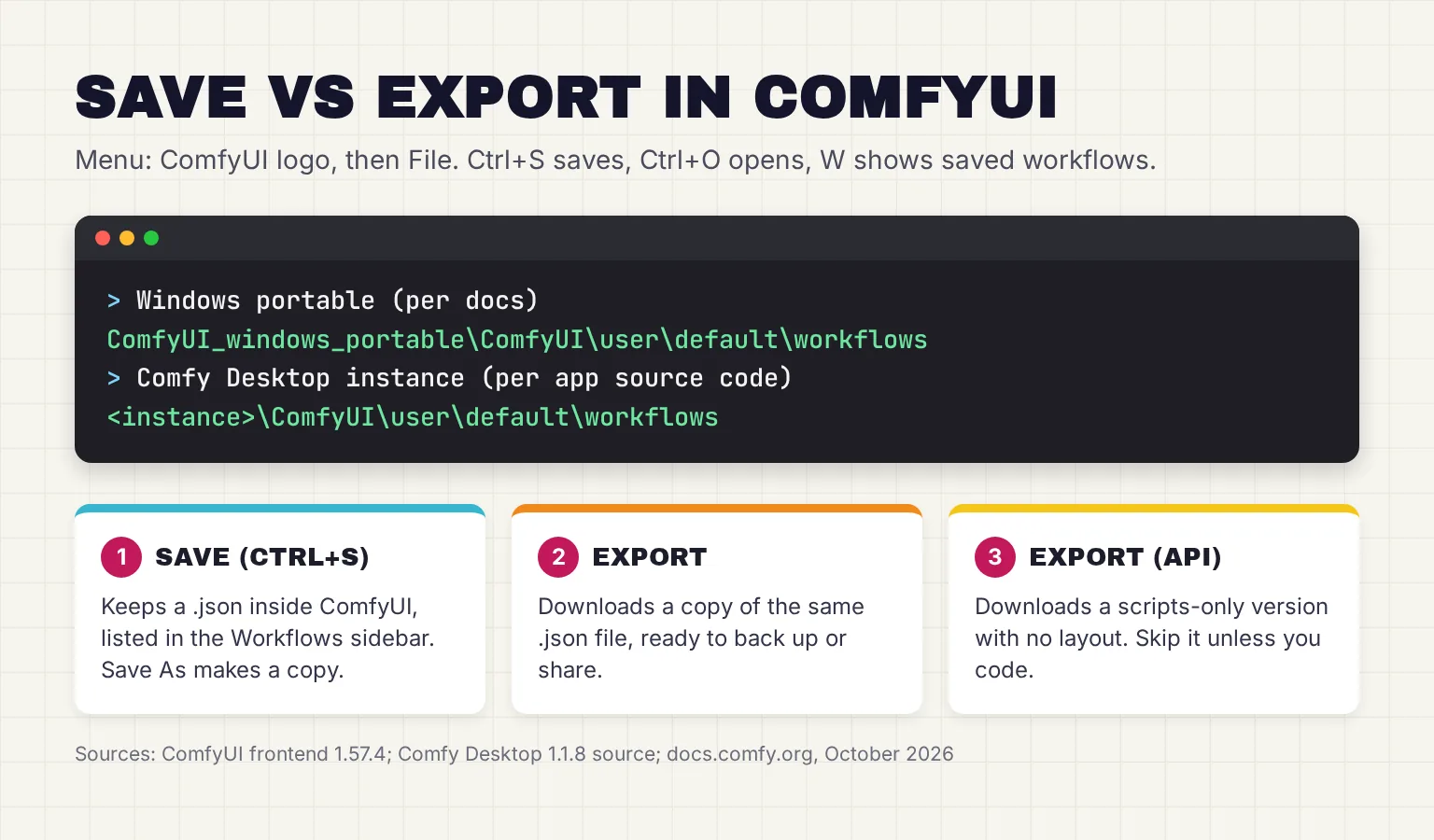
Press Ctrl+S, type a name and press Enter. Every command sits in the menu under the ComfyUI logo at the top left, where File holds Open, Save, Save As, Export and Export (API). Only Save and Open have default shortcuts, and you can add more under Settings, Keybinding.
- Save it the first time. Press Ctrl+S. A workflow that has never been saved goes through Save As, which asks for a file name.
- Use Save As before big edits. It writes a copy under a new name, so the version that works stays untouched.
- Find it again. Press W to open the Workflows panel, a searchable folder tree of saved workflows that you can rename, bookmark or duplicate.
- Export a backup. File, then Export, downloads the workflow as a .json file through your browser, to keep or share.
Auto Save is off by default, so save anything you care about.
Save vs Export vs Export (API): which should I use?
Here is how the options compare in October 2026, from the frontend menus and the workflow API format docs.
| Option | Shortcut | What you get | Where it goes | Use it for |
|---|---|---|---|---|
| Save | Ctrl+S | Full workflow .json with layout | user\default\workflows; listed in the Workflows panel | Your everyday library |
| Save As | None by default | A copy under a new name | Same folder | Versions before risky edits |
| Export | None by default | The same full .json | A browser download | Backups and sharing |
| Export (API) | None by default | Execution-only .json, no positions, colors or groups | A browser download | Scripts and the ComfyUI server API |
| Save Image node | Runs with the workflow | PNG with the workflow embedded | ComfyUI's output folder | Sharing a picture and its recipe in one file |
The API version omits UI metadata such as positions, colors and groups, so it reopens without its layout and makes a poor backup. The 3060 reader can ignore it.
Where are ComfyUI workflows saved on Windows?
Saved workflows are plain .json files in a workflows folder inside ComfyUI's user folder, which sits next to the output, input and temp folders, under user\default unless you set up named users. The full path depends on how you installed ComfyUI.
- Windows portable build:
ComfyUI_windows_portable\ComfyUI\user\default\workflows. The docs name ComfyUI_windows_portable/ComfyUI/user/default as the portable user folder that holds your workflows. - Comfy Desktop, the current app: the same docs page gives C:\Users\<your username>\AppData\Roaming\ComfyUI\user as the Desktop user folder on Windows. Comfy Desktop's own source code, though, writes workflows to
<instance folder>\ComfyUI\user\default\workflows, so check there first. New installs on the system drive go under %LOCALAPPDATA%\Comfy-Desktop\ComfyUI-Installs, and Show in Explorer in the instance card's menu opens yours. - Legacy Desktop, the older single-install app: its source code puts the user folder inside the base folder you chose at setup, which defaulted to Documents\ComfyUI, so look for
user\default\workflowsthere. If Comfy Desktop migrated that install, the new instance reuses those workflows in place.
Back up that folder before you update or reinstall. Uninstalling Comfy Desktop removes only the launcher, and installations, shared models and outputs stay on disk.
Where does ComfyUI save workflow output?
Save Image writes PNGs to your ComfyUI output directory, named from its filename_prefix plus a five-digit counter, such as ComfyUI_00001_.png. A prefix like portraits/test creates a portraits subfolder inside output. Comfy Desktop instances use a shared output folder unless you switch it off, under %LOCALAPPDATA%\Comfy-Desktop\ComfyUI-Shared on a new Windows install. Preview Image only saves to a temporary directory, so swap it for Save Image to keep the file.
How does a ComfyUI image store its workflow?
When the built-in Save Image node writes a PNG, it hides two pieces of JSON inside the file: workflow, the complete graph with layout, and prompt, the version used to run it. The picture looks the same. Drag that PNG onto the canvas, or use File, then Open, and ComfyUI uses the embedded workflow to rebuild the canvas, seed and settings included.
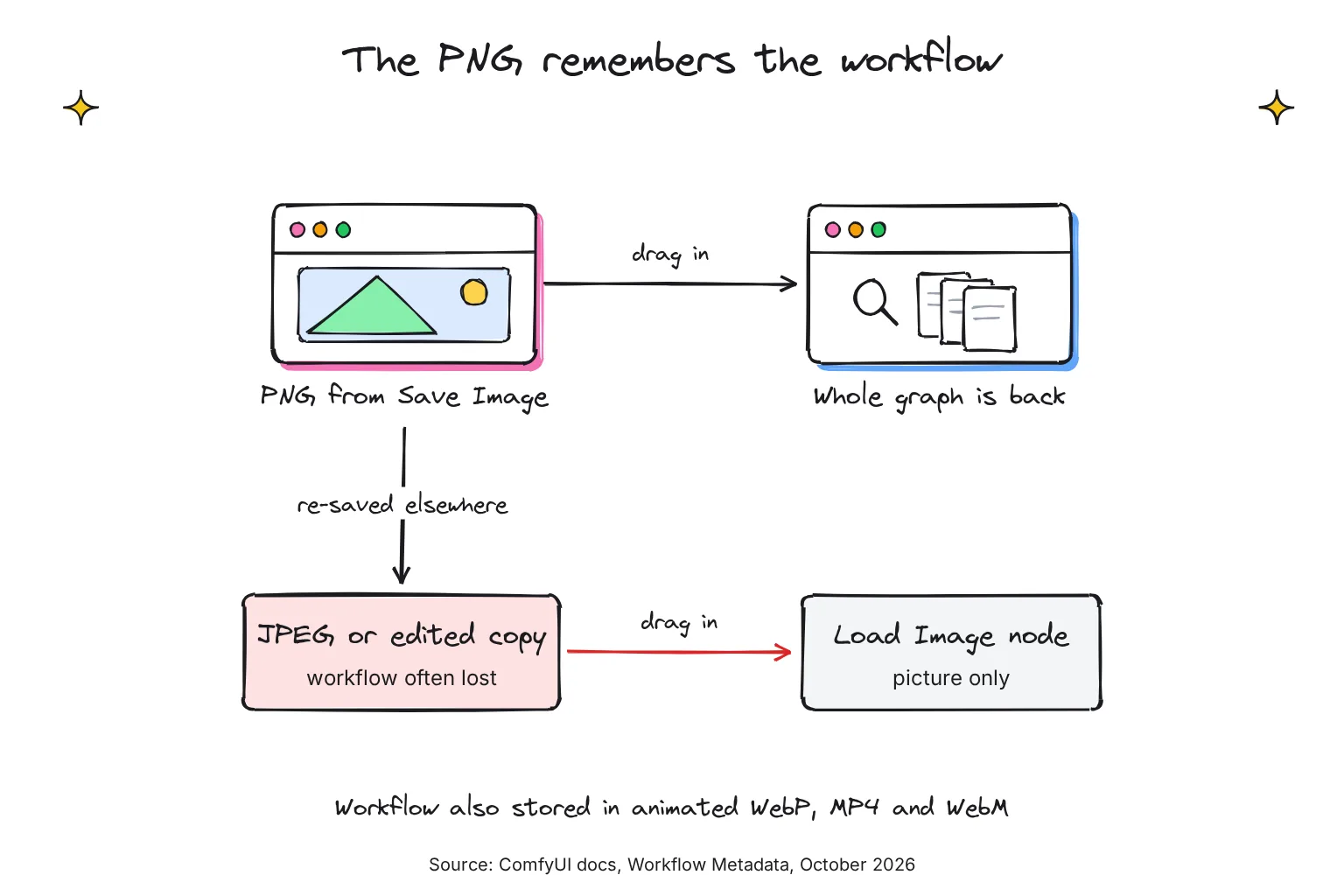
Built-in save nodes embed the workflow in PNG, animated PNG, animated WebP, MP4, WebM and .latent files, and the newer Save Image (Advanced) node can embed it in AVIF and EXR images too. The frontend reads workflows back from all of those except EXR, and from WebP, FLAC, MP3 and other formats, but not JPEG. A file with no workflow inside is treated as regular input media, so a JPEG lands in a Load Image node.
Why does my image not load a workflow?
Usually the file was converted. A file re-encoded by another application may no longer contain the metadata, and many editors, chat apps and websites convert uploads. Whoever made the file may also have switched metadata off with the --disable-metadata launch flag, which Comfy Desktop users add in the Manage panel's Startup Args tab. Ask for the original PNG or the .json file.
What does a shared image reveal?
Anyone with your original PNG can read the whole graph, including your prompts and model file names, and the metadata is not a digital signature, so it proves nothing about who made the file. To post a picture without its recipe, share a JPEG copy or switch metadata off before you generate.
How do I import a workflow into ComfyUI?
Each route below opens the workflow in a new, unsaved tab, so press Ctrl+S afterwards if you want to keep it.
- Drag and drop it. Drag a .json workflow, or a PNG made by ComfyUI, from File Explorer onto the canvas.
- Or open it from the menu. Press Ctrl+O, or click the ComfyUI logo, then File, then Open.
- Or start from a template. Click Templates in the left sidebar, or Browse Templates in the logo menu, then click a card.
- Read the errors. Red nodes or an errors banner mean something is missing; the right side panel's Errors tab lists missing node packs, models and input files.
- Run it once unchanged. Press Ctrl+Enter before you edit anything, so you know the workflow itself works on your PC.
How do I use the built-in workflow templates?
Templates are ready-made workflows for models ComfyUI supports natively, and they use Core nodes included with ComfyUI. Each one links the model files it needs; if any are missing, ComfyUI highlights the loader nodes in red and offers Download and Download all, and the desktop app saves them into the matching models folders.
One trap: of the 644 templates that ComfyUI v0.43.0 ships for local installs, 385 sit in the template browser's Partner Nodes category. Partner Nodes call closed-source models through API requests, not your GPU, and need a signed-in Comfy account with credits. Set the Runs on filter to ComfyUI to see only local ones. Local installs also hide the official templates that need custom nodes.
What if a workflow has missing nodes?
Either your ComfyUI is older than the workflow, since a missing core node usually means your version is not the latest, or the workflow uses custom nodes, community add-ons. Update first. For custom nodes, the Errors tab offers Install All and View in Manager when ComfyUI-Manager is available; our separate ComfyUI-Manager guide covers that tool, and the safety section below says what to check before you click.
What if a workflow has missing models?
A workflow records only file names and does not include the model files. Put each download in its ComfyUI\models subfolder: checkpoints, vae or loras, diffusion_models and text_encoders for split models, and upscale_models for upscalers. Comfy Desktop also has shared model folders that every instance scans. Then press R to refresh node definitions and pick the file in the loader node. If you already have a model under another name, select your file in the loader node instead of downloading it twice.
Common ComfyUI workflow types, with official examples
These are the four types beginners search for most, with the official starting point for each. VRAM figures are only those the makers state, and some sit above the 3060's 12GB.
| Workflow type | Official starting point | Main model file | Stated VRAM |
|---|---|---|---|
| Text to image | SDXL1.0: Text to Image (Simple) template | sd_xl_base_1.0, 6.94 GB | None on the model card |
| Image to image | Image to Image tutorial (drag-in PNG) | v1-5-pruned-emaonly-fp16, 2.13 GB | None stated |
| Upscale | Upscale tutorial (drag-in PNG) | 4x-ESRGAN .pth, 63.9 MB | None stated |
| Image to video | Wan 2.2 5B Video Generation template | wan2.2_ti2v_5B_fp16, 10 GB, plus VAE and text encoder | Should fit well on 8GB with offloading (ComfyUI); 24GB for Wan-AI's own script |
ComfyUI SDXL workflow for photorealistic images
The SDXL template is the seven-node graph above, with a 1024 by 1024 latent and a KSampler set to 25 steps, CFG 7, dpmpp_2m and karras. SDXL works best at 1024x1024 or other sizes with the same pixel count, such as 896x1152. For photo-like results, describe a photograph: camera, lens and light. ComfyUI's docs say its newer default, Z-Image Turbo, fits within 16GB VRAM consumer devices but give no 12GB figure; its int8 file is 6.2 GB and has its own template.
ComfyUI image to image workflow
Image to image swaps the empty latent for a Load Image node encoded by the VAE. ComfyUI's examples call it the default txt2img workflow with the denoise set to 0.87. Denoise, on the KSampler, sets how far the result drifts: the smaller the value, the closer to your reference image.
ComfyUI upscale workflow
The basic upscaler needs two nodes, UpscaleModelLoader and ImageUpscaleWithModel, shown as Load Upscale Model and Upscale Image (using Model), with a model saved in ComfyUI/models/upscale_models. You can chain it after any text to image graph. To enlarge photos without nodes, our local AI upscaler guide covers a simpler app.
Wan 2.2 ComfyUI workflow for image to video
Wan 2.2 video models are under the Apache 2.0 license and support commercial use. On 12GB, start with the 5B template; it does text to video, or image to video once you enable its Load Image node with Ctrl+B. It needs wan2.2_ti2v_5B_fp16, umt5_xxl_fp8_e4m3fn_scaled and wan2.2_vae, and starts at 1280 by 704 pixels and 121 frames.
The 14B image to video template is far heavier. Its two fp8 model files are 14.3 GB each, Wan-AI says its own script can run on a GPU with at least 80GB VRAM, and Comfy Org's note in the template reports 84% VRAM use at 640 by 640 on a 24GB RTX 4090D. ComfyUI's README claims it runs the biggest models on as low as 4GB vram + 8GB ram by streaming weights; that is the maker's claim, and I know of no 3060 test of this template I trust.
How do I adapt a workflow to a 12GB GPU?
Most shared workflows were built on bigger cards. Use Save As to keep the original, then change one setting at a time and run again. Each option below is documented by ComfyUI.
- Lower the resolution and batch size. These are the first fixes in ComfyUI's troubleshooting guide. Set batch_size in Empty Latent Image, the number of images made at once, to 1, and reduce width and height.
- Cut video size and length. In Wan's latent node, length is the number of frames; halve it first.
- Use smaller or quantized model files. Quantized files store each weight in fewer bits. ComfyUI supports quantized models, and its docs call FP8 versions suitable for devices with limited VRAM, with quality slightly reduced. The FP8 text encoder umt5_xxl_fp8_e4m3fn_scaled is 6.74 GB, against 11.4 GB for FP16. GGUF files need a community custom node, so leave them for later.
- Swap in tiled VAE decode. VAE Decode (Tiled) decodes in smaller tiles to manage memory use, with a tile_size of 512 by default, and decodes video a chunk of frames at a time.
- Free the card. Close other programs that use the GPU, as the troubleshooting guide advises, and use Edit, then Unload Models, before switching workflows.
If ComfyUI still runs out of memory or shows Reconnecting, the problem is the server, not the workflow; our separate guide to the ComfyUI Reconnecting error covers launch options and logs. If 12GB keeps holding you back, our home AI server guide covers bigger-GPU builds.
Are downloaded ComfyUI workflows safe?
The workflow file is JSON: nodes, settings and file names. The risk is what it asks you to install. Most custom nodes run on the server side as Python classes, which means code running on your PC, and ComfyUI warns that malicious plugins could potentially exploit custom nodes. Its advice: install only from trusted authors and widely used packs, and avoid obscure ones.
Choose a template if:
- You want something that works on the first run. On a local install the browser hides the official templates that need custom nodes, and official templates are meant to not use any third-party nodes.
- You want model links that only point to Hugging Face and Civitai, in safe formats such as .safetensors.
Choose a community workflow if:
- No template does the job, and the author says which custom nodes it needs and why.
- Each node pack is widely used and listed in the Comfy Registry, and you have saved a copy of your working setup.
Prefer .safetensors model files too, the format ComfyUI's template docs treat as safe; our image generation guide explains why older formats carry more risk. For what leaves your PC, see our private AI guide.
Common questions about ComfyUI workflows
Where are ComfyUI workflows saved?
Saved workflows are .json files in a workflows folder inside ComfyUI's user folder, under default. In the Windows portable build that is ComfyUI_windows_portable, ComfyUI, user, default, workflows. The docs give an AppData path for Desktop, but Comfy Desktop's own code uses that same user, default, workflows path inside each instance's ComfyUI folder. Press W to see the list.
What is the difference between Save and Export in ComfyUI?
Save keeps the workflow inside ComfyUI, in its workflows folder, where the Workflows panel lists it. Export downloads the same JSON file through your browser so you can back it up or share it. Export (API) downloads a stripped version for scripts that has no layout, colors or groups.
How do I load a workflow from an image in ComfyUI?
Drag the PNG onto the ComfyUI canvas, or use File, then Open. Images saved by the built-in Save Image node carry the full workflow as hidden text. Use the original file: ComfyUI does not read workflows from JPEG, and images re-saved by other apps or websites can lose that data.
Why does my ComfyUI workflow say nodes are missing?
The workflow uses nodes your ComfyUI does not have. Either your ComfyUI is older than the workflow and needs an update, or it relies on community custom nodes. The Errors tab lists the missing node packs and can install them through ComfyUI-Manager. Only install packs from authors you trust.
Can I run the Wan 2.2 workflow on a 12GB GPU?
Start with the Wan 2.2 5B template. ComfyUI's docs say the 5B model should fit well on 8GB of VRAM with ComfyUI's offloading. The 14B image to video template is far heavier, with two 14.3 GB model files, so reduce the frames and resolution before you try it on 12GB.
Are ComfyUI workflows safe to download?
The workflow file is plain JSON and only describes nodes and settings. The risk is the custom nodes it asks you to install, which are mostly Python code that runs on your computer. Prefer the official templates shown on a local install, which need no custom nodes, and install community node packs only from trusted, widely used authors.
My verdict for an RTX 3060 12GB: templates first, Save As always
For the reader in this guide, the official templates are the right way in. They use core nodes, fetch their own models into the right folders, and give you a known-good graph to compare against when a shared workflow breaks. Use Save As before every experiment, export the workflows you care about to a backup folder, and share pictures as original PNGs so the recipe travels with them. Leave the 14B video templates until the smaller ones run well.
Your next step: open Templates, set Runs on to ComfyUI, load SDXL1.0: Text to Image (Simple), let it download its model, run it once and save it. Then drag the PNG it made back onto the canvas and watch the whole graph return.
Sources
- ComfyUI Workflows: Nodes, Links, and Visual Programming - ComfyUI docs
- Keyboard and Mouse Shortcuts - ComfyUI docs
- Workflow Metadata - ComfyUI docs
- Templates: ComfyUI Built-in Workflow Templates - ComfyUI docs
- Release v0.43.0 - Comfy-Org/ComfyUI, GitHub
- requirements.txt at v0.43.0 - Comfy-Org/ComfyUI, GitHub
- ComfyUI Text to Image Workflow - ComfyUI docs
- src/scripts/defaultGraph.ts at v1.57.4 - Comfy-Org/ComfyUI_frontend, GitHub
- src/constants/coreMenuCommands.ts at v1.57.4 - Comfy-Org/ComfyUI_frontend, GitHub
- src/platform/keybindings/defaults.ts at v1.57.4 - Comfy-Org/ComfyUI_frontend, GitHub
- workflowService.ts at v1.57.4 - Comfy-Org/ComfyUI_frontend, GitHub
- Workflows Sidebar: Saved and Open Graphs - ComfyUI docs
- Comfy settings - ComfyUI docs
- Workflow API Format - ComfyUI docs
- folder_paths.py at v0.43.0 - Comfy-Org/ComfyUI, GitHub
- Appearance (user directory location) - ComfyUI docs
- src/main/lib/oem.ts at v1.1.8 - Comfy-Org/Comfy-Desktop, GitHub
- Comfy Desktop for Windows - ComfyUI docs
- Instance Management - Comfy Desktop docs
- Migrate from Legacy Desktop - Comfy Desktop docs
- src/main-process/comfyServer.ts - Comfy-Org/desktop (Legacy Desktop app), GitHub
- src/handlers/pathHandlers.ts - Comfy-Org/desktop (Legacy Desktop app), GitHub
- Save Image - ComfyUI docs
- Manage - Comfy Desktop docs
- Preview Image - ComfyUI docs
- Save Image (Advanced) - ComfyUI docs
- src/scripts/metadata/parser.ts at v1.57.4 - Comfy-Org/ComfyUI_frontend, GitHub
- src/components/sidebar/ComfyMenuButton.vue at v1.57.4 - Comfy-Org/ComfyUI_frontend, GitHub
- Right Side Panel: Node Properties and Errors - ComfyUI docs
- comfyui-workflow-templates-json 0.1.123 (template index shipped with templates 0.11.97) - Comfy Org, PyPI
- workflowTemplatesStore.ts at v1.57.4 - Comfy-Org/ComfyUI_frontend, GitHub
- Partner Nodes - ComfyUI docs
- src/composables/useTemplateFiltering.ts at v1.57.4 - Comfy-Org/ComfyUI_frontend, GitHub
- ComfyUI-Manager legacy UI - ComfyUI docs
- How to Troubleshoot and Solve ComfyUI Model Issues - ComfyUI docs
- Wan2.2 Video Generation ComfyUI Official Native Workflow Example - ComfyUI docs
- ComfyUI Image Upscale Workflow - ComfyUI docs
- Desktop Settings - Comfy Desktop docs
- ComfyUI Models: Files, Folders, and Loader Nodes - ComfyUI docs
- templates/image_sdxl_simple.json - Comfy-Org/workflow_templates, GitHub
- sd_xl_base_1.0.safetensors - Stability AI, Hugging Face
- stable-diffusion-xl-base-1.0 model card - Stability AI, Hugging Face
- ComfyUI Image to Image Workflow - ComfyUI docs
- v1-5-pruned-emaonly-fp16.safetensors - Comfy-Org, Hugging Face
- 4x ESRGAN - OpenModelDB
- Comfy-Org/Wan-2.2: diffusion_models - Comfy-Org, Hugging Face
- Wan2.2-TI2V-5B model card - Wan-AI, Hugging Face
- SDXL Examples - ComfyUI_examples
- Z-Image-Turbo in ComfyUI - ComfyUI docs
- Z-Image-Turbo repackaged: diffusion_models - Comfy-Org, Hugging Face
- Img2Img Examples - ComfyUI_examples
- Upscale Model Examples - ComfyUI_examples
- templates/video_wan2_2_5B_ti2v.json - Comfy-Org/workflow_templates, GitHub
- Wan2.2-I2V-A14B model card - Wan-AI, Hugging Face
- templates/video_wan2_2_14B_i2v.json - Comfy-Org/workflow_templates, GitHub
- ComfyUI README - Comfy-Org/ComfyUI, GitHub
- Troubleshooting overview - ComfyUI docs
- Empty Latent Image - ComfyUI docs
- Wan22ImageToVideoLatent - ComfyUI docs
- ComfyUI Flux.1 Text-to-Image Workflow Example - ComfyUI docs
- Comfy-Org/Wan-2.1: text_encoders - Comfy-Org, Hugging Face
- VAE Decode (Tiled) - ComfyUI docs
- ComfyUI Custom Node Types and Architecture - ComfyUI docs
- How to Install Custom Nodes in ComfyUI - ComfyUI docs
- Comfy Registry - Comfy Org