Checked October 31, 2026 · Labels: Local, cloud and hybrid compared
Short answer: when you chat with a downloaded model in a local app, your prompts are processed on your own computer. But "local" apps are not silent. Most still go online to download models, check for updates, or offer optional cloud models, web search or usage statistics. Knowing which is which lets you keep private work private without giving up the convenient bits.
Our private AI options guide ranks how private different approaches are. This page zooms in on the apps themselves: what each one's documentation says it sends, and how to switch the optional parts off.
This guide follows one reader: someone who has moved their journal-writing and household paperwork into a local app, and wants to be sure none of it is leaving the house.
Three kinds of traffic
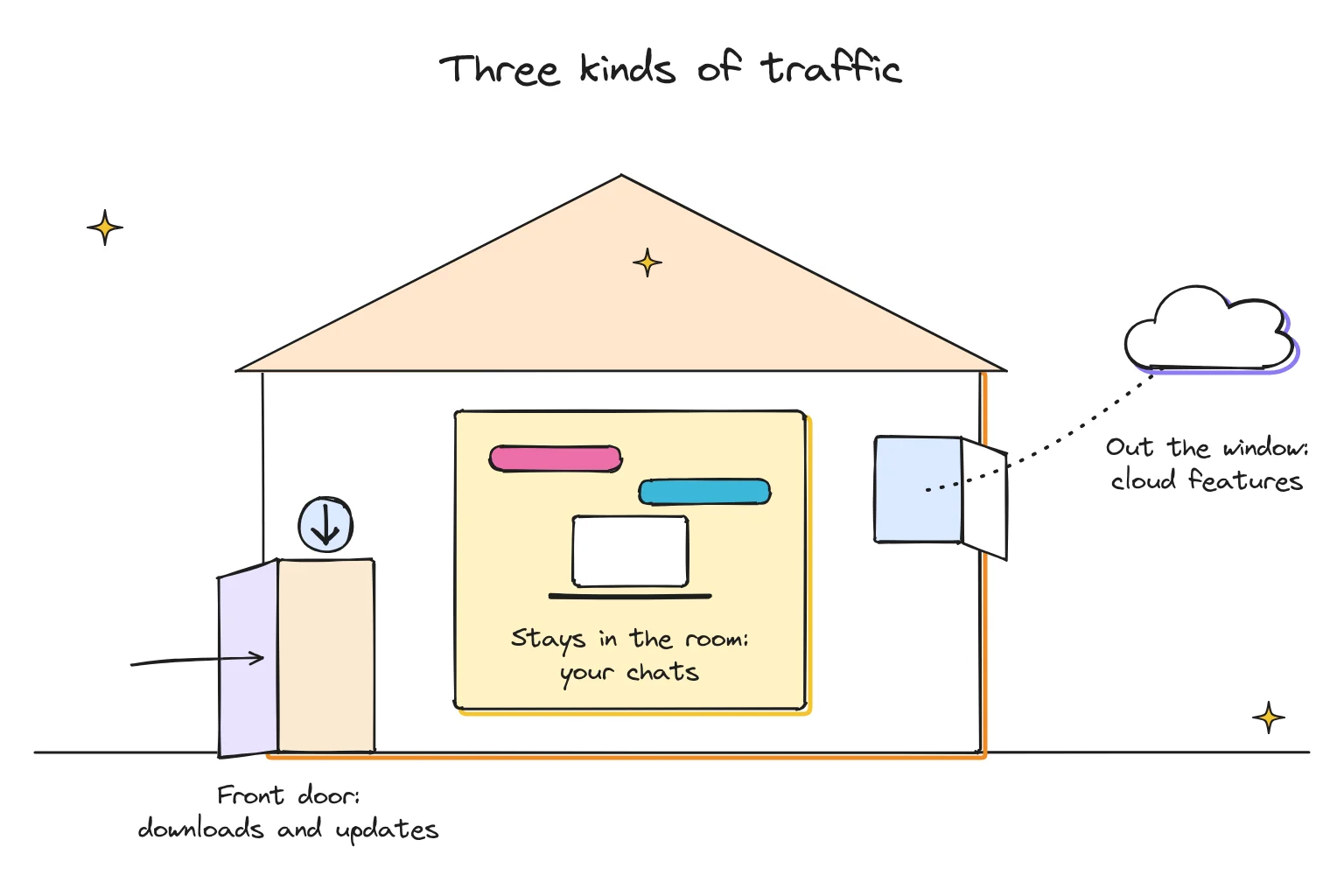
- Stays in the room (local). Chatting with a downloaded model, reading your documents, running a local server. Your words stay on the machine.
- Through the front door (housekeeping). Model searches and downloads, app and engine updates. Your prompts are not part of this, but the app does talk to the internet.
- Out the window (cloud or hybrid). Cloud-hosted models, web search, remote APIs and optional statistics. Something you type, or something about how you use the app, leaves your device.
The goal is not zero traffic. It is knowing when you are in zone 3.
App by app
| App | Chat with a downloaded model | Housekeeping traffic | Optional cloud or data sharing | How to tighten it |
|---|---|---|---|---|
| Ollama | Local. Ollama says it does not see your prompts when you run locally | Model pulls; automatic update downloads on macOS and Windows | Cloud-hosted models and web search; sign-in uses a key pair with ollama.com | Set OLLAMA_NO_CLOUD=1 or "disable_ollama_cloud": true in ~/.ollama/server.json |
| LM Studio | Local, including chat with documents and the local server | Model search and downloads (for example to huggingface.co), runtime downloads, update checks | Remote MCP servers if you add them | Download models first, then work offline; add only MCP servers you trust |
| Open WebUI | Local when connected to a local engine such as Ollama | Version update checks; embedding and Whisper model downloads from Hugging Face | Any external APIs, web search, OAuth or tools you configure | OFFLINE_MODE=true (prepare models first). The docs say this does not block outbound connections on its own |
| AnythingLLM | Local with a local model | Model downloads from its own CDN | Anonymous usage telemetry via PostHog, on unless you opt out | Sidebar → Privacy, or DISABLE_TELEMETRY=true |
| GPT4All | Local | Model downloads | "Datalake" sharing of chats (off by default); Nomic Embed API for documents (off by default) | Leave both off |
| Jan | Local; chats and logs stored on your computer | Model downloads | Remote APIs such as OpenAI, if you add them | Only add remote providers you mean to use |
From each app's own documentation, FAQ or README, checked October 2026. We did not monitor network traffic; this is what the projects say.
Takeaway: the biggest privacy risk is not a hidden switch. It is picking a cloud model, a remote tool or a web-search option by accident, then forgetting you did.
The cloud-model trap
Several local apps now sit cloud models right next to local ones. Ollama's FAQ is clear about the difference: locally, it does not see your prompts; with its cloud-hosted models, it processes your prompts and responses to provide the service, and says it does not store, log or train on that content. That is a reasonable cloud policy, but it is still cloud. Our Ollama Cloud guide explains the options.
Jan's privacy page makes the same point about remote APIs: if you use one, your data travels to that provider and falls under its privacy policy.
Label every model you use. Local, cloud or hybrid. If you cannot tell, assume cloud until you check.
Five checks before you trust a local setup
- Try an offline smoke test, not a privacy audit. Download the model and any required components first. Disconnect all network routes you can use, including Wi-Fi, Ethernet and a phone hotspot, then try a fresh, simple prompt with a model marked local. A response is useful evidence that this task can work without a live cloud request; it does not prove that the app never sends telemetry, syncs later or uses online tools in another mode. If it fails, check missing downloads, sign-in requirements and tool settings before concluding that the model itself runs in the cloud.
- Read the model list. Look for words such as "cloud", "remote", "API" or a provider name beside the model you picked.
- Turn off what you do not use. Telemetry in AnythingLLM, cloud features in Ollama, remote providers in Jan.
- Check who can reach your app. Ollama listens only on your own computer (127.0.0.1, port 11434) unless you change
OLLAMA_HOST. Sharing it on your network, or through a tunnel, is a deliberate choice. - Add only tools you trust. LM Studio's documentation warns that some MCP servers can run code, read local files and use your network.
We did not monitor these apps' network traffic. The steps above are basic checks to help you spot an unexpected online dependency, not a network-traffic audit or proof of zero data leaving your device. For sensitive work, review the app's current documentation, connected tools and settings as well.
Choose strict offline if…
- You work with health letters, legal paperwork or anything you would not email to a stranger.
- You want an emergency kit that works without internet. Our offline AI for emergencies guide covers that.
Download your models and any document-reading components first, then disconnect. Open WebUI's docs warn that offline mode blocks missing model downloads, so a fresh install can fail on its first document if you skip that step.
Choose hybrid on purpose if…
- You want web search or a much larger model for some tasks.
- You are happy for those specific prompts to go to a provider whose terms you have read.
Keep sensitive work in a separate chat, workspace or app that has no cloud models switched on. Our guide on what happens before you upload a document helps you decide what belongs where.
Setting this up at work? See a safe setup for business files.
Frequently asked questions
Does Ollama send my prompts to ollama.com?
Not when you run models locally, according to Ollama's FAQ. Cloud-hosted models are processed on Ollama's servers, and you can disable cloud features with OLLAMA_NO_CLOUD=1.
Does LM Studio work offline?
Yes, once models are downloaded. LM Studio says chatting, chatting with documents and its local server need no internet; model search, downloads, runtime downloads and update checks do.
Does AnythingLLM have telemetry?
Yes. AnythingLLM collects anonymous usage information through PostHog unless you turn it off in the Privacy settings or set DISABLE_TELEMETRY to true.
Is turning off Wi-Fi enough to prove a model is local?
Not on its own. If a model marked local answers with Wi-Fi, Ethernet and any hotspot disconnected, that is useful evidence the task can run without a live cloud request. It is not proof that nothing is sent: the app may still send telemetry, sync later or use online tools in another mode.
How we researched this: a documentation-based guide, not a network-traffic audit. Sources checked October 31, 2026: Ollama FAQ (cloud features, local-only mode, updates, network binding) · LM Studio offline operation and MCP documentation · Open WebUI offline mode documentation · AnythingLLM README (telemetry) · GPT4All settings documentation · Jan privacy page. Illustrations are AI-generated artwork and do not depict a tested product.