Checked October 31, 2026 · Label: Local or hybrid, depending on the server
Short answer: MCP (Model Context Protocol) is a common way to plug tools into an AI app, so a model can read a folder, search the web or call a service. Each tool is provided by an "MCP server", which is a program you install or connect. That is where the risk lives: the protocol's own security guide says local MCP servers can run code with the same privileges as the app, read your files and reach the network. Start with one read-only tool from a source you trust, in a folder that holds nothing precious.
Our AI harness guide explains how a model, the app around it and its tools fit together. This page is the practical safety layer for when you first add tools to a local setup.
This guide follows one reader: someone running LM Studio on a family laptop who has seen an "Add to LM Studio" button for an MCP server and wants to try it without regretting it.
MCP in plain English
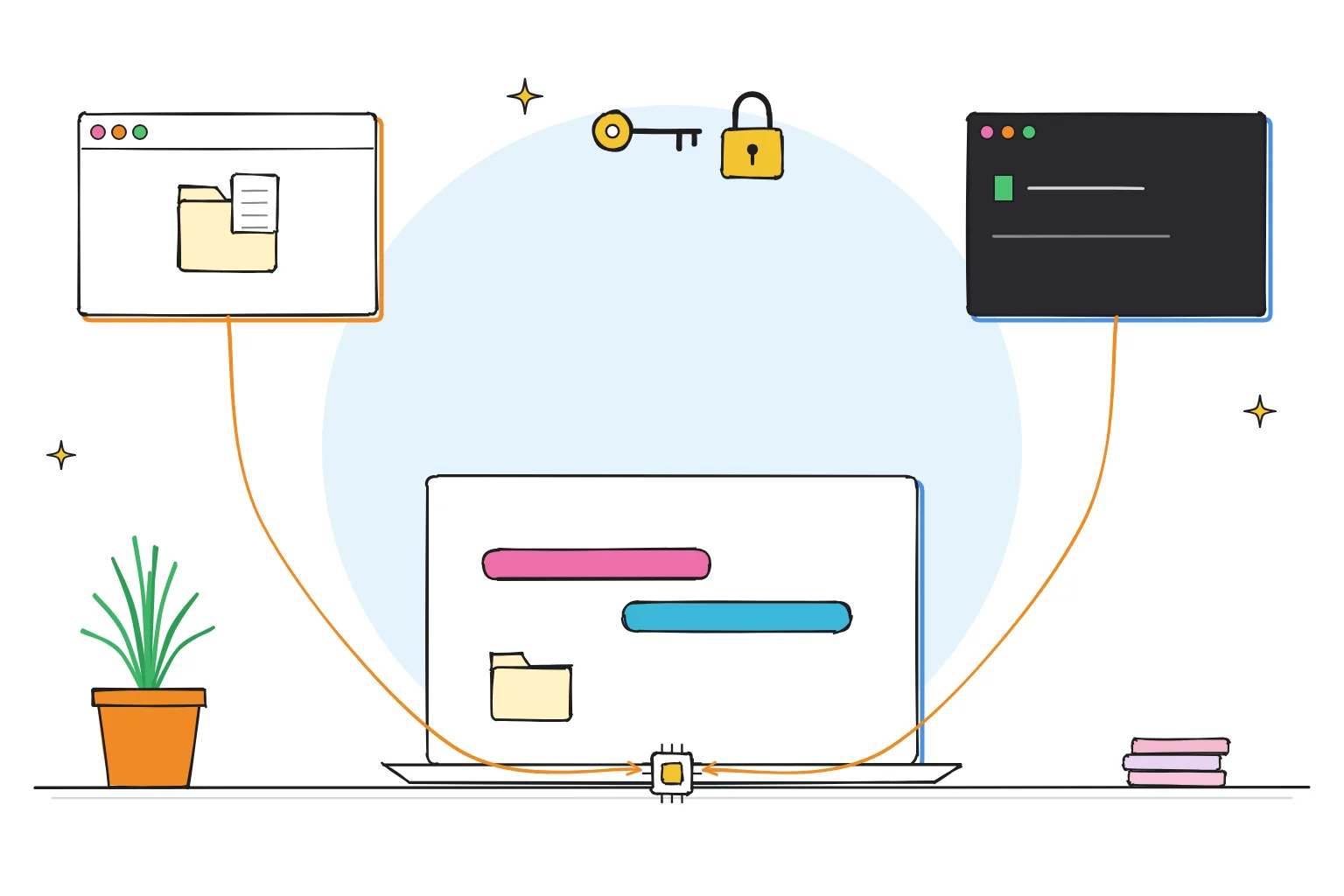
Think of it like a power outlet for tools.
- The host is your AI app. LM Studio has acted as an MCP host since version 0.3.17, and supports both local and remote servers.
- An MCP server is a small program that offers tools: "list files", "read a file", "search", "create a calendar event".
- The model asks for a tool; the app runs it and hands back the result.
The model never touches your files directly. The server does, with whatever access you gave it.
| Kind of MCP server | Where it runs | What it can reach | Label |
|---|---|---|---|
| Local server (started on your computer) | Your machine | Whatever your user account can reach: files, network, other programs | Local (but may still go online) |
| Remote server (a web address) | Someone else's servers | What you send it, plus any account you connect | Hybrid |
Based on the MCP security best practices and LM Studio's MCP documentation, checked October 2026.
Takeaway: a "local" MCP server is not automatically private or safe. It is a program on your computer, and it can do whatever programs can do.
What can go wrong
The MCP project's own security guide is unusually frank. For local servers it lists:
- Arbitrary code execution: a server, or a startup command hidden in a configuration, can run any command your account can run.
- Data exfiltration: a malicious server could read files and send them elsewhere. The guide's example is a command that quietly posts an SSH key to a website.
- Data loss: a buggy or malicious server could delete files.
- Command obfuscation: a long, complicated command can look harmless.
LM Studio's documentation gives the same warning in a sentence: some MCP servers can run arbitrary code, access your local files and use your network connection, so never install them from untrusted sources.
There is a quieter risk too. A tool can return text, from a web page or a document, that contains instructions aimed at the model. A model that follows them might try to use your other tools. Keeping powerful tools switched off is the simplest defense.
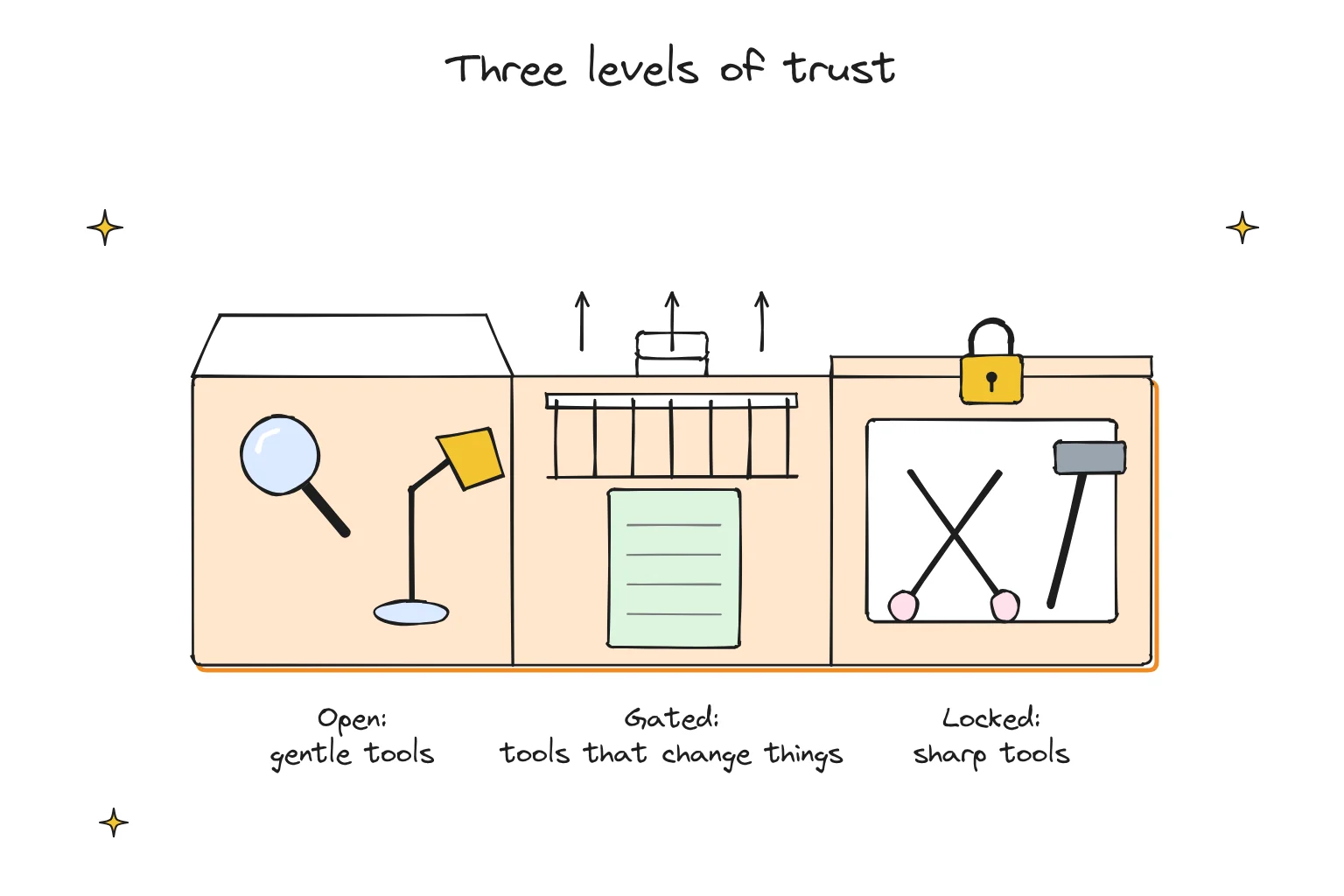
Three levels of trust
| Level | Example tools | Start here? | Safeguard |
|---|---|---|---|
| Look | Read files in one folder, search a local notes index, fetch a public web page | Yes | Point it at a single test folder |
| Change | Write or move files, add calendar events, send a message | After a week of "look" | Require approval for every call |
| Run | Run shell commands, install packages, control a browser, act with your accounts | Not on a family machine | Separate user account, container or spare computer |
Editorial framework based on the least-privilege advice in the MCP security best practices.
A safe-start checklist
- Pick a known source. An official server from the service it connects to, or a well-known open-source project. Avoid random links in comments and chats.
- Read the exact command before saving. The MCP guide says clients should show the full command, without truncation, before connecting a new local server. If your app shows it, read it. Look for
sudo,rm,curlposting data, or paths into your home folder. - Start read-only, in one folder. Make a folder such as
Documents/ai-sandboxwith a few non-sensitive files, and give the tool only that. - Keep approvals on. If the app asks before running a tool, say yes to the prompt, not "always allow".
- Prefer local over remote for private files. A remote server sees what you send it.
- Use the least access a token allows. If a server needs a key for a service, create one with the narrowest permissions, and do not paste your main password anywhere.
- Remove what you do not use. Delete unused servers from your
mcp.jsonor settings. - Keep powerful tools on a separate machine or account. The MCP guide recommends sandboxing and restricted access to files and network for local servers.
A practical note for local models
Tools are hungry. LM Studio's documentation warns that some MCP servers were designed for big cloud models and can use excessive amounts of tokens, bogging down a local model and causing frequent context overflows. Ollama's documentation suggests at least 64,000 tokens of context for agents and tool use.
On a 16GB laptop that usually means a smaller model with a larger context window, and only one or two tools at a time. Our context guide explains the trade-off.
Choose to try MCP if…
- You have a clear, small job, such as "find the right recipe in my notes folder".
- You are comfortable reading a short configuration file.
- You can give it a sandbox folder.
Wait a while if…
- The laptop is shared and holds family photos, banking documents or work files with no backup.
- The only servers that interest you need to run commands or act with your accounts.
- You are still on your first week of local AI. Get comfortable with plain chat first.
Adding a server in LM Studio, carefully
LM Studio follows Cursor's mcp.json format. In the right-hand sidebar, open the Program tab, then Install → Edit mcp.json. Each entry is either a command that starts a local server or a URL for a remote one, sometimes with a token in a header.
Before you save:
- Is the command or URL from the project's official page?
- Does any token have the narrowest permissions possible?
- Would you be comfortable if this program read everything in the folders you allowed?
If any answer is "not sure", do not save it yet.
Frequently asked questions
What is MCP in AI?
MCP, the Model Context Protocol, is a standard way for AI apps to connect to tools and data. The app is the host; each tool comes from an MCP server you install or connect.
Is MCP safe to use?
It depends on the servers. The MCP project warns that local servers can execute code, access files and reach the network with the app's privileges. Use trusted sources and the least access possible.
Does LM Studio support MCP?
Yes. LM Studio has acted as an MCP host since version 0.3.17 and supports local and remote servers through an mcp.json file.
Do MCP tools work with small local models?
They can, but tools use a lot of context. LM Studio warns some servers can overwhelm a local model; keep to one or two tools and raise the context window if memory allows.
How we researched this: a documentation-based safety guide, not a hands-on test of any MCP server. Sources checked October 31, 2026: Model Context Protocol security best practices (local MCP server compromise, scope minimization) · LM Studio MCP documentation · Ollama context-length documentation. Illustrations are AI-generated artwork and do not depict a tested product.